
Sending a Reminder Manually
With Apptoto, you have the choice between sending messages to your clients, prospects, or patients manually (as outlined below) or using Auto Messages. Sending messages manually is a good way to test your message templates and get familiar with how Apptoto works before letting the system run automatically.
Manual messages utilize the same message templates you create for auto messages, but you must intentionally send the messages yourself using the process below.
Steps to Send Manual Messages
Section titled “Steps to Send Manual Messages”-
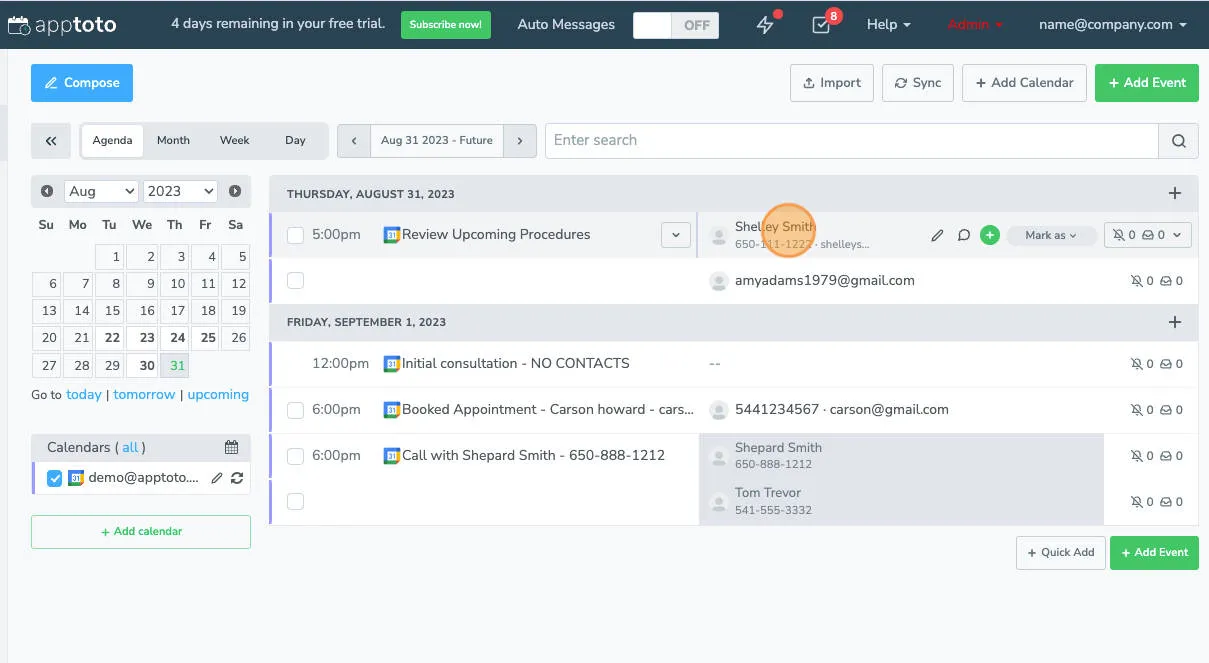
Open the Appointments tab, to see all your upcoming appointments listed on the agenda view. Click the Participant that you would like to send a reminder to.
-
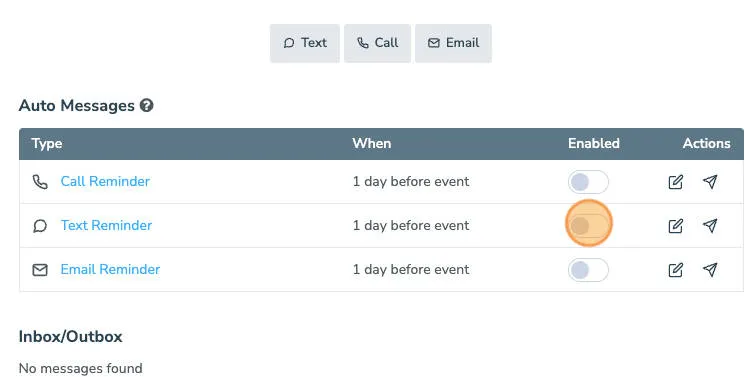
This opens the participant’s message panel, which shows available message templates for that appointment. Toggle the message on to enable it. This will schedule the message to send when you have it set to be delivered.
-
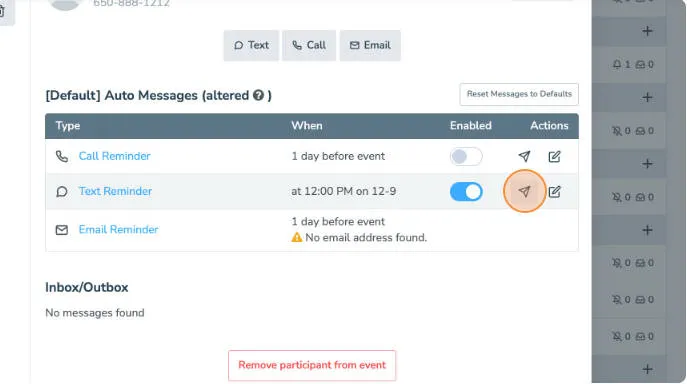
If you want to send the message immediately instead (without waiting for the scheduled time), click on the Send Now button (which looks like a paper airplane).
-
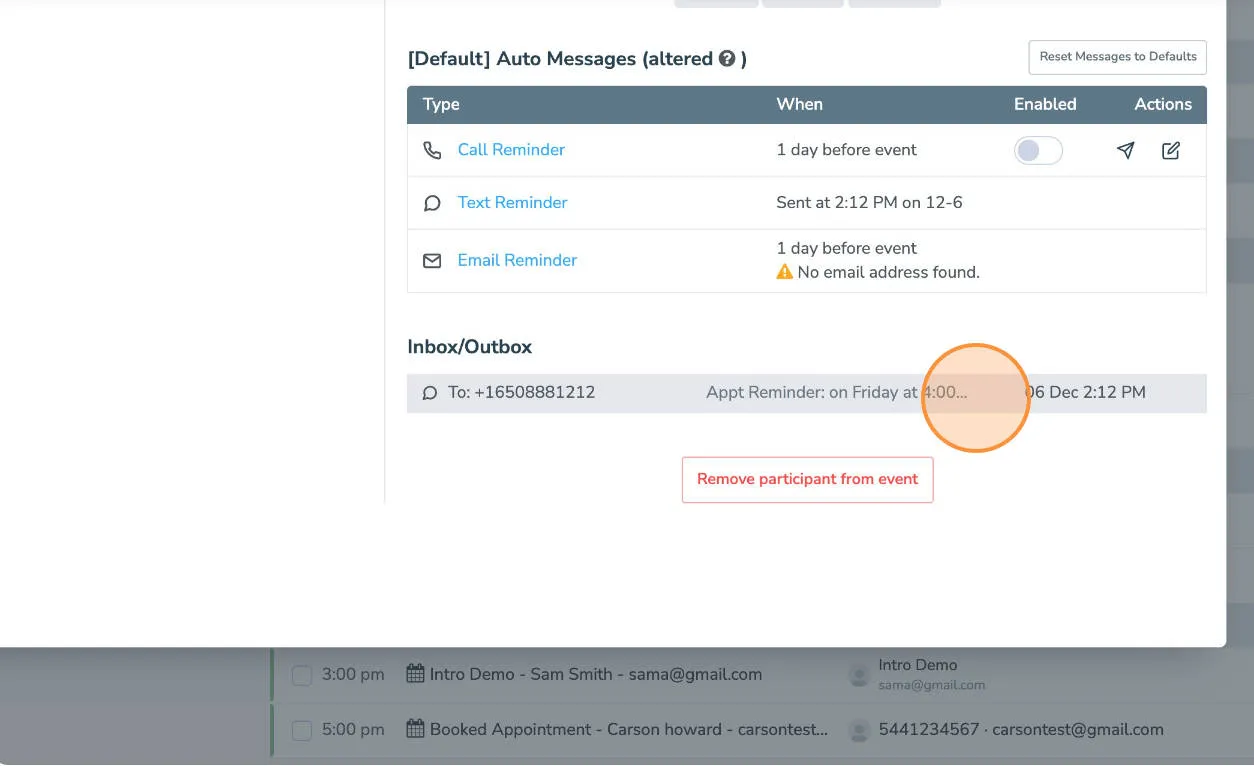
Once the message has been sent, you can expand the message to see exactly what was sent.
Manual vs. Auto Messages
Section titled “Manual vs. Auto Messages”| Manual | Auto | |
|---|---|---|
| Requires you to click | Yes | No |
| Uses the same templates | Yes | Yes |
| Runs on a schedule | No | Yes |
| Works per participant | Yes | Yes (across all appointments) |
Manual sending is useful for one-off situations — last-minute reminders, participants with missing contact info, or appointments that don’t fit your standard rules. For day-to-day operations, you’ll want to set up auto messages.
What’s next
Section titled “What’s next”Once you’re comfortable with how messages look and send, configure your auto message rules so Apptoto can handle reminders without any manual work.