
Connect Your Address Book
Why connect your address book
Section titled “Why connect your address book”Connecting your address book to Apptoto offers multiple benefits, from syncing contacts to simplifying communication and appointment management.
When Apptoto reads an appointment from your calendar, it looks at the event details to identify participants. If you have automatic contact matching enabled and an address book connected, Apptoto can automatically match a participant’s name to their contact record and retrieve their phone number or email (even if that information wasn’t added to the event itself).
You can also use your address book as a source for Address Book Campaigns, where you send SMS or email messages to specific groups of contacts.
Add an Address Book
Section titled “Add an Address Book”-
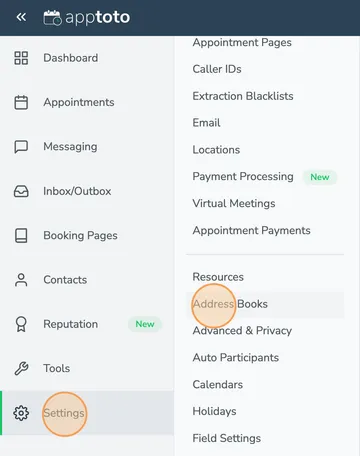
To connect an Address Book to Apptoto, click Settings and then Address Books.
-
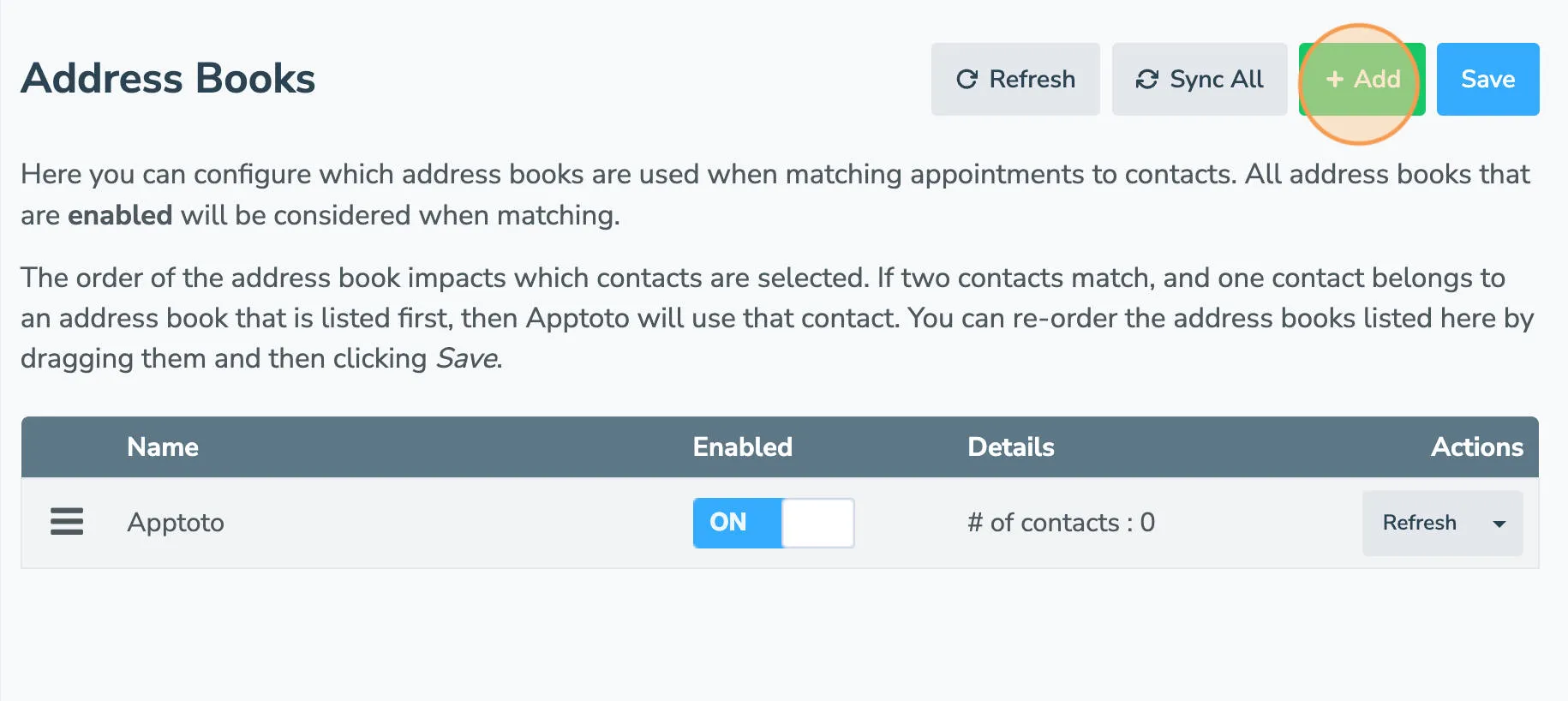
Click Add.
-
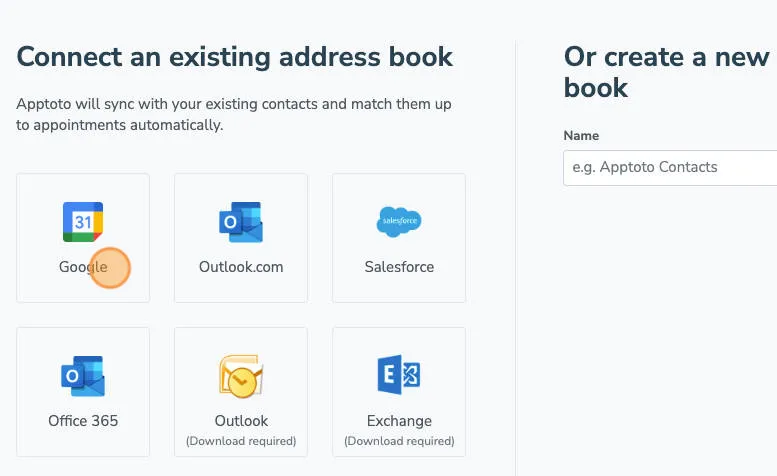
Click on the type of Address Book that you use.
-
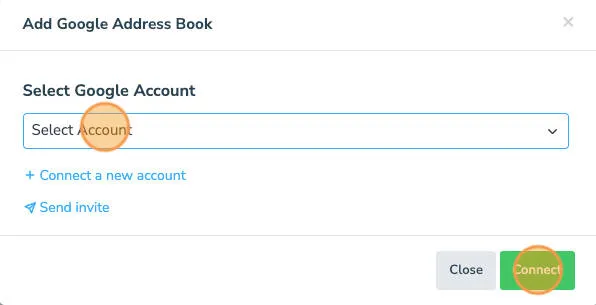
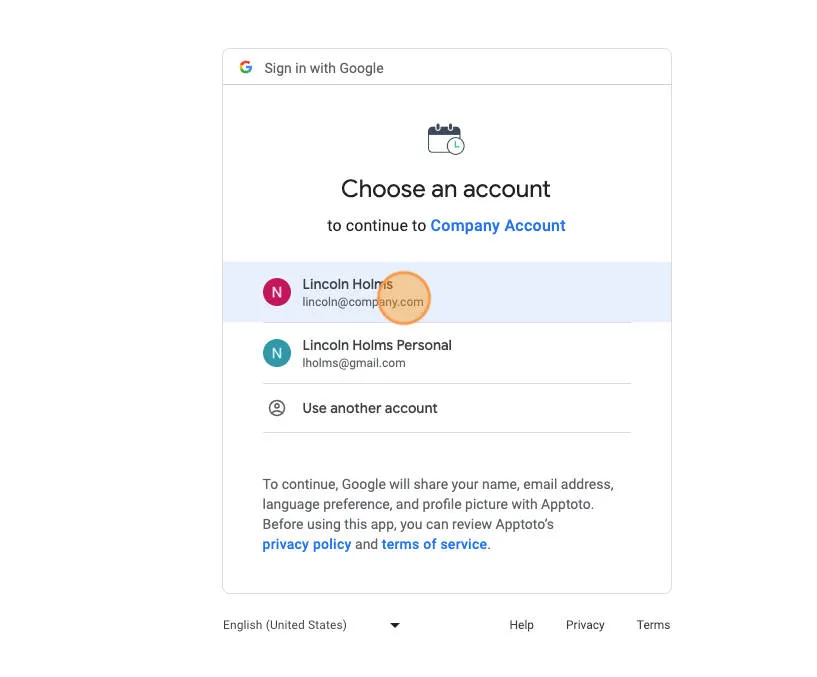
A screen will appear asking you to choose from an existing Google account or to connect a new one.
-
For Google, choose the Google account that owns your address book and verify using your login credentials.
Note: If you cannot connect a Google Address Book, please make sure you’ve granted Apptoto access to your Google Calendar and Contacts.
-
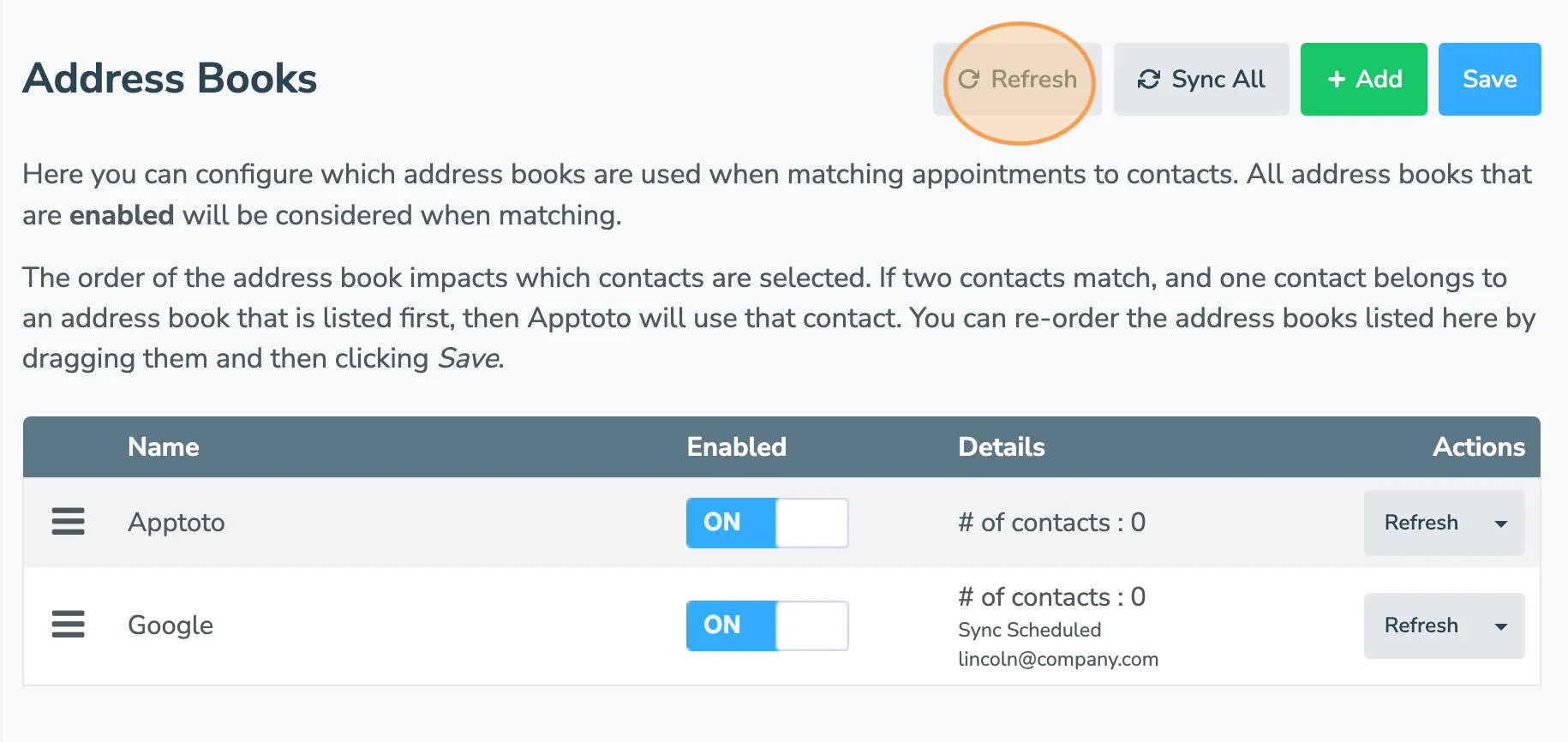
At this point, your Address Book will begin syncing with Apptoto. Click Refresh to see how many contacts have synced into your account.
-
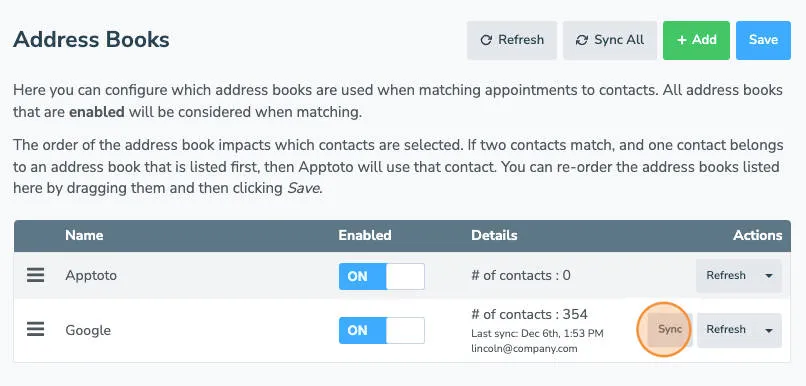
Your address book will be synced automatically once an hour. If you need Apptoto to sync more often, you can click the Sync button on the Settings > Address Books tab.
What’s next
Section titled “What’s next”With your calendar and contacts connected, let’s confirm your appointments are showing in the Appointments agenda tab as expected.