
Connecting your Payment Processor
To connect your Payment Processor to Apptoto, navigate to the Settings > Payment Processing tab and click on one of the processor buttons to start the Authorization flow.
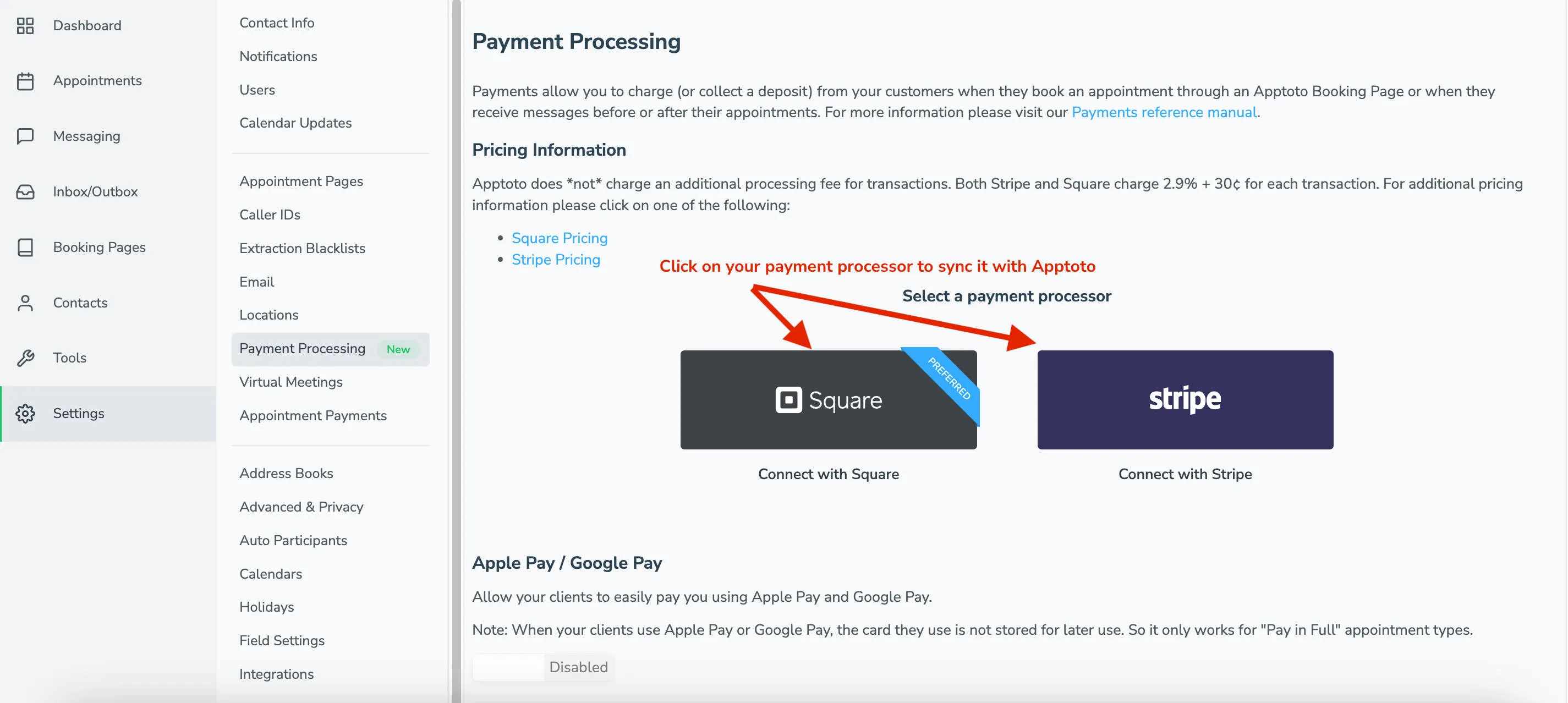
Apptoto integrates with Square and Stripe to process credit card payments. You must have an active account with one of these providers before connecting. Square is Apptoto’s preferred vendor.
Apptoto currently only supports payments in USD.
Connect your processor
Section titled “Connect your processor”- Navigate to Settings > Payment Processing.
- Click your preferred payment processor to start the “Authorization Flow.” You should see a screen asking if you want to grant permission for Apptoto to access your account. Please accept the authorization.
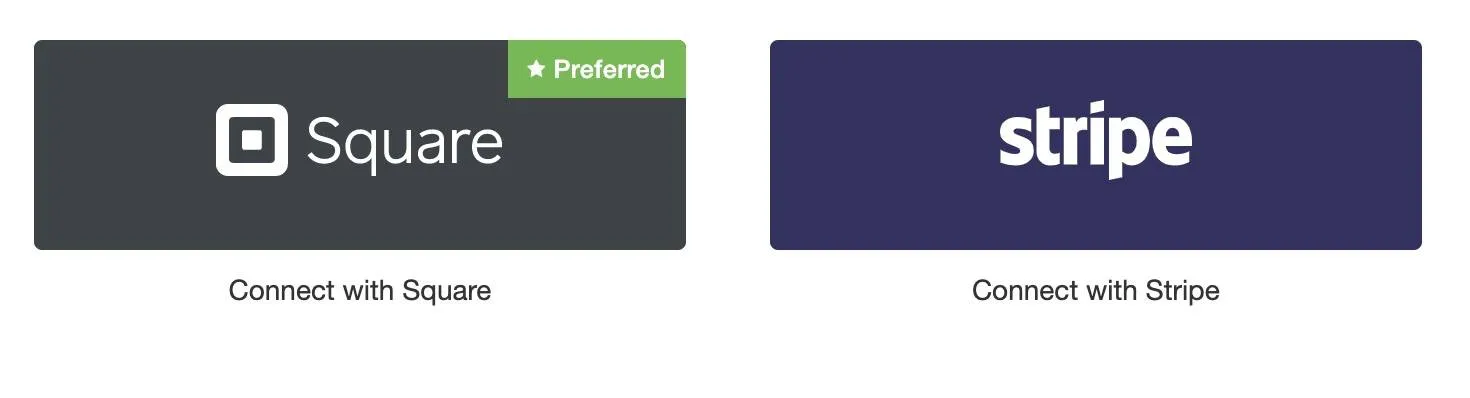
- Review the permissions and accept the authorization. Apptoto will redirect you back when the connection is complete.
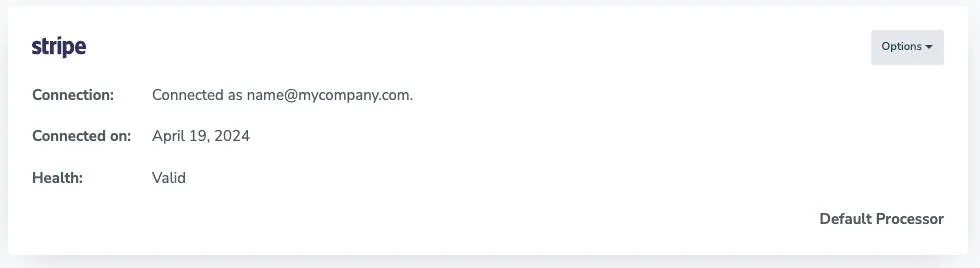
- Confirm the connection with Apptoto. Your connected processor will appear as a listed account on the Payment Processing page, showing its name, status, and an Options dropdown.
Multiple payment processors
Section titled “Multiple payment processors”You can connect multiple payment processors to Apptoto, but only one can be the default at a time. Use the Option dropdown next to any processor to set it as the default.
Disconnect a Payment Processor
Section titled “Disconnect a Payment Processor”- Open the payment processor settings by navigating to Settings > Payment Processing.
- Click the Options dropdown next to the processor you want to disconnect.
- Select Disconnect from the dropdown menu.
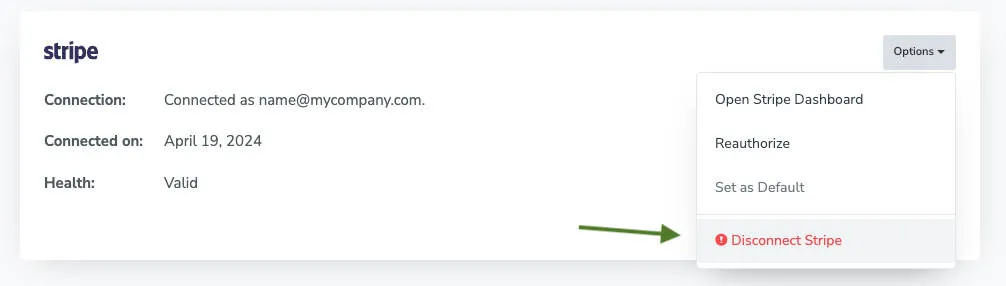
You can also revoke Apptoto’s access from inside your payment processor’s own dashboard. Either approach stops Apptoto from processing future charges through that account.
Next Steps
Section titled “Next Steps”Once you’ve connected your Payment Processor, the next step is to set up payments on your booking pages or sign up pages.