
Manual Review Requests
When it comes to collecting client reviews for your business in Apptoto, you have several options!
Enabling automated review requests using Reputation Management is the simplest way to launch reviews. With Reputation Management, you link your preferred third-party Review sites, set the timing for when and how often you’d like clients to be sent a review request after an appointment, and launch. Apptoto will direct your clients to an Apptoto review site, thank them for their feedback, and offer them the opportunity to leave a public review.
However, as outlined below, you can also utilize alternative, slightly more “manual” ways to send automated review requests. They utilize Auto Messages (specifically Follow Ups).
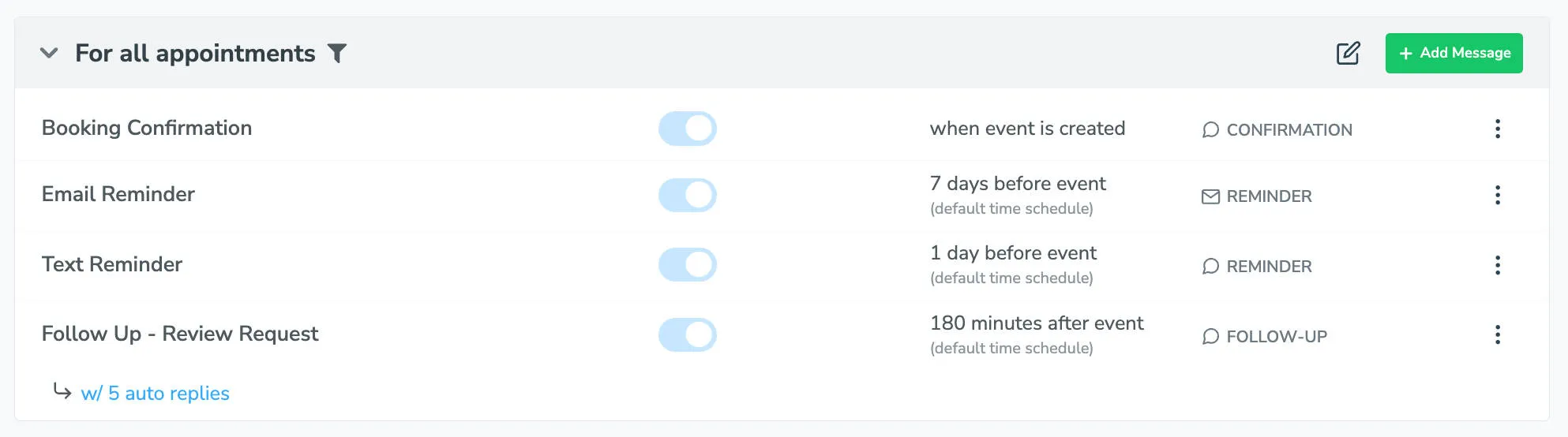
Review Requests: 1-Step Follow-Up
Section titled “Review Requests: 1-Step Follow-Up”If you already have Appointment Auto Messages set up to send booking confirmations and appointment reminders, you can also add a follow-up review request.
Apptoto will send a follow-up review request after every appointment that meets your Messaging Rules (regardless of how the appointment went). As a result, your business may receive an influx of both positive and negative reviews.
To add a follow-up review request:
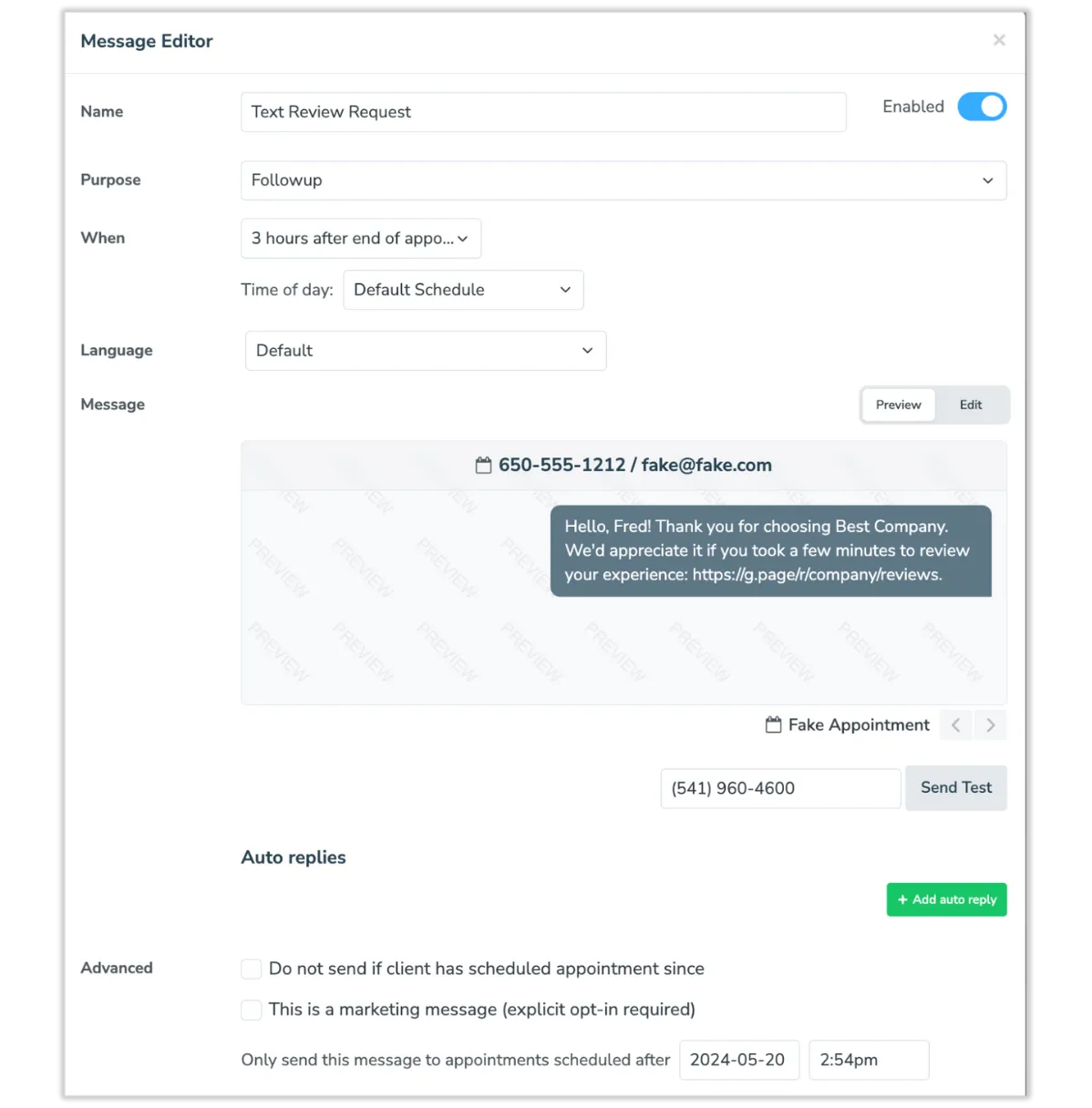
- Log in to Apptoto and navigate to Messaging > Appointment Auto Messages.
- Click “+Add Message” and select text or email based on your preference.*
- Name your Review Request message.
- Select “Followup” as the message Purpose.
- Choose how long to wait after an appointment before sending the review request.
- Click “Edit” to adjust the review request message.
- If you’re using liquid variables to personalize your message (e.g., Client Name =
{{participant.name}}), use the Fields button to ensure they are added appropriately. - Add the link where you’d like clients to submit reviews, anywhere that
{{Review Link}}is listed.
- If you’re using liquid variables to personalize your message (e.g., Client Name =
- Adjust any remaining settings as preferred, then click “Done and Save.”
- On the Rules page, click “Save” again near the top right-hand corner.
- These directions assume you have one Appointment Auto Message rule set up. If you have multiple rules, you can create a Follow-Up review request for each rule, or a single generic review request for all appointments.
Review Requests: Followup + Auto Replies
Section titled “Review Requests: Followup + Auto Replies”Sending follow-up messages with auto-replies is a great way to collect customer reviews and address unhappy customers’ feedback and needs.
This strategy uses a follow-up message asking the client to rate their experience. Based on their response, Apptoto will send an auto-reply.
You can thank your clients for their feedback and let them know the next steps. Keep in mind that if you want to direct clients to leave a review, you need to offer everyone the opportunity to leave a public review, regardless of their rating (per FTC and Google guidelines)
To get started:
- Log in to Apptoto and navigate to Messaging > Appointment Auto Messages.
- Click “+Add Message” and select text or email based on your preference.*
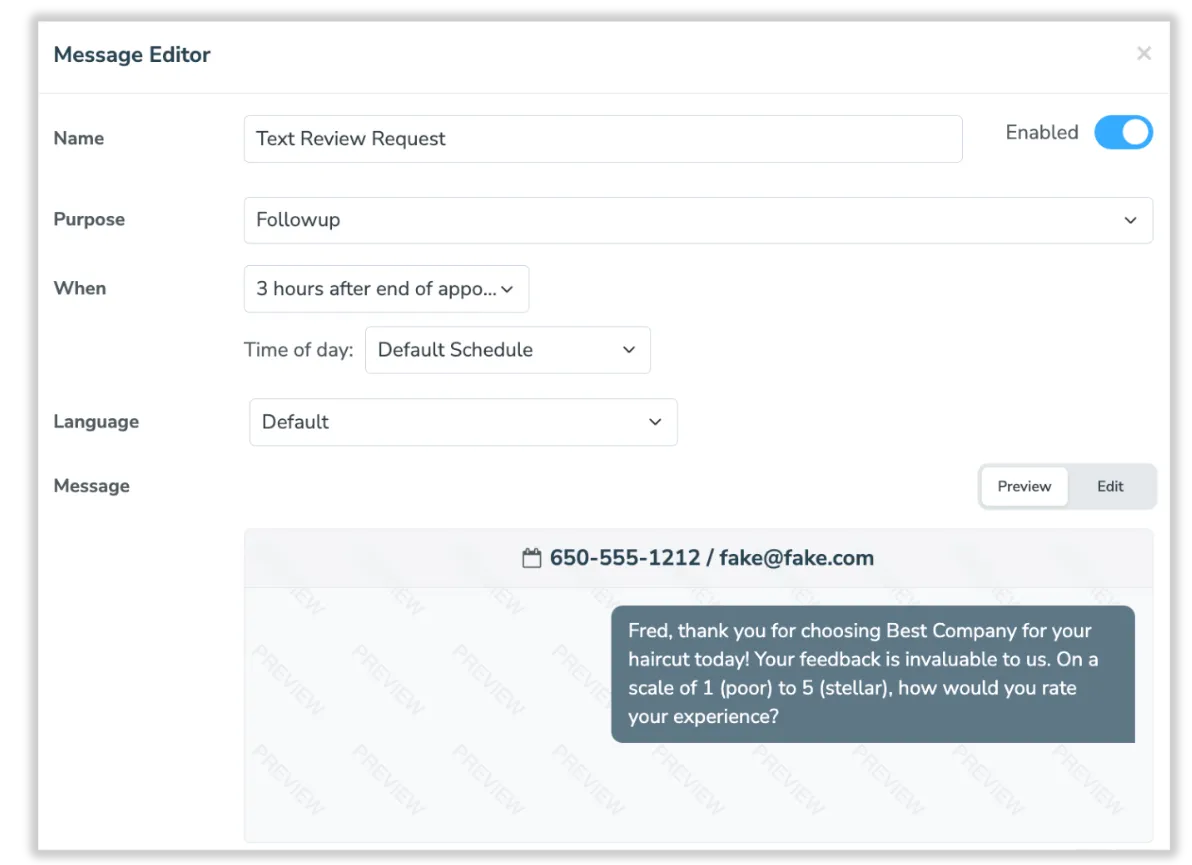
- Name your Review Request message.
- Select “Followup” as the message Purpose.
- Choose how long to wait after an appointment before sending the review request.
- Click “Edit” to update the message.
- Enter your review request message similar to the “Initial Ask” message in the “Crafting Effective Review Requests Templates” section above.
-
Update fields as necessary to ensure message personalization works properly.
-
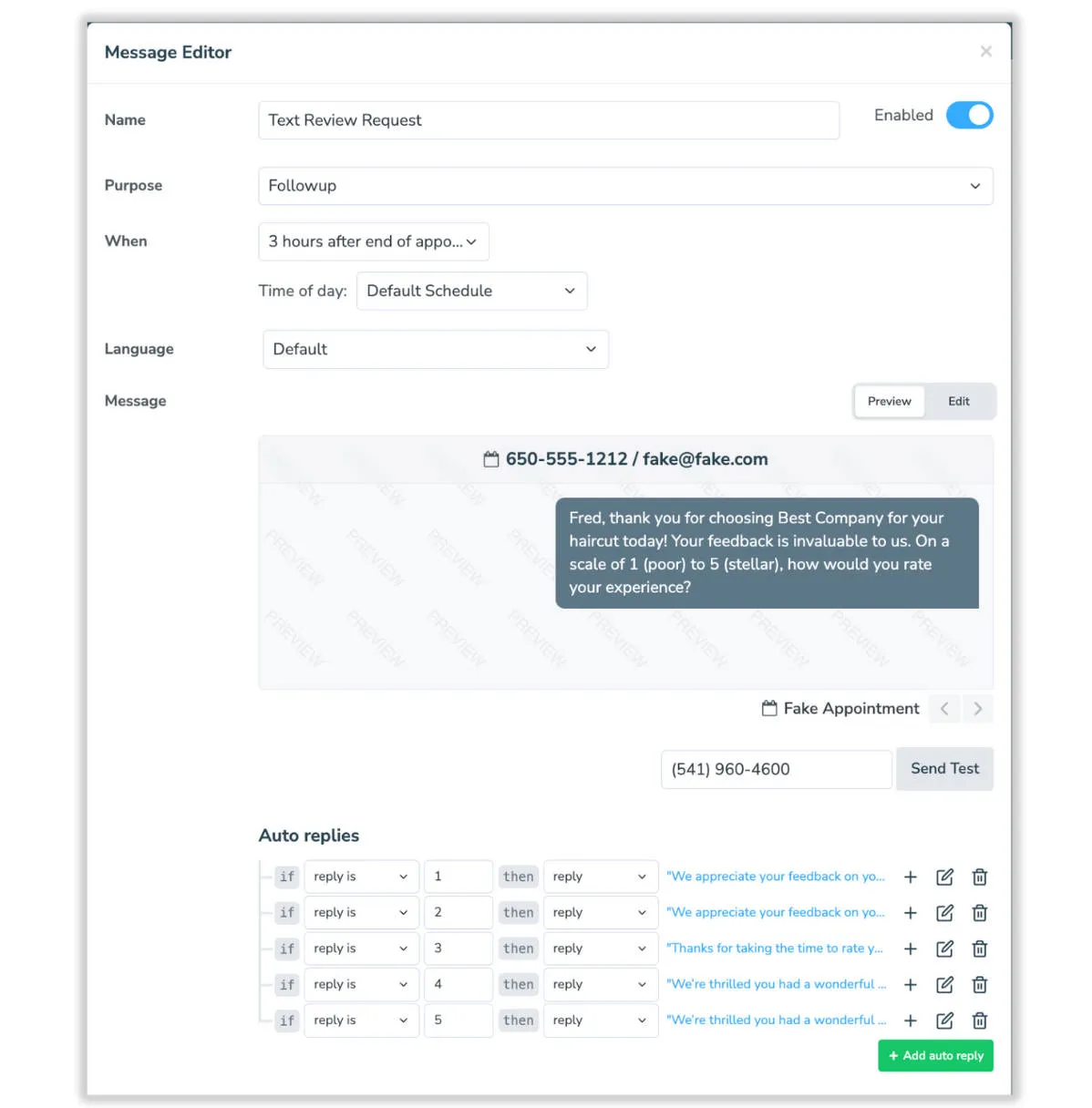
- Under the Auto Replies section, click +Add auto reply.
- Set up rules for your Review Request responses, specifying the actions you want Apptoto to take based on the responses you receive. There will be a blue “Click_to_Edit” link you’ll need to select to adjust your Auto Reply messages.
- For example, if you’re using a 1-5 ranking system, you might consider setting up 5 auto-response rules as follows:
-
If Reply is 1 then Reply > “We appreciate your feedback and thank you for your honest feedback that your experience did not meet your expectations. Please feel free to respond to this message directly to get assistance from a member of our team. You can also leave public feedback here: https://g.page/r/ABC123.”
-
If Reply is 2 then Reply > “We appreciate your feedback and thank you for your honest feedback that your experience did not meet your expectations. Please feel free to respond to this message directly to get assistance from a member of our team. You can also leave public feedback here: https://g.page/r/ABC123.”
-
If Reply is 3 then Reply > “Thank you for sharing your feedback with us. We appreciate you taking the time to let us know about your experience. If there’s anything we can do to help, please reply directly to this message and a member of our team will assist you. You can also leave public feedback here: https://g.page/r/ABC123“
-
If Reply is 4 then Reply > “Thank you for your feedback! We’re so glad you had a positive experience and appreciate you taking the time to share it with us. If you’d like to leave a public review, you can do so here: https://g.page/r/ABC123“
-
If Reply is 5 then Reply > “Thank you for your feedback! We’re so glad you had a positive experience and appreciate you taking the time to share it with us. If you’d like to leave a public review, you can do so here: https://g.page/r/ABC123“
-
- For example, if you’re using a 1-5 ranking system, you might consider setting up 5 auto-response rules as follows:
- After you’ve added all the Auto Replies you want, adjust any remaining settings. Click “Done and Save.”
- On the Rules page, click “Save” again near the top right-hand corner.
Differences Between “Manual” Review Requests and Reputation Management
Section titled “Differences Between “Manual” Review Requests and Reputation Management”Key Differences
Section titled “Key Differences”| Feature | Manual (Follow-Ups) | Reputation Management (Automated) |
|---|---|---|
| Setup Effort | Manual steps required | Minimal, rule-based setup |
| Filtering Negative Reviews | Manual auto-reply setup | Automatic, private feedback option |
| Integration with Review Sites | Links must be manually added | Direct integration |
| Analytics & Reporting | No built-in stats | Tracks requests, reviews, and sync status (for Google) |
| Customization | Full control over messaging | Rule-based automation with customization |
The manual method offers slightly more flexibility but requires manual setup and monitoring, whereas Reputation Management provides a streamlined, automated approach with built-in filtering and tracking for efficiency.