
Webhook Triggers
The When this happens setting on a webhook is the event you want Apptoto to watch for. When that event occurs, the webhook runs automatically.
Available triggers
Section titled “Available triggers”Events
- Event is created
- Event is updated
- Event is deleted
Participants
- Participant reminder state changed (any state)
- Participant confirmed
- Participant not coming
- Participant needs to reschedule
- Participant booking state changed (any state)
- Participant booking message sent
- Participant accepted booking
- Participant declined booking
- Participant replied to a message
- Participant check-in state changed (any state)
Booking pages
- Booking request is completed
- Booking request was rescheduled
- Booking page is viewed
Messages
- Message sent
- Message received
- Message failed to send or deliver*
Stoplist
- Phone number added to stoplist
- Email address added to stoplist
Payments
- Payment processed
- Payment refunded
Setting Up A Webhook
Section titled “Setting Up A Webhook”-
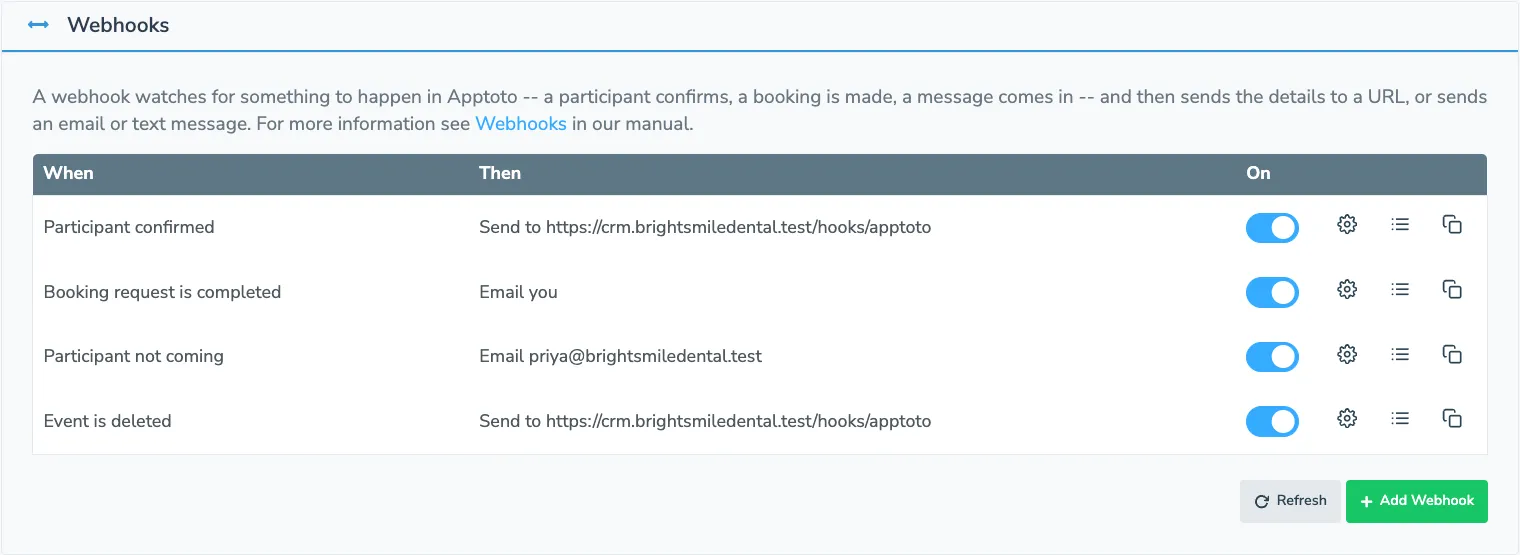
Open the “Settings”>“Integrations” tab and click on the “Webhooks” header. This will display the table of any webhooks you currently have set up, showing what each one watches for and what it does:
-
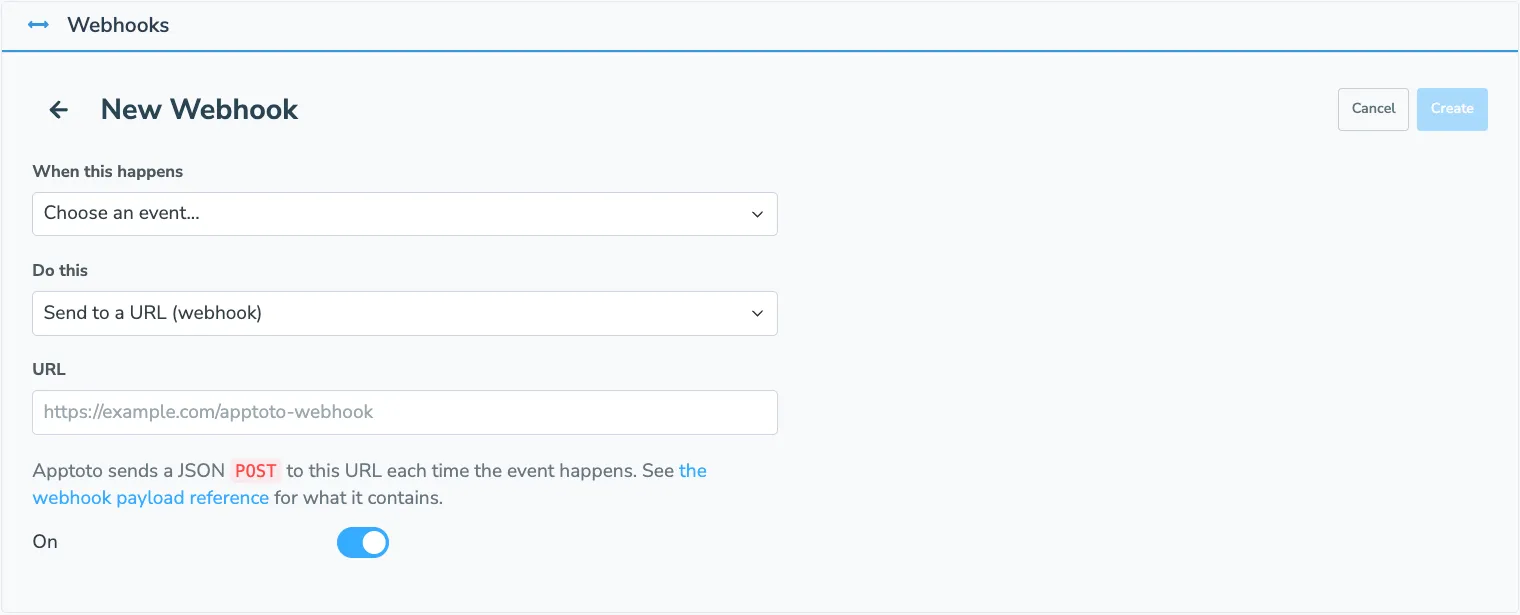
Click the “Add Webhook” button. You should be greeted with the following form:
-
Set the “When this happens” field. It is the event that you want Apptoto to monitor, for example, “Participant confirmed” will fire when a participant confirms an appointment.
-
Set the “Do this” field to choose what happens next, then fill in the fields that appear for it. See webhook actions for the options.
-
Make sure the On toggle is on, then click Create. Apptoto names the webhook for you, so there is nothing to name.
Next steps
Section titled “Next steps”See webhook actions for what a webhook can do when its event happens.