
Phone Calls
Two tabs on the AI Receptionist page cover calls:
- Phone calls - which numbers reach the receptionist, how callers get there, your office phone, when the receptionist answers, and what happens when it cannot help. It is laid out in the order a call happens.
- Voice - how it sounds: the voice, the greetings, typing sounds, and words it says wrong.
Answer phone calls
Section titled “Answer phone calls”The switch at the top of the Phone calls tab turns calls on and off for the receptionist. It is on from the start. The rest of the settings are kept while it is off, so you can set everything up before you go live.
Your number
Section titled “Your number”Your number lists the Apptoto numbers that reach this receptionist, and where each one forwards when the receptionist is not taking the call - a phone number, the calendar owner’s phone, or nowhere.
You add numbers, and choose which ones the receptionist answers, under Settings > Caller IDs. A number whose Answer calls box is unchecked there still shows here, marked as not answering.
If you do not have an Apptoto number yet, the tab says so. Reserve one under Settings > Caller IDs - it is the number your clients dial, or the one your phone company forwards your calls to.
How callers reach it
Section titled “How callers reach it”- Callers dial one of the numbers above - you give clients your Apptoto number, on your website, cards, or listing.
- I will forward my business number to one of the numbers above - clients call the number they already have, and your phone company forwards those calls to your Apptoto number. Click How to set up forwarding for the steps, or see Forwarding Your Business Phone to Apptoto.
When you choose forwarding, enter the number you forward in Your business number. To avoid a loop, the receptionist never rings that number and never transfers a caller to it - your phone company would only send the call straight back.
Office phone
Section titled “Office phone”Office phone is the phone that rings when the receptionist is not taking a call, and where it transfers callers. It starts out as the number your Apptoto number forwards to under Settings > Caller IDs. If your numbers forward to different places, it reads Wherever each of your numbers forwards.
To use a different phone, click Use a different number, type the number, and click Done. Click Change to edit it later, or clear the box to go back to where your Apptoto number forwards.
When it answers
Section titled “When it answers”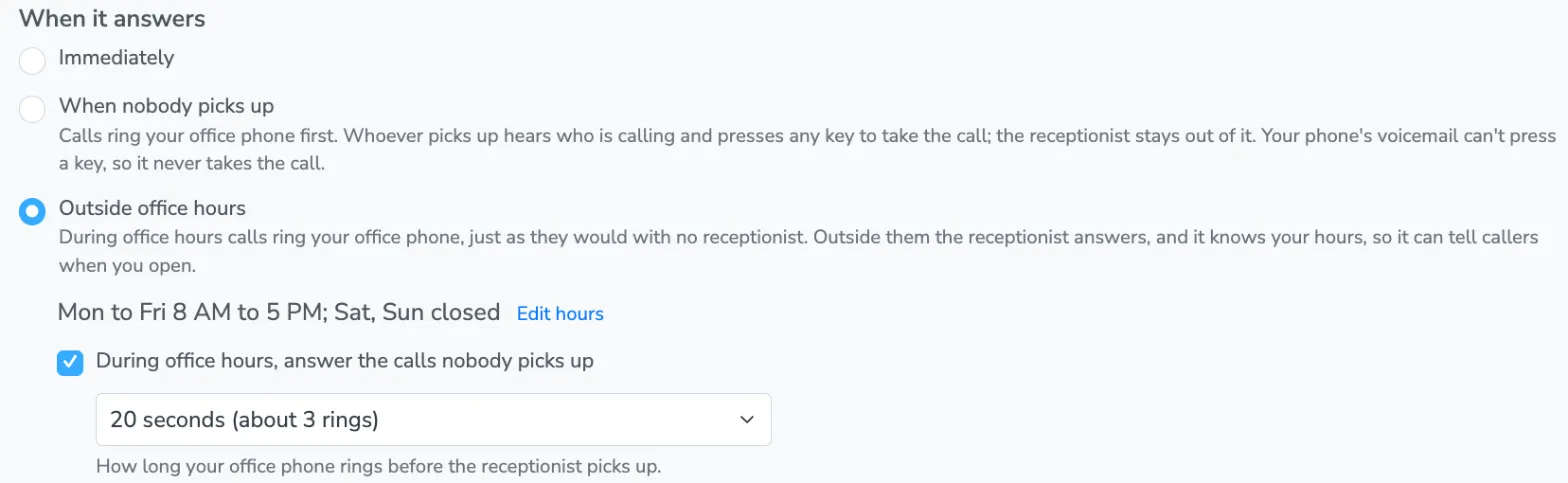
Choose one:
- Immediately - the receptionist answers every call that reaches it. If you forward your business line only when nobody answers, or only after hours, this is the one to pick: your phone company has already decided which calls get here.
- When nobody picks up - your office phone rings first.
- Outside office hours - during your office hours calls ring your office phone just as they would without a receptionist; outside them, the receptionist answers.
If there is no office phone to ring, the tab tells you, and the receptionist answers every call whichever you choose.
When nobody picks up
Section titled “When nobody picks up”An incoming call rings your office phone before the receptionist picks up. Whoever answers hears who is calling and presses any key to take the call. If nobody does that in time, the receptionist takes the call instead.
The dropdown underneath sets how long your phone rings first. Choose from 10 to 30 seconds, labeled with roughly how many rings that is.
This is the setting to use when you want a person to get first crack at every call and the receptionist to be the safety net. A call the receptionist picks up this way never transfers back to the phone that just did not answer.
If your phone company already forwards only the calls nobody answers, choose Immediately instead. Your phone has rung once by then, and ringing it again just makes the caller wait through a second round.
Outside office hours
Section titled “Outside office hours”Under Outside office hours you see your office hours, for example “Mon to Fri 8 AM to 5 PM; Sat, Sun closed”. Click Edit hours to change them, and add holidays or days with different hours under Holidays and special hours. Until you set your own, the receptionist uses Monday to Friday, 8 AM to 5 PM, in your account’s time zone.
These are your account’s office hours - the same ones on the Messaging > Office Hours tab, used by the outside office hours auto responder. Changing them here changes them there too. They are saved when you click Save.
During office hours, calls ring your office phone and the receptionist stays out of it. Check During office hours, answer the calls nobody picks up to have it take the calls nobody answers, and choose how long your phone rings first.
Outside office hours the receptionist answers straight away. It knows your hours, so it can tell callers when you open. Nobody is there to take a call, so it never transfers one - a caller who needs a person gets a message taken for the office instead.
When the receptionist cannot help a caller
Section titled “When the receptionist cannot help a caller”When the receptionist cannot help a caller, it takes a message for you, using the number they called from. You are notified wherever you already get notified about client replies.
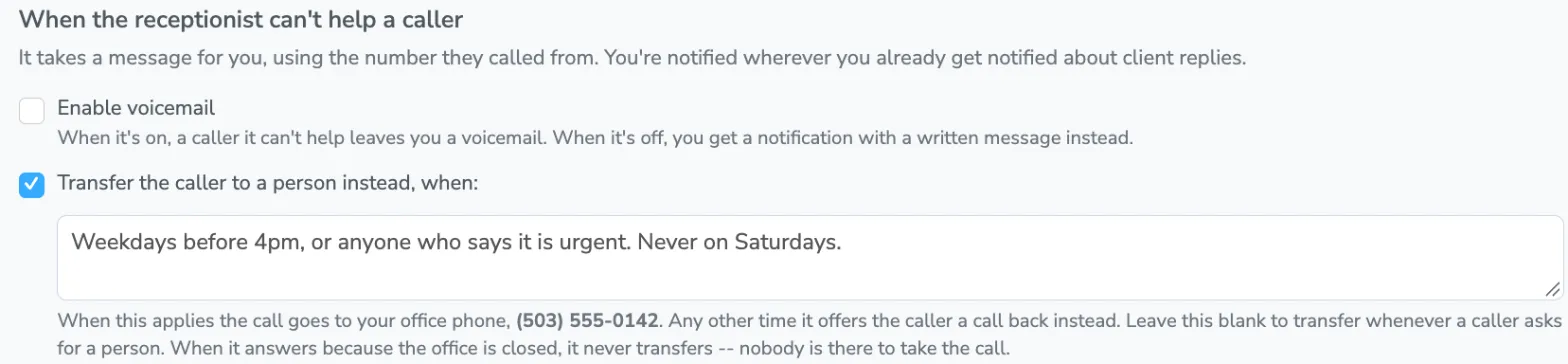
Enable voicemail decides what that message looks like:
- Off - it asks for their name and what they need, then sends you a written message. Nothing is recorded.
- On - it says it is recording a message for the office, then the caller hears a beep and speaks in their own words. You get the recording.
A caller who asks to leave a message gets the same treatment straight away, without the receptionist trying to help first.
Some callers are not asking for anything - they are running late, or their plans have changed. The receptionist writes that down and passes it on, without promising anything on your behalf. It does this even with voicemail on, so a caller who has already told it everything is not asked to say it all again after the beep. The same goes for a caller who just wants someone to call them back.
Either way, the conversation shows up in your Inbox tagged Message taken or Voicemail, and on the Activity tab with the message or the recording length.
Transferring a caller to a person instead
Section titled “Transferring a caller to a person instead”Check Transfer the caller to a person instead, when: and describe in plain language when a transfer should happen. For example:
Weekdays before 4pm, or anyone who says it’s urgent. Never on Saturdays.
When your rule applies, the call goes to your office phone. Any other time, the receptionist offers to have someone call the caller back.
Leave the box blank to transfer whenever a caller asks for a person. When the receptionist is answering because the office is closed, it never transfers.
What calls cost
Section titled “What calls cost”Minutes the receptionist is on the line use 2 message credits per started minute. If it transfers a caller to you, the minutes after the transfer are billed at the usual call rate of one credit per started two minutes.
A call somebody at your office answers - because your phone rang first, or because it came in during office hours - uses no receptionist minutes, since the receptionist never picked up. The call itself is billed at that same usual call rate, like any forwarded call.
Voice and greeting
Section titled “Voice and greeting”The Voice tab holds how the receptionist sounds.
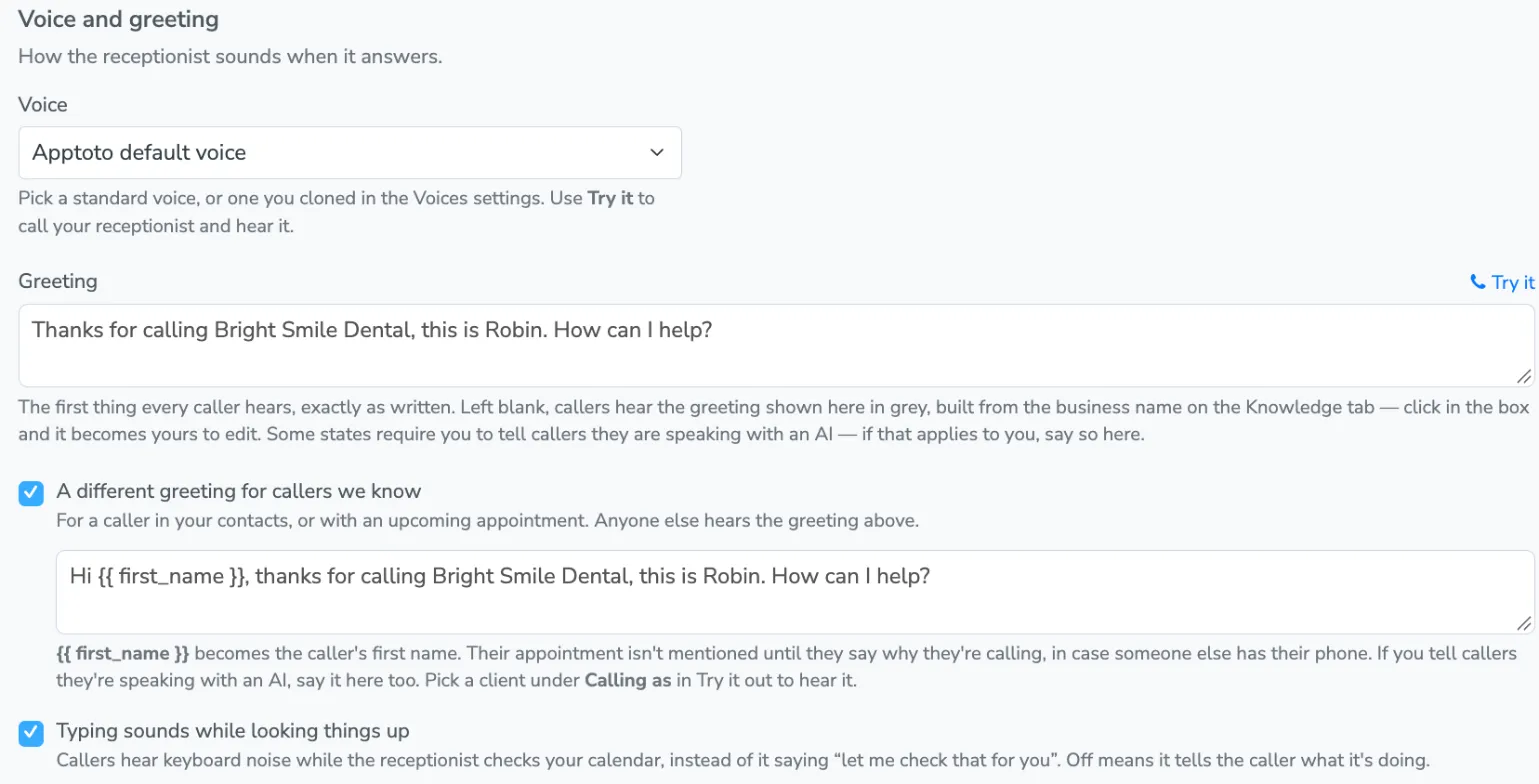
Voice picks how the receptionist sounds. Choose the Apptoto default voice or one of the standard voices. Cloned voices, set up under Settings > Voices, are available on request.
Greeting is the first thing every caller hears, spoken exactly as written. Leave it blank to use the default, which is built from the business name on the Knowledge tab.
Click Try it beside the greeting to call your receptionist from your browser and hear the voice and greeting currently in the form, before you save them.
A different greeting for callers you know
Section titled “A different greeting for callers you know”With A different greeting for callers we know checked, a caller the receptionist recognizes hears a greeting of its own, written in the box underneath. Anyone else hears the greeting above.
A caller is recognized when they are in your contacts, or when they are calling about an appointment you recently messaged them about. With Look up the client’s upcoming appointments on, a caller with an upcoming appointment is recognized too.
Write {{ first_name }} where the caller’s first name should go, for example:
Hi {{ first_name }}, thanks for calling Bright Smile Dental. This is our AI assistant - how can I help?Leave the box blank to use the default, which greets them by first name and otherwise matches the default greeting. The receptionist does not mention their appointment in the greeting - it waits until they say why they are calling, in case someone else is using their phone. If it cannot find a first name it is happy to say out loud, the caller hears the ordinary greeting instead.
To hear it, open Try It Out, choose Phone call, and pick one of your clients under Calling as.
Typing sounds while looking things up lets callers hear keyboard noise while the receptionist checks your calendar, instead of it saying “let me check that for you”. With it off, it tells the caller what it is doing.
Pronunciations
Section titled “Pronunciations”The voice sometimes says a word wrong - a staff member’s name, your town, a product. Pronunciations, at the bottom of the Voice tab, fixes that. Click the heading to open it; it opens on its own once you have added a word.
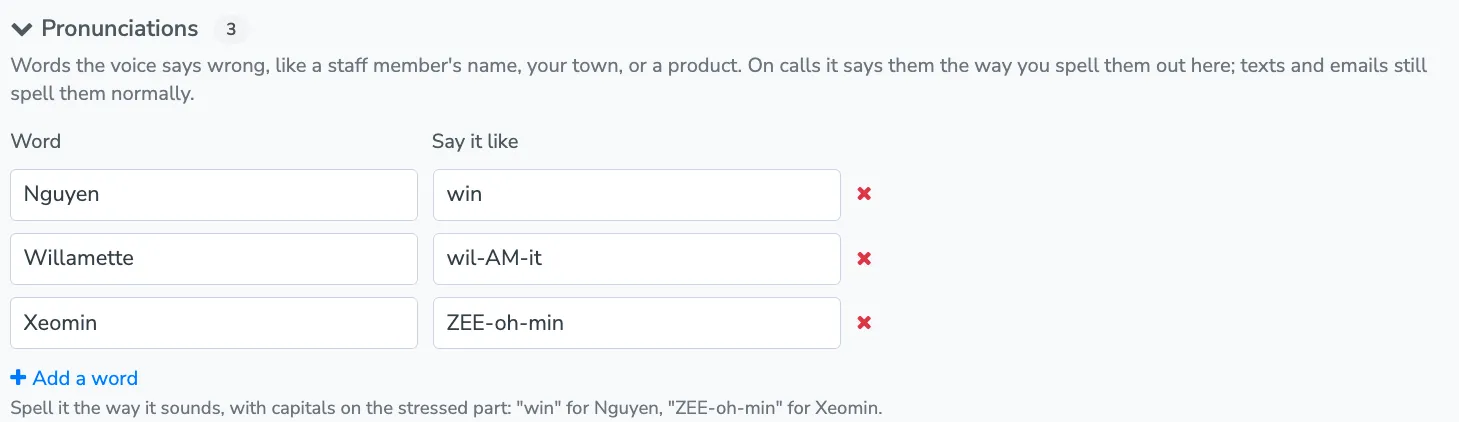
Click Add a word, then fill in two boxes:
- Word - the word the way it is normally spelled, for example “Worcester”.
- Say it like - the word spelled the way it sounds, with capitals on the stressed part, for example “WUSS-ter”. A couple more: “win” for Nguyen, “ZEE-oh-min” for Xeomin.
On calls, the receptionist says the word the way you spelled it out, including in your greetings. Texts, emails, and call transcripts still spell it normally. Capitals do not matter when it matches the word, and it only matches whole words, so “Lee” does not change “Leeds”.
Click the red x beside a row to remove it. Rows with only one box filled in are dropped when you save.
A typical setup
Section titled “A typical setup”- Check Your number on the Phone calls tab, and reserve an Apptoto number under Settings > Caller IDs if you do not have one yet.
- Choose how callers reach it. If you forward your business line, enter it under Your business number.
- Check your office phone, using a line that does not forward back to Apptoto.
- Choose when it answers - immediately, when nobody picks up, or outside office hours - and check your hours if you chose those.
- Choose what happens when it cannot help - check Enable voicemail if you want a recording instead of a written message.
- On the Voice tab, pick a voice and write your greetings, then click Try it to hear them.
- Add any words the voice says wrong under Pronunciations.
- Click Save.
- Forward your business line to your Apptoto number if clients call your published number rather than your Apptoto number.