
Try It Out
Click the purple Try it out button in the bar at the top of the AI Receptionist tab - it is there on both Activity and Settings - to open a test conversation. It opens beside the page, so you can change a setting and hear the difference without leaving it. You play the client, and the receptionist answers with the real greeting, the real voice, your real knowledge, and your real availability.
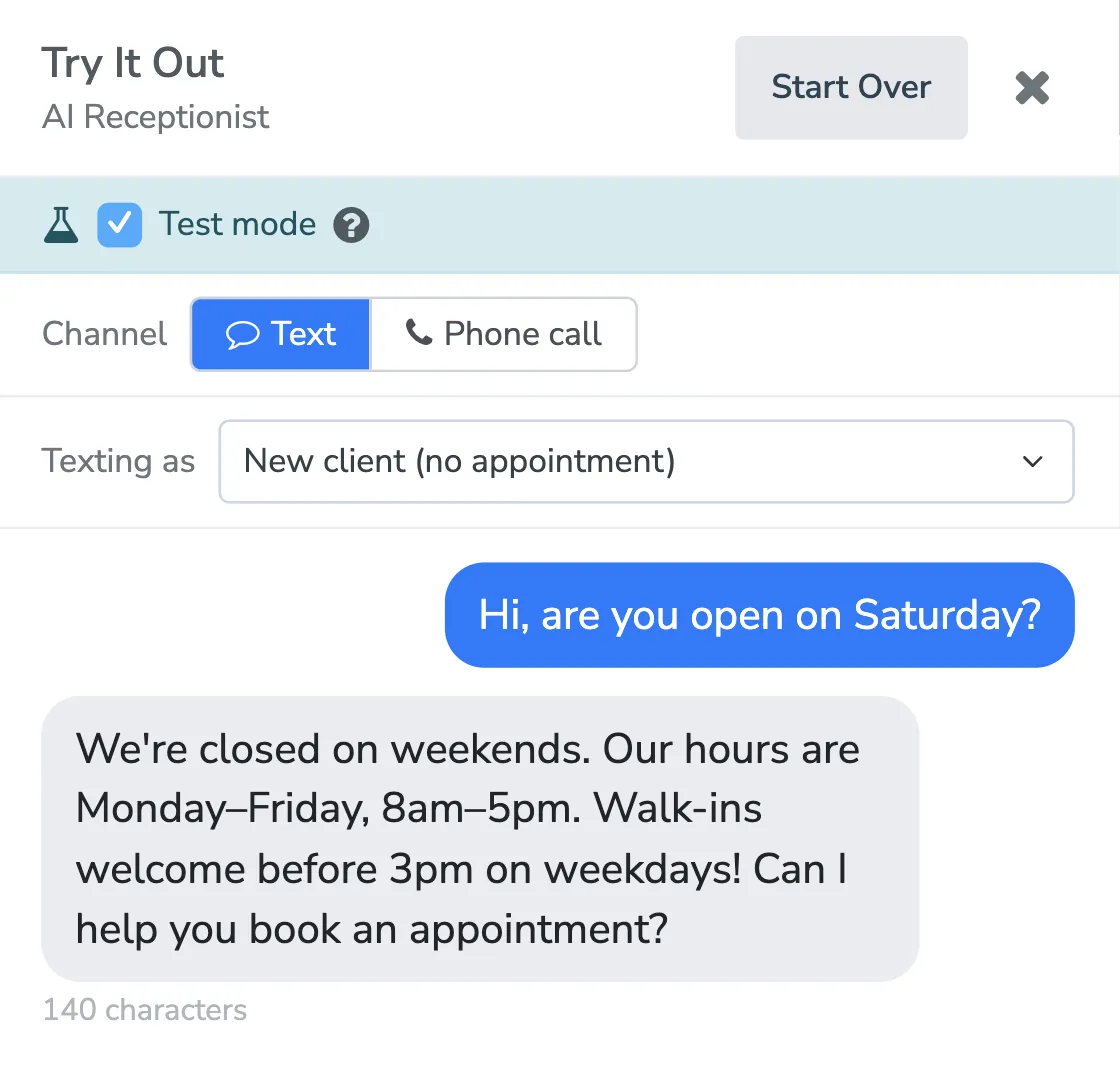
Testing is free. It does not use AI credits or message credits, and nothing is sent to your clients. There is a limit on how much testing you can do in an hour and in a day, so if you hit it, come back later.
Channel
Section titled “Channel”Choose Text or Phone call at the top of the panel.
- Text - type messages the way a client would text you, and read the replies.
- Phone call - a real call to your receptionist, placed from your browser. Click Start test call, then talk naturally: interrupt it, ask for a person, whatever a caller would do.
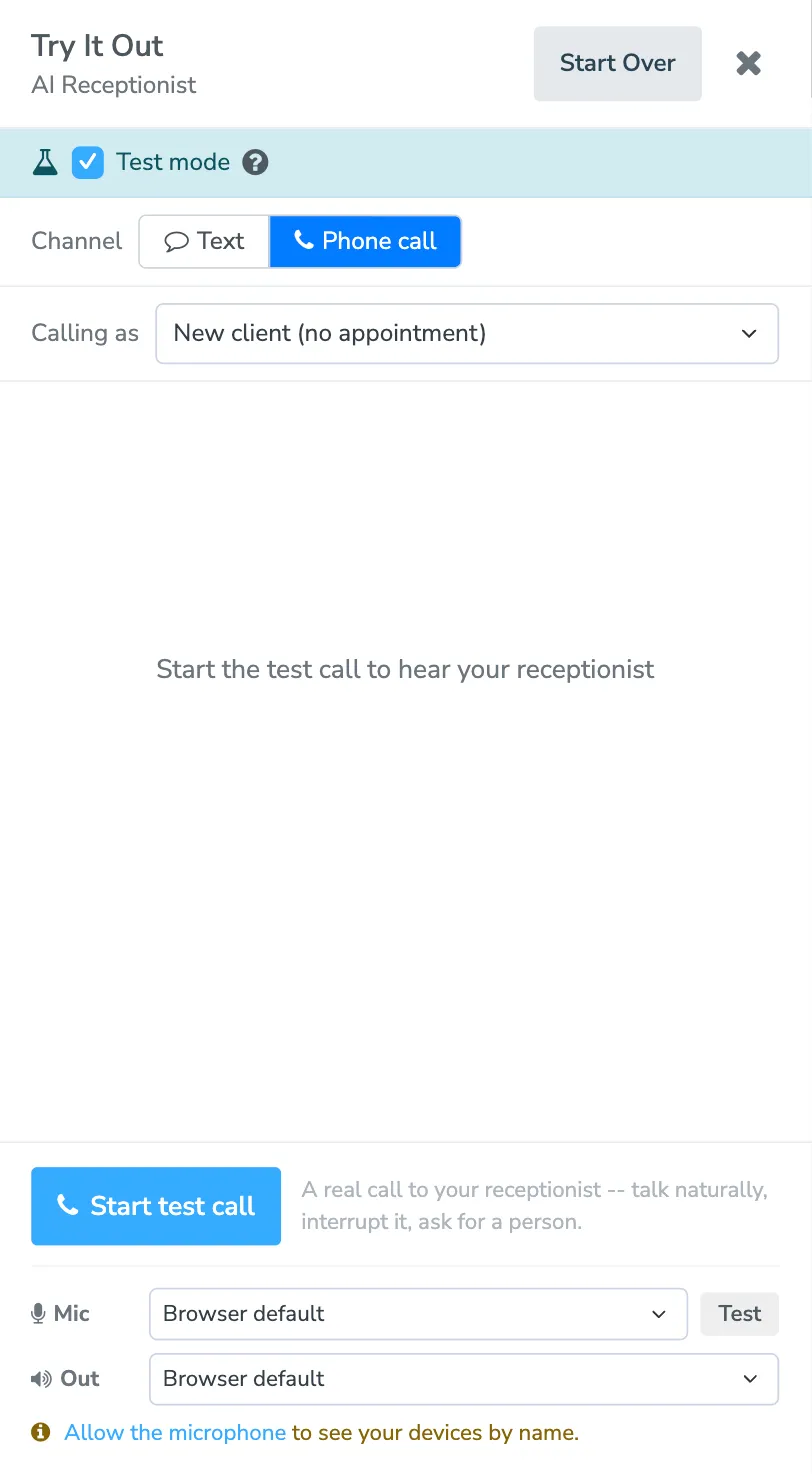
A test call needs microphone access in your browser. Below the Start test call button you can pick which microphone and speaker the call uses. Click Test beside the microphone to see it pick up your voice before you start. If the browser cannot place calls at all, the panel tells you to try Chrome, Edge, or Safari.
You can place a test call even while Answer phone calls is switched off on the Phone calls tab, or before you click Go live. The panel reminds you that real callers are not reaching the receptionist yet, so you can hear it before you decide to turn calls on.
During a call, the panel shows what the receptionist did as well as what it said: a text it sent to the caller, a message it took for you, a voicemail it recorded, or a transfer. Each one is labeled with who it went to.
A message or voicemail from a test call is really emailed to your office, the same as one from a real caller, and its card names the addresses it went to. If you use topics, this is how you check that a call about one reaches the right people.
In a text test, a message the receptionist takes for you shows up as a Message taken for you card under its reply, with what it wrote down and the addresses it would be emailed to in a real conversation. Nothing is emailed from a text test. The addresses come from your saved settings, so click Save after changing your topics.
Texting as / Calling as
Section titled “Texting as / Calling as”The dropdown below the channel picker decides who you are pretending to be.
- New client (no appointment) - someone with no history with you. Use this to test booking and general questions.
- One of your clients - pick an appointment from the list and you become that client, with their name, their number, and their appointment. Use this to test rescheduling and reminder replies. If you use a different greeting for callers you know, a test call plays it, with their first name in it.
Test mode
Section titled “Test mode”Test mode is on by default, and it is the safe state.
With test mode on, availability and links are real, but no texts are sent, and bookings, reschedules, and any change to an existing appointment are simulated. The test client has no existing appointments.
With test mode off, the receptionist creates actual events and sends the booking page’s normal confirmations, and it can confirm, cancel, or flag the selected client’s existing appointment for real, which notifies you exactly like a client reply would.
Conversation texts are never sent to anyone either way. The warning strip across the top of the panel turns yellow whenever test mode is off, so you always know which one you are in.
Starting over
Section titled “Starting over”Start Over clears the conversation and begins a fresh one. Do this after you change a setting - the receptionist remembers the conversation so far, and a fresh start is the only way to hear a new greeting or a corrected answer from the top.
Where test conversations go
Section titled “Where test conversations go”Test conversations land in your Inbox and show on the Activity tab with a Test badge, so you can read them back later and tell them apart from real client conversations.