
Redtail CRM
If you use Redtail CRM to manage client relationships and appointments as a financial advisor, you can now connect it directly to Apptoto. This integration automatically syncs your appointments and client contact details, so you can automatically send appointment reminders, confirmations, and follow-ups without changing your existing workflow.
This guide will show you how to enable the integration and explain exactly how data syncs between Redtail CRM and Apptoto.
Enable the Redtail CRM Integration
Section titled “Enable the Redtail CRM Integration”-
If you are new to Apptoto, start by creating an account and completing the onboarding steps.
-
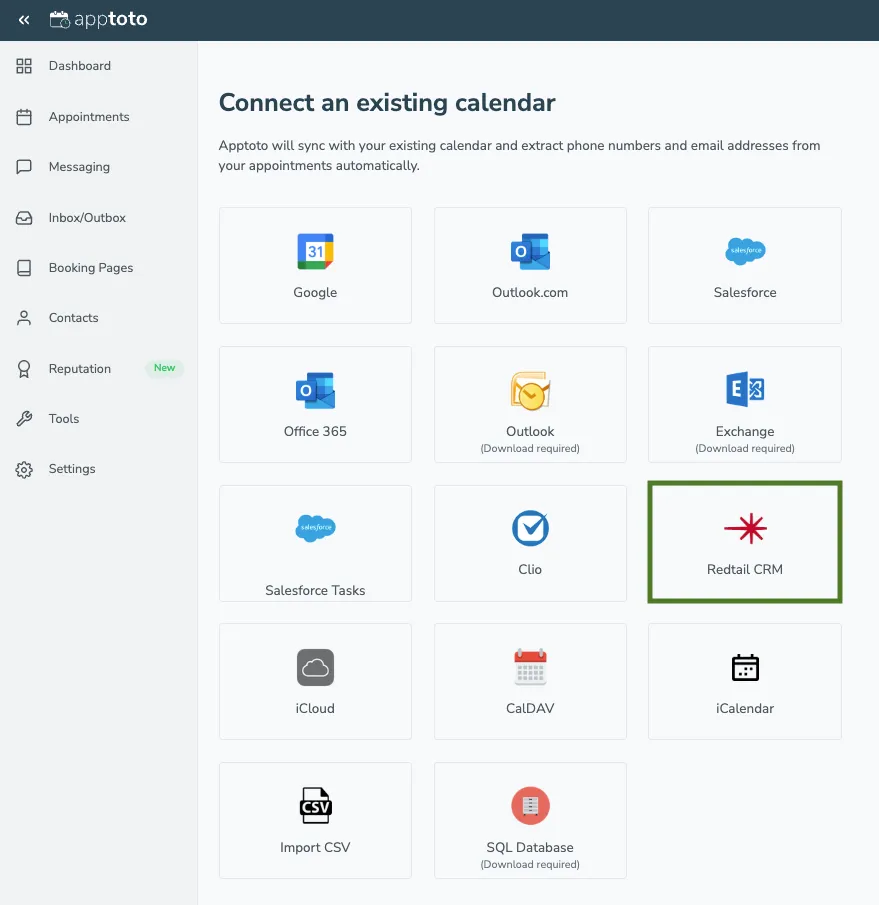
When you reach the Connect an existing calendar screen, select Redtail CRM.
-
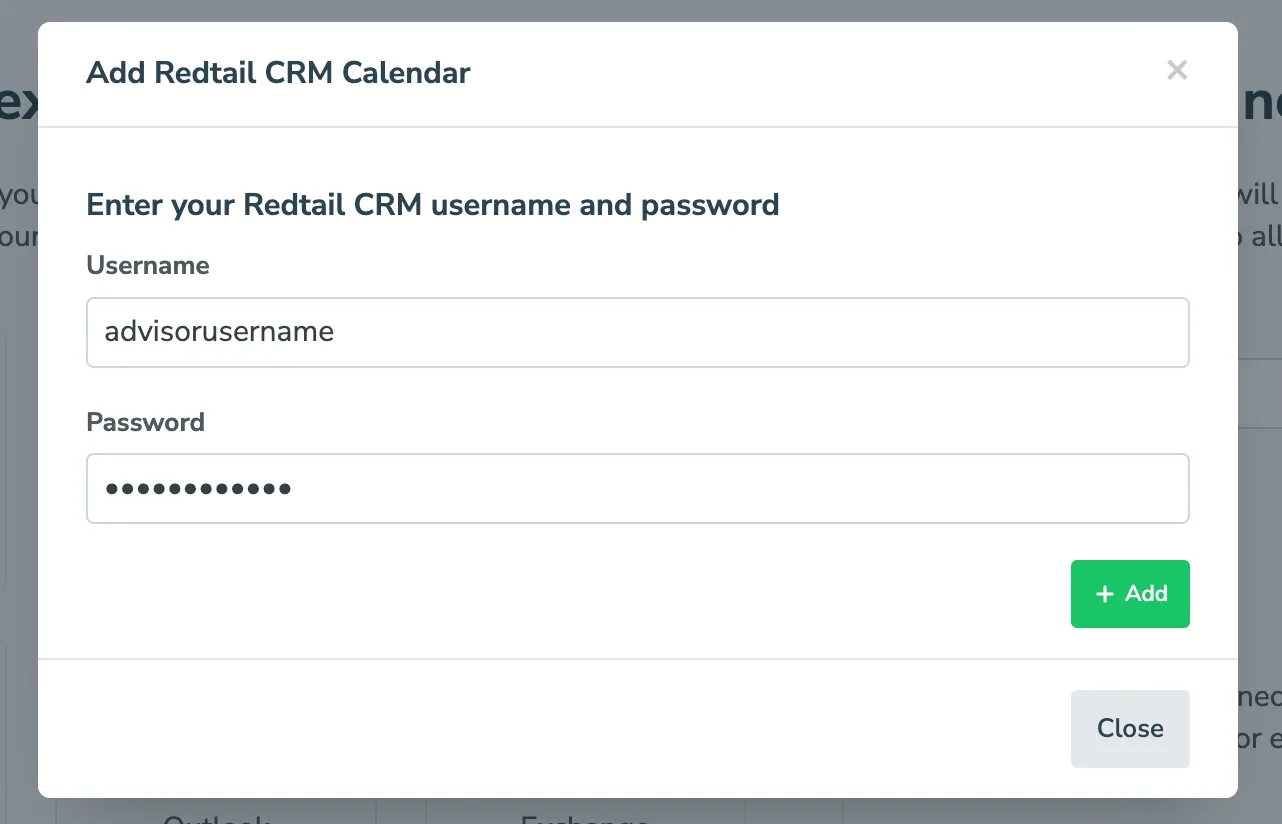
Enter your Redtail CRM username and password. Click +Add to authenticate your account.
-
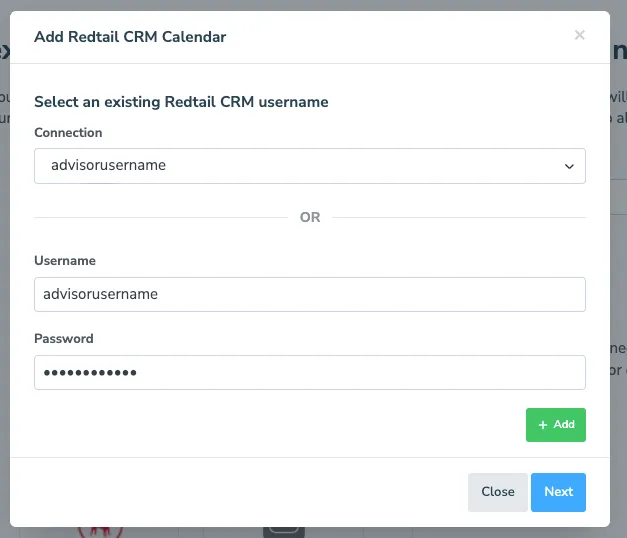
Select your existing Redtail username from the top drop-down, or continue using your username and password. Click Next.
-
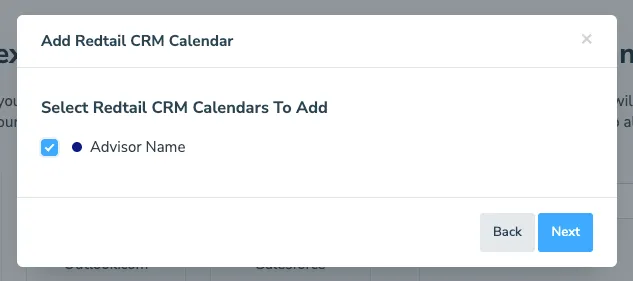
You will see a list of available Redtail calendars. Check the box next to the Redtail CRM calendars you want Apptoto to sync with. Click Connect Calendars.
-
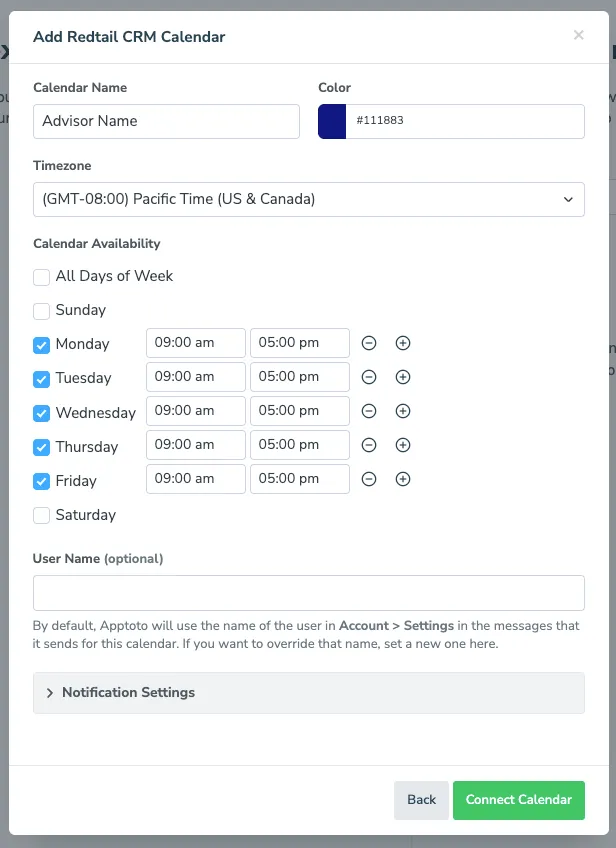
Adjust settings for your Redtail Calendar, including your calendar name, meeting availability, time zone, and optional notification settings (which control who receives booking notices, reminder statuses, etc.). Click Connect Calendar.
-
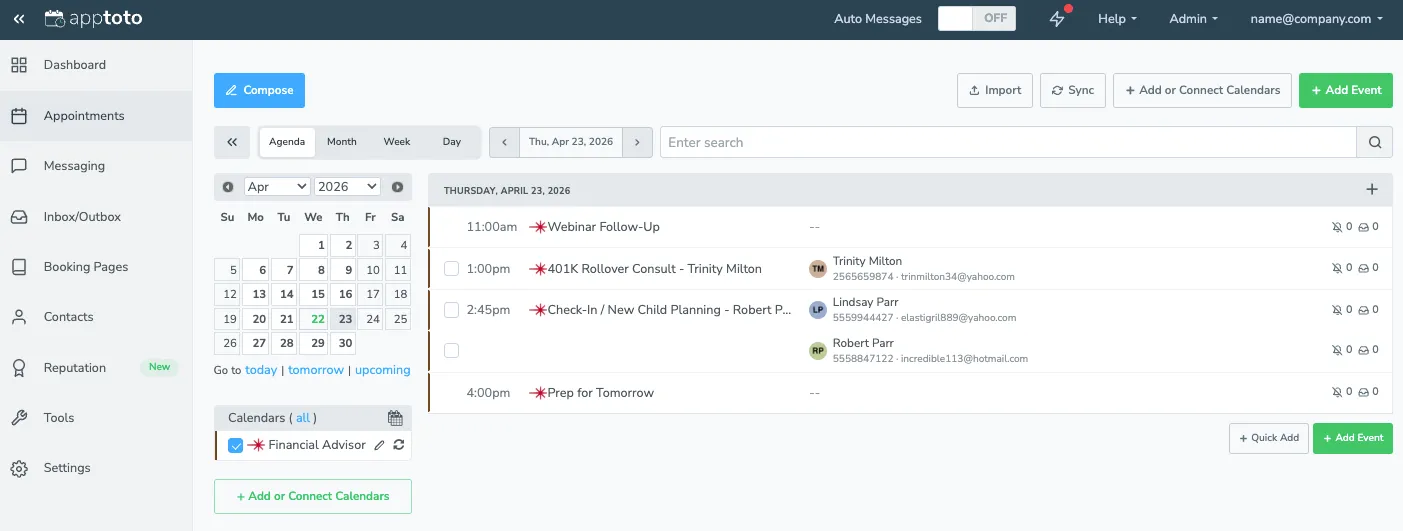
Once complete, Apptoto will begin importing your Redtail appointments and associated client contact details.
-
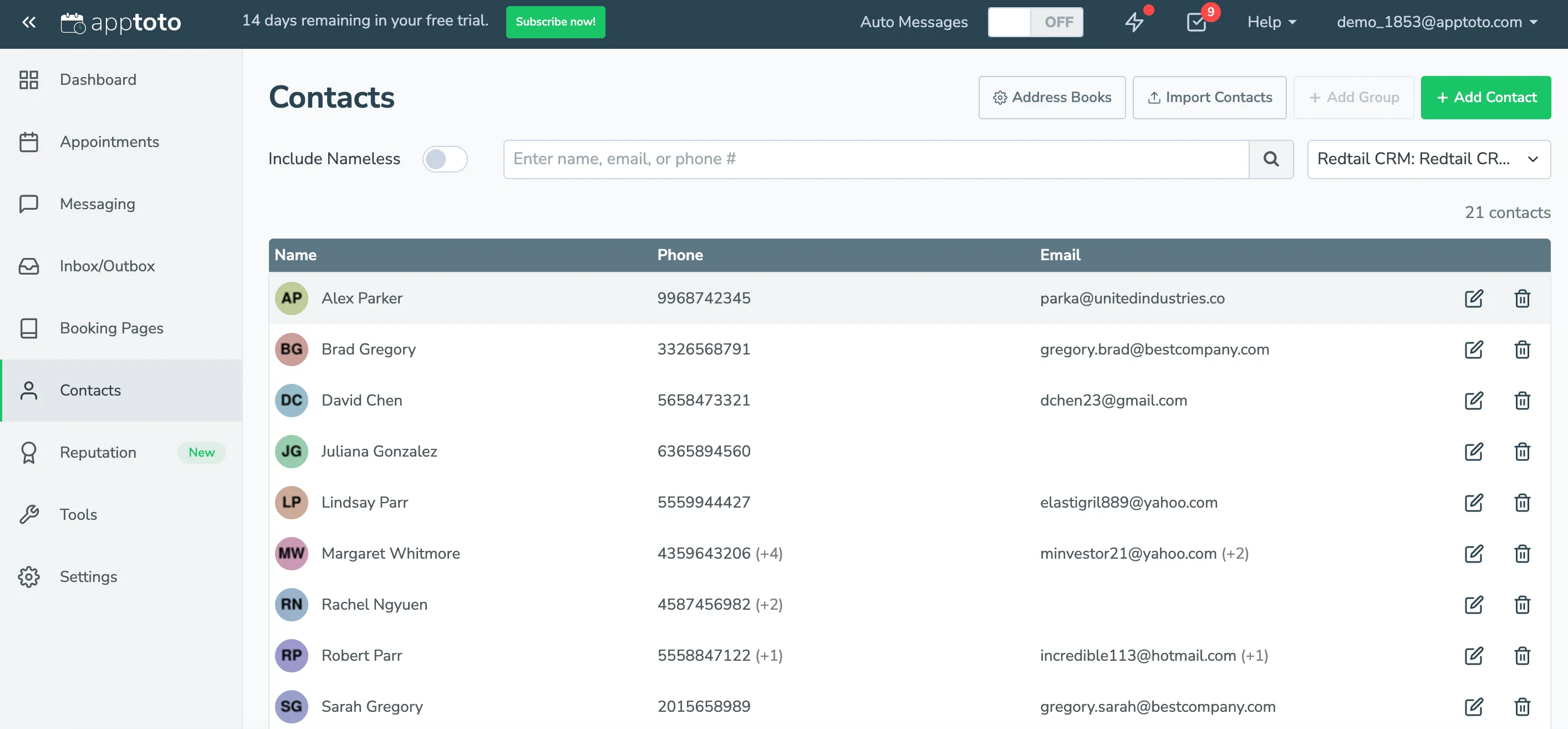
Your Redtail contacts will automatically sync to the Contacts tab in Apptoto and link to their corresponding appointments.
-
To set up and turn on automated appointment messaging, navigate to Messages and select Appointment Auto Messages.
-
By default, generic text, call, and email appointment reminders are set up to be sent to all your appointments one day before the appointment.
-
You can either edit existing messages, add new messaging rules (+Add rule), or add new message types (+Add Message).
-
Set the message type (reminder, confirmation, or follow-up), timing (e.g., 24 hours before the appointment), and customize the message content using dynamic fields such as client name, date, and time.

-
-
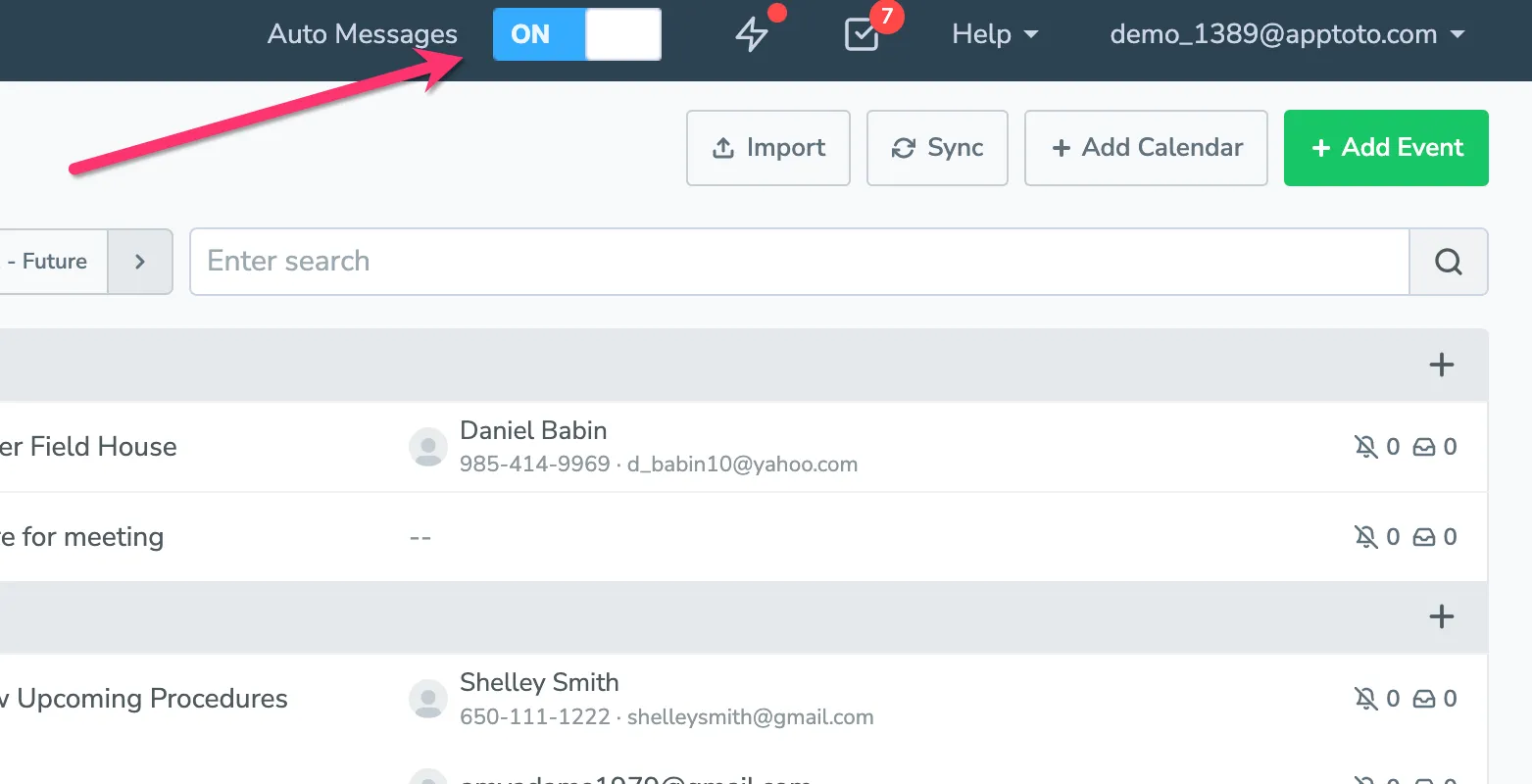
Once you’ve set up your client messages to your preferences, navigate back to the Appointments tab and toggle Auto Messages on.
How the Integration Works
Section titled “How the Integration Works”The Redtail CRM integration is a two-way sync between Redtail and Apptoto.
What Syncs Automatically from Redtail to Apptoto
Section titled “What Syncs Automatically from Redtail to Apptoto”- Appointments from selected Redtail calendars
- Associated client contact records and details
- Participant contact information linked to each appointment
What Syncs Automatically from Apptoto to Redtail
Section titled “What Syncs Automatically from Apptoto to Redtail”- New bookings made from an Apptoto booking page
- Any appointment added to your Redtail Calendar via Apptoto
- Client confirmation status is updated in the event title once the client confirms, cancels, or requests a reschedule
Apptoto uses this synced information to:
Section titled “Apptoto uses this synced information to:”- Send automated reminders
- Send booking confirmations
- Send follow-up messages
- Power online scheduling
- Launch booking campaigns
- Send review requests
How Apptoto Uses Your Appointments and Contacts to Send Client Messages
Section titled “How Apptoto Uses Your Appointments and Contacts to Send Client Messages”When an appointment syncs into Apptoto, the system looks for contact information directly inside the event invite.
Apptoto scans the:
- Appointment title
- Event description
- Location field
If it finds a name, phone number, or email address, it uses that information and the messaging rules you’ve set up to identify who should receive messages.
Next, Apptoto compares that information against your existing contacts.
- If a matching contact already exists, Apptoto links the appointment to that contact and fills in any missing details.
- If no matching contact is found, Apptoto will use the information it extracted to send messages using whatever valid contact details are available.
This process happens automatically in the background, ensuring your clients receive reminders, confirmations, and follow-ups without requiring manual data entry.
After Syncing: What You Can Do Next
Section titled “After Syncing: What You Can Do Next”Once your Redtail appointments and contacts sync into Apptoto, you can:
- Configure more appointment reminders, booking confirmations, and follow-ups to your company’s unique needs
- Enable online scheduling
- Set up and register your unique texting/voice call phone number
- Send bulk campaigns to contact groups
- Launch review request sequences
All messaging can be customized to align with your business processes and compliance requirements.
Need Help?
Section titled “Need Help?”If authentication fails or calendars do not appear:
- Confirm your Redtail credentials are correct.
- Ensure your Redtail user has calendar access permissions.
- Contact support at support@apptoto.com for assistance.