
Soft Phone
The Soft Phone puts a phone inside Apptoto. Click Phone next to Compose, type a name or number, and click Call - your computer’s speaker and microphone do the rest. Calls go out from your Apptoto number, so clients see the number they already know from your reminders. Calls to that number can ring your browser too, and texts open in small windows that stay on screen while you keep working.
What you need
Section titled “What you need”- An Apptoto number. Calls and texts go out from a number you reserved through Apptoto or host with Apptoto. A number you added with Add Your Number only shows as caller ID on voice reminders, so it cannot be used here. Without an Apptoto number the phone says so, with a link to Settings > Caller IDs where you can get one.
- A speaker and a microphone on the computer you are using - built in, or a headset.
Opening the phone
Section titled “Opening the phone”Click Phone next to Compose on the Appointments tab or the Inbox/Outbox tab. On a phone-sized screen, tap the round + button at the bottom of your agenda and choose Make a Call.
To call a particular client, you can also start from them:
- Call in a participant’s menu on the Appointments tab, or on a participant in your mobile agenda
- Live Call next to a participant in the appointment editor
- The phone icon in a text window’s title bar
The phone opens in a small window over the page. Drag it by its title bar to move it out of the way.
Making a call
Section titled “Making a call”- Click Phone.
- Enter who you are calling: Type a phone number, or start typing a name. Matching contacts and appointment participants are listed under the box - click one, or use the arrow keys and press Enter. You can also dial with the keypad.
- Check the number you are calling from: If you have more than one Apptoto number, choose one under Call from. With just one, the phone shows “Calling from” and the number.
- Click Call. The first time, your browser asks to use your microphone. Allow it.
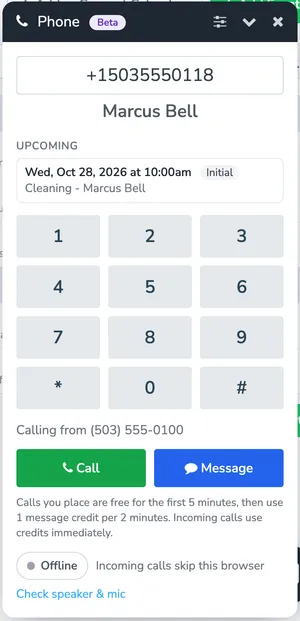
While the call is connected you see a timer, a bar that moves as you speak, and three buttons:
- Mute - the client cannot hear you until you click Unmute
- Keypad - press numbers for a phone menu (“press 1 for appointments”)
- End - hang up
The client’s upcoming and previous appointments are listed under their name. Click one to open it, so you can move or check an appointment while you talk.
To change the microphone or speaker, click the sliders icon in the phone’s title bar.
Taking calls in your browser
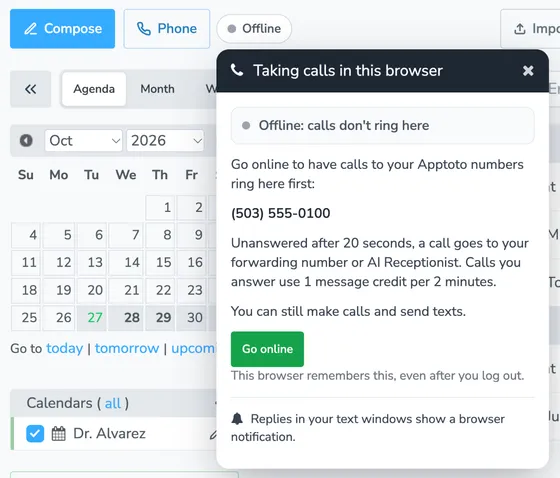
Section titled “Taking calls in your browser”Next to each Phone button is a small Online / Offline button. It says whether calls to your Apptoto number ring this browser.
Click it to see what it means for you: your Apptoto numbers whose calls ring here, and a Go online or Go offline button.
If your account has the AI Receptionist but it is not answering calls yet, the panel also suggests letting it answer the calls you miss, with a button that takes you to the AI Receptionist tab to set it up or turn it on.
Going online
Section titled “Going online”The first time you go online in a browser, a short check makes sure you will hear the phone ring and callers will hear you:
- Speaker: Click Initiate test. A phone ring plays; click Yes, I heard it.
- Microphone: Click Initiate test and allow the microphone if your browser asks. Say something, and click Yes, it moves when the green bar moves. Nothing is recorded.
Each browser remembers whether it is online or offline, even after you log out. Going offline only stops calls ringing there - you can still make calls and send texts.
When a call comes in
Section titled “When a call comes in”While you are online, a call to your Apptoto number rings your browser first. The phone opens with the caller’s name, if they are one of your clients, and their appointments. Click Answer to take it, or Decline to pass.
If nobody answers within 20 seconds, the call goes on exactly as it would without the Soft Phone - to your forwarding number, your AI Receptionist, or your greeting.
Decline sends it on straight away instead of waiting out the 20 seconds. The caller is not hung up on and never hears a busy signal - the call simply moves on to your forwarding number, AI Receptionist, or greeting.
If your AI Receptionist is set to ring your office phone first (When nobody picks up), ringing your browser takes the place of ringing your office phone. A call you do not answer here goes straight to the receptionist, so the caller does not wait through two rounds of ringing. While you are offline, your office phone rings first as usual.
Every browser that is online for your account rings at once, including those of people you have added to your account. The first to answer gets the call, and the others show who answered it. Clicking Decline in any one of them sends the call on for all of them.
If a call comes in while you are already on one, your browser does not ring - the new call goes on as if you had declined it.
Texting from the phone
Section titled “Texting from the phone”Click Message instead of Call to open a text window for the number you entered. To move a conversation you already have into a window, open it on the Inbox/Outbox tab and click the Pop out into a floating window button below the reply box.
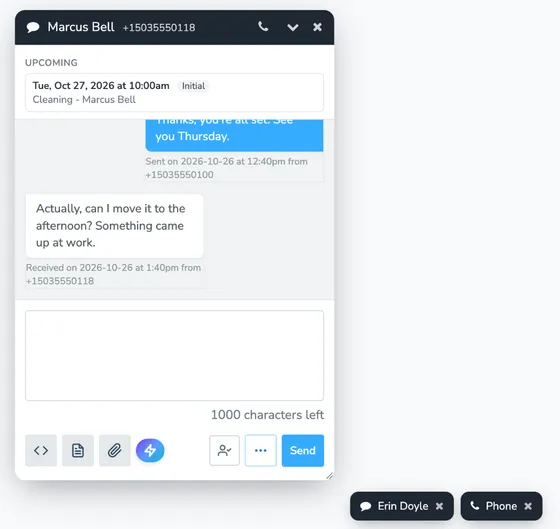
Text windows work like a conversation in your Inbox: you can choose a template, insert fields, and attach files. The phone icon in a window’s title bar calls that number. Any appointments the client has are listed at the top of the window. You can keep several windows open at once and drag each one by its title bar.
If your account cannot send custom text messages yet - during a free trial, or before your 10DLC Brand is registered - a new conversation has to start with an approved template, and you can only send approved templates in it until the client replies. After they reply, you can write whatever you like.
Minimizing windows
Section titled “Minimizing windows”Click the arrow in a window’s title bar to minimize it. It moves into a row of tabs along the bottom-right edge of the screen, showing the client’s name and how many new messages have come in. Click a tab to bring the window back, scrolled to the newest message. Anything you had typed but not sent is still there.
When you switch to another tab in Apptoto - from Appointments to Inbox/Outbox, for example - all the windows minimize so they are not covering the page. The phone stays open if you are on a call.
Notifications for new replies
Section titled “Notifications for new replies”The first time you open a text window, your browser asks whether Apptoto may show notifications. If you allow it, a notification pops up when a client replies to one of your open text windows while you are in another browser tab or app. Click it to jump straight to the conversation.
If you said no at the time, or want to turn notifications on before you open a text window, click the Online / Offline button: the panel that opens has a Get notified button, or tells you how to unblock notifications if your browser is blocking them.
Calls in your Inbox
Section titled “Calls in your Inbox”Every call you make or take in the Soft Phone is saved in your Inbox/Outbox with the client’s other messages, showing how long it lasted. A call that rang your browser but was not answered, or was declined, is noted there too. On accounts with more than one person, each call and text shows who placed, answered, or sent it.
What it costs
Section titled “What it costs”Soft Phone calls use message credits, the same credits your reminders use.
| Call | Cost |
|---|---|
| A call you place | Free for the first 5 minutes, then 1 message credit per started 2 minutes |
| A call you answer | 1 message credit per started 2 minutes, from the start of the call |
So a 4-minute call you place costs nothing, and a 7-minute one uses 1 credit. A text sent from a text window counts the same as a reply sent from your Inbox.
For plan limits and overage charges, see Billing.
Giving your team the phone
Section titled “Giving your team the phone”People you add to your account with Full or Agent (No Settings) permissions get the Soft Phone. For someone with Custom permissions, check Soft Phone in their Available Tabs (Web Portal) list. Without it they do not see the Phone button, and their browser never rings for your calls.