
Stoplists
Stoplists are automatically maintained by Apptoto and contain phone numbers and email addresses of contacts who have asked to stop receiving messages.
Contacts add themselves to the stoplist by:
- Replying STOP, END, QUIT, or UNSUBSCRIBE to Text (SMS) messages
- Replying STOP or UNSUBSCRIBE to Email messages.
- Dialing “9” while listening to a Voice message.
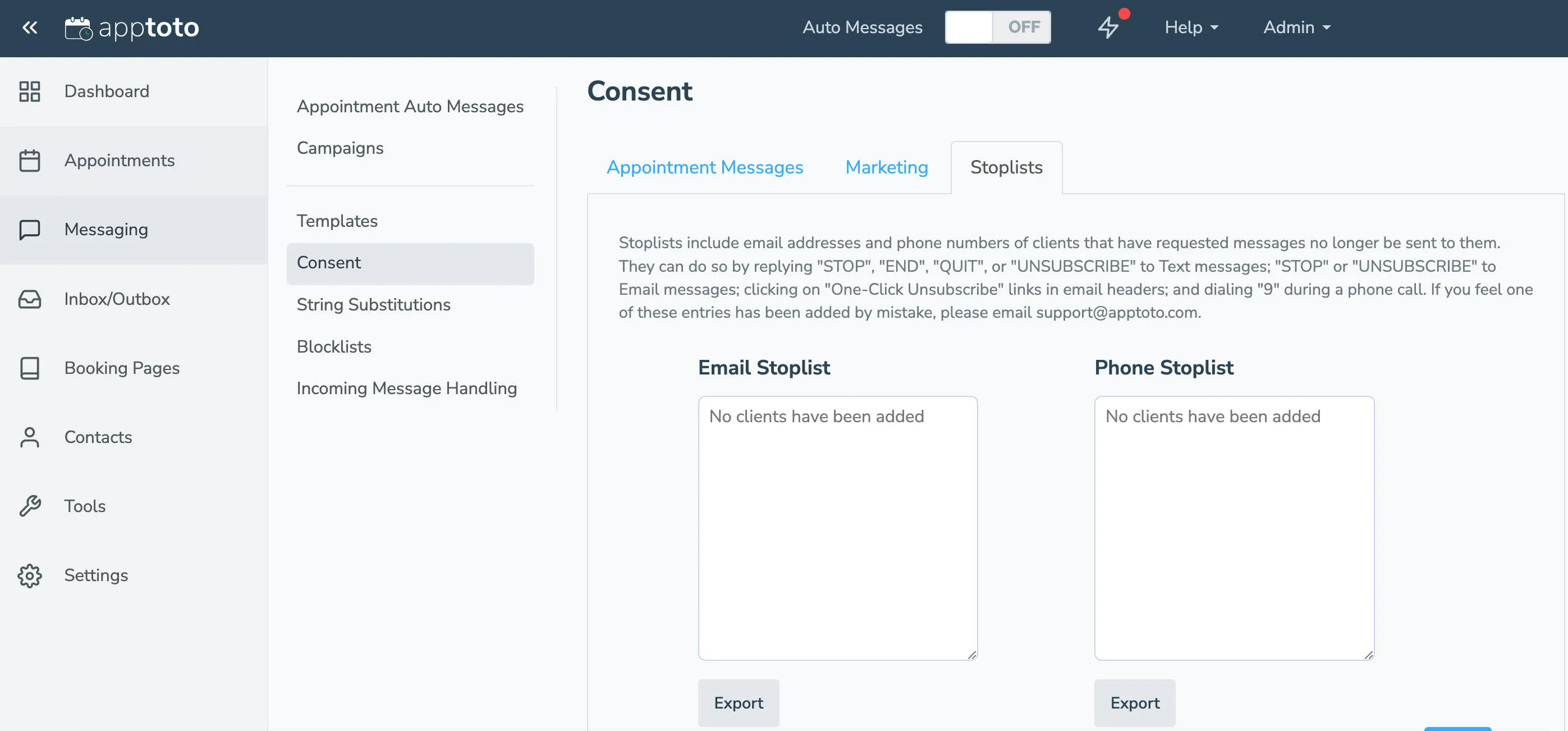
A list of your participants who have been added to your Stoplists can be found in the Messaging > Consent tab, in the Stoplists section.
Stoplists are not your Opt-out lists
Section titled “Stoplists are not your Opt-out lists”These two are easy to mix up, and only one of them is yours to edit:
- Stoplists are built by your clients. Anyone who replies STOP puts themselves on the list, and nobody in your account can take them off it.
- Opt-out and Opt-in lists are yours. You add and remove entries whenever you like on the Messaging > Consent tab. See Explicit Opt-out & Opt-in Lists.
Adding a client to your Opt-in list does not undo a stoplist entry. If they are on the stoplist, that is what is stopping your messages.
How a client can re-subscribe themselves
Section titled “How a client can re-subscribe themselves”A client who replied STOP by accident can put themselves back on, without anyone having to contact support.
Ask them to text SUBSCRIBE to the same Apptoto number your messages come from. Sending it on its own is what matters; capitalization does not. Apptoto then:
- texts them back a confirmation that they are subscribed again,
- takes their number off your stoplist, and
- releases the appointment messages that were being held, so their upcoming reminders go out as normal.
The client has to send it themselves, from the phone that replied STOP. Adding the number somewhere in your account will not stand in for it.
This works because your account has a Message is: SUBSCRIBE auto reply that opts the client back in. It is set up for you, but it can be edited or removed like any other auto reply, so it is worth confirming it is still there before you pass the instructions to a client. Look under Messaging > Incoming Message Handling — see Incoming Text Message Handling.
If you do not have that tab, or the SUBSCRIBE auto reply is not listed, texting SUBSCRIBE will not do anything on your account. Email support@apptoto.com and we can sort it out.