
What It Knows
The What it knows tab is everything the receptionist answers from. It is the first step of setup, too.
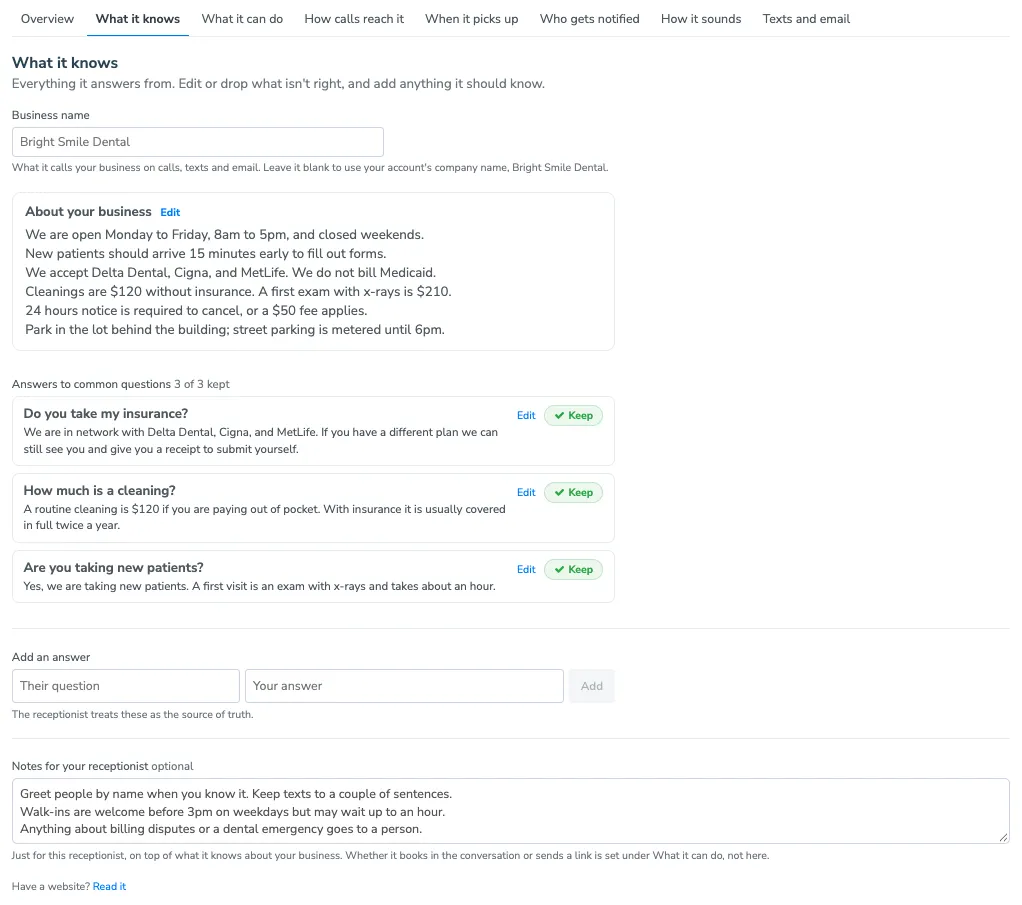
Business name
Section titled “Business name”What the receptionist calls your business on calls, texts, and email. Leave it blank to use your account’s company name.
Set this if the receptionist answers for one location, or for a trading name that is not the name on your account. It is also the name callers hear in the greeting, which the How it sounds tab shows.
About your business
Section titled “About your business”Facts about your business: hours, address, parking, policies, fees, what you do and do not offer. For example:
We are open M-F 8am-5pm. $50 no-show fee. 24-hour cancellation notice required. Park behind the building.
Click Edit to change it, then Save or Cancel under the box.
This is shared with every AI agent on your account. Editing it also changes what your other AI agents say.
Read my website
Section titled “Read my website”You do not have to write it all by hand. If the receptionist does not know anything yet, the tab asks for your website: type it and click Read my website. Apptoto reads your site, which takes up to a minute and shows what it is doing as it goes, then fills in About your business and adds answers to common questions from what it found.
Look over what it wrote before you keep it. In Settings, nothing is saved until you click Save, and Undo puts things back the way they were. To read your site again later, or a different site, click Read it again, or a different one at the bottom of the tab.
No website? Click No website? Tell it about your business yourself and type it in instead.
Answers to common questions
Section titled “Answers to common questions”Questions clients ask, paired with the answer you want given. The receptionist treats these as the source of truth and uses your wording rather than composing its own.
Each answer has two buttons:
- Edit - change the question or the answer, then click Save or Cancel.
- Keep - click it to drop an answer you do not want. It stays on the list, crossed out, until you save, so you can click Dropped, undo to keep it after all.
The list shows the first five; click Show all to see the rest. To add one, type the question and the answer under Add an answer and click Add.
Use these for the questions where the exact wording matters - pricing, insurance, whether you take new clients, what to bring to a first visit.
Notes for your receptionist
Section titled “Notes for your receptionist”Guidance just for the receptionist, on top of what it knows about your business: how to greet people, what to say about walk-ins, when to hand off to a person, anything about tone. These are not shared with your other agents.
Whether it books in the conversation or sends a link is not something to put here - that is the When someone wants to book choice on the What it can do tab.