
AI Receptionist
The AI Receptionist answers your clients when you cannot. It picks up texts, email replies, and phone calls that come in to your Apptoto number, answers questions using what you have told it about your business, books new appointments on your booking page, reschedules appointments clients already have, and notifies you about anything it cannot handle itself.
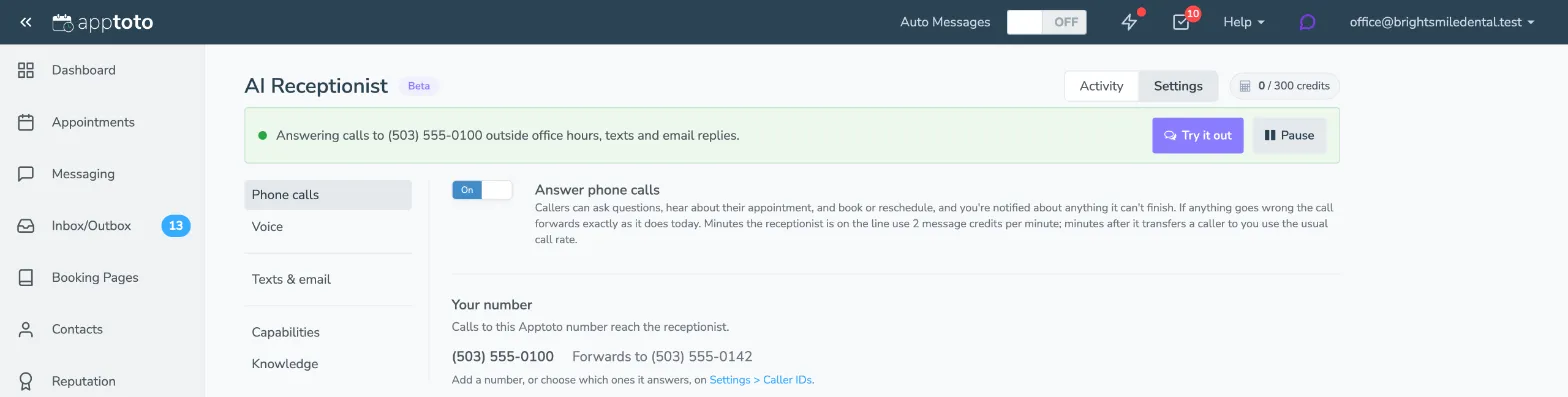
You will find it on the AI Receptionist tab in the top navigation.
What it can do
Section titled “What it can do”- Answer questions about your hours, location, parking, policies, pricing, and anything else you write into its knowledge
- Confirm or cancel the appointment a conversation is about, when your message settings let clients do that
- Book new appointments using the availability on a booking page you choose
- Tell clients about their upcoming appointments, found from the phone number or email address they contact you from
- Reschedule appointments the client already has
- Answer calls only outside office hours, or only the ones nobody at your office picks up
- Greet callers it recognizes with a greeting of their own, by first name
- Take a message on any channel when it cannot finish something itself, so you get a name, a way to reach them, and what they wanted
- Let a caller leave a voicemail instead, if you turned on Enable voicemail on the Phone calls tab
- Transfer a caller to a person when your rules say it should
Confirming and cancelling follow the same rules as replying “1” or “2” to a reminder - your message settings decide, not the receptionist. See what it can do.
When a client asks for something outside what it can do, it says the office will follow up and takes a message for you - on a text or an email just as on a call.
Turning it on
Section titled “Turning it on”- Open the tab: Click AI Receptionist in the top navigation.
- Set up calls: On the Phone calls tab, check the numbers listed under Your number, then choose how callers reach the receptionist and when it answers. Answer phone calls is on from the start.
- Turn on texts and email, if you want them: On the Texts & email tab, switch on text messages and email. Both start off.
- Tell it about your business: On the Knowledge tab, fill in your business knowledge and any approved answers you want it to use word for word.
- Try it out: Click the purple Try it out button in the bar at the top, and text or call it the way a client would.
- Click Go live: Go live, in the same bar, saves everything on the page and turns the receptionist on.
The bar at the top always describes what callers and clients get right now - “Not answering yet. Try it out, then go live.” before it is live, and a summary such as “Answering calls to (971) 406-4709 outside office hours and texts.” once it is. Pause, in the same bar, stops it answering calls, texts, and email straight away. It saves nothing else, so anything half-edited on the page stays as it is.
Activity and Settings
Section titled “Activity and Settings”At the top right of the page, Activity and Settings switch between what the receptionist has been doing and how it is set up. The page opens on Activity once the receptionist is answering, and on Settings while you are still setting it up.
Activity lists every conversation it has handled, with transcripts and credit usage. Settings lists its tabs down the left side of the page:
| Tab | What it holds |
|---|---|
| Phone calls | The numbers that reach it, how callers get there, your office phone, when it answers, and what happens on a call it cannot finish |
| Voice | The voice, the greetings, typing sounds, and pronunciations |
| Texts & email | Whether it answers texts and emails, and which conversations on each |
| Capabilities | What the receptionist is allowed to do, and which booking page it books on |
| Knowledge | Your business name, business knowledge, receptionist notes, and approved answers |
There is one Save button, and it saves all of them. Apart from Go live and Pause, nothing you change takes effect until you click it.