
Assigning Conversations
Every text and email conversation can have an owner. Assigning one says who is going to answer it, sends the reply notifications to the right person, and keeps two people from replying to the same client at once.
You will see the assignment control if your account has additional logins or the AI Receptionist.
Where to find it
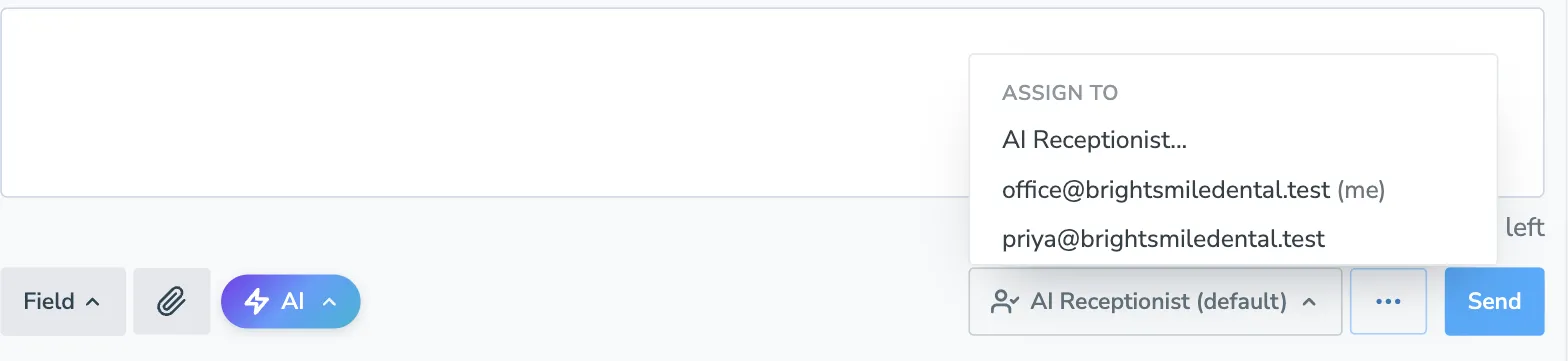
Section titled “Where to find it”Open any conversation - from the Inbox, from an appointment, or from a contact - and look in the row of buttons under the reply box. The button shows who owns the conversation right now:
| It says | It means |
|---|---|
| Unassigned | Nobody owns it. Replies go to the usual recipients. |
| AI Receptionist (default) | Nobody has assigned it, and your AI Receptionist settings say it answers this kind of conversation. |
| AI Receptionist | Somebody handed this conversation to the AI Receptionist. |
| A person’s name | That person owns it. |
Hover the button to see the full story, including any instructions the conversation was handed over with.
Assigning to a person
Section titled “Assigning to a person”Click the button and pick a name from the list. Your own login is marked (me).
Once a person owns a conversation:
- Reply notifications for it go to that person instead of the usual recipients.
- No AI answers it, whatever your AI Receptionist settings say.
- It appears in that person’s Assigned to me inbox folder.
Only people who can already open that conversation appear in the list. Assigning never gives anyone access to something they could not see before, and if someone’s access is later removed or narrowed, notifications for their conversations fall back to the usual recipients.
Keeping everyone in the loop
Section titled “Keeping everyone in the loop”By default, assigning a conversation to one person redirects its notifications to them alone. If you would rather keep hearing about assigned conversations too, go to Settings > Notifications and check Also notify the usual recipients when a thread is assigned to one person.
Assigning to the AI Receptionist
Section titled “Assigning to the AI Receptionist”Click the button, choose AI Receptionist…, and a box opens where you can type instructions for this one conversation. For example:
Make sure they reschedule to next week.
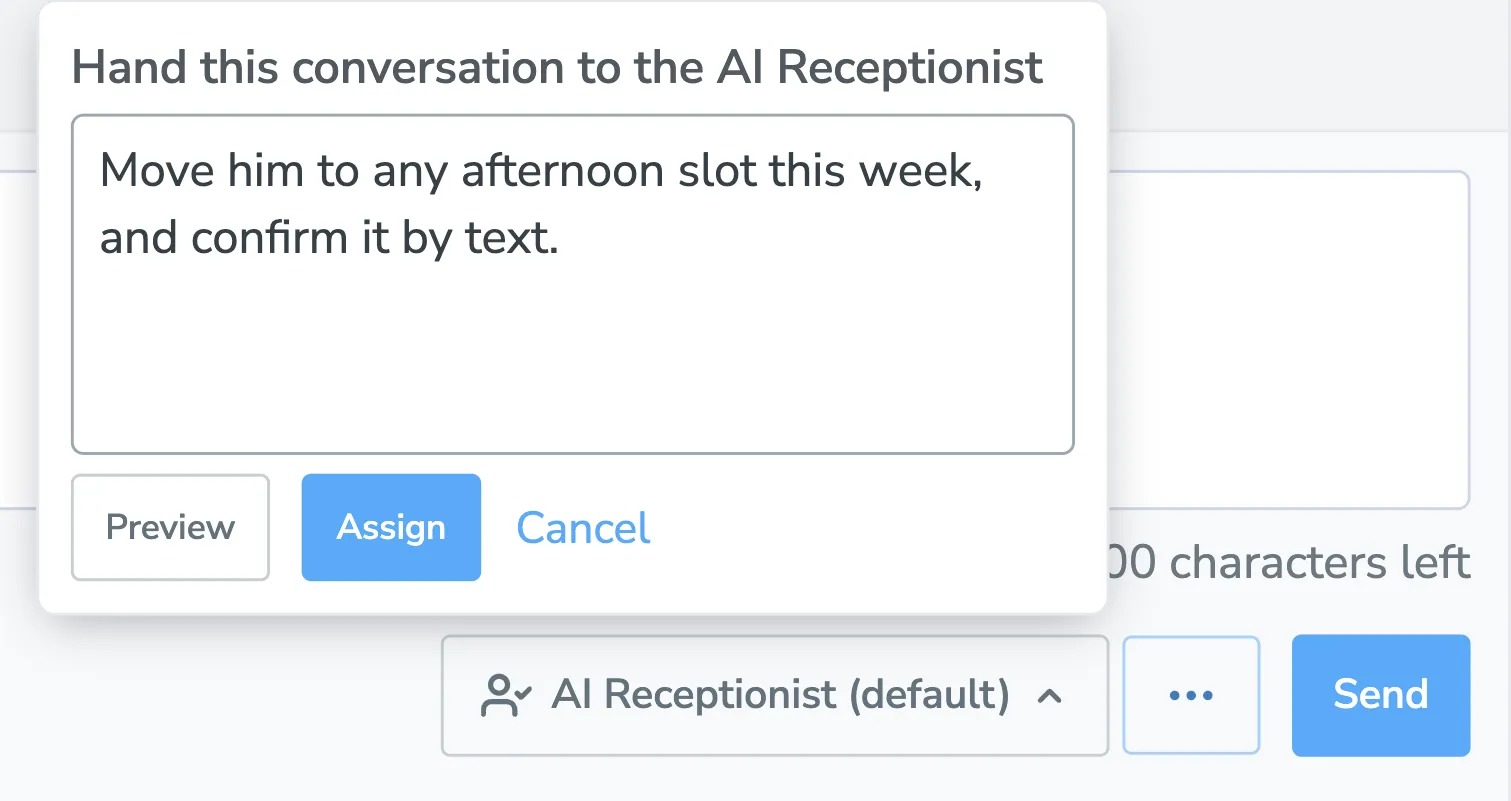
- Write your instructions (optional). Leave the box empty to simply hand the conversation over.
- Click Preview to see what the AI Receptionist would say, without sending anything.
- Click Assign to hand it over.
Once the AI Receptionist owns a conversation, it answers every message on it, whatever the Channels settings say, as long as that channel is switched on.
When it speaks
Section titled “When it speaks”- If the client is waiting on a reply, the AI Receptionist answers right away, following your instructions.
- If you sent the last message and the client has not replied, it stays quiet unless your instructions call for reaching out now.
Handing it back
Section titled “Handing it back”When the AI Receptionist has carried out your instructions - or the client has clearly declined - it hands the conversation back to whoever assigned it, with a one-line summary and your original instructions intact. It shows up in that person’s Assigned to me folder.
Previewing a reply without assigning
Section titled “Previewing a reply without assigning”You do not have to hand a conversation over to see what the AI Receptionist would say. Open the AI menu above the reply box and choose AI Receptionist: preview reply. Nothing is sent, and the conversation’s owner does not change.
Unassigning
Section titled “Unassigning”Choose Unassign from the menu to take the owner off. An unassigned conversation is nobody’s on purpose: it shows up for everyone, and your AI Receptionist settings will not quietly pull it back. That is different from a conversation nobody has ever touched, which still follows those settings.
The Assigned to me folder
Section titled “The Assigned to me folder”The inbox has an Assigned to me folder listing every conversation currently assigned to the login you are signed in as, newest activity first.
Seeing what happened
Section titled “Seeing what happened”Every change of owner is written into the conversation itself, so anyone who opens it later can see who handed it to whom and with what instructions. These lines are not messages: they are not sent to the client, they never count as unread, and they never use credits.
New conversations always start unowned. When a text thread goes quiet for a month and the next text starts a fresh conversation, that conversation starts unowned too.