
Form Questions
The Form tab is everything the person filling it in actually sees: the heading at the top, the contact details every form can collect, your own questions, and the text message consent boxes.
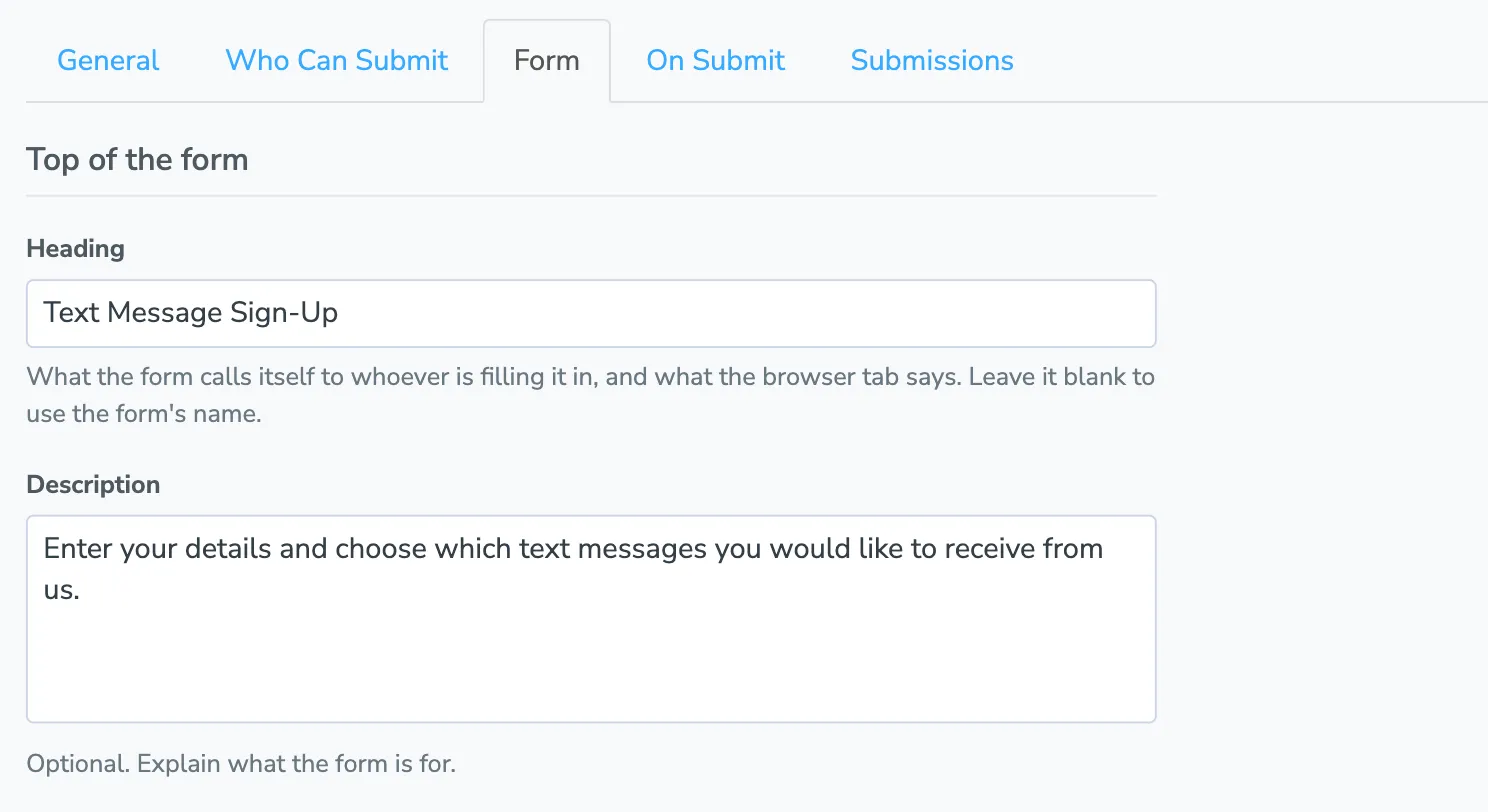
Top of the form
Section titled “Top of the form”Heading is what the form calls itself to whoever opens it. It is the big line at the top of the page and what the browser tab says. Leave it blank and the form uses its name instead.
The name and the heading are separate on purpose. The name is yours, for finding the form in your list — “Text Message Consent” is a fine name and a poor greeting. The heading is theirs.
Description is optional, and sits under the heading to explain what the form is for.
Their contact details
Section titled “Their contact details”Name, Email, Phone, and Notes are built in. For each one you can:
- Change the label — type a new one to replace the default
- Shown — display the field, or hide it entirely
- Required — make it mandatory before the form can be sent
A form sent about an appointment already knows who it went to, so these arrive filled in. They are worth leaving on anyway: a client correcting a wrong phone number on the form is a client you can reach afterwards.
Your questions
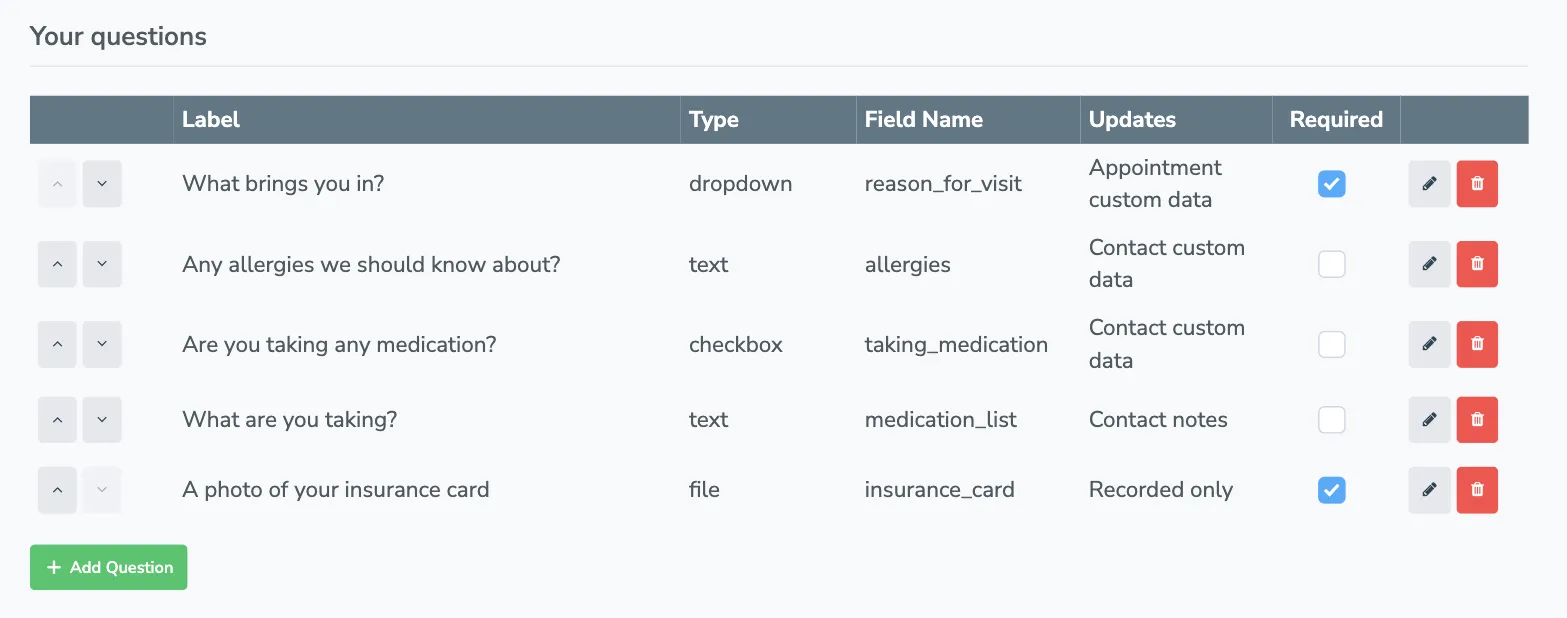
Section titled “Your questions”Click Add Question to ask anything else. Each question has:
| Setting | What it does |
|---|---|
| Label | The question as the person filling out the form sees it |
| Field Name | How you refer to the answer in a message, e.g. {{ insurance_provider }}, and the name of the custom field it sets |
| Type | The kind of answer it takes (see below) |
| Where the answer goes | Whether the answer updates the contact, the appointment, both, or neither |
| Help Text | Optional. Shown under the question |
| Default | A value that is pre-filled, which the person can change |
| When to show this question | Always, or only when an earlier answer says so |
| Required | The form cannot be sent without an answer |
Question types
Section titled “Question types”| Type | Use it for |
|---|---|
| String | Short, single-line answers (referral code, insurance member number) |
| Text Area | Long-form answers (symptoms, what they want to discuss) |
| Number | Numeric input (age, number of children) |
| Checkbox | A single yes/no answer |
| Dropdown | A fixed list of choices, one option per line |
| Date | A date |
| Date & Time | A date and a time |
| Hidden Field | A value passed silently in the link rather than asked for |
| File Upload | Let them attach files (see below) |
File Upload questions
Section titled “File Upload questions”A File Upload question lets someone attach files to their answer — an insurance card, a photo, a signed PDF, a spreadsheet.
| Setting | What it does |
|---|---|
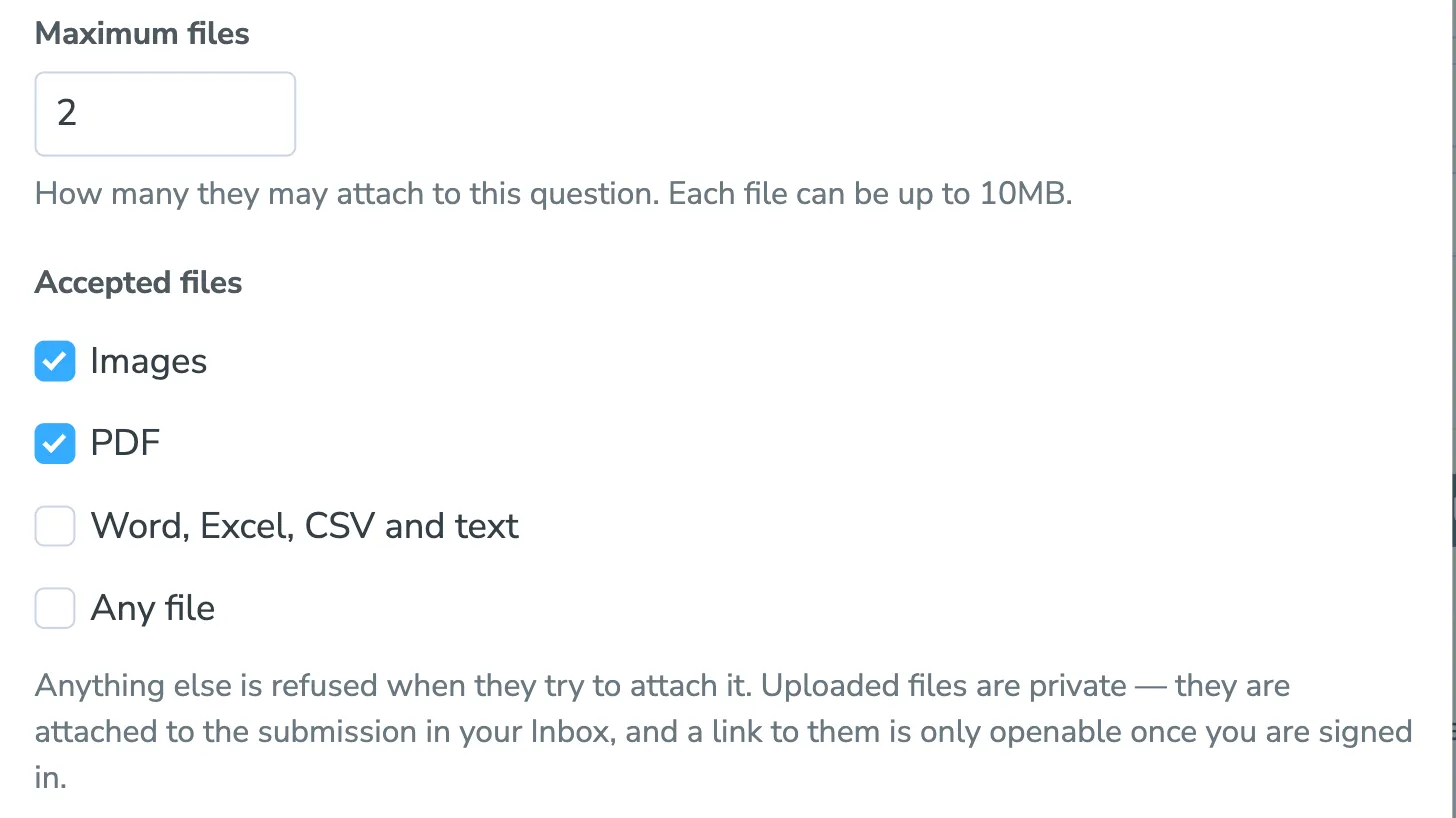
| Maximum files | How many they may attach to this question, up to 20. Each file can be up to 10MB. |
| Accepted files | Which kinds of file the question takes: Images, PDF, Word, Excel, CSV and text, or Any file. Anything else is refused when they try to attach it. |
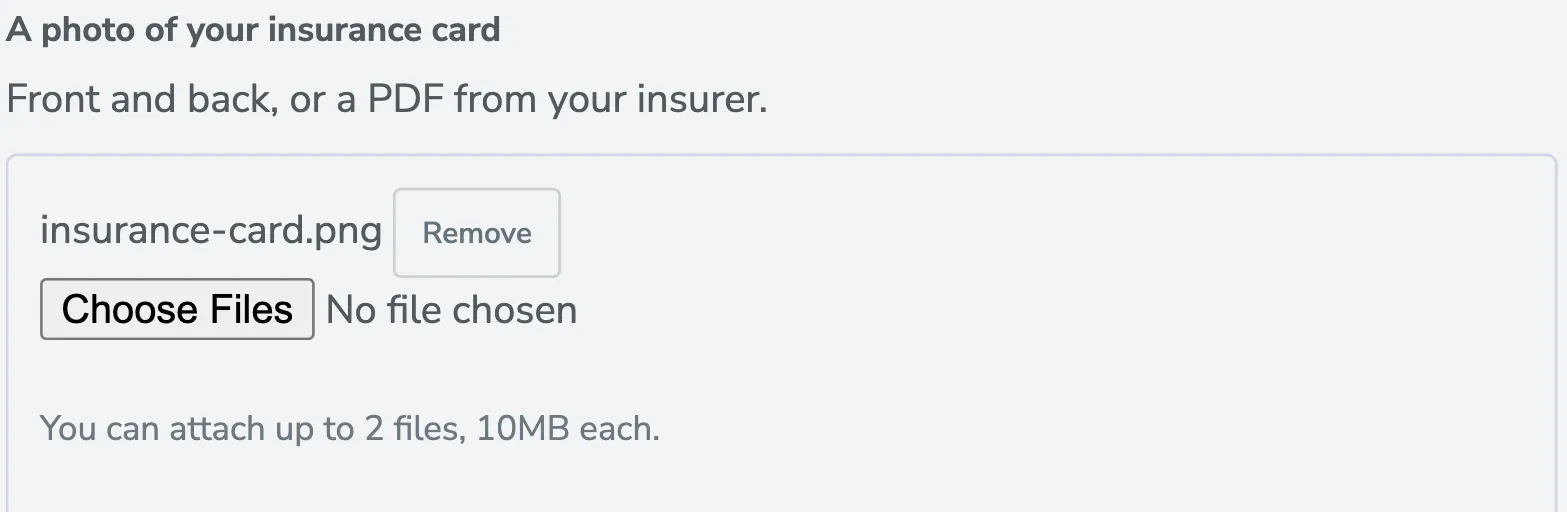
The client gets a file picker with the name of each file they have attached and a Remove button beside it, plus a reminder of how many more they may add.
Uploaded files are private. They arrive attached to the submission in your Inbox, and the link to each one only opens once you are signed in to Apptoto.
Where the answer goes
Section titled “Where the answer goes”Every answer is kept with the submission, included in the email, and listed on the contact and the appointment no matter what you choose here. Where the answer goes only decides what else the answer updates.
There are two independent choices, and a question can do both:
- Update the contact — then pick Custom data to set a field on their contact record, or Add to the notes to append the question and its answer to their notes.
- Update the appointment — then pick Custom data to set a custom field on the appointment, or Add to the description to append the answer to the appointment’s body.
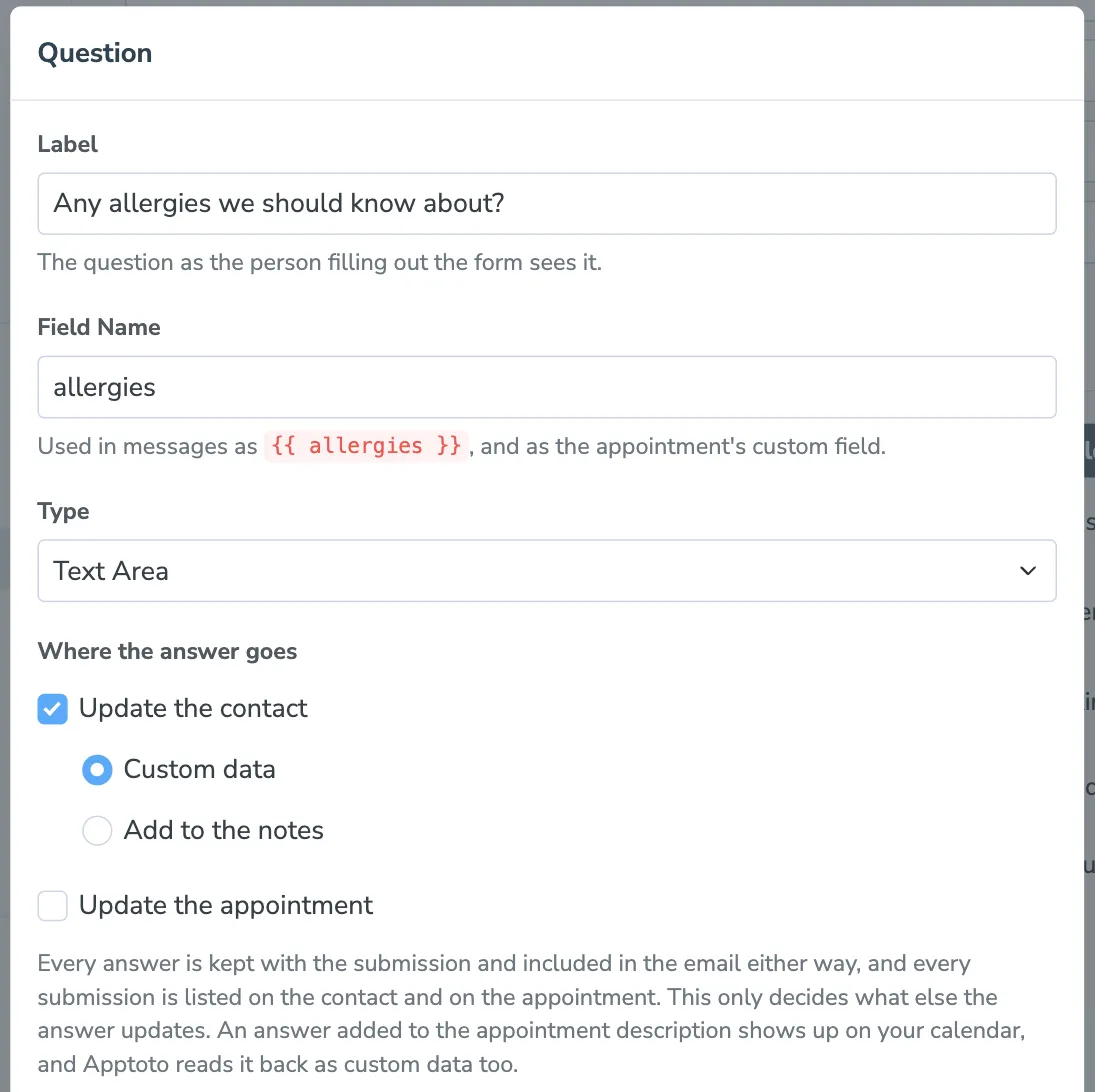
An answer added to the appointment description shows up on your calendar where anyone can read it, and Apptoto reads it back as custom data too.
New questions update the contact by default, which is usually what you want: “what is your insurance provider” is a fact about the person, not about one visit.
A File Upload answer
Section titled “A File Upload answer”A File Upload question can update the contact or the appointment like any other, and what it writes there is the links to the files. So a question that sets custom data on the appointment puts a way into the files on the appointment, and a later message merging that field name carries the links too. Anyone following one has to be signed in to Apptoto, which is what keeps the files private.
The emails sent on submit are the exception. {{ all_answers }}, and a single question named by its field name, list the file names the person attached rather than links — in the copy to whoever filled the form out and in the notification to your office alike. To open the files themselves, go to the submission in your Inbox, or to the appointment or contact the answer updated.
Reusing a field you already have
Section titled “Reusing a field you already have”If you have set up custom fields under Settings > Field Settings, the arrow beside Add Question lists them. Pick one and the form asks for it using that field’s existing label and type, and writes to that same field.
These questions show greyed out in the list. To change the label or the type, edit the field under Field Settings — the form follows it.
Conditional questions
Section titled “Conditional questions”A question can be hidden until an earlier answer calls for it, so nobody is asked about a medication they are not taking.
- Add the trigger question first. A dropdown or a checkbox works best.
- Add the follow-up question below it.
- Set When to show this question to Only when another answer says so, then choose the trigger question, whether the condition is “is equal to” or “is not equal to”, and the answer that should trigger it.
The follow-up stays hidden until the answer above calls for it, so nobody is asked a question that does not apply to them.
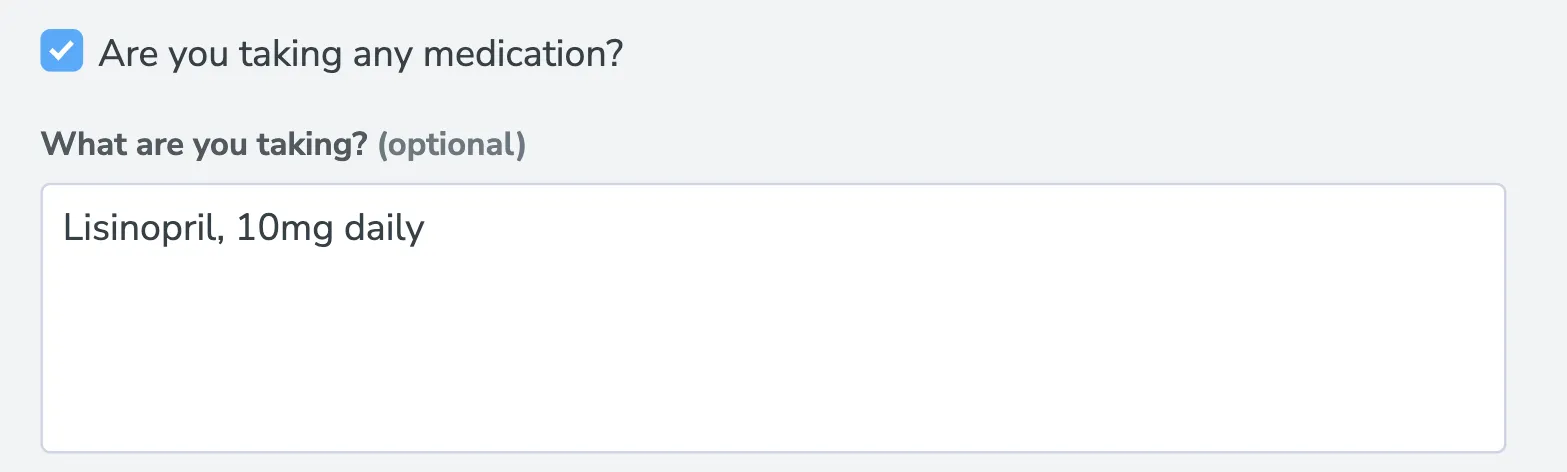
Only questions above the current one in the list can be used as a condition. Use the up and down arrows beside a question to reorder the list.
Collecting text message consent
Section titled “Collecting text message consent”Before you send someone appointment reminders or marketing by text, you need their permission. A form can ask for it — and the Text Message Consent form your account starts with already does, with both switches below turned on.
At the bottom of the Form tab are two switches:
| Switch | What it adds |
|---|---|
| Ask for consent to receive appointment text messages | A checkbox agreeing to automated reminders about their appointments |
| Ask for consent to receive marketing text messages | A separate checkbox agreeing to marketing texts |
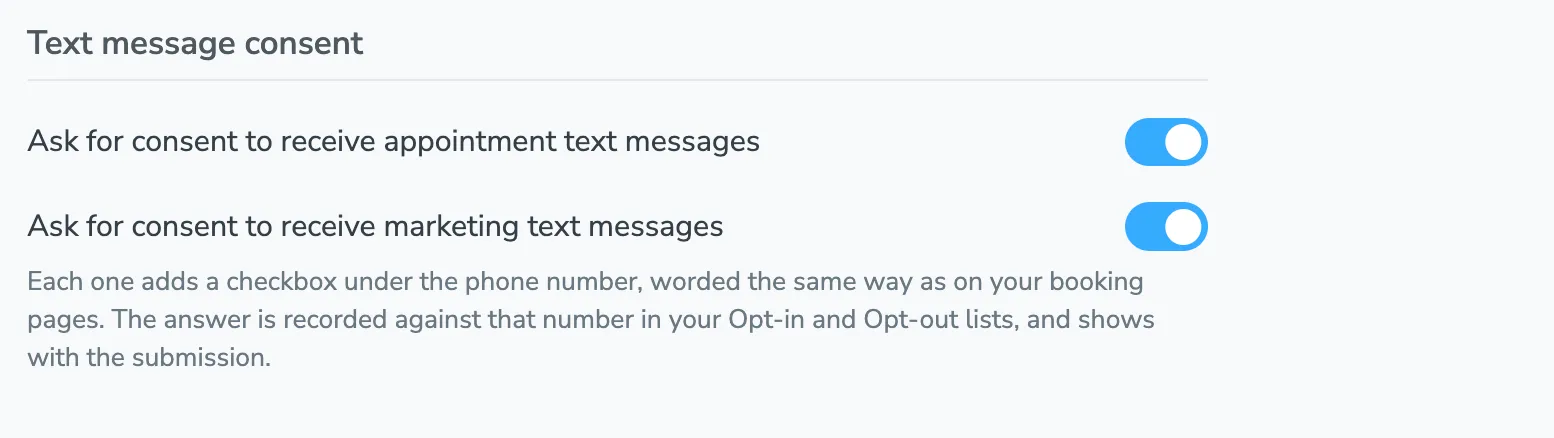
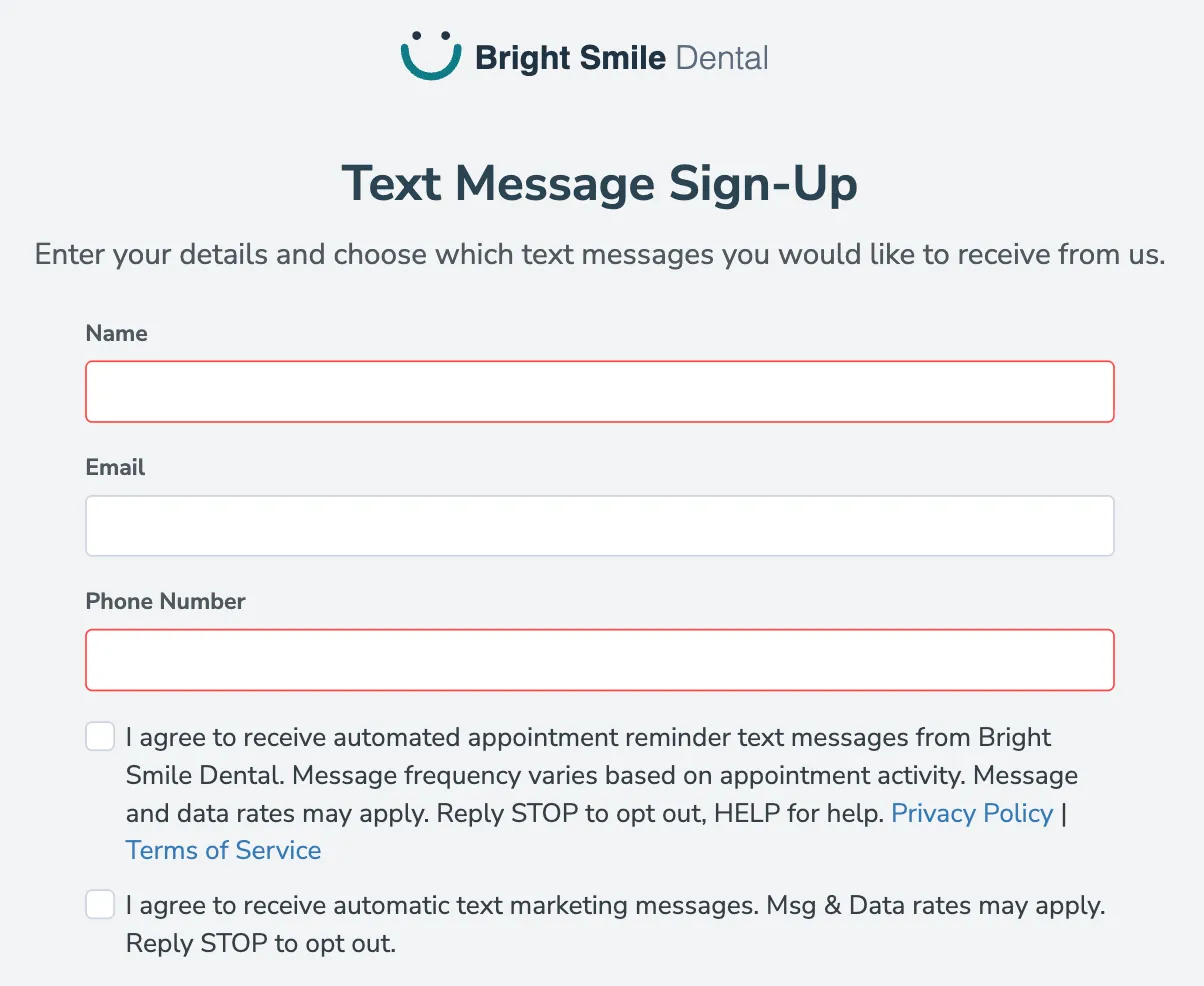
Each switch adds a checkbox under the phone number on the form, worded the same way as the equivalent checkboxes on your booking pages. Both start unticked — the person has to tick them.
What happens to the answer
Section titled “What happens to the answer”When the form is submitted, the number is added to your opt-in list for whichever boxes were ticked, and to the opt-out list for any that were left unticked. Ticking the reminder box also counts as the double opt-in reply, so Apptoto does not then text them asking for the consent they just gave — see Text Messaging Consent.
Both answers are also kept with the submission itself, reading “Agreed to appointment text messages: Yes” and the same for marketing, so you have a dated record of what each person agreed to.