
All Booking Page View
After you have created your first Booking Page, the next time you click on the Booking Pages tab you will see a table of all the booking pages you have created thus far. Next to the “Booking Pages” title, a counter shows how many pages you are using out of the number included with your plan.
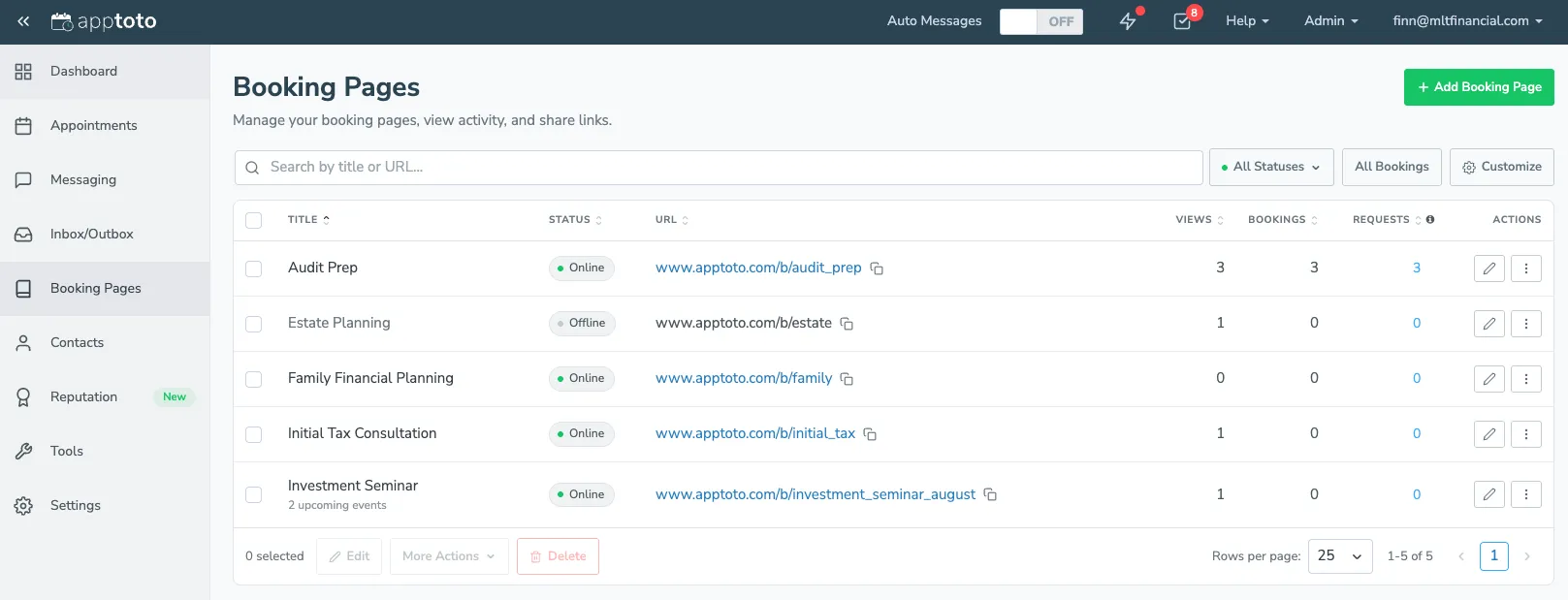
Each row in the table shows:
- Title: The name of the Availability or Signup page. Signup pages also show how many upcoming events they have.
- Status: Displays whether the page is Online (clients can book appointments using this page) or Offline.
- URL: The custom URL of the Availability or Signup page. Click the URL to open the page, or quickly copy it by clicking the copy icon next to it.
- Views: The number of times a given booking page has been viewed.
- Bookings: The number of bookings made through the given booking page.
- Requests: The total number of booking requests received for the page. Click the number to see a report with all requests. A warning icon appears here if recent booking requests have run into problems.
Clicking a row will take you to the Booking Page settings, where you can make more specific edits/updates to your Availability and Signup pages.
Finding and sorting pages
Section titled “Finding and sorting pages”Above the table you can:
- Search: Type in the search box to filter pages by title or URL.
- Filter by status: Use the status dropdown to show All Statuses, only Online pages, or only Offline pages.
- Sort: Click any column heading to sort by that column. Click it again to reverse the order.
- All Bookings: Click the All Bookings button to view booking requests across all of your booking pages in one place.
Choosing columns
Section titled “Choosing columns”Click Customize to choose which columns appear in the table. You can show or hide the Status, URL, Views, Bookings, and Requests columns. Apptoto remembers your choices the next time you visit.
Row actions
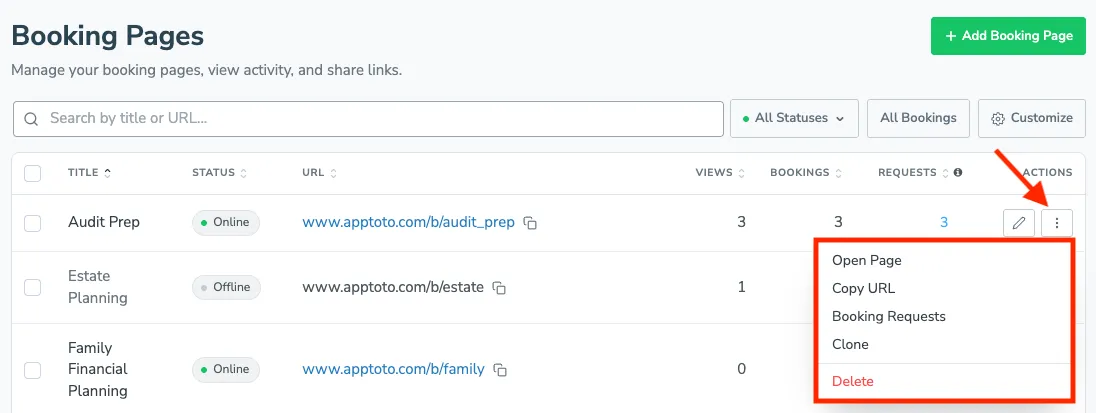
Section titled “Row actions”In the Actions column, click the pencil icon to edit a page, or click the three-dot menu for more options:
- Open Page: Open the live booking page in a new browser tab
- Copy URL: Copy the page’s URL to your clipboard
- Booking Requests: View the booking requests for the page
- Clone: Create a copy of the page
- Delete: Delete the page
Bulk actions
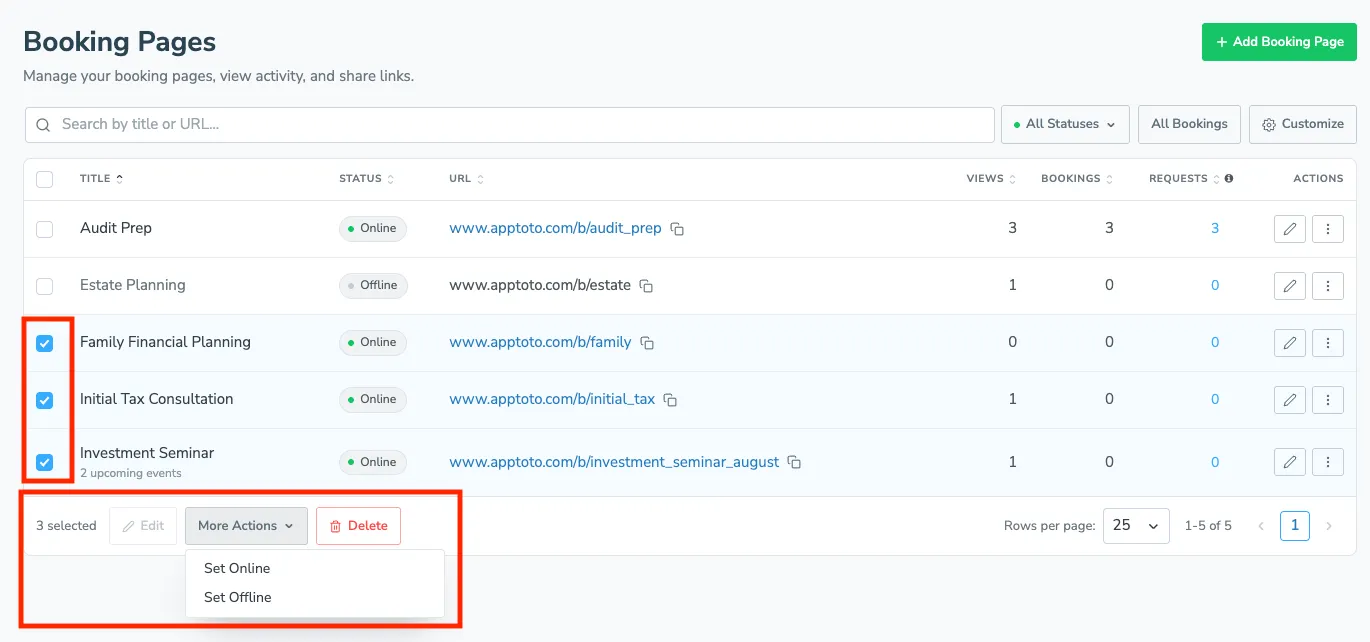
Section titled “Bulk actions”Use the checkboxes in the first column to select one or more pages. The checkbox in the header row selects every page currently shown. With pages selected, use the buttons below the table:
- Edit: Open the settings for the selected page (available when exactly one page is selected)
- More Actions > Set Online / Set Offline: Take all of the selected pages online or offline in one step
- Delete: Delete all of the selected pages (you will be asked to confirm first)
Pagination
Section titled “Pagination”If you have a lot of booking pages, the table is split into pages. Use Rows per page to show 10, 25, 50, or 100 rows at a time, and use the page numbers or arrow buttons to move between pages. Apptoto remembers your rows-per-page choice the next time you visit.