
Capabilities
The Capabilities tab is where you decide what the receptionist is allowed to do on your behalf.
Answering questions is always on, and so is taking a message when it cannot finish something itself - they are what makes it a receptionist. What happens on a phone call it cannot finish is set on the Phone calls tab instead.
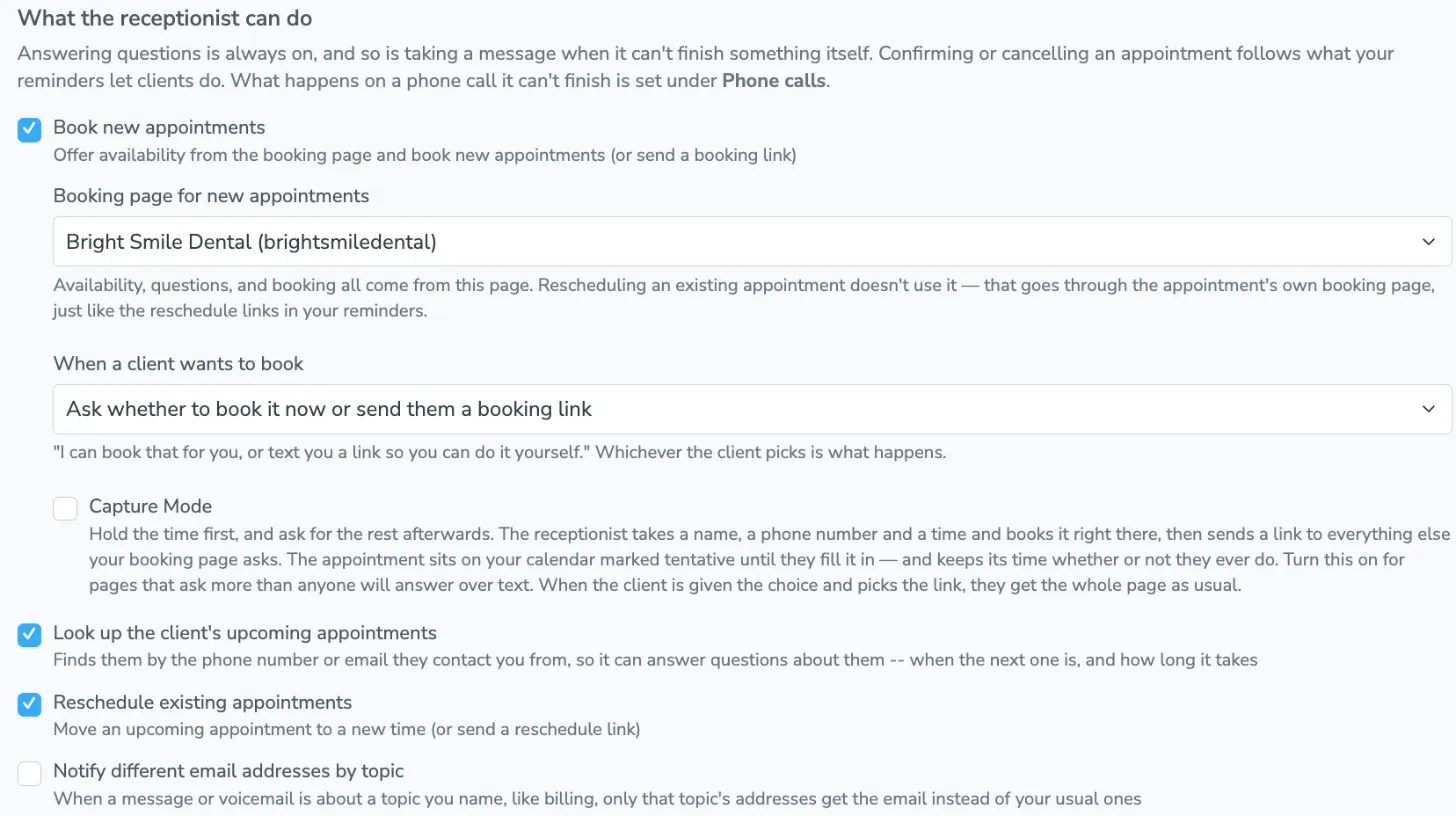
| Capability | What it means |
|---|---|
| Book new appointments | Offer availability from your booking page and book new appointments, or send a booking link |
| Look up the client’s upcoming appointments | Find the client’s upcoming appointments and answer questions about them - when the next one is, and how long it takes |
| Reschedule existing appointments | Move an upcoming appointment to a new time, or send a reschedule link |
| Notify different email addresses by topic | Email a message or voicemail about a topic you name, like billing, to that topic’s own addresses instead of your usual ones - see below |
The receptionist finds a client’s existing appointments from the phone number or email address they contact you from.
Looking up appointments without moving them
Section titled “Looking up appointments without moving them”Look up the client’s upcoming appointments is on to begin with. With it on and Reschedule existing appointments off, the receptionist can tell a client when their appointment is and answer questions about it, but cannot move it. A client who wants a different time is told the office will follow up, and you get a message.
Rescheduling starts from that list, so Reschedule existing appointments needs the lookup. Unchecking Look up the client’s upcoming appointments unchecks rescheduling too and greys it out until you turn the lookup back on.
With the lookup off, the receptionist knows nothing about a client’s other appointments. It can still deal with the appointment a conversation is about - see below.
Booking page for new appointments
Section titled “Booking page for new appointments”When Book new appointments is ticked, the first thing under it is Booking page for new appointments: the page the receptionist uses when a client books a new appointment. Availability, the questions it asks, and the booking itself all come from that page. Pages are listed by name, with the page’s link name in parentheses so you can tell two similarly named pages apart.
Until you pick one, the receptionist cannot book new appointments. It still does everything else you have turned on, and the tab shows a reminder under the dropdown while it is empty.
Rescheduling does not use this setting. An existing appointment is moved through its own booking page, exactly like the reschedule links in your reminders.
With Book new appointments off, the dropdown is hidden and the receptionist does not use the page at all. The page you picked is kept, so it is still there when you turn booking back on.
Booking in the conversation, or with a link
Section titled “Booking in the conversation, or with a link”Below the booking page, a dropdown labeled When a client wants to book decides how it books:
| Choice | What the receptionist does |
|---|---|
| Find a time and book it in the conversation | Offers open times, asks for whatever your booking page requires, and books it. It sends a link only if the client asks for one. |
| Ask whether to book it now or send them a booking link | Offers both - “I can book that for you, or text you a link so you can do it yourself” - and does whichever the client picks. |
| Send them a booking link to book it themselves | Sends the link as soon as they want to book, and never looks for a time itself. The booking page is where they pick one. |
This is a setting, not a note. Writing “always send a link on the phone” in the receptionist notes does not change how it books - choose it here.
Whichever you pick, a page that cannot be booked in a conversation gets a link. The tab says so as soon as you pick the page - naming the page, and naming the reason:
- It verifies the client before booking
- It takes a payment
- The client picks which calendar to book on
- It only books people already in your address book
- It has more than two required questions beyond a name, phone, and email - and the warning lists them
Capture Mode
Section titled “Capture Mode”Capture Mode is a checkbox under that dropdown, shown for the first two choices, and it is for a booking page that asks more than anyone will answer over text.
With it on, whenever the receptionist books in the conversation it takes a name, a phone number, and a time, and books the appointment right there. Then it sends the client a link back to your booking page, which opens on everything else the page asks - their time is already chosen, so there is no calendar to pick from, and anything you already know about them is filled in. The appointment sits on your calendar marked Tentative until they finish, and keeps its time whether or not they ever do. Nothing releases the slot.
If you let the client choose and they ask for the link instead, they get the whole booking page as usual. Capture Mode only changes what happens when the receptionist does the booking.
Capture Mode clears only the last reason in the table above, the one about required questions. A code at the door cannot be collected after the fact, so a page that verifies the client still gets a link.
On a booking page that takes a payment the checkbox is switched off and cannot be turned on. The card is collected as part of booking, so there is no way to hold the time first and ask afterwards.
Before it books, the receptionist checks that it can actually deliver that link. If it cannot, it takes a message instead of making an appointment nobody knows is unfinished:
| What stops it | What the client is told |
|---|---|
| The number is a landline | It asks for a number that can receive a text |
| The number is on your stop list | Nobody in your office can clear that, so it takes a message |
| The number is on your own opt-out list | It asks permission to text them, and books once they agree |
The message that carries the link is an ordinary message template using {{ booking.finish_link }}, so it is priced, checked against your opt-out lists at send time, and visible in your Inbox like anything else you send. On a phone call the link always goes to the caller’s phone; an email address spelled out loud goes wrong too often to rely on.
Asking again when nobody fills it in
Section titled “Asking again when nobody fills it in”That first link goes out the moment the appointment is made, and some people never tap it. To chase the ones who have not finished - and only those - add an auto message rule on the field booking.incomplete:
- Go to Messaging > Appointment Auto Messages and click New Rule.
- Choose Advanced, pick booking.incomplete from the field list, and leave the rule reading:
booking.incomplete == true
- Add a text or email message to the rule and put the link in it with Finish Booking > Link in the field picker, which writes
{{ booking.finish_link }}. In an email, Finish Booking > Button gives you a button instead. - Set when it goes - a day after the appointment was booked, or a day or two before the appointment itself, or both.
booking.incomplete is true only while an appointment is still waiting on its form. It turns false the moment the client submits it, which is the same moment the appointment stops being Tentative, so nobody who has finished is asked again and nobody who booked on an ordinary page is asked at all.
Routing pages
Section titled “Routing pages”If the page you pick is a routing page, the receptionist asks its questions the way the page asks them - using your own wording, your help text, and, for a dropdown, the exact choices your rules are written against, so “the Tigard one” lands on Tigard rather than on whatever words the client used.
Once the answers point at one location, the receptionist works for that location: it has the name and the address, and everything the client asks next is about that one.
Confirming and cancelling are not on this list
Section titled “Confirming and cancelling are not on this list”When a conversation is about a specific appointment, the receptionist can also confirm it, cancel it, or flag it as needing to be rescheduled - and those are not controlled by the checkboxes above.
They follow your message settings instead, exactly as they do when a client replies “1” or “2” to a reminder. A client answering your reminder in their own words gets the same outcome as a client who replies with a number:
| The receptionist can | When |
|---|---|
| Confirm the appointment | Your messages let clients confirm |
| Cancel the appointment | Your messages let clients cancel, and it is before your cancellation cutoff |
| Flag it for rescheduling | Your messages let clients request a reschedule, and Reschedule existing appointments above is off |
If your settings do not allow one of these, the receptionist does not do it. It tells the client the office will follow up and takes a message for you instead, with their name, a way to reach them, and what they wanted.
You set what clients are allowed to do, and the cutoff, under Advanced Settings on your auto message.
Notifying different email addresses by topic
Section titled “Notifying different email addresses by topic”Every message and voicemail the receptionist takes for you is normally emailed to the same people: wherever you already get notified about client replies (set on Settings > Notifications), plus any addresses in Also notify further down the Capabilities tab.
Tick Notify different email addresses by topic when some of those should go to someone else instead - billing questions to your bookkeeper, say, or warranty claims to your service team. It is off until you turn it on.
- On the Capabilities tab, tick Notify different email addresses by topic. An empty topic appears under it.
- Under When it’s about, describe the topic the way you would explain it to a new hire - for example, “Billing, invoices and refunds”. The receptionist reads this to decide what belongs there.
- Under Email, enter the address that should get these messages. Separate several with commas.
- Click Add a topic for another one, up to five, then click Save.
When the receptionist takes a message or a voicemail that is clearly about one of your topics, only that topic’s addresses get the email - not your usual notification addresses, and not Also notify. The email says where it was sent and why, so a message filed under the wrong topic is easy to spot.
Everything else works as it did:
- A message about none of your topics, or not clearly about one, goes to your usual addresses. The receptionist never asks the client which topic it is.
- Only the email changes. If you also get reply notifications by text, those still come to you.
- A conversation assigned to someone in your Inbox is never sent to a topic’s addresses. Its notifications follow the assignment, whatever it is about.
- A topic is used only once it has both a description and an email address. The tab warns you about one that is missing either.
- Unticking the box keeps your topics. The receptionist stops using them until you tick it again.
Try It Out shows which addresses a message would be sent to, so you can check a topic before a real client reaches it.