When a no-show for a high-value appointment costs you $500 or more, you need to make sure every reminder channel is working in your favor. Texts and emails are great for keeping your business top of mind, but a phone call does something they can’t: it creates a live, two-way conversation. Your client or patient confirms, asks a last-minute question, or reschedules before it’s too late. Either way, you protect the slot.
And for complex appointments where clients need to fast, bring documents, or follow specific prep instructions, a call lets you relay those details and confirm understanding in real time. No hoping they read the fine print.
This guide covers everything you need to implement appointment reminder calls that match the stakes: word-for-word scripts, timing strategies that maximize pickup rates, and steps to automate when calling manually is no longer scalable.
Why Appointment Reminder Calls Still Matter in a Text-First World
Text message reminders get a lot of attention, and for good reason. They are fast, cheap, and most people read them within minutes. But reminder calls fill gaps that texts cannot.
When Patients and Clients Prefer a Phone Call Over a Text
Not everyone treats a text message as a prompt to take action. Older patients, first-time clients, and people booking high-stakes appointments (surgeries, legal consultations, financial reviews) tend to respond better to a voice call. A phone call feels more personal, carries more weight, and gives the recipient a chance to ask questions or reschedule on the spot.
For medical practices in particular, more than 80% of patients over 60 prefer phone call reminders to text messages, according to a 2024 study by Trinity College Dublin. That preference for calls increased consistently with age. If your client base skews older, calls aren’t just a nice touch; they may be the reminder method your clients actually respond to.
The No-Show Cost That Most Businesses Underestimate
The national average no-show rate ranges from 15% to 30%, depending on the industry. For a healthcare practice seeing 25 patients a day, even a 20% no-show rate means five empty slots. If each appointment is worth $150, that is $750 in lost revenue per day, or roughly $195,000 per year.
The math applies to any service business: salons, law firms, financial advisors, or auto repair shops. Reminder calls do not eliminate no-shows entirely, but businesses that use them consistently report reductions of up to 90%.
How to Make Appointment Reminder Calls (Manually)
If you are making appointment reminder calls by hand, the three things that matter most are what you say, when you call, and how you handle the response.
What to Say: Appointment Reminder Call Scripts
Below are four scripts you can use right away. Some things to keep in mind:
- Your tone should be warm and professional
- Always include the key details:
- Your business name
- The client’s name
- The date and time of the appointment
- A way to confirm, cancel, or reschedule

General Business Script (Client Answers)
Hi [Client Name], this is [Your Name] from [Business Name]. I’m calling to confirm your appointment on [Day], [Date] at [Time]. Does that time still work for you?
> [Yes] Fantastic. We look forward to seeing you then!
>[No] I’m sorry to hear that, but let’s get you rebooked while I have you!
General Business Script
Hi [Client Name], this is [Your Name] from [Business Name]. I’m calling to confirm your appointment on [Day], [Date] at [Time]. If you need to reschedule or cancel, please call us back at [Phone Number]. We look forward to seeing you!
Medical / Dental Office Script
Hello, this message is for [Patient Name]. This is a reminder from [Practice Name] that you have an appointment scheduled for [Day], [Date] at [Time]. Please remember to bring your insurance card and arrive 10 minutes early. To confirm, reschedule, or cancel, call us at [Phone Number]. Thank you.
Service Business Script (Salon, Auto Repair, HVAC)
Hi [Client Name], this is [Business Name] calling to remind you of your [Service Type] appointment on [Day], [Date] at [Time]. If anything has changed, give us a call at [Phone Number]. Otherwise, we’ll see you then!
Voicemail Script
Hi [Client Name], this is [Your Name] from [Business Name]. I’m calling to remind you about your appointment on [Day], [Date] at [Time]. If you need to make any changes, please call us back at [Phone Number]. Thanks, and we’ll see you soon.
Each script keeps the message under 60 seconds. This is not just a best practice; for healthcare practices, it is a legal requirement under the FCC’s TCPA healthcare exemption.
When to Call: Timing Your Reminder Calls for Maximum Impact
The most effective timing for reminder calls depends on the appointment type:
- 4-7 days before: The primary reminder. This gives clients enough lead time to reschedule if needed, especially for large procedures or high-value services, and gives you enough time to fill the slot.
- 24-36 hours before: A second-touch reminder for high-value or frequently missed appointments. This call is also useful for reminding clients or patients of prep or fasting instructions.
- Same-day (morning): Best for afternoon appointments, especially in healthcare. Keep it brief.
Research from the appointment management industry suggests 3 PM is the optimal time for voice call reminders, while 6 PM produces the highest confirmation rates for text-based reminders. If you are using a multi-channel approach (and you should be), stagger your calls and texts.
How to Handle Voicemails, Reschedules, and Confirmations
Some reminder calls may go to voicemail. That is fine, as long as your message is clear and actionable. Always leave a callback number and a simple way to confirm or reschedule.
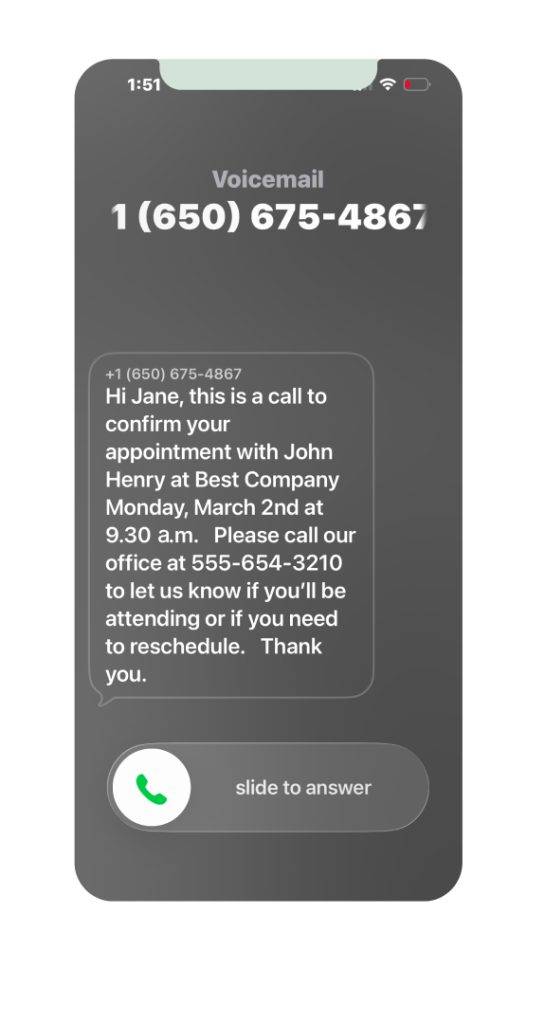
When a client calls back to reschedule, treat it as a win. A rescheduled appointment is far better than a no-show, because the slot opens up and the client stays on your calendar. Track reschedule rates alongside no-show rates; both tell you how well your reminders are working.
Why Manual Reminder Calls Don’t Scale (And What to Do Instead)
The Real Cost of Calling Every Patient or Client
Here is the math that most office managers know intuitively but rarely put on paper:
A practice with 30 daily appointments needs roughly 30 calls per day. At an average of 2 minutes per call (including dialing, leaving voicemails, and handling callbacks), that is 1 hour per day, 5 hours per week, and 260 hours per year. At $20 to $30 per hour, that amounts to $5,200 to $7,800 in labor costs for reminder calls alone.
That does not account for the calls that get missed because the front desk gets busy with walk-ins, check-ins, or phone calls from other patients.
What Happens When Your Front Desk Falls Behind
Manual reminder calls are the first task that gets dropped when things get hectic. A busy Monday morning means Tuesday’s reminder calls do not go out, which in turn spikes Wednesday’s no-show rate. It is a predictable cycle, and it is the primary reason most practices eventually move to automated appointment reminder calls.
How Automated Appointment Reminder Calls Work
Automated reminder calls are not the robocalls you are picturing. Modern voice reminder systems are built to sound natural, deliver personalized information, and give clients a way to respond without calling back.
Voice Call Reminders vs. Robocalls: What’s the Difference
The word “robocall” carries a negative connotation because most people associate it with spam. Automated appointment reminder calls are a different category entirely:
- Robocalls are unsolicited, often spoofed, and deliver generic pre-recorded messages to mass audiences.
- Automated reminder calls are sent to people who already have an appointment with your business, use your real caller ID, and include personalized details like the client’s name and appointment time.
The distinction matters legally (more on that in the compliance section below) and practically. Your clients expect to hear from you before an appointment. A well-executed reminder call reinforces professionalism.
How Automated Calls Sound (Natural Voice, Personalization, Caller ID)
Quality automated reminder calls use natural-sounding recorded or synthesized voices, not the stilted, robotic tone you might expect. They pull details directly from your calendar, so each call includes the client’s name, the appointment date and time, and your business name. The call displays your actual business phone number on the caller ID, so clients recognize who is calling.
Two-Way Interaction: Confirmations, Reschedules, and Cancellations by Phone
The best automated systems are interactive. Clients can press a key to confirm, cancel, or request a reschedule. Those responses sync back to your calendar in real time, so your staff does not have to chase down confirmations manually.
What to Look for in a Reminder Call Service
If you are evaluating a reminder call service, here are the criteria that matter most.
Calendar and Scheduling System Integration
The tool should connect directly to your existing calendar (Google Calendar, Outlook, Salesforce, orwhatever you use). If it requires you to re-enter appointments or use a separate booking system, it adds friction instead of removing it. The best tools automatically pull appointments, regardless of how they were booked: online, over the phone, or manually.
Customization: Voice, Timing, Message Content
You should be able to control when calls go out, what the message says, and how it sounds. Different appointment types often need different scripts. A dental cleaning reminder and a surgery pre-op call should not sound the same.
Multi-Channel Capability (Calls + Text + Email)
The data is clear: multi-channel reminders outperform single-channel. Text reminders have a 53.5% higher response rate than voice calls alone. The most effective approach combines a text message for the initial reminder with a voice call for follow-up, or vice versa. Look for a platform that handles all three channels from one place.
What is the best time to use phone call reminders compared to SMS and email reminders?
| CHANNEL | STRENGTH | WHEN TO USE |
|---|---|---|
| Phone Calls | Personalized and direct | Complex logisitcs or high-touch clients |
| Great for detailed info and attachments, easily searchable appointment details | Complex logistics or high-touch clients | |
| SMS Text | Fastest open/read; ideal for short, timely alerts | Short, simple reminders 24–48h and same‑day |
Compliance Essentials: What the Law Says About Appointment Reminder Calls
Automated appointment reminder calls are regulated at the federal level in both the US and Canada. You do not need a law degree to stay compliant, but you do need to understand a few key rules.
TCPA Rules for Automated Reminder Calls (US)
The Telephone Consumer Protection Act (TCPA) is the primary federal law governing automated calls. For most businesses, this means you need prior express consent before sending automated reminder calls to a client’s mobile phone.
Non-healthcare businesses (salons, auto shops, law firms, financial advisors) should collect consent during intake or booking. A simple checkbox that says “I agree to receive automated appointment reminders at this number” is typically sufficient.
As of April 2025, the FCC also requires businesses to honor consent revocation requests made by “any reasonable means,” not just by texting STOP. You have 10 business days to process a revocation. A separate rule (the “Revoke All” provision, which would make opting out of one channel apply to all channels) has been delayed to January 2027.
The Healthcare Exemption: What It Allows and Its Limits
Healthcare providers have a specific exemption under a 2015 FCC ruling. You can send automated appointment reminders to patient-provided mobile numbers with implied consent (versus explicit written consent), provided you meet all of these conditions:
- The message is non-promotional (appointment reminders only, no marketing)
- No more than 1 call per day and 3 calls per week to the same number
- Each call is under 60 seconds
- The call includes an opt-out mechanism
- The number was provided by the patient, not purchased from a list
This exemption is why the scripts above are kept short. If your practice adds a “by the way, we have a teeth whitening special” to the end of a reminder call, the exemption no longer applies, and standard TCPA consent rules kick in.
HIPAA and Voicemail: What You Can and Can’t Say
For healthcare practices, HIPAA adds another layer. Appointment reminders are permitted under HIPAA’s Treatment, Payment, and Healthcare Operations provisions, so you do not need separate patient authorization to send a basic reminder. But voicemails are where things get tricky.
A voicemail should include only: your practice name, a callback number, and a general reference to an appointment. Never mention the reason for the visit, a diagnosis, test results, or treatment details. If your practice name itself reveals the type of care (for example, “Metropolitan Oncology Associates”), even leaving the practice name on a voicemail could be a violation.
Any third-party reminder service handling protected health information must have a signed Business Associate Agreement (BAA). If you are evaluating tools, ask whether they offer BAAs and whether their platform meets HIPAA technical safeguards. Apptoto, for example, provides BAAs and is built for HIPAA-compliant appointment communication.
Canadian Rules: CRTC, CASL, and ADAD Requirements
In Canada, automated voice calls (including appointment reminders) are governed by the CRTC’s Unsolicited Telecommunications Rules, not CASL. CASL applies only to text, email, and social media messages.
The key requirements for automated voice reminders in Canada:
- Caller identification: The recorded message must immediately identify the caller and organization, state the purpose, and provide contact information valid for at least 60 days.
- Time windows: Calls are permitted between 9:00 AM and 9:30 PM on weekdays and 10:00 AM and 6:00 PM on weekends (local time to the recipient). Some provinces have stricter rules.
- No promotional content: If a reminder call includes promotional language, it falls under stricter CASL consent requirements.
- Disconnect requirement: Automated calling equipment must disconnect within 10 seconds after the recipient hangs up.
For a more detailed breakdown of these regulations, consult the FCC’s telemarketing and robocall guidelines at fcc.gov, the US Department of Health & Human Services HIPAA FAQ at hhs.gov, and the CRTC’s telemarketing rules at crtc.gc.ca.
How to Set Up Automated Reminder Calls With Apptoto
Time needed: 15 minutes
If the math from the “manual calls” section hit close to home, here is how to move from manual to automated in about 15 minutes.
Once you connect your appointment calendar to Apptoto, you set up your call reminder timing and templates and add your clients’ contact information. Apptoto automatically pulls in your client names, dates, times, and services into messages. You can send a single call reminder or run a full sequence including a booking confirmation, appointment reminder, and follow-up.
- Log in to Apptoto.
Log in to Apptoto or sign up for a free 14-day trial if you’ve never used Apptoto before!
- Add a new calendar.
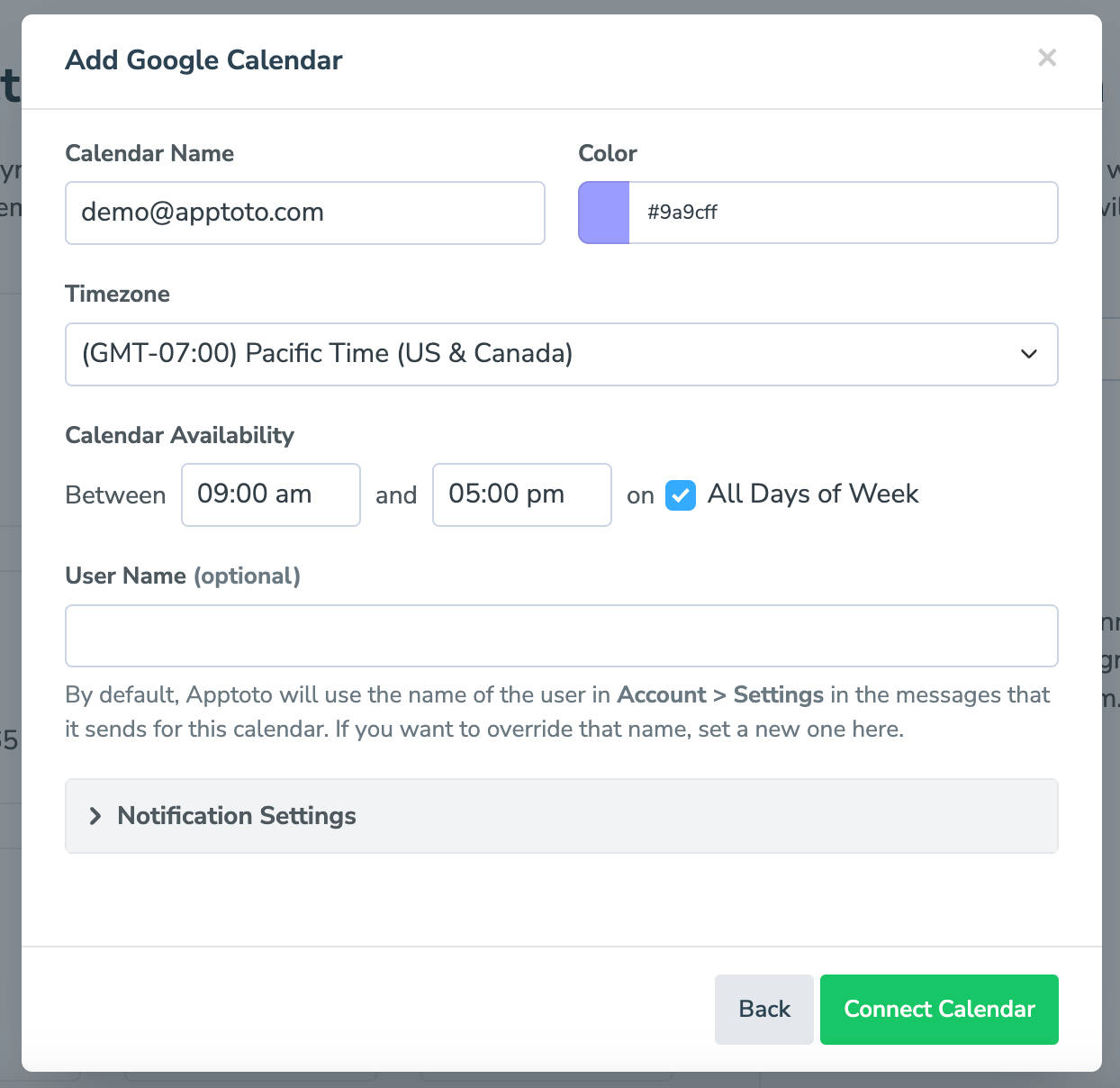
If you’re logging in for the first time, you’ll be prompted to connect a calendar during the onboarding process. Otherwise, navigate to “Settings”> “Calendars.” Choose your calendar from the list, or click “Create Calendar” to add an “Apptoto Calendar.”

- Adjust your calendar settings.
Set the calendar name, your availability, and desired notifications settings. Then, click “Connect Calendar.”
- Appointments will automatically sync to Apptoto.
On the “Appointments” tab, you’ll now see a list of upcoming appointments.

- Add an address book.
Navigate back to “Settings”> “Address Books” tab. Click “+Add” and follow the prompts to add your preferred contact address book(s).

- Set up automated appointment reminder calls.
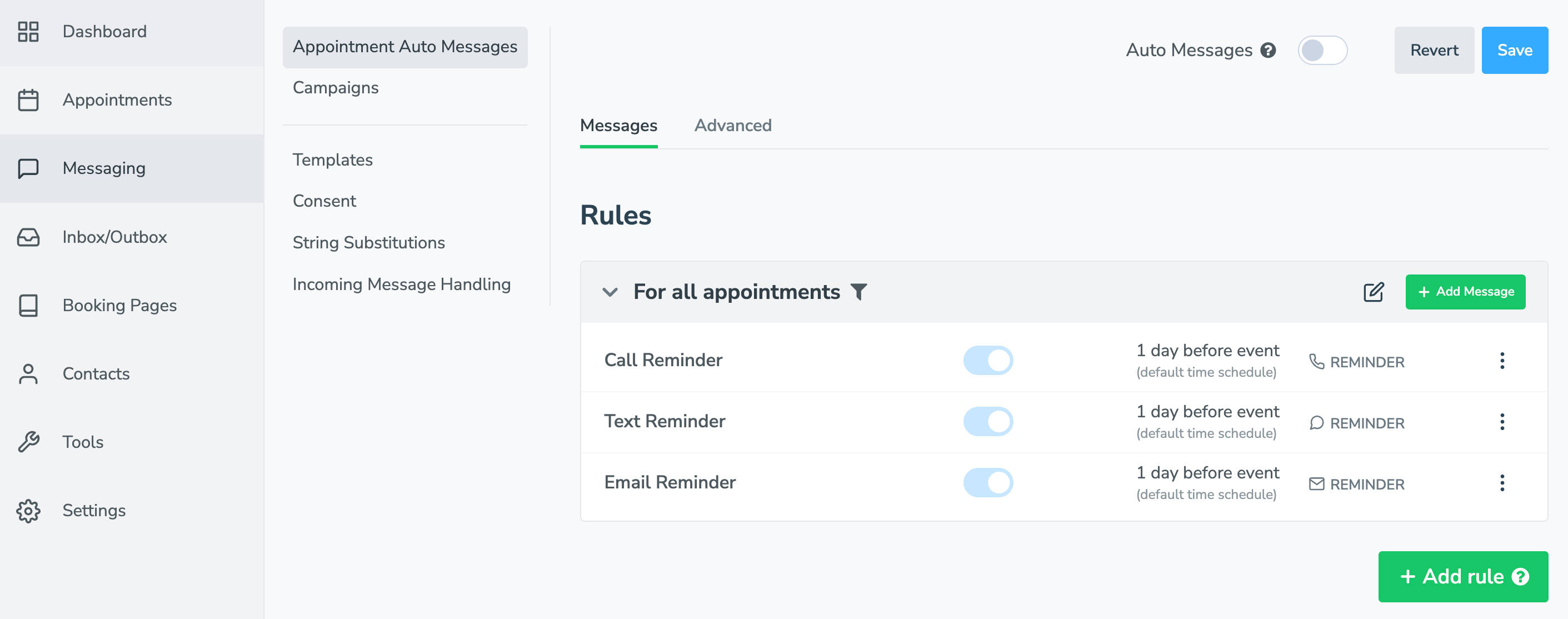
Navigate to the “Message”> “Appointment Auto Messages” tab. Three reminder messages (a call reminder, a text reminder, and an email reminder) will be created by default.
- Edit default reminder messages.
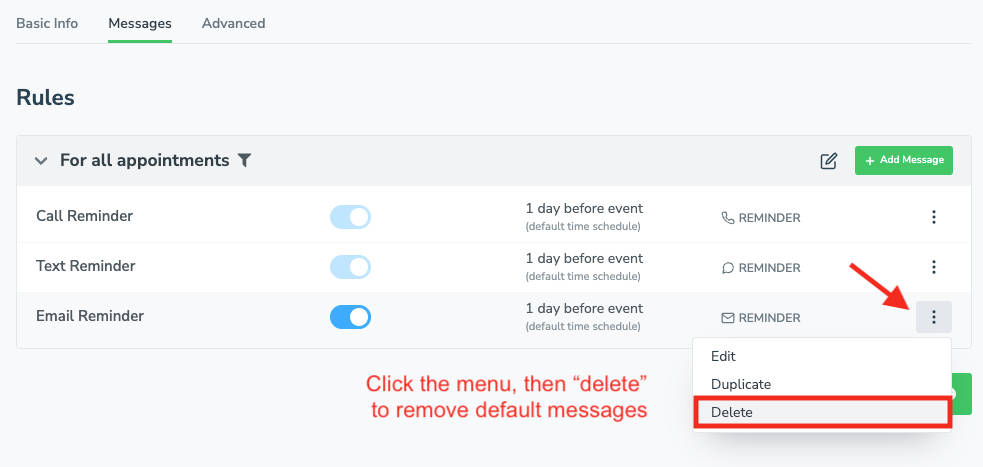
If you only want to run call reminders, click the three-dot menu to the right of email and text reminders. Then click delete.
- Edit or create a new call reminder.
To edit the existing call reminder, click the three-dot vertical menu to the right of the Call Reminder. OR
Click “+Add Message” then “Call.” Set the call’s purpose (booking confirmation, reminder, or follow-up), timing, language, and message content (including subject). You can use your own script or one of the ones above, depending on your needs.
You can also set the voice of the person reading the message, or upload your own MP3/WAV file as part or all of the message.
NOTE: The call message body will automatically include {{reminder.prompt}}, which will verbally prompt the client to press 1 to confirm, 2 to cancel, 3 to reschedule (if you have these options enabled).
Click “Done & Save.”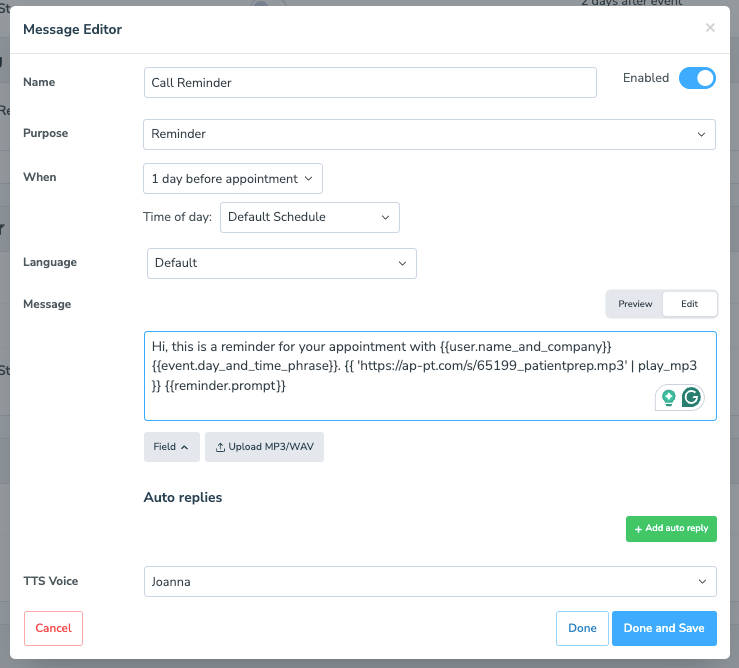
- Enable auto-messages to deliver reminders automatically.
Create as many reminder sequences as you need. To launch, turn the “Auto Messages” button at the top of the screen to “On.”
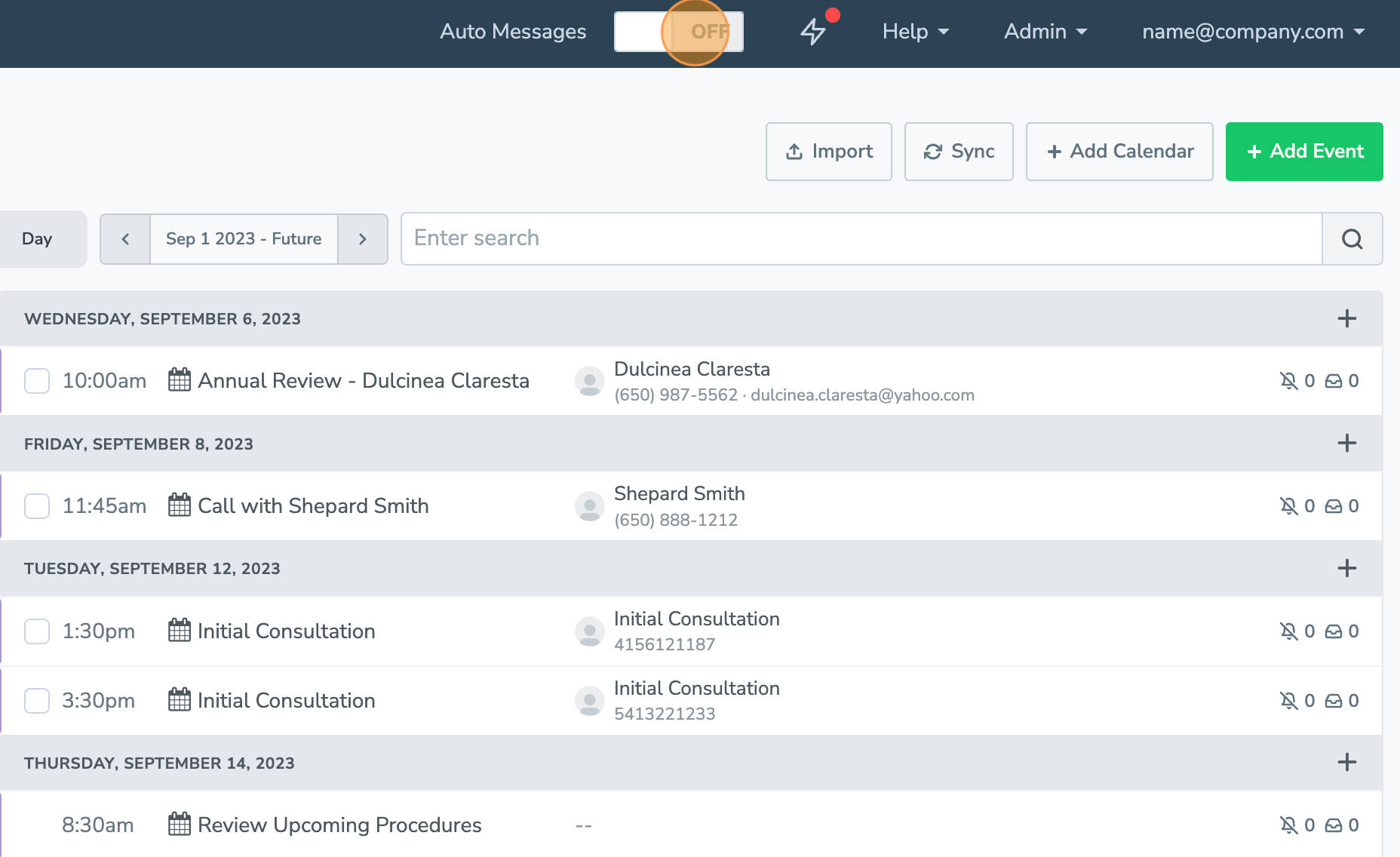
Optional: Set up rules to send specific messages to certain appointments based on their event details (e.g., name or start time), participant details (e.g., confirmation status), or calendar.
Let Apptoto Rebook Cancellations or Reschedule Requests Automatically with Auto-Replies
When a client picks up an automated reminder call, they’re prompted to press 1 to confirm, 2 to cancel, or 3 to reschedule. Their response automatically updates your calendar: confirmed appointments get tagged [CONFIRM] and turn green, while cancellations and reschedule requests get tagged [CANCEL] or [RESCHEDULE] and turn red.
If a client presses 2 or 3, the call lets them know someone from your team will follow up shortly. But the call itself can’t rebook them on the spot. You’re still responsible for checking those flagged events and reaching out.
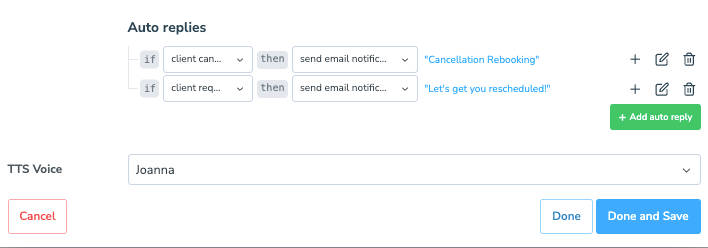
To speed this up, set up an Auto-Reply email that fires when a cancellation or reschedule response comes in, with a link to your Apptoto online booking page.
- In Step 8 above, click the green “+Add Auto Reply” button.
- Set the first Auto-Reply:
- If “client cancels,” then “send email notification.”
- Use the pencil icon to update the email subject & body.
- Add the URL of your booking page directly to the email or {{ event.reschedule_button }}
- Set a second Auto-Reply:
- If “client reschedules,” then “send email notification.”
- Use the pencil icon to update the email subject & body.
- Add the URL of your booking page directly to the email or {{ event.reschedule_button }}
- Click Done & Save.
Appointment Reminder Call Best Practices
Call Timing That Reduces No-Shows Without Annoying Clients
The sweet spot for most businesses is two touches: one call anywhere from 4-7 days before the appointment (depending on the value/length of service), and a second 24 hours before. Going beyond three reminders for a single appointment risks annoying the client, leading to opt-outs. For high-value appointments (consultations, procedures, first visits), a same-day morning call can be worth adding.
What to Include (and Leave Out) of Your Reminder Message
Every reminder call should include: your business name, the client’s name, the appointment date and time, and a way to confirm, cancel, or reschedule. Leave out: promotional offers, lengthy greetings, or anything unrelated to the appointment itself. For healthcare providers, leave out any clinical details.
Keep messages under 45 seconds for general businesses and under 60 seconds for healthcare (to stay within the TCPA exemption).
Following Up When a Call Goes Unanswered
If your first reminder call goes to voicemail and you do not get a callback or confirmation, follow up with a text message. Text messages have a 90% read rate within 3 minutes, making them an ideal backup channel. If that does not produce a response either, a brief email the day before can serve as a final touchpoint.
The goal is not to flood the client’s phone. It is to reach them through the channel they are most likely to act on. This is where a multi-channel reminder platform pays for itself: you set the sequence once, and the system handles the rest.
Frequently Asked Questions About Appointment Reminder Calls
Start by pulling your next day’s appointment list from your calendar. Call each client and include four things: your business name, their name, the appointment date and time, and a way to confirm, cancel, or reschedule. Use the scripts in this guide as a starting point. If you have more than 15 to 20 appointments per day, consider automating your reminder calls with a tool that connects to your existing calendar.
A strong reminder call sounds something like: “Hi Sarah, this is Dr. Martin’s office calling to confirm your appointment on Thursday, March 5th at 2:00 PM. If you need to reschedule or cancel, please call us at 555-0123. We look forward to seeing you.” Keep it short, include only the essential details, and always provide a callback number.
Appointment reminders are classified as Treatment, Payment, and Healthcare Operations (TPO) communications under HIPAA, so no special patient authorization is required. However, voicemails must be kept general: include only your practice name, a callback number, and a reference to an upcoming appointment. Never mention diagnoses, test results, or treatment details in a voicemail. Any third-party service handling patient information needs a signed Business Associate Agreement.
Call before a patient’s appointment using a consistent script. State your practice name (if doing so won’t violate HIPAA), the patient’s name, and the appointment details. Ask them to press a key or call back to confirm. If the call goes to voicemail, leave a brief message and follow up with a text. Track which patients confirm, which reschedule, and which do not respond so you can adjust your approach over time.
Research suggests 3:00 PM is the most effective time for voice call reminders. Avoid calling before 9:00 AM or after 8:00 PM. For Canadian businesses, CRTC rules restrict calls to 9:00 AM through 9:30 PM on weekdays and 10:00 AM through 6:00 PM on weekends. If you are also sending text reminders, stagger them at different times (6:00 PM tends to produce the highest text confirmation rates).
Automate Call Reminders Today
Ready to stop making reminder calls manually. Apptoto automates voice calls, text messages, and reminder emails from the calendar you already know and love. Start a free 14-day trial at apptoto.com.
Read more of our 3-part appointment reminder series
- Part 1: Appointment Reminder Texts (templates, timing, and an SMS generator)
- Part 2: Appointment Reminder Emails
- Part 3: Appointment Reminder Calls (you’re here)
For the most reliable results, use a mixed approach: email for details and links, SMS for last-mile nudges, and calls for high-touch or complex situations.