If your business doesn’t show up when someone types “{your service} near me” in Google, do you even exist?
Of course you do. But to the customer who is ready to book right now, you might as well not.
Right now, potential clients are searching for services you offer. They’re not scrolling through page two of Google. They’re clicking on one of the three businesses in the map at the top of the results. The ones with reviews. Clear hours. A click-to-call button. Maybe even a “Book Now” link.
That space is called the Local Pack, and it’s prime digital real estate.
The difference between getting the call and losing it to a competitor often comes down to one thing: your Google Business Profile.
It’s free. It takes minutes to set up. And for appointment-based businesses, it can quietly become one of your most consistent sources of high-intent leads.
In this step-by-step guide for 2026, you’ll learn exactly how to create, verify, and optimize your Google Business Profile so you show up where it matters most, right when customers are ready to book.
What Is a Google Business Profile (And Why It Matters)
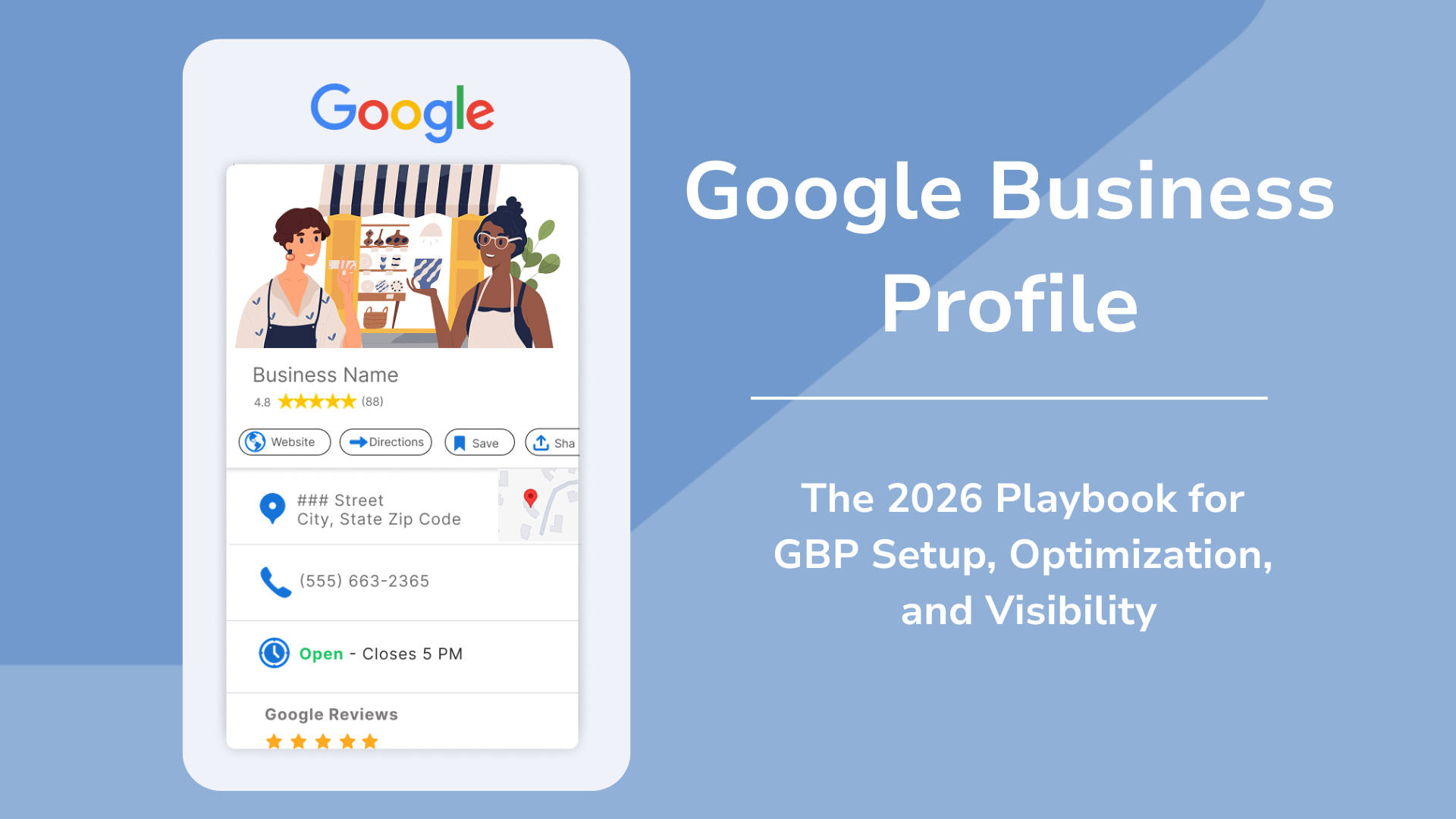
A Google Business Profile (GBP) is a free listing that controls how your business appears across Google Search and Google Maps. It displays your business name, address, phone number, hours, photos, reviews, and more, all in a prominent panel that appears when people search for your business name or the services you offer.
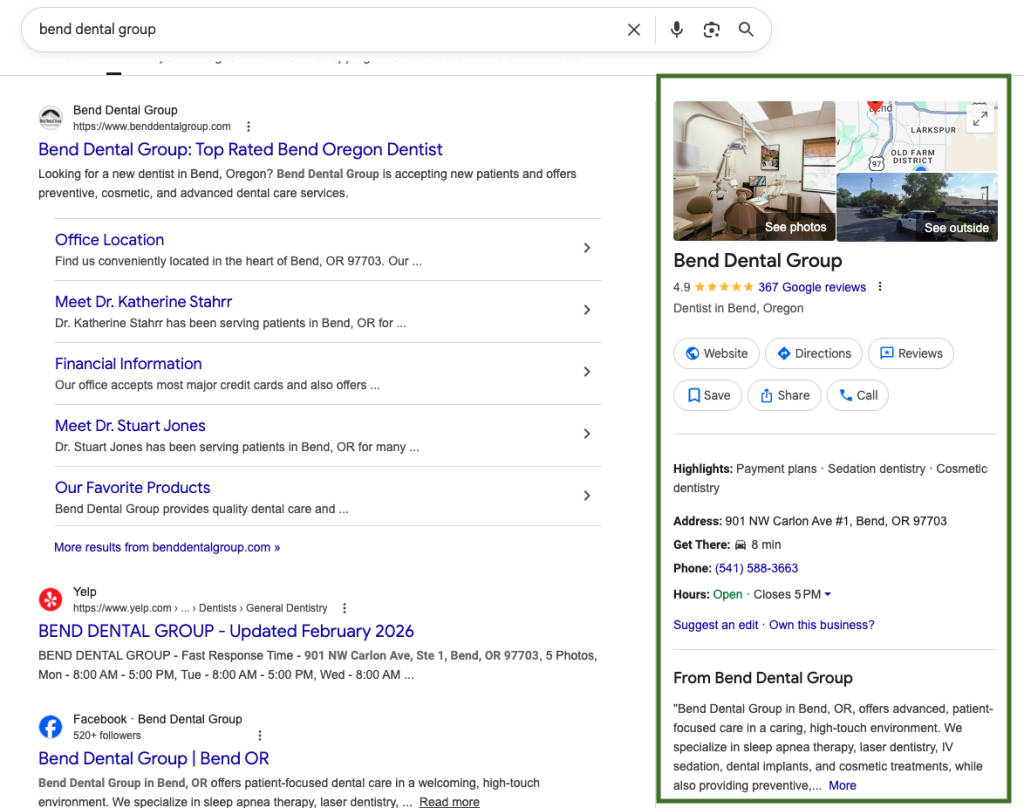
Think of it as your business’s homepage on Google itself. And unlike your website, which competes for one of ten organic links, your GBP can land you in the top results in the Local Pack — prime real estate that appears above traditional search results.
How GBP Shows Up in Search and Maps
Your profile appears in three key places.
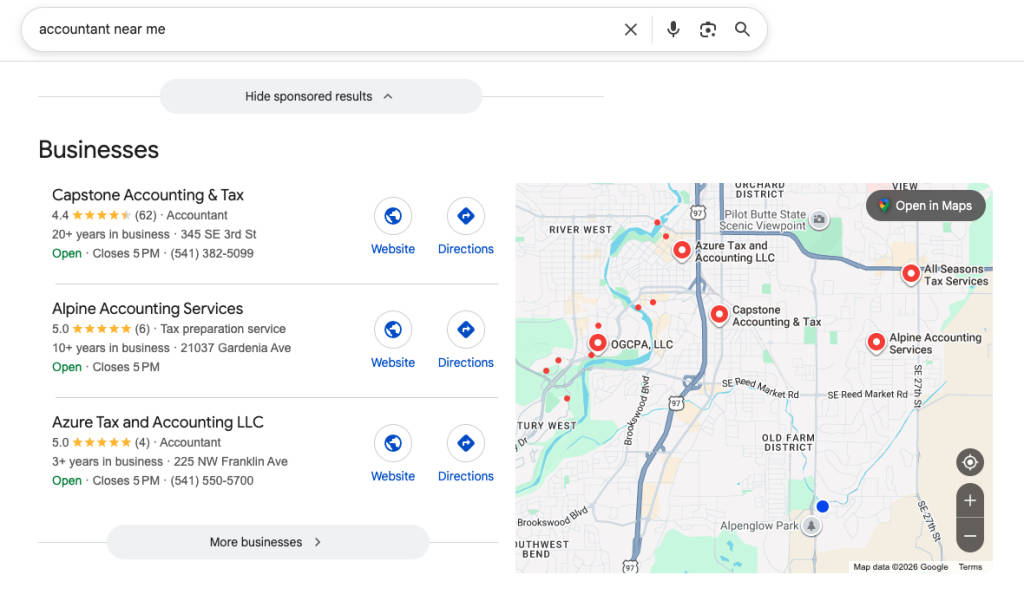
First, in the Local Pack, the map and three-listing box at the top of results for queries like “accountant near me” or “dentist in Austin.
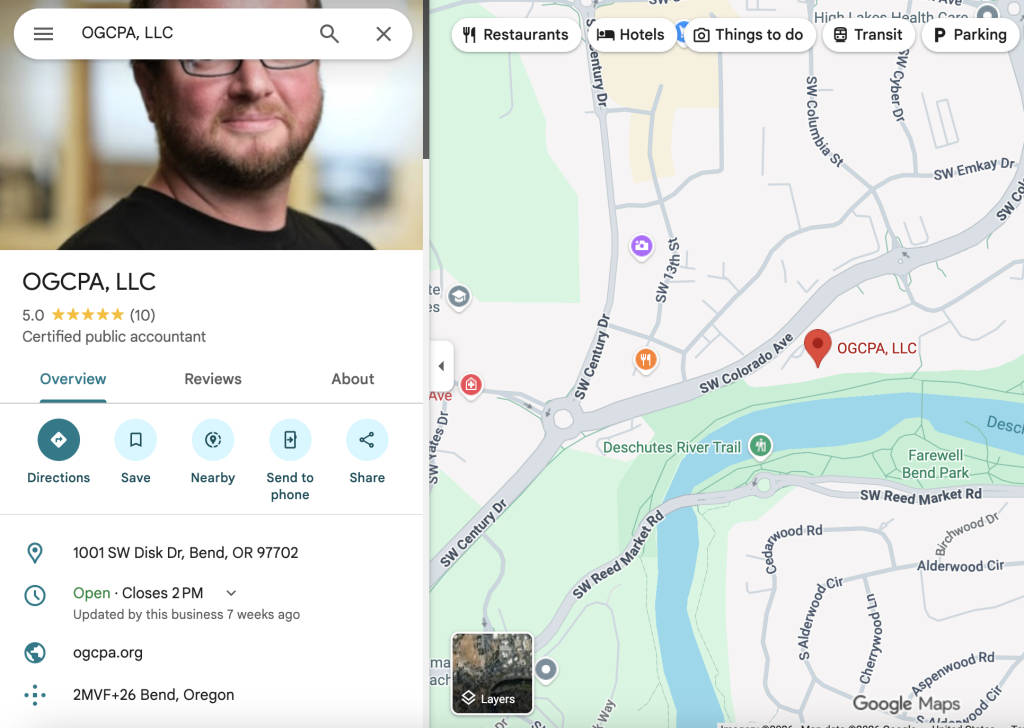
Second, in Google Maps, when users search for businesses directly.
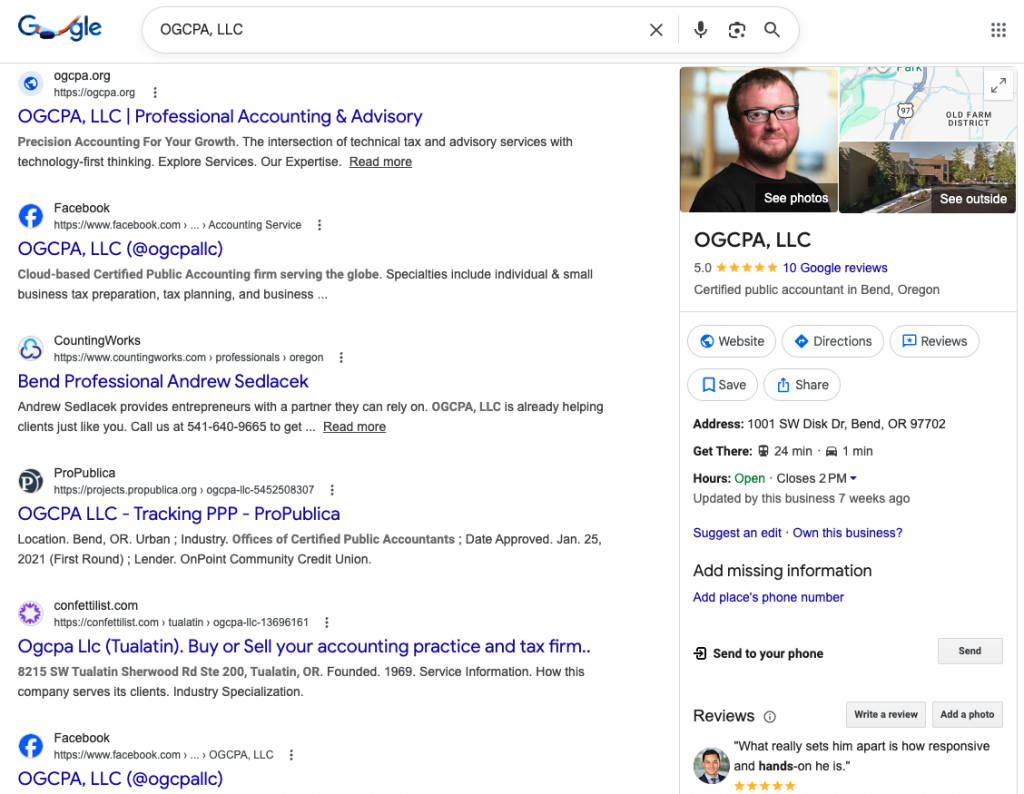
Third, in the Knowledge Panel that appears on the right side of search results when someone searches your business by name.
Key Benefits: Visibility, Reviews, Insights
With a verified Google Business Profile listing, you can:
- Appear in local search results (without paying for ads)
- Collect and highlight Google Reviews to build trust with new customers
- Display accurate business hours, address, and a direct phone number that clients or patients can use to contact you
- Analyze performance insights, such as how many people:
- Saw your listing
- Called you
- Requested directions
- Add a scheduling link directly to your listing
- Post updates, offers, and events directly to your profile for free
For appointment-based businesses, your GBP is often the first interaction a potential client has with you. A complete, optimized profile can be the difference between a booked appointment and a lost lead. That’s why tools like Apptoto pair perfectly with your GBP: once customers find you, automated reminders and confirmations keep them coming back.
Prerequisites Before You Start
Before you start the setup process, gather a few things. Having everything ready will save you time and prevent errors that can delay verification.
Google Account Requirements
You need a Google account to manage your Business Profile. If you already use Gmail or Google Workspace, you’re set. If not, create a free Google account at accounts.google.com. We recommend using a business email (like you@yourcompany.com in Google Workspace) rather than a personal Gmail account. It looks more professional, and you can transfer ownership more easily if staff changes.
Business Information You’ll Need Ready
- Your official business name (exactly as it appears on signage and legal documents)
- Physical address or service area (the zip codes or cities you serve)
- Phone number (local number preferred over toll-free for local SEO)
- Business website URL
- Business hours, including any seasonal variations
- A brief description of your services (up to 750 characters)
- Your primary business category (e.g., “Tax Preparation Service,” “Dentist,” “Plumber”)
- Optional:
- Online booking page link
- Social profile links
- Photos of your business, product/services, staff, etc.
- Optional:
Pre-Setup Checklist
Gather all the above before starting. Inconsistent information (like a different business name or phone number across directories) can hurt your local search ranking. Make sure your name, address, and phone number (NAP) match what’s on your website, Yelp, and other listings.
Service-Area vs. Storefront: Which to Choose
Google gives you two profile types, and choosing the right one matters:
- Storefront businesses serve customers at a physical location (dental offices, retail shops, restaurants). Your address will be publicly visible on your profile.
- Service-area businesses travel to customers (plumbers, cleaning services, mobile mechanics). You define the areas you serve, and Google hides your street address.
- Hybrid businesses have a physical location but also serve customers on-site (a bakery that delivers, or an HVAC company with a showroom). You can show your address AND define service areas.
If you work from home and don’t want your home address published, choose the service-area option.
Step-by-Step: Creating Your Google Business Profile
Ready to add your business to Google? Here’s exactly how to set up your Google Business Profile in six steps.
Step 1: Go to business.google.com
Open your browser and navigate to business.google.com. Sign in with the Google account you want to use to manage the profile. Click “Start now” or “Sign In.”
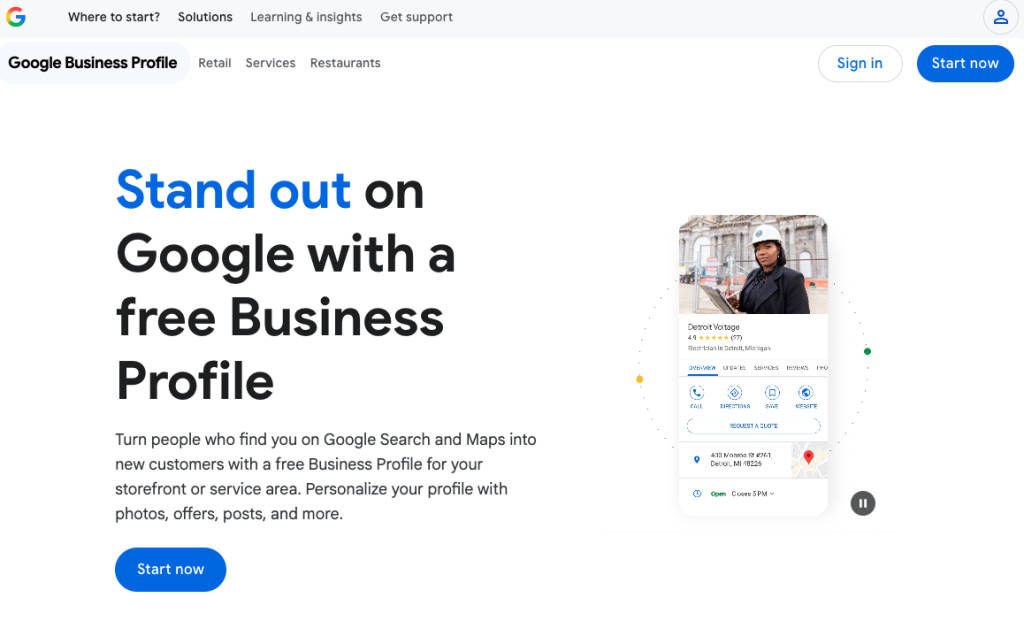
If your business already appears (someone else may have created a listing), you’ll see the option to claim it instead. We cover that scenario in the troubleshooting section below.
Step 2: Enter Your Business Name
Type your business name exactly as customers know it. Avoid stuffing keywords into the name (e.g., “ Smith Dental | Best Affordable Dentist in Dallas ”). Google can suspend profiles for this. Just use your real business name.
If Google suggests an existing listing that matches your name, check whether it’s yours. If it is, claim it. If it’s a different business, proceed with creating a new profile.
Step 3: Choose Your Business Category
This is one of the most important decisions in the setup process. Your primary category directly affects which searches your profile appears in.
Google offers over 4,000 categories. In 2026, Google’s AI-powered category suggestions have gotten increasingly better. Start typing your industry, and you’ll see relevant options. Choose the most specific category that applies. For example, “Tax Preparation Service” is better than “Financial Service.” “Pediatric Dentist” is better than “Dentist.”
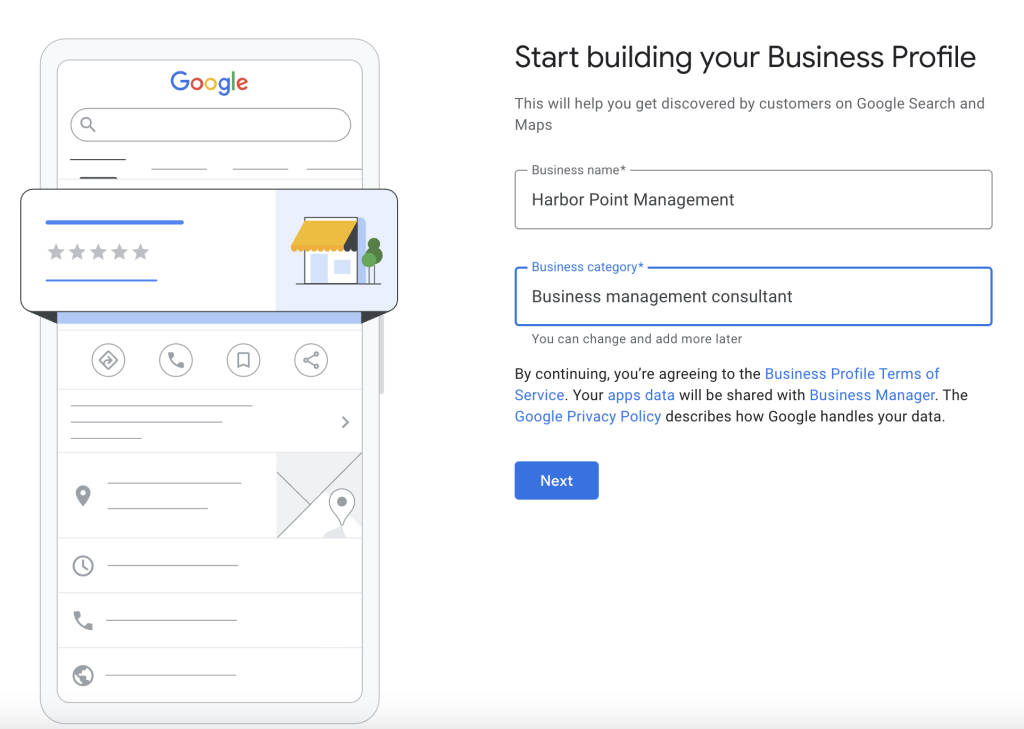
You can add secondary categories later (and you should), but your primary category carries the most weight for local rankings.
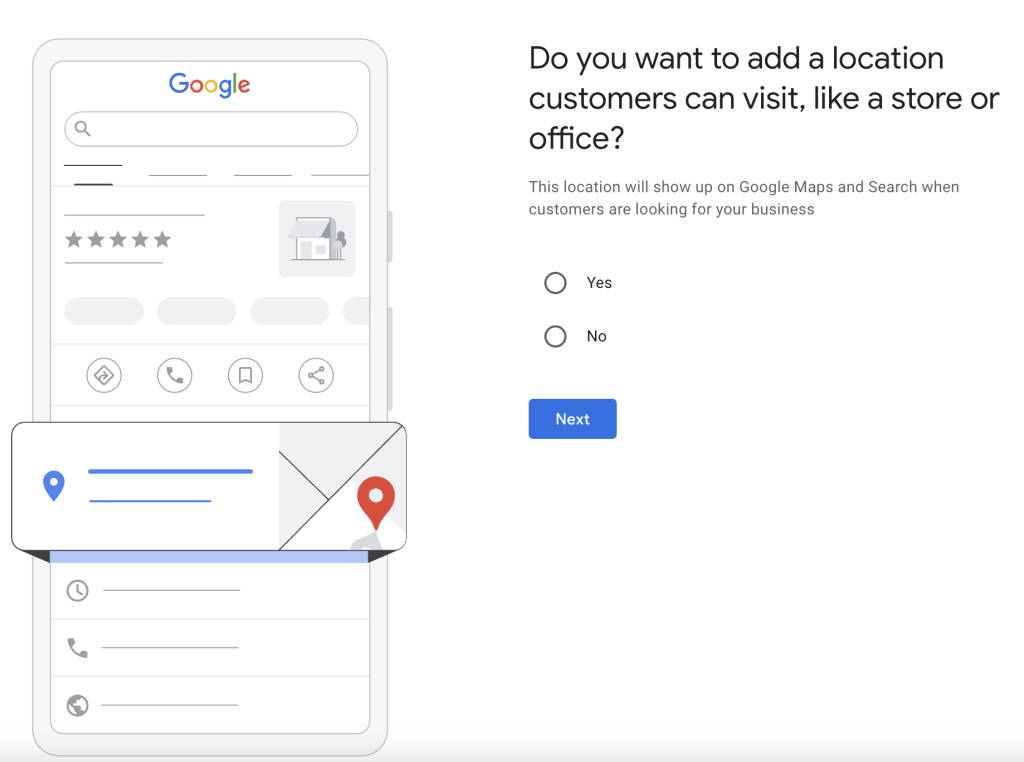
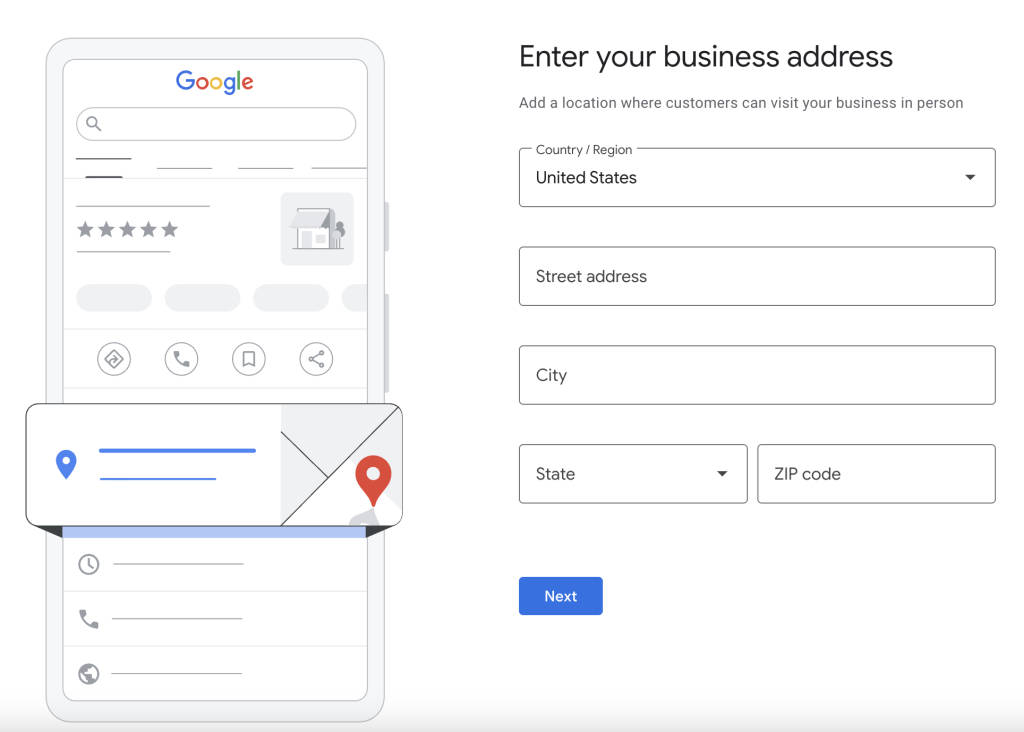
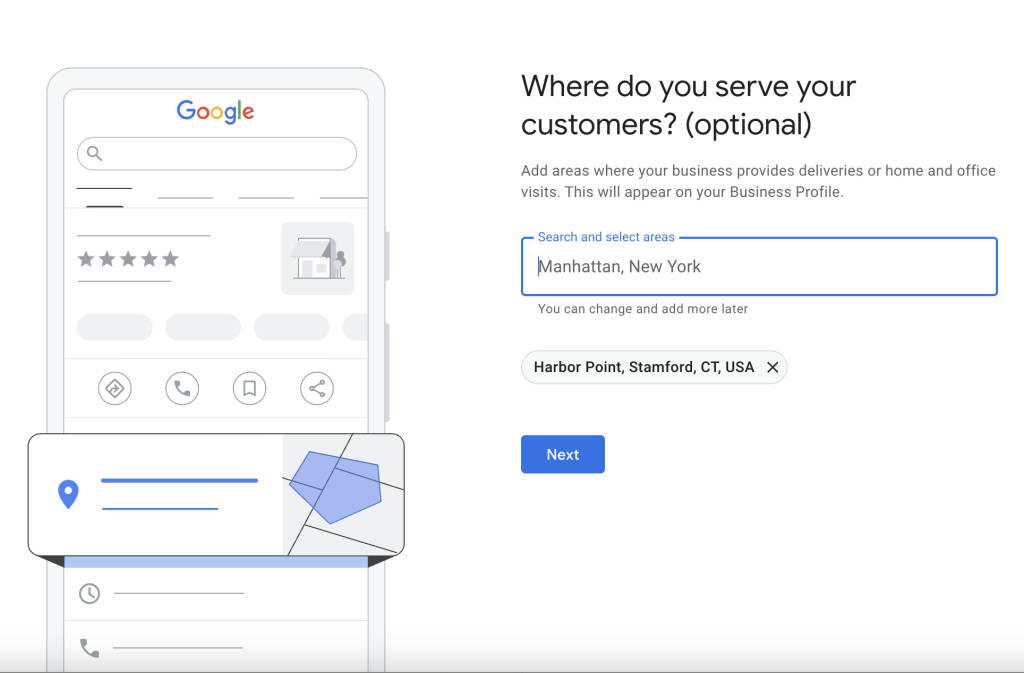
Step 4: Add Your Location or Service Area
If you selected a storefront business, enter your full street address. Google may ask you to position a pin on a map to confirm the exact location.
For service-area businesses, you’ll skip the street address and instead define the geographic areas you serve. You can add up to 20 service areas by city, county, state, or zip code. Choose areas where you actually serve clients. Don’t inflate your coverage, as Google may flag it.
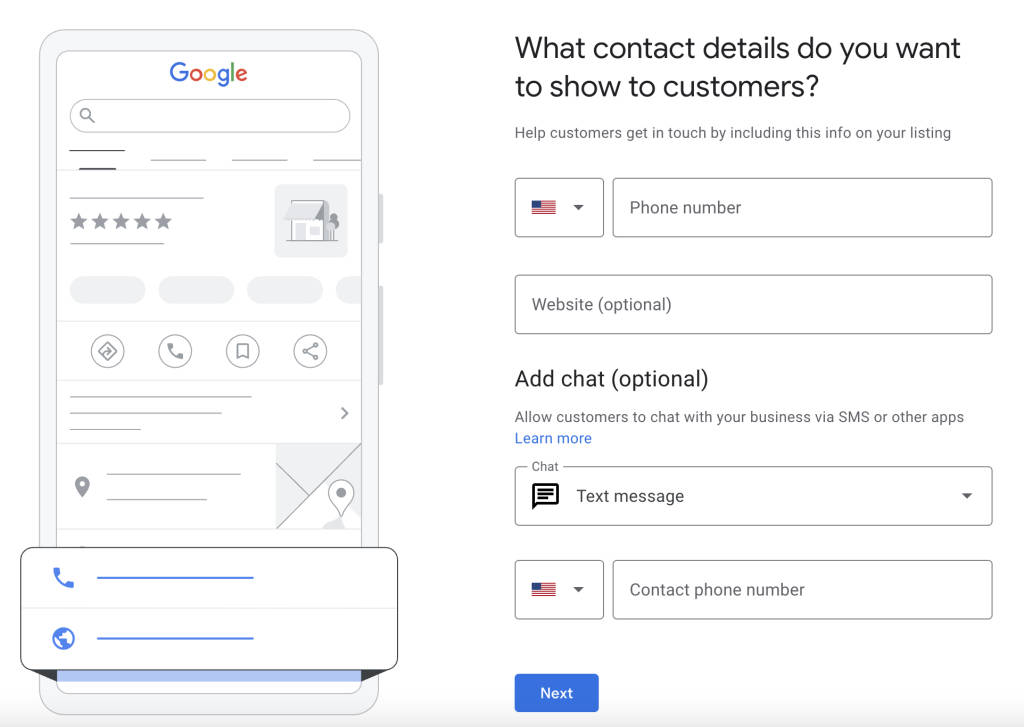
Step 5: Add Contact Info and Website
Enter your business phone number and website URL. Use a local phone number rather than a toll-free number when possible. Local numbers signal relevance to local search algorithms.
Step 6: Verify Your Business (Overview of Methods)
Google requires verification to confirm your business is real and that you’re authorized to manage the profile. Available methods include:
- Postcard by mail: Google sends a postcard with a verification code to your business address that you must enter on your business profile. Takes 5–14 days.
- Phone or SMS: Available for some businesses. You receive a code via call or text to enter instantly.
- Email: Google sends a code to your business email address, and you must follow the steps to verify it. Available for select businesses.
- Video Recording: Record a short video showing your business location, signage, and proof of operations. Processing takes a few days.
- Live Video Call: Be prepared to show your current business location (signage, address, etc.), your business or equipment, and proof that you manage the business. Then start a live call with a support representative.
- Google Search Console: If you’ve already verified your website in Search Console, instant verification may be available.
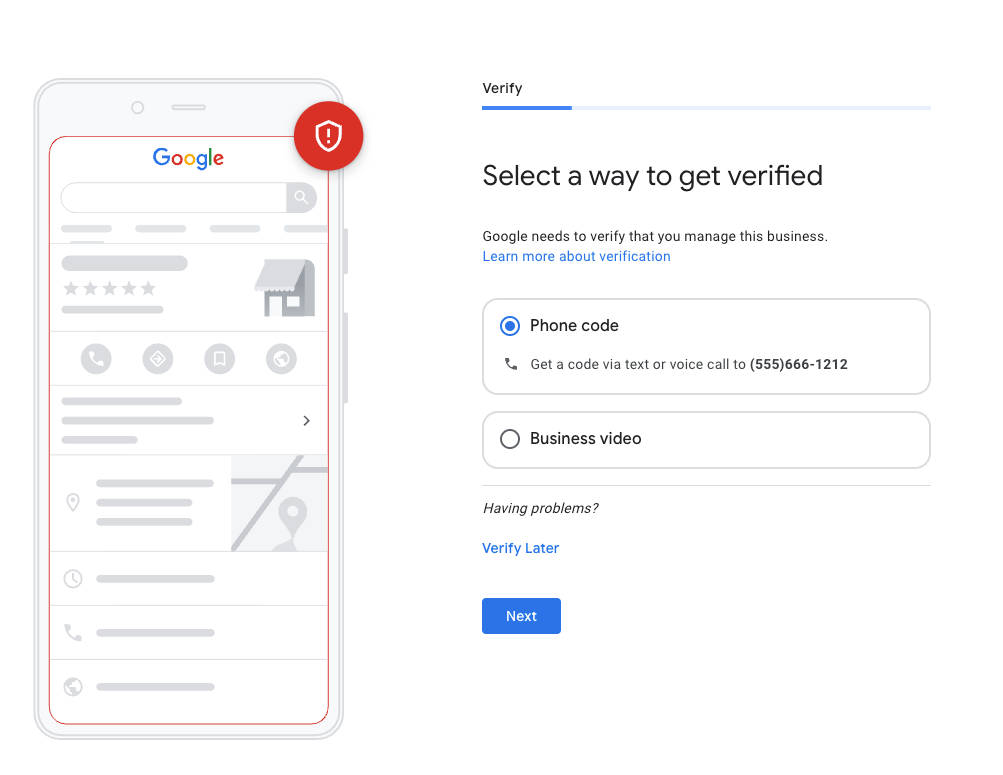
The method offered depends on your business type, category, and location. Most new businesses will start with either a postcard, video recording, or SMS/email. Don’t worry about choosing. Google will present the options available to you.
Depending on the verification method you requested, Google will verify your profile quickly or move it to a pending state while it verifies your business and processes your request. Once you complete the verification step (for now), you can keep optimizing your profile before it goes live (or skip it for now).
Optimizing Your Profile After Creation
Creating the profile is just the first step. An incomplete profile ranks lower and converts fewer searchers into customers. Google reports that complete profiles are 2.7 times more likely to be considered reputable.
You can optimize your profile in two distinct ways. The first is making your profile look complete and credible: a strong description, quality photos, accurate hours, and the right categories. The second is building a review pipeline that keeps working long after the initial setup.
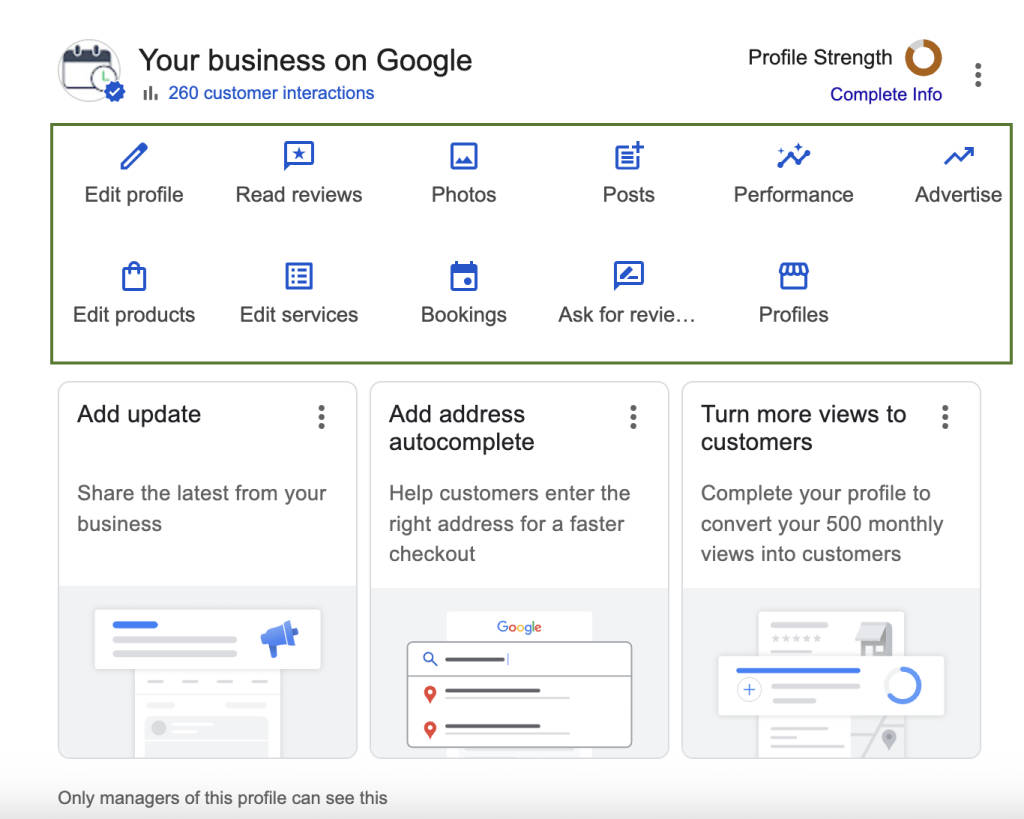
To customize your profile after creation, navigate to your profile by searching for your business name. As a verified manager/owner of the profile, you can edit it by selecting various options.
Writing a Keyword-Rich Business Description
You get 750 characters to describe your business. Use this space wisely:
- Lead with what you do and who you serve
- Include your primary services and your city or region naturally
- Mention what makes you different (years in business, specializations, certifications)
- Avoid promotional language like “best in town” as Google may reject it
Example: “Smith & Associates has provided tax preparation and financial advisory services to small businesses in the Dallas-Fort Worth area since 2008. Our team of certified public accountants specializes in small business tax strategy, quarterly filings, and year-round bookkeeping.”
To edit your description: Click the “Edit Profile” button above to edit your description. Hover over the “Description” section, and a pencil (edit) icon will appear. Click to edit, then save.
Businesses with photos receive 42% more requests for directions and 35% more click-throughs to their website, according to Google’s own data. Upload:
Uploading Photos and Your Logo
- A logo (displayed as your profile image)
- A cover photo that represents your business (your office, team, or storefront)
- Interior and exterior photos so customers know what to expect
- Team photos to add a personal touch
Images must be JPG or PNG, between 10KB and 5MB in size, with a recommended resolution of 720 x 720px (minimum is 250 x 250px).
Videos can be up to 30 seconds long, up to 75MB in size, and have a resolution of 720p or higher.
Aim for at least 10 photos at launch, and add new ones regularly. Google favors profiles with recent photo activity.
To add or edit images: Click the “Photos” button, then “Add Photos.” Upload or drag and drop your photos and videos.
Setting Business Hours and Special Hours
Set your regular hours accurately. Nothing frustrates customers more than showing up at a closed business. Use the “Special Hours” feature for holidays, seasonal changes, or temporary closures.
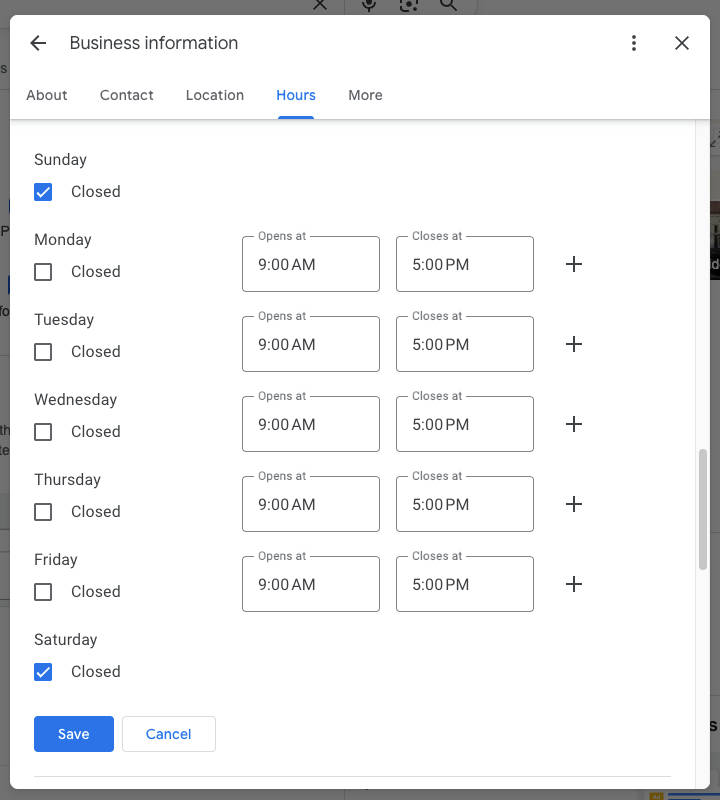
Pro tip: If you run an appointment-based business, your hours should reflect when you’re available for appointments. Then pair your GBP with an automated reminder system like Apptoto to confirm bookings and reduce no-shows by up to 90%.
To adjust hours: Click the “Edit Profile” button and scroll down to the “Hours” section. Hover over it, and a pencil (edit) icon will appear. Set your business hours and special hours, then save.
Adding Products, Services, and Attributes
Google lets you list specific products and services with descriptions and pricing. This gives customers detailed information before they contact you and helps your profile appear for more specific searches.
Attributes are another valuable feature. Depending on your category, you can specify things such as “wheelchair accessible,” “free Wi-Fi,” “LGBTQ+ friendly,” “women-owned,” and more. These attributes show as badges on your profile and help you stand out.
To adjust products/services/attributes: Click the “Edit Products” or “Edit Services” button to edit these options, then save. To edit “Attributes,” click “Edit Profile” then scroll down to the “More” section. Hover over it, and a pencil (edit) icon will appear. Toggle the attributes for your business on or off, then save.
Add a Booking Link to your Profile
One of the most underused features on a Google Business Profile is the appointment booking link. This is a clickable button that appears directly on your listing, letting potential customers book with you from Search or Maps, without ever visiting your website first.
These are high-intent clicks from people who are ready to book, not just browsing. If your profile doesn’t have a booking link, you’re sending those ready-to-convert visitors to a generic homepage and hoping they figure out how to schedule on their own.
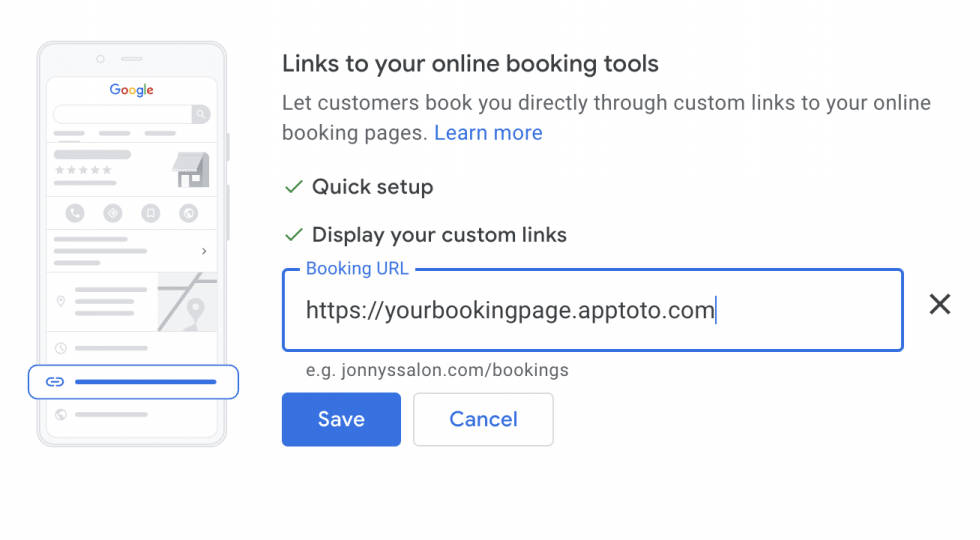
To add a booking link: Navigate to your Google Business Profile, and click “Bookings.” Then click “Link to your online booking tools” and paste the URL of your online scheduling page. For a detailed walkthrough on setting this up, see our full guide: How to Add Appointment Scheduling Links to Your Google Business Profile. The setup takes less than five minutes, and the impact is immediate.
Request Your First Review
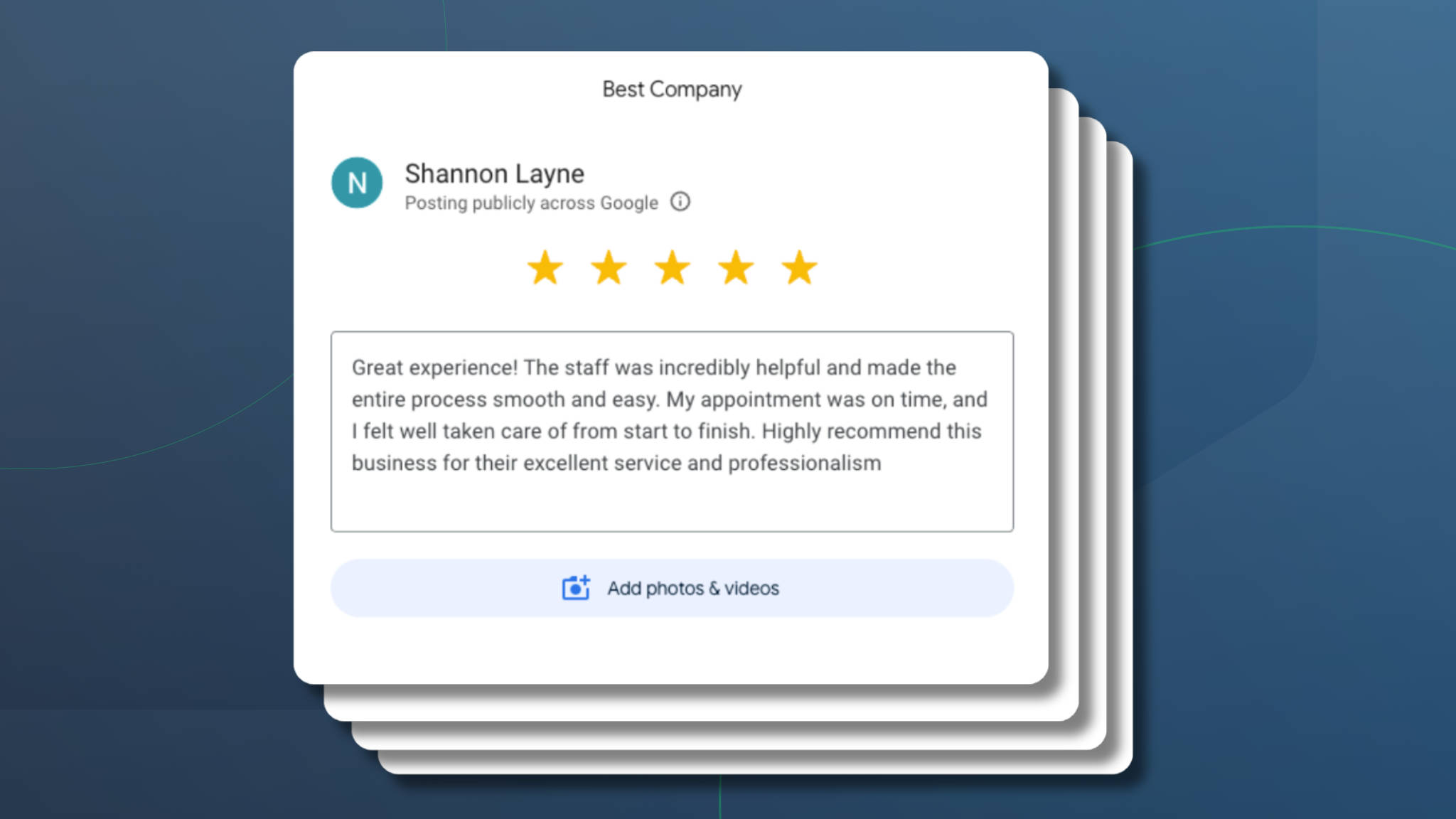
Reviews are one of the strongest ranking factors for local search. A profile with five recent, positive reviews will almost always outrank one with fifty older ones. Recency and consistency matter more than volume.
After your profile is verified and live, Google gives you a shareable review link and a QR code in your profile dashboard (click “Ask for Reviews” to find it). From there, though, the process is very manual. You copy the link, send it to each client individually, and hope they follow through. Google does provide buttons to share the review request link via Email, WhatsApp, or Facebook, but there’s no built-in delivery automation, no follow-up, and no way to time the request for when a client is most likely to respond.
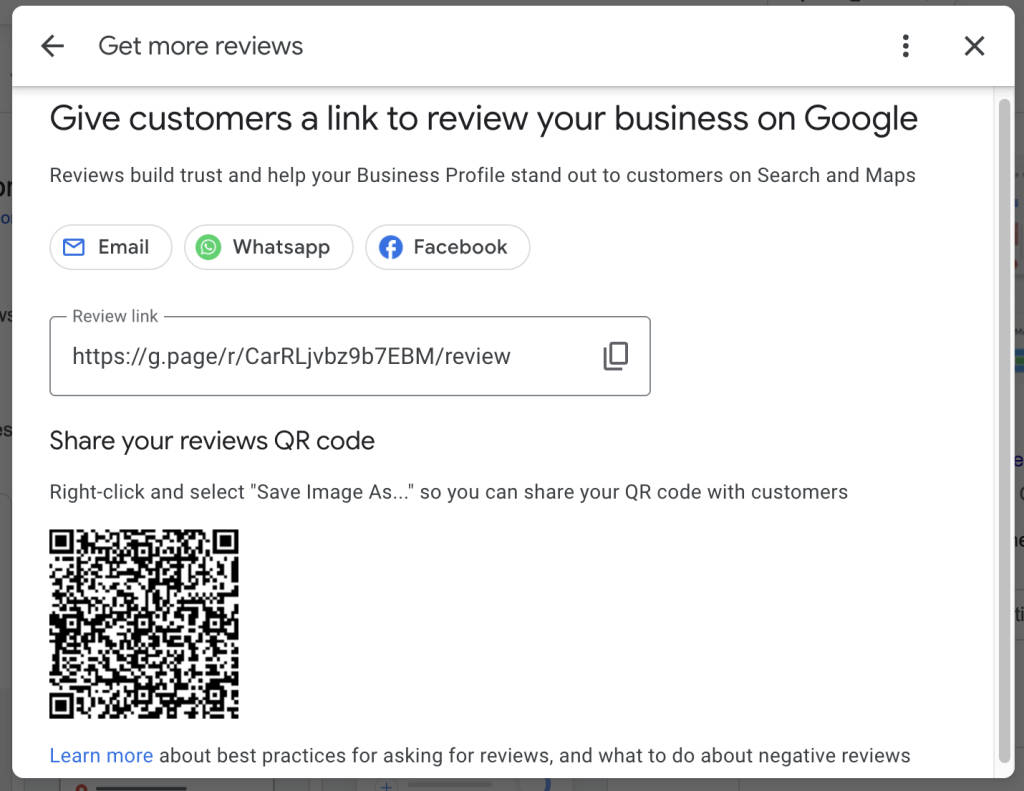
For most businesses, that means review requests fall off within a few weeks. The profile goes stale. And a competitor with a steady stream of recent reviews starts showing up above you in the Local Pack.
Automate Review Requests with Apptoto’s Reputation Management
This is the problem Apptoto’s Reputation Management was built to solve. Once your Google Business Profile is set up, you can sync it directly to Apptoto and put your entire review strategy on autopilot.
Here’s how it works:
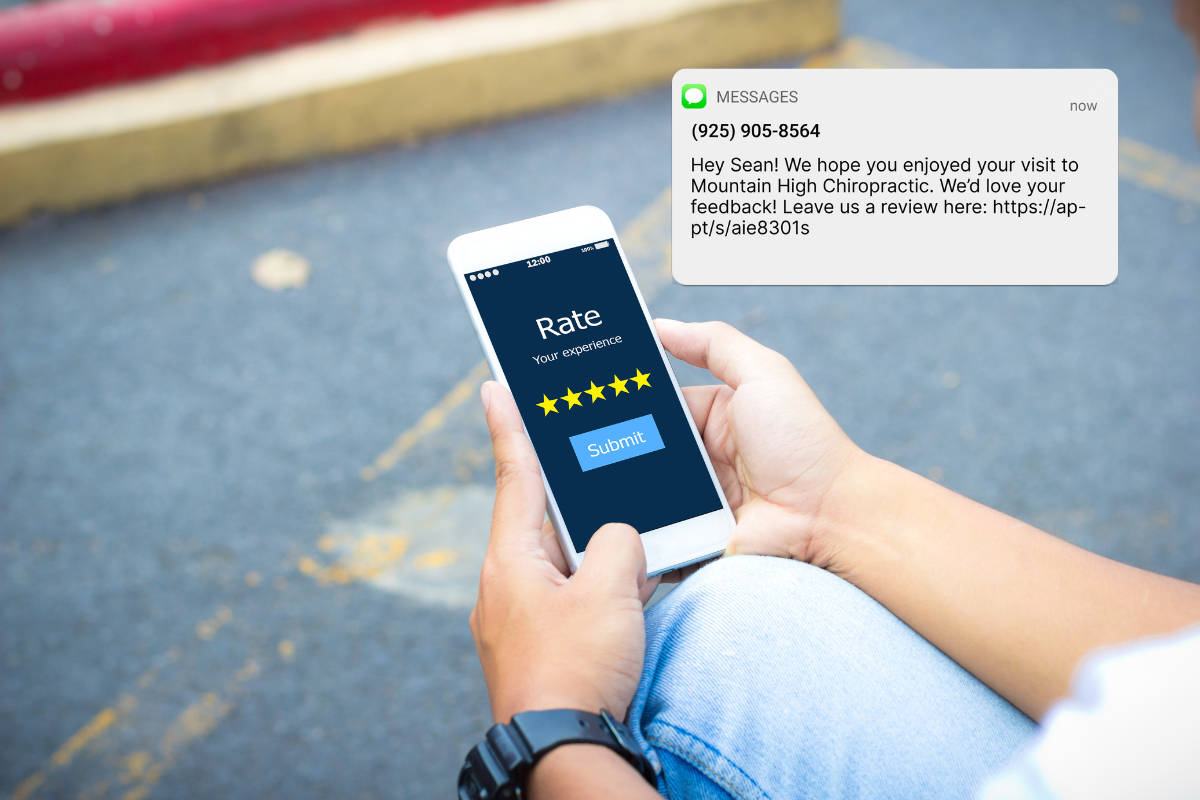
After every appointment, Apptoto automatically sends a personalized review request to your client. You control the timing (how long after the appointment to send it), the channel (SMS, email, or both), and the message itself. Requests go out when the experience is still fresh, and your client is most likely to leave a review.
If a client rates you and leaves feedback, it lands in your Apptoto inbox so you can follow up personally, whether that means thanking a happy client or getting ahead of a concern before it grows. Apptoto also invites your clients to share their experience on your Google Business Profile (or Yelp, Meta, or any other third-party review site you’ve added).
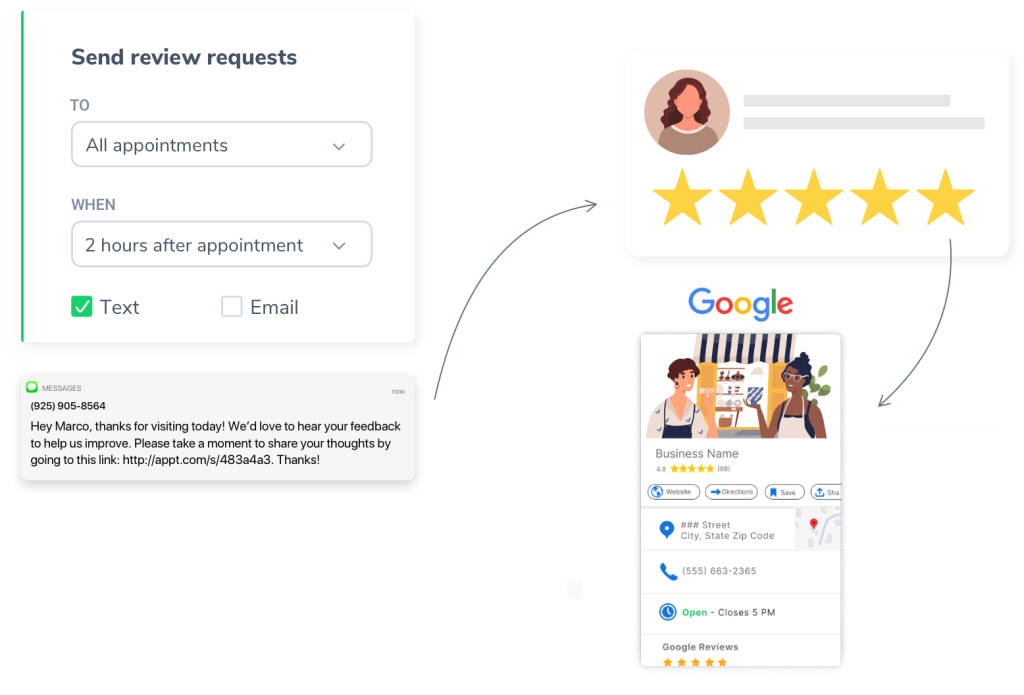
Because Apptoto syncs directly with Google Business Profile, Yelp, and Meta, new public reviews and ratings automatically appear in your Reputation Management dashboard, so you can track what’s being said about your business across all three platforms in one place. For any other third-party review sites you’ve added, the dashboard will show your internal review requests sent, responses received, and average star rating. Public reviews published to those sites are not pulled back into Apptoto.
Free 14 Day Reputation Management Trial
Setup takes less than five minutes if you already have an Apptoto account, and the review requests start going out after your very next appointment.
One last thing: whether reviews come in through Apptoto’s automated system or organically, respond to every one. Thank happy customers and address concerns from unhappy ones professionally. Google’s algorithm factors in both review volume and how actively you engage with reviewers.
Common Mistakes to Avoid When Creating a GBP
Setting up a Google Business Profile seems straightforward, but small errors can cost you visibility or even get your listing suspended. Here are the most common mistakes:
- Keyword-stuffing your business name. Adding words like “best,” “affordable,” or extra service descriptions to your name violates Google’s guidelines. Your profile can be suspended, and recovery takes weeks.
- Choosing an overly broad category. “Business Consultant” is weaker than “Management Consultant.” “Doctor” is weaker than “Family Medicine Physician.” Go specific.
- Leaving the profile incomplete. An empty description, zero photos, and no business hours signal neglect. Google ranks complete profiles higher, and customers trust them more.
- Inconsistent NAP across the web. If your name, address, or phone number differs between your GBP, website, and other directories, it confuses Google’s local algorithm and can hurt your ranking.
- Ignoring reviews. Not responding to reviews, especially negative ones, leaves a poor impression and signals to Google that you’re not actively managing your profile.
- Using a virtual office address. Google actively cracks down on virtual offices and PO boxes. If they detect one, your profile will be suspended. Use a real business address or choose the service-area option.
- Setting it and forgetting it. Your GBP needs ongoing attention. Post updates, add photos, respond to reviews, and keep your hours up to date. Google rewards active profiles with better visibility.
A Note on Multi-Location Businesses
If you operate multiple locations, you’ll need a separate Google Business Profile for each one. Google offers a Google Business Profile Manager dashboard for managing more than one location. Google also offers a bulk management tool for businesses with 10+ locations (e.g., franchises).
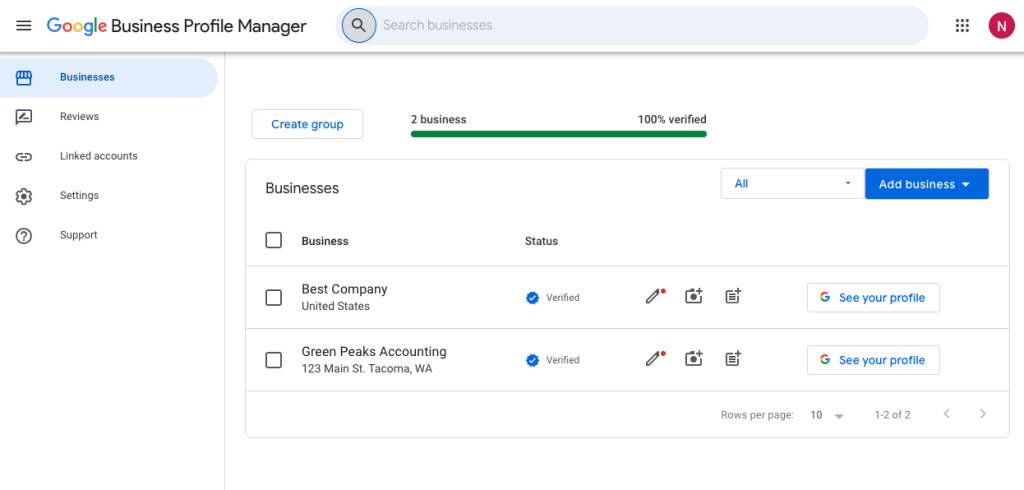
Each location should have its own unique phone number, address, and business description tailored to that specific area. The same optimization principles apply. Each profile needs its own photos, reviews, and regular updates.
FAQ: Google Business Profile Creation
Yes, completely free. You can create, verify, and manage a Google Business Profile at no cost. Google makes money from ads, not from business listings. You can optionally run Google Ads to boost your visibility, but the profile itself is free.
Yes (with a caveat). If you’re a service-area business that travels to customers (like a mobile mechanic or a house cleaning service), you can set up your profile using a service area instead of a street address. You will likely still need to add a business address, but it won’t be displayed publicly. This also works for professionals who work from home and prefer to keep their home address private.
It depends on the method. Phone and email verification are usually instant. Video recordings typically take 2–5 business days for Google to review. Postcard verification takes 5–14 days for the mail to arrive. In rare cases, verification can take longer if Google needs additional documentation.
Yes. You can edit your profile, respond to reviews, post updates, view insights, and more on your phone (while logged in to your Google account). You can also manage your profile from the Google Maps app.
Google sometimes auto-generates listings from public data. If your business already appears, you can claim it by going through the verification process. If someone else has already claimed it (perhaps a former employee or previous owner), you’ll need to request ownership transfer through Google’s support process.
Ready to Turn Profile Views into Booked Appointments?
Your Google Business Profile gets you found. Your reviews determine whether you get chosen.
The businesses that consistently rank in the Local Pack aren’t just the ones with complete profiles. They’re the ones with a steady flow of recent, positive reviews, and a system that keeps those reviews coming in without anyone on the team having to think about it.
Apptoto’s Reputation Management connects to your Google Business Profile and automates review requests after every appointment. Pair that with automated appointment reminders, online booking, and two-way messaging, and your Google Business Profile becomes more than a listing. It becomes a growth engine.
Start your free 14-day trial and see how quickly a few automated review requests can change where you show up in local search.