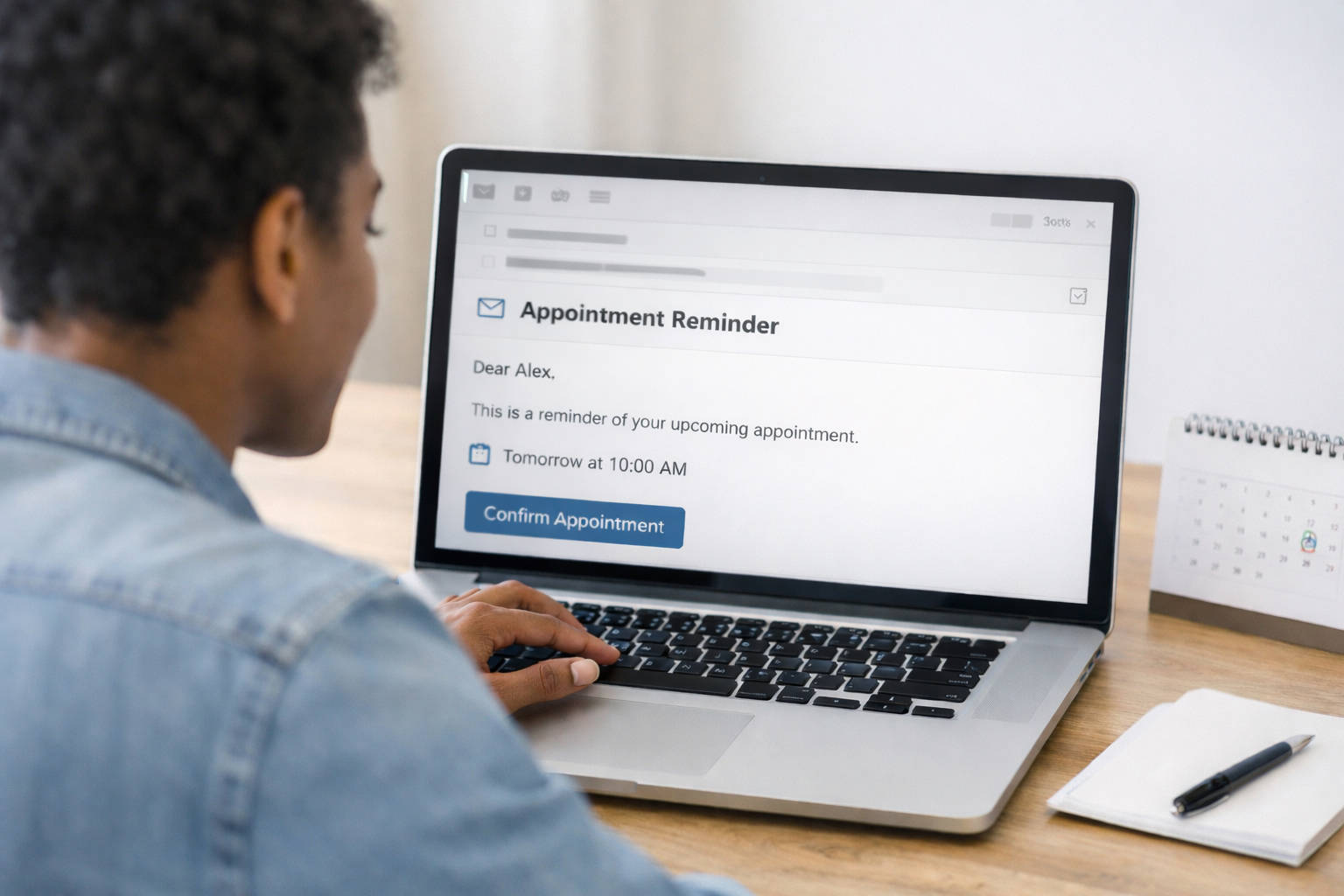
It’s 9:00 a.m. Your day is fully booked. Your staff is ready, and… your first client doesn’t show.
No call. No text. Just a hole in your schedule, and lost time you can’t get back.
If this happens often, you’re not alone. No-shows are a costly reality across healthcare, salons, home services, financial offices, coaching practices, and more.
And the most common reason? You’re doing it the hard way.
Sending reminders from your personal phone. Copy-pasting messages. Letting messages slip when things get busy. Sending messages manually doesn’t scale.
But here’s the part worth underlining: 40% or more of your no-shows can be avoided with a well-timed, personalized appointment reminder text.
This guide gives you a complete, practical playbook to cut no-shows, save time, and deliver a better client experience.
- Proven SMS templates
- Smart timing strategies
- Industry-specific examples
Plus, how to automate reminders without adding to your team’s workload
You’re not here to chase confirmations. You’re here to run a business. Let’s make sure your clients show up for it.
What Is an Appointment Reminder Text? (And Why They’re So Effective)
An appointment reminder text is a short message sent to your client over a cellular network. It tells them who their appointment is with, when it’s happening, and what to do next, like confirming, canceling, or rescheduling.
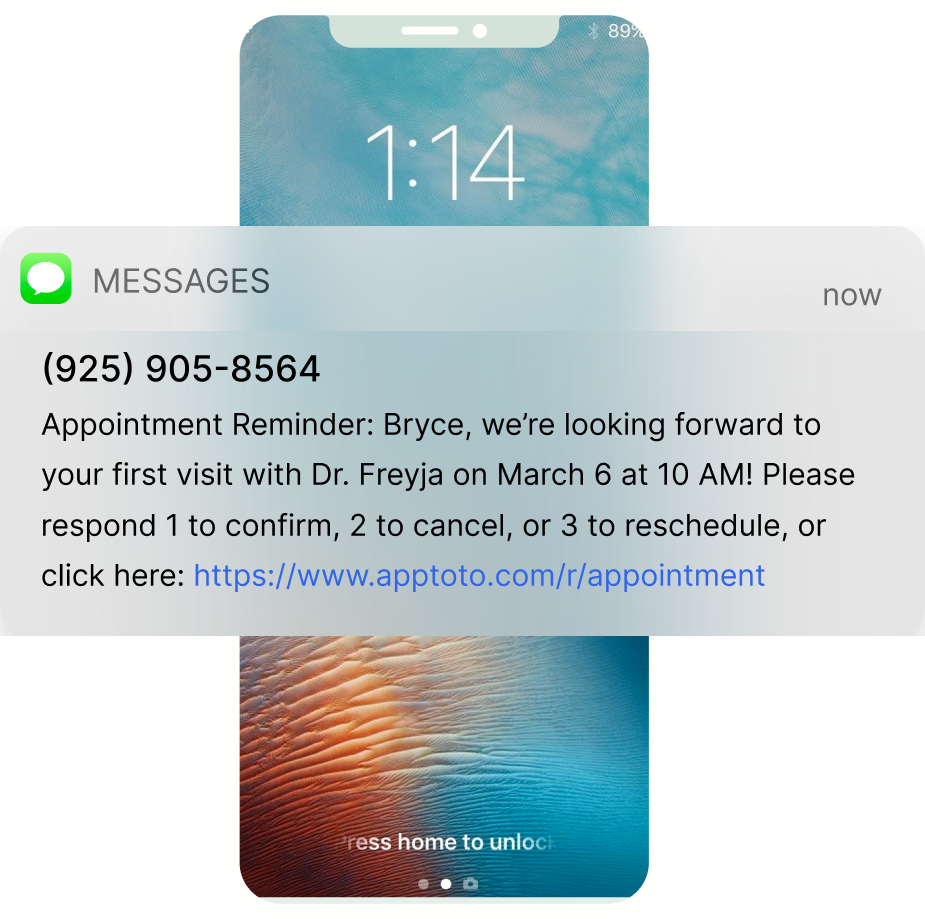
Most appointment reminders are sent via SMS (short message service). SMS texts are simple, direct, and typically limited to around 160 characters. Some businesses also use MMS to include images or GIFs, or RCS for features like read receipts, suggested replies, and branded messaging. The format can vary, but the goal stays the same: get the message seen and acted on.
That’s where text messages shine. Around 90% of texts are read within three seconds of delivery. Think of an appointment reminder text as a well-timed nudge. One that helps clients show up, reduces no-shows, and creates a more predictable day for you and your team.
The Anatomy of a Great Appointment Reminder Text
A reminder text should be clear, concise, and action‑oriented.
Core Components
Every effective appointment reminder text should include:
- Client name
- Date & time
- Business/provider name (unless it violates HIPAA)
- Simple CTA (confirm, cancel, reschedule)
- Opt‑out (e.g., “Reply STOP to opt out”)
It’s best to put the key details right up front and keep the message short so a client can get the information they need at a glance. If they confirm, you can always follow up with an automated follow-up to share any extra info they might need before the appointment.
Tone & Readability
Keep Messages Short & Clear
Long messages get skimmed or ignored. Aim to stay under 160 characters whenever possible and lead with the most important details so clients immediately understand what the reminder is about.
Personalize Where It Actually Matters
Personalization boosts engagement, but only when it’s relevant. Use tools that automatically pull in names, appointment details, and services, so reminders feel specific without adding manual work for your team.
Serve Clients in Their Own Language
If you serve a multilingual client base, sending reminders in the client’s preferred language can significantly improve response rates and reduce confusion. Look for a system that supports automated message translation to keep this scalable and consistent.

When to Send Appointment Reminder Texts
Timing matters as much as wording.
Sending multiple reminders at well‑spaced intervals gives clients time to remember, cancel responsibly, or reschedule.
Delivery Cadence
- Right after booking: Send a booking confirmation immediately after an appointment to let the client know the booking is confirmed.
- 24–48 hours before: A reminder sent three days in advance helps clients prepare and adjust their schedules as needed.
- Same day or 2–4 hours before (optional): Last nudge, preferably a few hours before, to give one final nudge.
Time of Day Best Practices
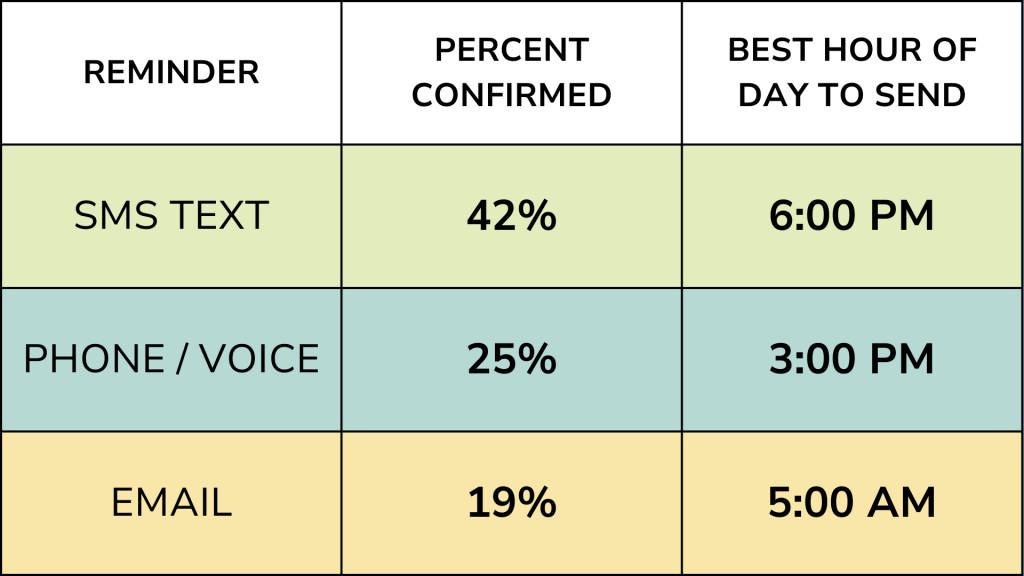
The highest confirmation rates occur when messages are sent at the following times.
- Text Messages: 6 PM
- Email: 5 AM (followed by 9-10 AM)
- Voice Call: 3 PM
Appointment Reminder Text Templates
General Appointment Confirmations
Hi [Name], your appointment with [Provider Name] at [Business] is scheduled for [Date] at [Time]. [Confirmation Option], or click here: [Confirmation Link]
[Name]’s Appointment Reminder: [Date] at [Time] with [Provider Name] at [Business]. [Confirmation Option], or click here: [Confirmation Link]
Hello [Name]! Your appointment at [Business] is confirmed for [Date] at [Time]. [Confirmation Option], or click here: [Confirmation Link]
24–48 Hour Reminders
Reminder: [Business] has you booked for [Service] on [Date] at [Time]. [Confirmation Option], or click here: [Confirmation Link]
Hi [Name], this is a reminder of your appointment tomorrow at [Time]. [Confirmation Option], or click here: [Confirmation Link]
Same‑Day / Last‑Minute Reminders
Your appointment is coming up soon, [Name]! We look forward to seeing you today at [Time]. [Business] [Address]
[Name], we’re excited to see you at [Business Name] at [Time] today! Reply “Questions” if you need help or “Directions” for how to find us.
Industry‑Specific Appointment Reminder Templates
Here are proven‑style templates that fit common verticals.
Healthcare & Dental
Hi [Name]. This is a reminder of your upcoming appointment at [Healthcare Office] at [Time] on [ Day]. [Confirmation Option], or click here: [Confirmation Link]
Hello! Just a quick reminder from [Healthcare Office] about your appointment on [Date] at [Time]. [Confirmation Option], or click here: [Confirmation Link]
It’s time for your next visit with [Provider Name] at [Healthcare Office]. Call [Phone Number] or click here [Confirmation Link] to book your appointment.
It’s that time again, [Name]! Schedule an appointment with [Healthcare Office] soon. Call [Phone Number] or click here [Confirmation Link] to book your appointment.
Beauty, Salon & Spa
Hello Beautiful! [Name], we can’t wait for your [service] at [Business] on [Date] and [Time]. [Confirmation Option], or click here: [Confirmation Link]
Hey [Name]! Don’t forget about your appointment for a [Service] with [Business] on [Date] and [Time]. [Confirmation Option], or click here: [Confirmation Link]
This is a reminder from [Provider Name] at [Business]. Your appointment is scheduled for [Date] at [Time]. Please arrive 5 minutes early. [Confirmation Option], or click here: [Confirmation Link]
It’s almost time to be pampered! [Name], don’t forget you have an appointment with [Provider Name] at [Business] for a [Service] at [Time] on [Date]. Please arrive 5 minutes early. [Confirmation Option], or click here: [Confirmation Link]
Home Services
[Technician Name] from [Business] will be at [Client Address] on [Date] at [Time] to complete your [Service]. [Confirmation Option], or click here: [Confirmation Link]
[Name], help is on the way! Your appointment with [Business] is scheduled for [Date]. [Technician Name] will be arriving between [Time Range]. [Confirmation Option], or click here: [Confirmation Link]
Financial/Accounting
Reminder: Appointment with [Business] on [Date] at [Time]. [Name], please bring all of the documentation requested in the checklist provided via email. [Confirmation Option], or click here: [Confirmation Link]
[Name], your [appointment type] is scheduled for [Date] from [Start Time] to [End Time] with [Provider Name]. [Confirmation Option], or click here: [Confirmation Link]
Appointment Reminder: [Date] at [ Time] at [Business] located at [Business Address]. [Confirmation Option], or click here: [Confirmation Link]
Hi [Name], your [appointment type] is on [Date] at [Time]. Please come to our office located at [Business Address]. [Confirmation Option], or click here: [Confirmation Link]
Customize Your Own Reminder Text Tool
Want to customize your own appointment reminder texts? Fill in as many details as you want (the more you fill out, the better the suggestions), and Apptoto will generate four personalized appointment reminder texts.
Appointment Reminder Text Generator
Create professional SMS reminders in seconds
Your SMS Reminders
SMS vs Email vs Phone Reminders
No single channel is perfect for every business, but SMS has unique strengths:
| Channel | Strength | When to Use |
|---|---|---|
| SMS Text | Fastest open/read; ideal for short, timely alerts | Reminders 24–48h and same‑day |
| Great for detailed info and attachments | Pre‑appointment prep forms or long instructions | |
| Phone Calls | Personalized and direct | Complex logistics or high‑touch clients |
Most effective workflows use a mix: SMS for quick reminders, email for detailed directions or forms, and optional calls for complex appointments.
Compliance & Consent Basics
Before sending SMS reminders:
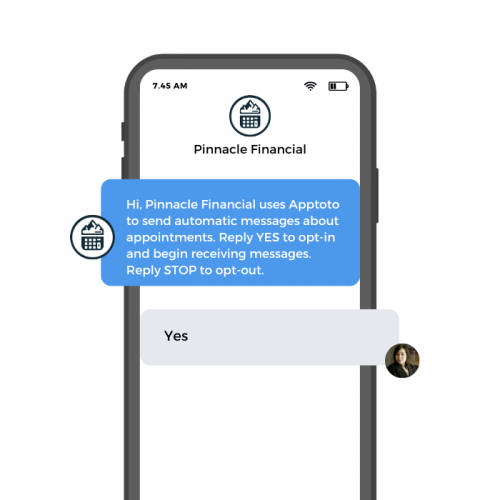
- Get explicit permission (“opt‑in”) to text your clients.
- Include a simple opt‑out (e.g., “Reply STOP to opt out”).
- Honor opt‑outs promptly as part of respect and good communication.
- Only text clients during permissible hours (typically between 8 a.m. and 7 p.m.)
Apptoto does not provide legal advice, and texting regulations vary by location. You should consult your own legal counsel to understand what applies to your business. Ignoring messaging rules can put your business at risk of compliance issues or fines and frustrate clients.
International Texting Rules, Availability, and Considerations
If your business serves clients across borders, it’s essential to know that texting rules aren’t universal. What works in one country might be restricted, delayed, or even illegal in another.
Here’s what to keep in mind when sending appointment reminder texts internationally:
1. Message Delivery Isn’t Guaranteed
Not all carriers allow business SMS to reach recipients abroad. Even when messages go through, they may be:
- Delayed (due to routing or time zone differences)
- Filtered or blocked (if flagged as spam or non-compliant)
- Charged at higher rates depending on the destination country
Work with a provider that supports international delivery and confirms carrier compatibility in your clients’ regions.
2. Different Countries = Different Rules
Each country has its own privacy and consent regulations, and some are stricter than those in the U.S. Here are a few examples:
- Canada requires express consent under CASL (Canadian Anti-Spam Law), even for transactional messages like reminders.
- The EU/UK falls under GDPR, which gives clients the right to control their personal data — including how they’re contacted.
- Australia’s Spam Act requires prior consent and a clear opt-out in every message.
- India has DLT (Distributed Ledger Technology) registration requirements for businesses sending texts, including a requirement that templates be pre-approved.
⚠️ Sending messages without consent — or outside legal time windows — can lead to fines or message blocking in many countries.
3. Language and Cultural Context Matter
If you’re serving multilingual or multicultural audiences, a one-size-fits-all message can backfire. Consider:
- Translating messages into your client’s preferred language
- Avoiding slang or references that don’t translate well
- Customizing tone based on what’s culturally appropriate (e.g., formal vs friendly)
4. Time Zones Aren’t Just a Courtesy
Sending a 6 a.m. message in your time zone might mean it hits your client’s phone at midnight. International texting should always include time zone logic so reminders land at respectful, expected hours.
5. Apptoto Supports Global Clients (But Always Check Local Laws)
Apptoto supports international SMS delivery to many countries, but you’re responsible for ensuring compliance with local rules. If you’re unsure, consult legal counsel before sending texts across borders.
Did You Know?
In some countries, such as Canada, a business can be fined up to $10 million per violation for sending unsolicited messages. Always know the rules before you send.
Automation: Let Software Do the Work
Automating reminders saves time and reduces manual errors. Make sure your reminder system:
- Integrates with your calendar or CRM
- Uses dynamic fields for names, dates, and times
- Let’s you schedule sequences (e.g., 48h + 24h + same day)
How to Set Up Appointment Reminder Texts in Apptoto
Time needed: 15 minutes
Apptoto sends appointment reminder texts automatically based on the appointments already on your calendar.
Once connected, you set your timing and message templates, add your clients’ contact information, and Apptoto automatically pulls in client names, dates, times, and services into messages. You can send a single reminder or run a full booking confirmation, appointment reminder, and follow-up sequence.
Here’s how to start sending appointment reminder texts. We’ll cover calls and emails in upcoming posts.
- Log in to Apptoto
Log in to Apptoto or sign up for a free 14-day trial if you’ve never used Apptoto before!
- Add a new calendar
If you’re logging in for the first time, you’ll be prompted to connect a calendar during the onboarding process. Otherwise, navigate to “Settings” > “Calendars.” Choose your calendar from the list, or click “Create Calendar” to add an “Apptoto Calendar.”

- Adjust your calendar settings
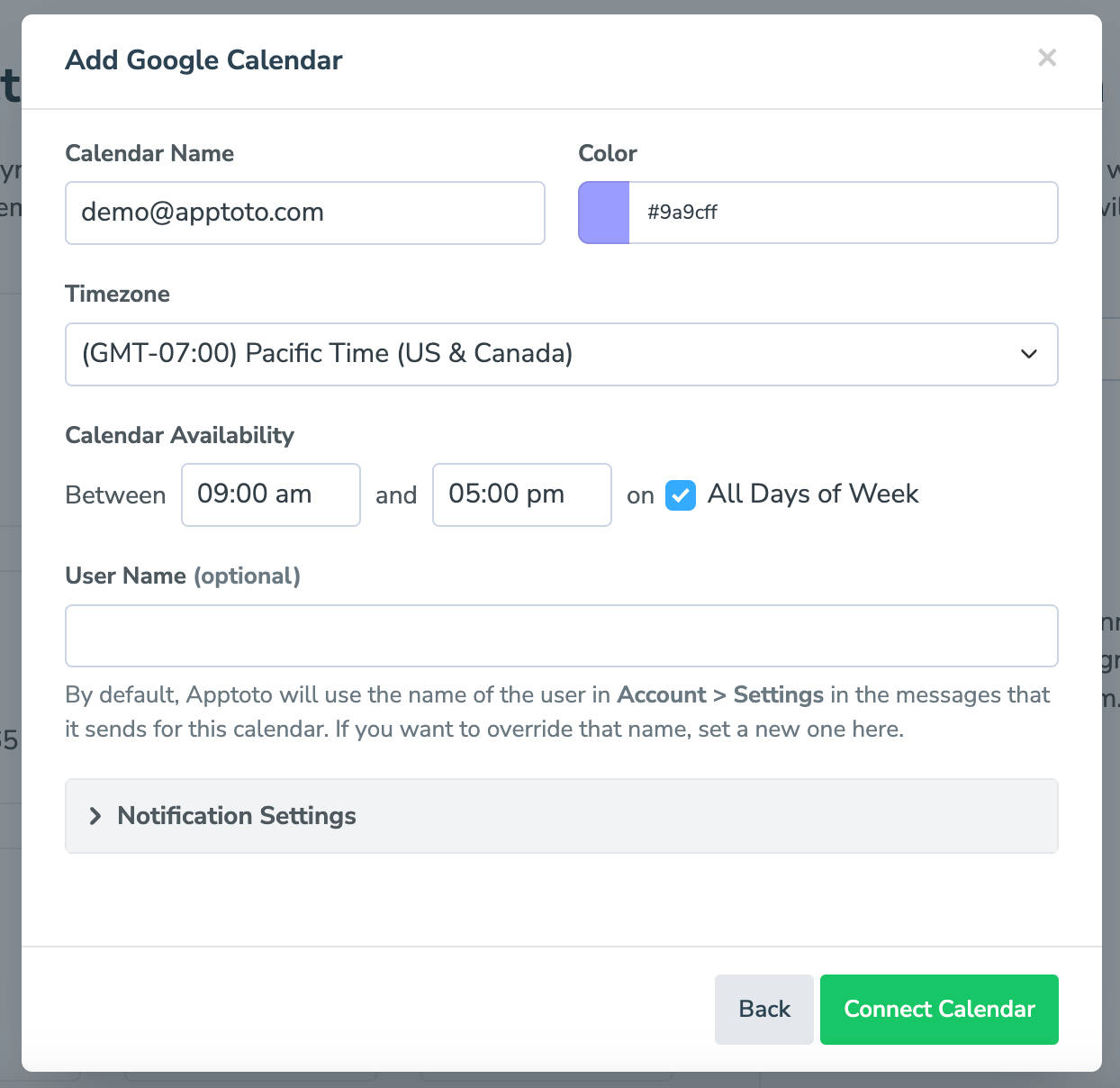
Set the calendar name, your availability, and desired notifications settings. Then, click “Connect Calendar.”
- Appointments will automatically sync to Apptoto
On the “Appointments” tab, you’ll now see a list of upcoming appointments.

- Add an address book
Navigate back to “Settings” > “Address Books” tab. Click “+Add” and follow the prompts to add your preferred contact address book(s).

- Set up automated appointment reminder texts
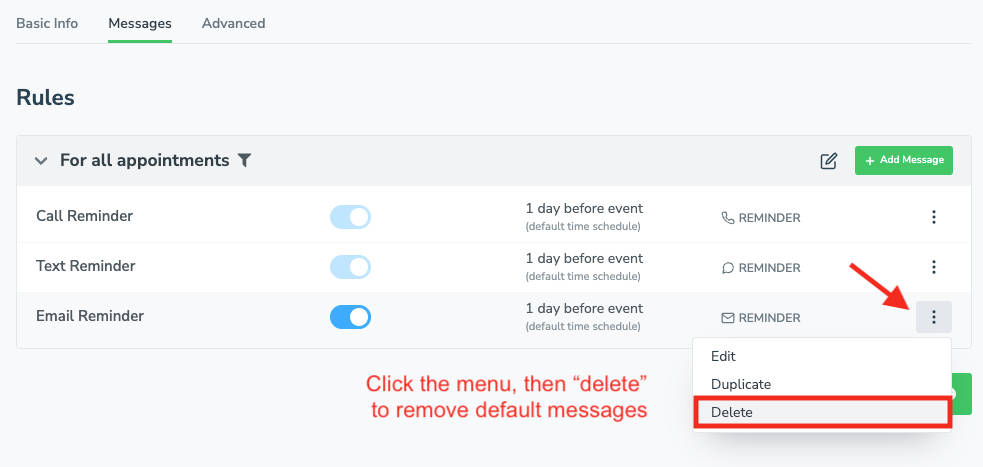
Navigate to the “Message” > “Appointment Auto Messages” tab. Three reminder messages (a call reminder, a text reminder, and an email reminder) will be created by default.

- Edit default reminder messages
If you only want to run text appointment reminders, click the three-dot menu to remove the call and email reminders.
- Create new text message reminders
Click “+Add Message” then “Text.” Set the text’s purpose (booking confirmation, reminder, or follow-up), timing, language, message content, and auto replies. Then click “Done & Save.”

- Enable auto-messages to deliver reminders automatically
Create as many reminder sequences as you need. To launch, turn the “Auto Messages” button at the top of the screen to “On.”

Optional: Set up rules to send specific messages to certain appointments based on their event details (e.g., name or start time), participant details (e.g., confirmation status), calendar, or payment details.
Metrics That Matter: Track & Improve
Tracking how clients respond shows you what’s working, what’s being ignored, and where small changes can reduce no-shows even further. Start with these core metrics to fine-tune your timing, wording, and reminder cadence.
- No‑show rate = (No‑shows ÷ Total scheduled) × 100
- Confirmation rate = (Confirmed ÷ Total reminders sent) × 100
- Response distribution = Total confirmations vs reschedules
Appointment Reminder Texts FAQ
Include name, service, date & time, location, simple CTA like “Click https://www.ap-pt/s/confirm to confirm,” and optional opt‑out instructions.
Yes, when you have consent and include a clear opt-out option. Check local regulations for specifics. However, if you are a healthcare provider, be sure your text messages do not include any personally identifiable information of your patients, and consider using a HIPAA-compliant appointment reminder software.
Yes! Research shows that well‑crafted and well-timed appointment reminder texts can significantly reduce missed appointments on average by 40%.
Yes, appointment reminder automation platforms like Apptoto can connect directly to calendars or CRMs to send messages to any appointment on your calendar based on the rules you set.
Read more of our 3-part appointment reminder series
- Part 1: Appointment Reminder Texts (templates, timing, and an SMS generator) (you’re here)
- Part 2: Appointment Reminder Emails
- Part 3: Appointment Reminder Calls
For the most reliable results, use a mixed approach: email for details and links, SMS for last-mile nudges, and calls for high-touch or complex situations.
Still Losing Appointments to No-Shows?
Stop chasing confirmations and get hours back every week with automated appointment reminders and messaging.