You could be the best at what you do, but if your business doesn’t show up with glowing reviews on Google, you’ll keep losing out to competitors who do.
Here’s what most business owners get wrong: they either never ask for reviews or they ask at the worst possible time. Getting more 5-star reviews doesn’t take ads, fancy tech, or awkward begging. It takes a well-timed request, sent automatically by a system that does it for you.
In this guide, you’ll learn 10 proven methods to get more Google reviews, how to set up your Google Business Profile for maximum impact, and how to build a reputation management system that turns your clients into your best marketing channel.
Why Google Reviews Are Important
While it’s helpful to maintain a solid reputation across all the platforms your clients might check, Google reviews carry particular weight when improving your local SEO. Here’s why:
- Better Search Rankings: Google uses review count, rating, and recency as ranking signals. More positive reviews = more visibility in search results.
- Build Instant Trust: 93% of consumers say online reviews influence their purchasing decisions. Shoppers read 10 reviews before feeling confident they can trust a local business.
- More Clicks in Search: Businesses with 4+ star ratings are more likely to get clicks in search results. Star ratings in the SERP act as a trust badge.
- Stand Out in the Map Pack: A steady stream of reviews helps your business appear in the coveted “3-pack” of local search results.

- Reach Your Customers Where They Already Are: With Google holding 89.4% of the global search engine market, focusing on Google reviews means you’re visible where most people are already searching.
If you want to attract more clients, you need more reviews; Google is one of the places where they count most.
The good news? You don’t have to manage this manually. Tools like Apptoto’s Reputation Management automate review requests after every appointment, so your online reputation grows while you focus on serving clients.
First Things First: Create or Claim Your Google Business Profile
Before you can collect Google reviews, you must ensure your business is listed and verified with Google. If you haven’t done this yet, it only takes a few minutes.
Creating a New Google Business Profile
- Create a new Google account for your business (if you don’t have one) or sign into your existing account.
- Navigate to https://business.google.com/create to create your business profile.
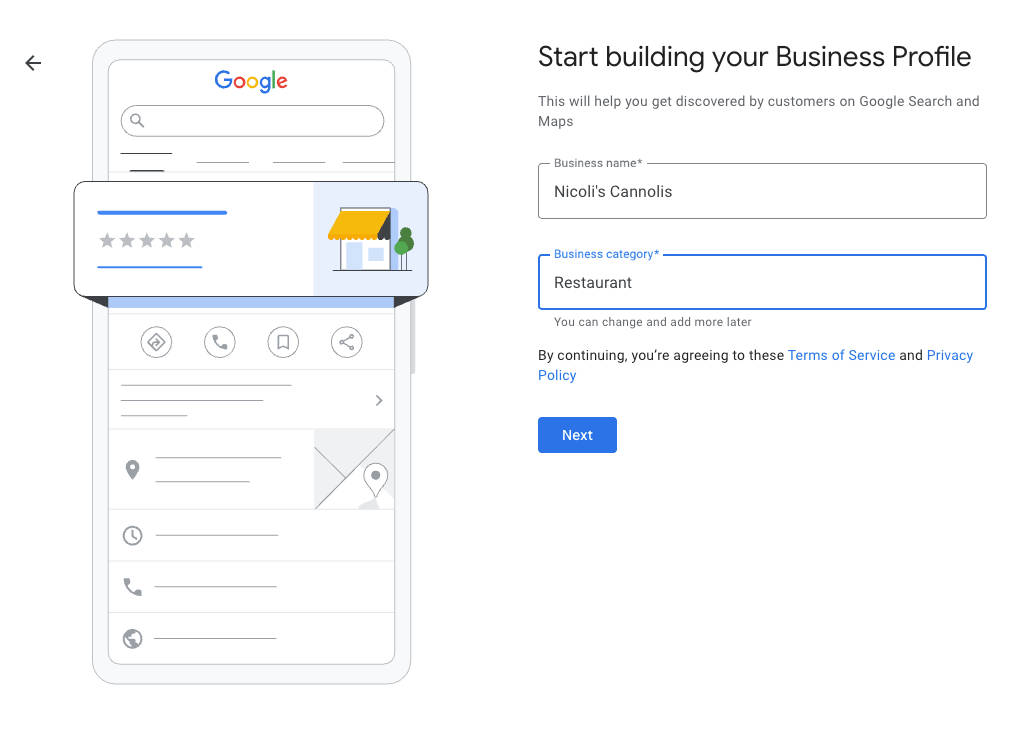
- Enter your business name and category. If you are notified that someone has already verified your business, skip to the “Claim an Existing Google Business Profile” section below.
- Add your location’s address (if you have a storefront) or service area (if you typically travel to serve your customers)
- Add your contact info, including phone number, website URL, and messaging settings (optional).
- Verify your business through postcard, phone, email, or live/recorded video call.
- Most often, Google will send a postcard to your physical address, or a code to the phone number or email you linked during signup. You will be required to enter the pin into the Google Business Profile interface whenever you receive it.
- In some cases, you may need to complete a video verification (either via a live or recorded video call) to show the business’s signage and address.
- Most often, Google will send a postcard to your physical address, or a code to the phone number or email you linked during signup. You will be required to enter the pin into the Google Business Profile interface whenever you receive it.
Claiming Ownership of a Google Business Profile
- Navigate to https://business.google.com/add and enter the business name of the business you want to claim ownership of.
- When you find the correct business, you’ll see a message indicating “Someone else may manage this business profile.”
- If you have permission to manage the profile, you can “Request ownership” from the current owner.
- Otherwise, you may see “Request Access” if you don’t have access to the profile, or “Manage Now” if the profile is unclaimed.
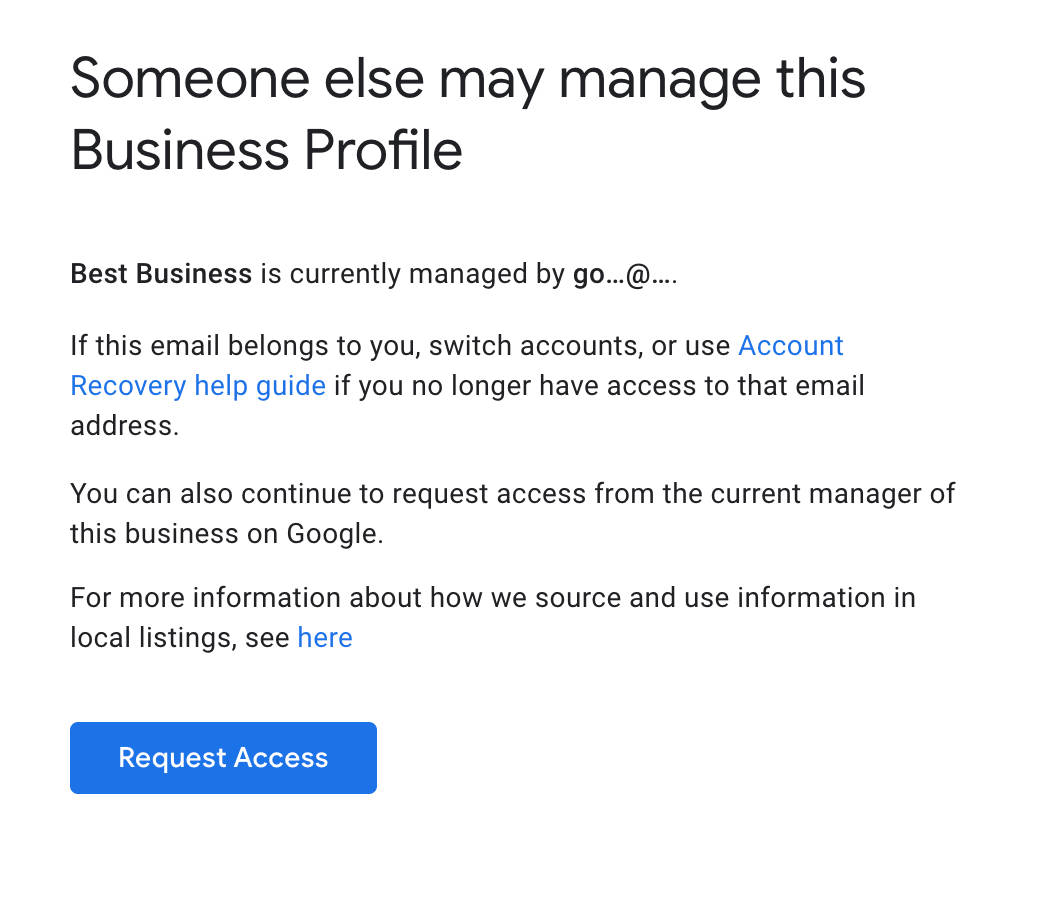
- Select the appropriate option (based on your permissions) and then click submit.
- The current owner will have 3 days to respond. They can:
- Approve your request: You’ll be notified via email and have full permissions to manage the profile (but only after a 7-day probationary period).
- Deny your request: You’ll be notified via email and can appeal if desired.
- Not respond: If the owner doesn’t respond in 3 days, you can claim ownership by signing into your business profile and looking for a “Claim” or “Verify” button
Optimize Your Google Business Profile Like a Pro
Your Google Business Profile is prime real estate. Treat it that way. Ensure every field is complete and accurate, keep your information up to date (especially around holidays), and refresh your profile regularly with minor updates.
These signals show Google that your business is active, engaged, and trustworthy.
Here’s what to check off:
- 📍 Accurate Contact Info: Double-check your name, address, phone number (NAP), and website URL.
- 🕒 Updated Hours: Keep regular and holiday hours current to avoid confusion.
- 🖼️ Add High-Quality Photos: Showcase your space, staff, services, or products—profiles with photos get more clicks.
- 🏷️ Select the Right Categories: Choose your primary business category carefully and add secondary ones if relevant.
- 📝 Write a Clear Business Description: Include keywords naturally to help your profile appear in relevant searches.
- 💬 Enable Messaging: Make reaching out directly from your profile easy for potential customers.
- 🔁 Post Updates Regularly: Regularly add posts, updates, or new photos. Google favors active profiles.
Staying on top of these small details helps your business appear more trustworthy, visible, and clickable.
How to Get & Share Your Google Review Link
The single most important thing you can do to get more reviews is make it ridiculously easy for your clients to leave one. That starts with your Google review link.
Get Your Review Link From Google
- Sign in to your Google Business Profile Manager.
- If you have one business, you’ll be taken directly to your listing. If you have multiple, click the appropriate business name from the list provided.
- Click “Ask for Reviews.”
- A screen will appear displaying multiple sharing options. Google lets you share your review link via:

- Email, WhatsApp, or Facebook.
- If you choose one of these three options, Google will auto-generate a short message such as, “{Business Name} would love your feedback. Post a review to our profile {Review URL}”
- Copy Link Button: Copy your direct review link anywhere, including emails, texts, websites, or social posts.
- QR Code: You can also right-click and save your QR code for signage, flyers, and business cards.
- Email, WhatsApp, or Facebook.
Automate Your Google Review Requests in Apptoto
Once you have your Google Business Profile set up, you can sync it directly into Apptoto’s Reputation Management system so it gets sent automatically after every appointment. Here’s how:
Syncing Your Google Business Profile to Apptoto
- Log in to Apptoto, and navigate to the Reputation tab. Click “Try it Out” to launch the tool.
- On the Settings tab, find the ” Step 1. Connect your Online Review Sites” section. Click “+Add Site.
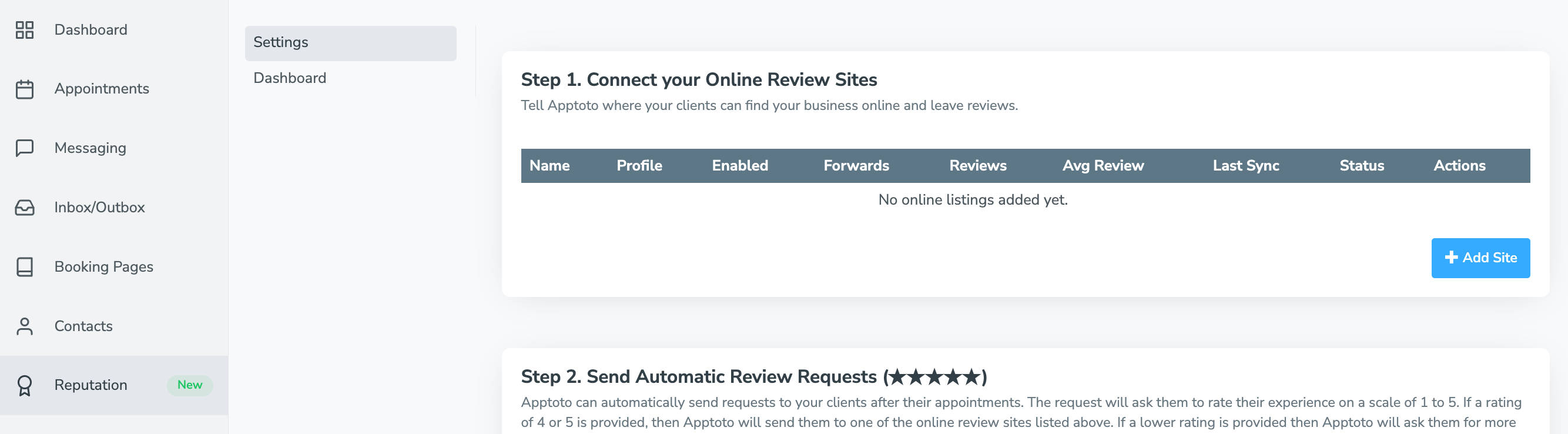
- The “Add Online Listing” screen will appear. You’ll see at the top that Apptoto recommends you first sync your Google Business Profile with Apptoto. To do so, click the “+Add Google My Business” button.
- Set the details for your Google Business Profile on the following screen:
- Select Google Account: Select the Google Account associated with your Google Business Profile. You may need to grant Apptoto permission to your Google accounts as part of this process.

- Select Google Location: Use the drop-down to select the location you wish to sync. If multiple business locations are associated with your Google Business Profile account, make sure to choose the correct location.
- Assign a Location: Choose which Apptoto location (Settings > Locations) to link the review site to.
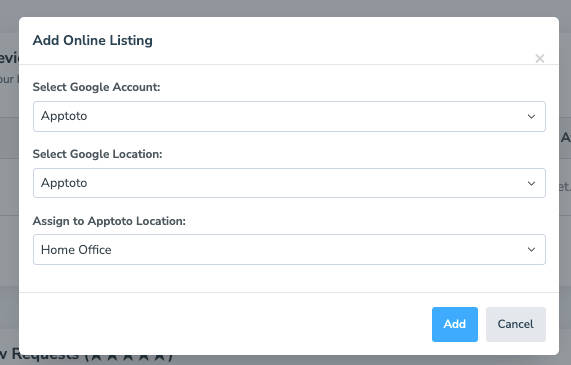
- Select Google Account: Select the Google Account associated with your Google Business Profile. You may need to grant Apptoto permission to your Google accounts as part of this process.
- Click “Add,” and your new Google review site will appear under your Online Review Sites list.
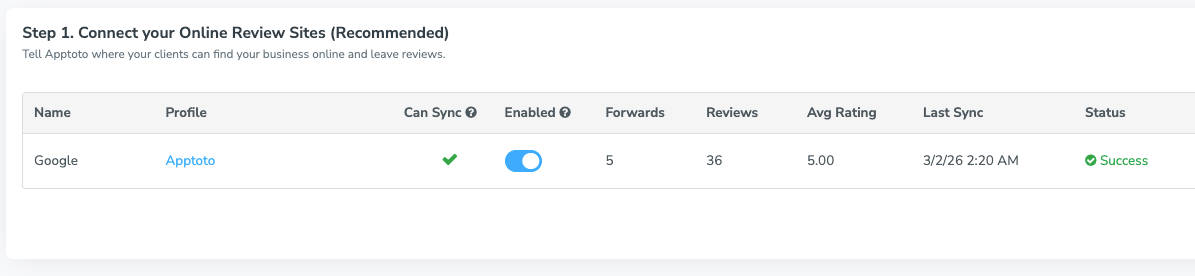
- Set the details for your Google Business Profile on the following screen:
Send Automatic Review Requests
- Scroll down to “Step 2: Send Automatic Review Requests.”
- Toggle “On” the Send Review Requests button under the “Send Automatic Review Requests section.”

Limiting Which Appointment Will Receive Requests
- By default, all appointments that have received appointment reminders will receive review requests when this feature is enabled.
- To change which appointments receive review requests, click the pencil icon next to “Send Review Requests to All Appointments Reminded by Apptoto.”
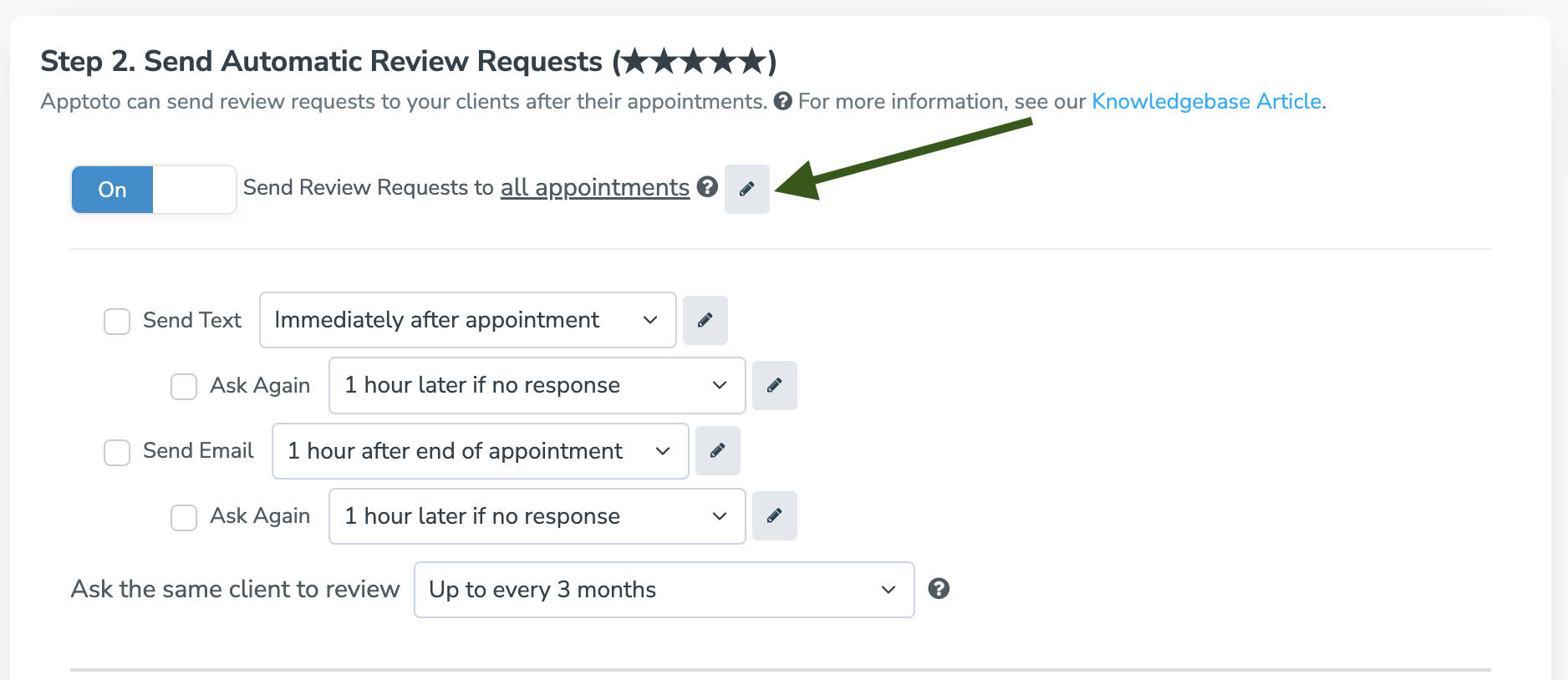
- On the “Rule Editor” screen that appears, set the parameters that appointments must meet to be sent review requests. For example, you could use:
- “Event.Title includes Consultations” if you only want review requests sent to appointments with the word consultation in their title.
- “Participant.Attended == True” if you want to ensure review requests are only sent to clients who you marked as having attended their appointments.

- After you’ve finalized your rules, click “Done.”
- To change which appointments receive review requests, click the pencil icon next to “Send Review Requests to All Appointments Reminded by Apptoto.”
Setting the Time, Frequency, and Content of Requests
- Use the checkboxes next to “Send Text” and “Send Email” to enable or disable review requests based on your preferred contact method.
- Select how long after an appointment (hours or days) you’d like Apptoto to send a review request.
- If a client doesn’t respond within your desired timeframe, you can have Apptoto prompt them again at another interval you choose by enabling “Send Text Again” or “Send Email Again.”
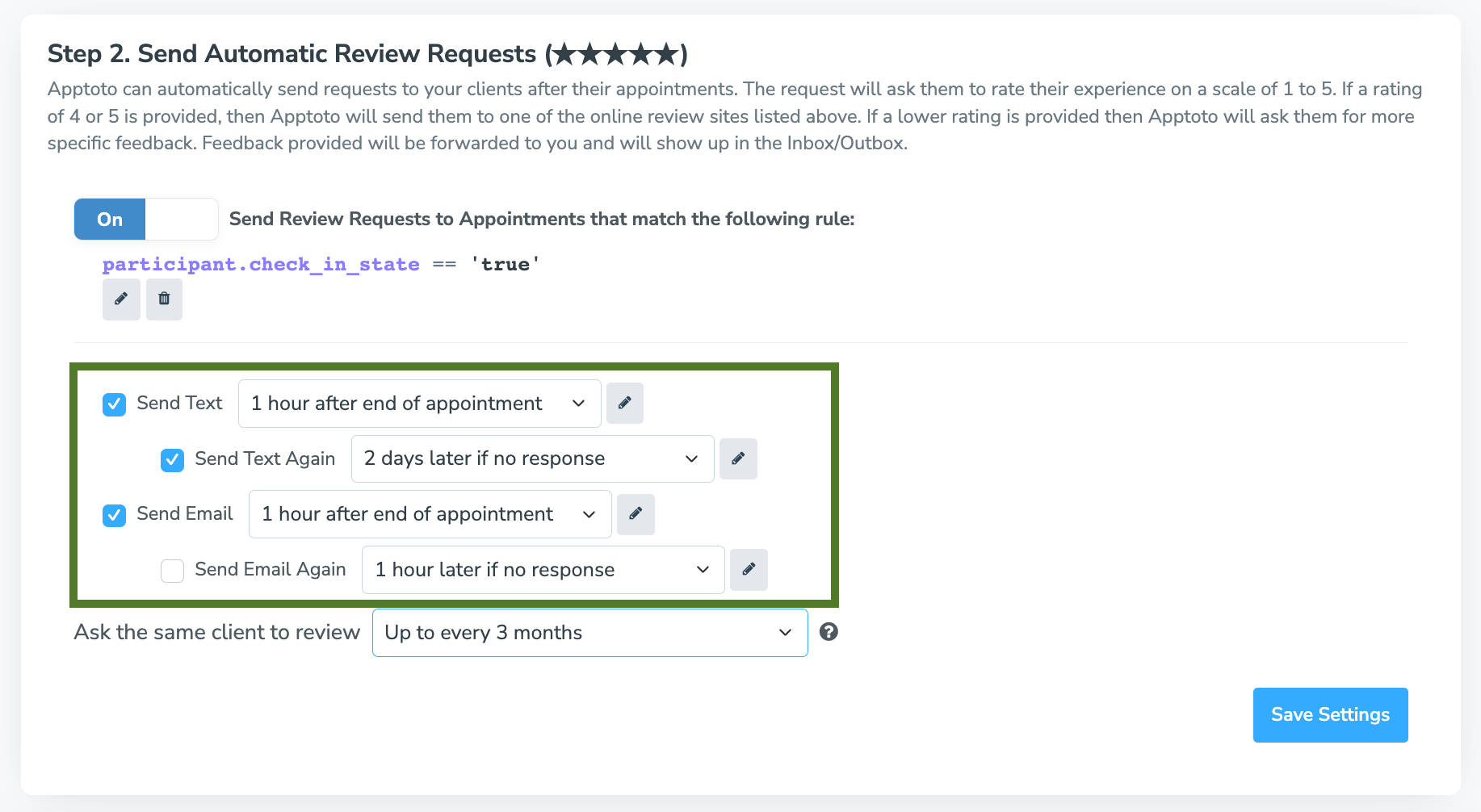
- If a client doesn’t respond within your desired timeframe, you can have Apptoto prompt them again at another interval you choose by enabling “Send Text Again” or “Send Email Again.”
- Use the pencil icon to edit the content of the text message or email review request. After making your changes, click “Done.”
- Use the “Ask the same client to review” field to choose how frequently you request clients to review your business.

Set Up Nudges
- If clients have left you internal feedback but haven’t posted it publicly on your preferred third-party review site, you can enable “Nudges.”
- Then enable text and/or email nudges. Set the day you want nudges automatically delivered (1-day, 3-days, or 7-days later) if Apptoto has not found a matching review on your preferred third-party review site.
- Note: You can use the pencil button to edit the content of the Nudge.
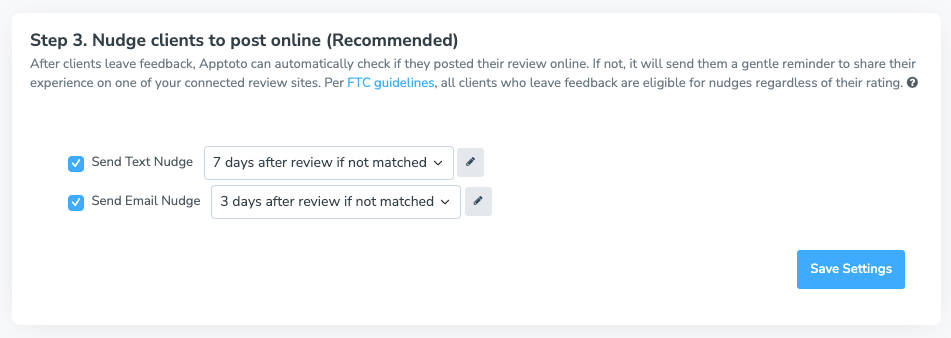
- Note: You can use the pencil button to edit the content of the Nudge.
Enable Automated Requests
- Click “Save Settings” to launch Reputation Management for your business.
The Best Ways to Ask for Google Reviews
Growing your reviews means making it as simple and quick as possible for your clients to leave a review. Here are some ways to do just that:
1. Automate Review Requests After Appointments
This is the single most effective method for appointment-based businesses. Instead of relying on memory or manual follow-ups, set up automated review requests that go out after every completed appointment.
With Apptoto’s Reputation Management, you choose when the request goes out (30 minutes after? 2 hours? The next day?), what the message says, and whether it goes via SMS or email. Clients who had a positive experience are far more likely to leave a review when the ask comes while the experience is still fresh.
2. Use SMS for Quick Requests
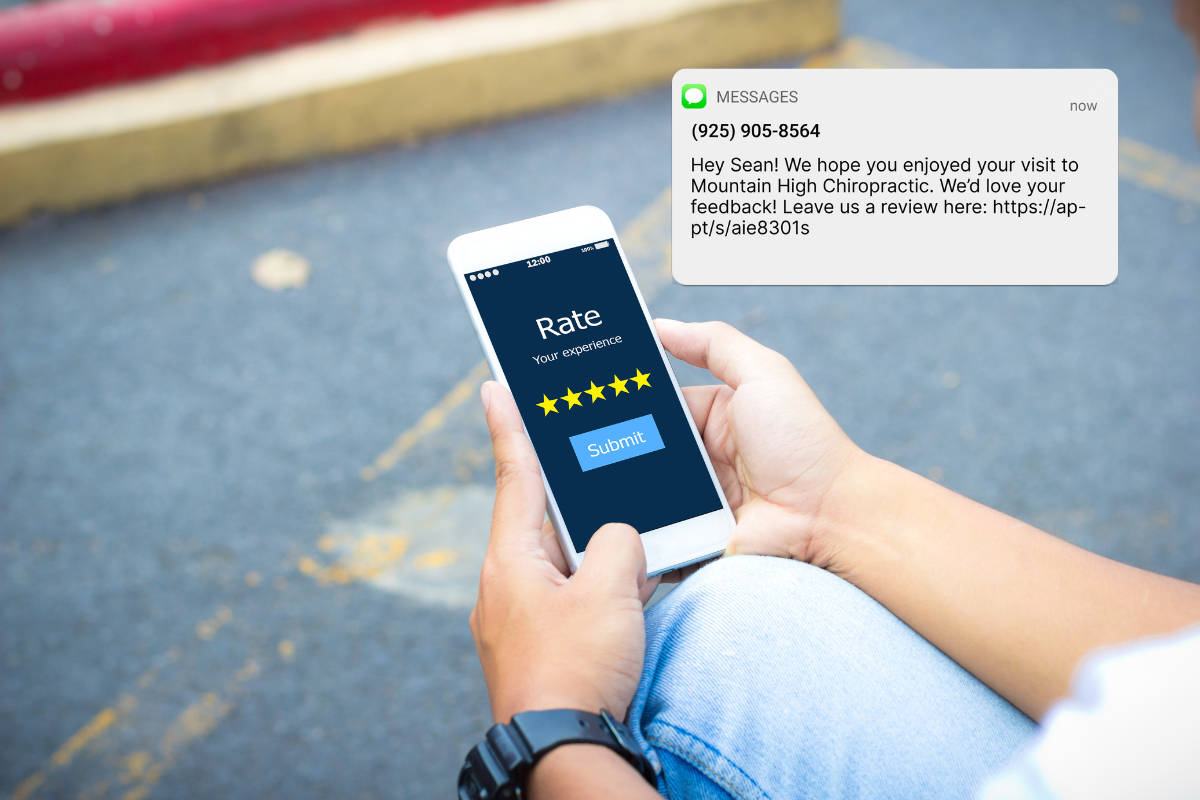
Text messages get opened fast and often. More than 90% of text messages are read within 3 minutes of being received. Include your Google link via a SMS review request that feels personal and direct.
3. Follow Up With Email
Send a polite follow-up after successful client appointments. Include your Google review link and a message such as:
Subject: We’d love your feedback!
Hi {{Client Name}},
Thank you for choosing {{Business Name}} for your recent {{Service}}. We hope you had a great experience!
Mind taking a moment to share your thoughts by leaving us a quick Google review? Reviews like yours help our business reach more amazing clients like you.
👉 {{Google Review Link}})
We truly appreciate your support!
Best regards,
{{Your Name}}
{{Business Name}}
4. Use QR Codes at Your Physical Location
Print a QR code that links directly to your review page. Display it:
- At checkout
- On physical appointment cards
- At your reception desk
5. Add a Review Button to Your Website
Create a “Leave Us a Review” button on your homepage or contact page. Use your Google review link as the destination.
6. Share Review Requests on Social Media
Occasionally, post review requests on platforms such as Facebook, Instagram, and LinkedIn. Include a clear call to action and your review link.
This works particularly well when you share it alongside a client testimonial you have permission to share. It’s a great way to promote your loyal clients and may inspire more clients to share their feedback too.
7. Include Review Links on Invoices or Receipts
If you send digital invoices or receipts, add your Google review link or QR code to the footer. This is a passive method that requires almost no effort to maintain, and it catches clients at a moment when they’re already interacting with your business.
8. Use NFC Cards or Tap-to-Review Stands
NFC (near-field communication) cards and stands let clients tap their phone on a physical card to be taken directly to your Google review page. Place these at your reception desk, checkout counter, or waiting area. They’re particularly effective for businesses with regular in-person visits because they remove almost every barrier to leaving a review.
9. Ask In Person at the Right Moment
We did say you could collect reviews without ever saying a word. But if you and your staff feel comfortable doing so, you can always politely request reviews by saying something like:
“Thanks for coming in today! If you had a great experience, we’d love it if you left us a Google review. You can just scan the QR code on the back of our card—it only takes a minute!”
Including your Google review link or QR code on something easy to take home (like a business card) allows clients to leave a review on their own time, without feeling pressured in the moment.
10. Run Targeted Campaigns to Past Clients
Don’t limit review requests to your most recent appointments. If you have a backlog of clients who never received a review request, send a targeted campaign.
With Apptoto’s Campaigns feature, you can segment your client list and send personalized review requests to past clients who have had an appointment in the last few months but who haven’t left a review yet. This is a fast way to build up your review count, especially if you’re just getting started with reputation management.
Why Automating Google Review Requests Changes Everything
Manually asking every client for a review is time-consuming and easy to forget. You get busy. Your team gets busy. And every missed ask is a missed review that could have boosted your visibility in local search.
That’s why many review-savvy businesses automate the process. Apptoto’s Reputation Management feature was built for exactly this. Here’s what it does:
- Sends review requests automatically via SMS or email after appointments, timed to when clients are most likely to respond.
- Includes your Google review link (or links to other review sites) in every message.
- Customize messages for different appointment types, providers, or locations.
The result? More reviews, a stronger online reputation, and more visibility in local search, all without adding work to your team’s plate.
Don’t Just Collect Reviews. Respond to Them.
Getting reviews is only half of a strong reputation management strategy. Responding to reviews, both positive and negative, signals to Google and potential clients that your business is engaged and trustworthy.
Here’s a quick framework:
- For positive reviews: Thank the client by name, reference their specific experience if possible, and invite them back. Keep it short and genuine.
- For negative reviews: Acknowledge the feedback, apologize for the experience, and offer to resolve the issue offline. Never argue publicly.
- For fake or spam reviews: Flag them through Google’s reporting tool. Google does remove reviews that violate its policies, though it can take time.
With Apptoto’s Reputation Management, you can monitor incoming public reviews to acknowledge feedback as quickly as possible. This keeps your response time low and your reputation tight, even when you’re focused on running your business.
What NOT to Do When Building Your Google Reviews
Before you start growing your review count, make sure you’re doing it the right way. Google and the FTC have clear rules about what’s acceptable and what’s not.
- Never buy fake reviews. The FTC banned fake reviews in August 2024, with fines up to $50,000 per violation. Google also detects and removes fake reviews, and repeat offenders risk having their entire Business Profile suspended.
- Don’t offer incentives to take down negative reviews. If someone gives you a negative review, it’s best to address it with a calm, professional response. Never offer an incentive to remove or change a negative review, though, as that’s against Google’s policies and FTC guidelines.
- Don’t ask non-clients for reviews. Reviews should come from people who have actually used your services. A sudden spike in reviews from accounts with no connection to your business is a red flag for Google.
The right approach is simple: provide great service, then ask real clients for honest feedback at the right time. That’s exactly what Apptoto’s automated review requests do.
Industry-Specific Tips for Google Reviews
Different businesses face different challenges when it comes to building reviews. Here’s what works for the industries that rely most heavily on appointment-based workflows:
- Healthcare (dental, clinics, behavioral health): Send review requests 2-3 hours after appointments via text. Patients are most responsive the same day. Use HIPAA-compliant messaging (Apptoto supports this natively).
- Accounting and financial services: The best time to ask for reviews is right after tax filing or annual reviews, when clients feel the most relief and gratitude. Run a campaign to past clients after each busy season.
- Legal: Send review requests after case resolution (not during litigation). For estate planning or consulting attorneys, follow up after the initial engagement.
- Home services: Send the request within an hour of job completion while the work is literally in front of the client. QR codes on invoices or truck signage also work well.
Free 14-Day Reputation Management Trial
See how practices and service businesses like yours build more reviews and a stronger online reputation with Apptoto.
Frequently Asked Questions About Google Reviews
The fastest way is to automate review requests so every client gets asked at the right time. Combine automated SMS and email requests after appointments alongside QR codes at your physical location. Businesses that automate their review process consistently see more reviews within the first few weeks. If you have a backlog of clients who’ve never provided feedback, sending a one-time campaign to past clients can quickly generate a burst of new reviews. Keep in mind, though, that Google wants to see you build quality reviews over time, rather than generating 10-15+ reviews all at once and never getting another review again.
Yes. Asking customers for honest reviews is perfectly legal and encouraged by Google. What’s not legal (as of the FTC’s August 2024 ruling) is buying fake reviews, offering incentives for reviews, or suppressing negative reviews. The keyword is “honest.” You can ask, remind, and make it easy. You can’t pay, coerce, or pre-screen.
There’s no magic number. Google considers review count, average rating, and recency as ranking signals. The goal is to have more recent, positive reviews than your local competitors. For most local businesses, consistently generating 5-10 new reviews per month is enough to build and maintain a strong local search presence.
Yes. Google uses automated systems and manual reviews to detect fake, spam, and policy-violating reviews. They remove millions of reviews every year. Businesses caught using fake reviews risk having reviews removed, their star rating adjusted, or their entire Business Profile suspended.
Right after a successful interaction, while the positive experience is still fresh. For appointment-based businesses, sending a review request 1-3 hours after the appointment works well for SMS, and same-day or next-morning works for email. Avoid waiting more than 24 hours; response rates drop significantly after that.
Ideally, yes. Responding to reviews (both positive and negative) shows potential clients that you care about feedback. It also signals to Google that your business is actively engaged. For negative reviews, a thoughtful response can actually improve your reputation by showing how you handle problems.
Put Your Google Reviews on Autopilot
Growing your Google reviews is one of the fastest ways to improve your search visibility and show prospective clients that your business is trustworthy and reputable. The businesses that win at this aren’t the ones that ask the hardest. They’re the ones that ask the most consistently.
Set up your Google Business Profile. Get your review link. And build a reputation management system that does the asking for you, every single time.
Apptoto’s Reputation Management sends personalized review requests after every appointment via SMS or email, sends all feedback to your inbox instantly, and helps you respond faster. It’s reputation management that runs in the background while you run your business.