At 8:47 p.m., someone nearby searches “{{your services}} open tomorrow.” Your business shows up first. Your reviews look great. Your photos are polished. The customer is ready to book.
There’s one problem. Your booking page is buried deep on your website. Your competitors? Right up front on their listing with a “Book Now” button. They choose your rival down the street because they let them schedule instantly.
That moment happens countless times every day, and it often comes down to one simple feature.
Your Google Business Profile (formerly Google My Business) allows appointment-based businesses to add a booking link directly to their listing. When someone finds you on Google Search or Google Maps, they can schedule an appointment with you even if they don’t navigate to your website.
If you haven’t enabled this yet, you may be missing out on some of your most ready-to-book customers. Here’s how to set it up, how to make it work harder for your business, and how to turn those booked appointments into five-star reviews.

Why Add a Booking Link to Your Google Business Profile?
This is one of the simplest, highest-impact changes you can make to your online presence. Even if your listing already gets good traffic, a booking link removes friction from the process that matters most: getting someone from “interested” to “booked.”
Clicks to your booking page tend to carry stronger intent than standard website visits. Someone clicking a link specifically labeled for booking is further along in their decision than someone browsing your homepage. That translates to higher conversion rates and more actual appointments on your calendar.
Baker Labs conducted an experiment where they found that over a 90-day period, the appointment link drove about 20 percent of the clicks on a business listing.
That means a five-minute setup could account for one out of every five prospective client interactions from your Google listing. For businesses that rely on a full calendar to stay profitable, like healthcare practices, law firms, and financial advisors, this is a small move with outsized returns.
How to Add A Booking Link to Your Google Business Profile
The setup takes less than 10 minutes. All you need is the URL of your online booking page.
Here are the steps:
- Sign in to your Google Business Profile account.
- Find the Google Business Profile that you want to edit if you have multiple.
- Click on the “Bookings” section.
- When given the option to select the “Featured book button” or “Links to your online booking tools,” select the second option.
- Click “Add a Link.”
- Enter your booking page link to the correct field and click “Save.”
Optional: You can add more than one booking URL if needed!
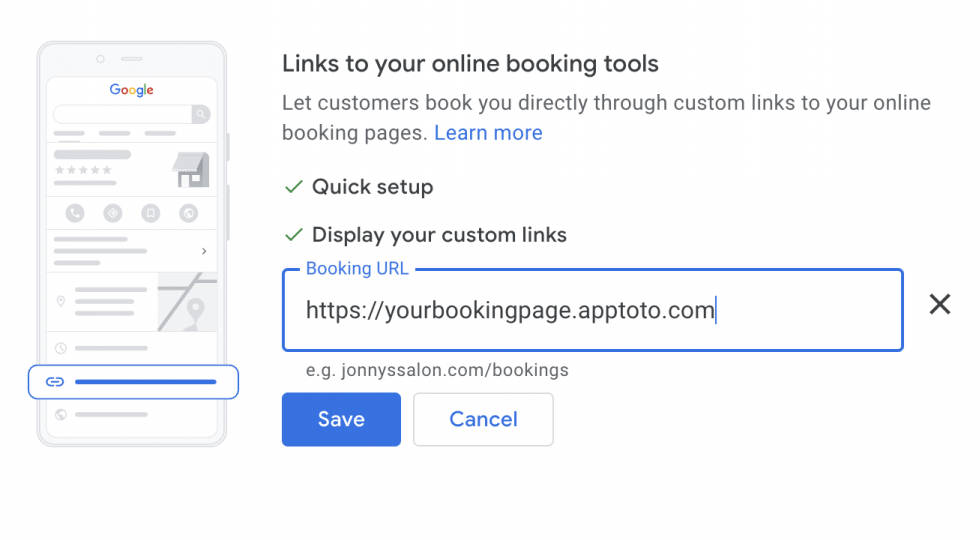
With that completed, you should be able to see the URL appear in your Google business listing within just a few minutes.
This is what it looks like in the search results:
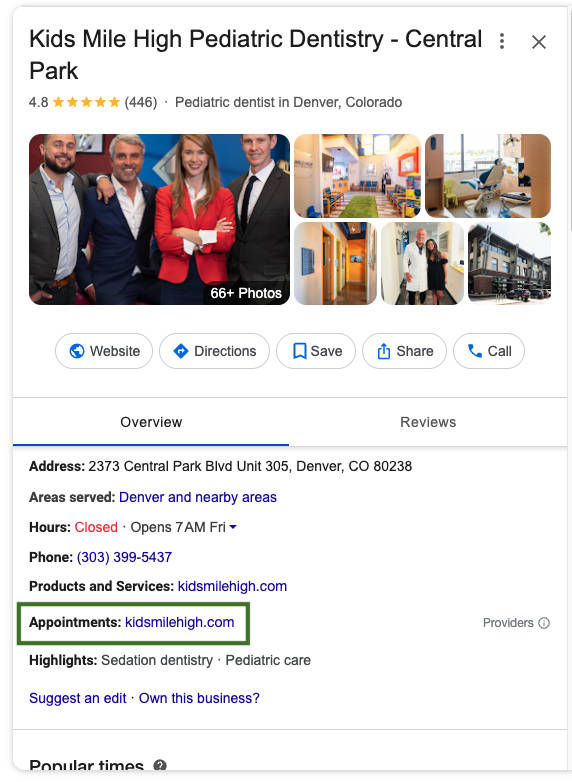
Your booking link should appear in your Google listing within a few minutes. It will show up as a clickable link on both Google Search results and Google Maps.
Pro tip: Use the direct URL to your booking page, not your homepage. You want the person to land on a page where they can immediately select a date and time. If your booking process requires more than a few clicks (or having to hunt down a hidden booking page) after arrival, you’ll lose people.
4 Ways to Get More From Your Appointment Link
Setting up the link is step one. Here’s how to make sure it actually drives bookings.
1. Add the right link
Your booking URL should point to a page where visitors can book immediately. If you’re using a tool like Apptoto’s online scheduling, your booking page is already designed for this: clients pick a time, enter their info, and confirm. No hunting for a button, no phone calls required.
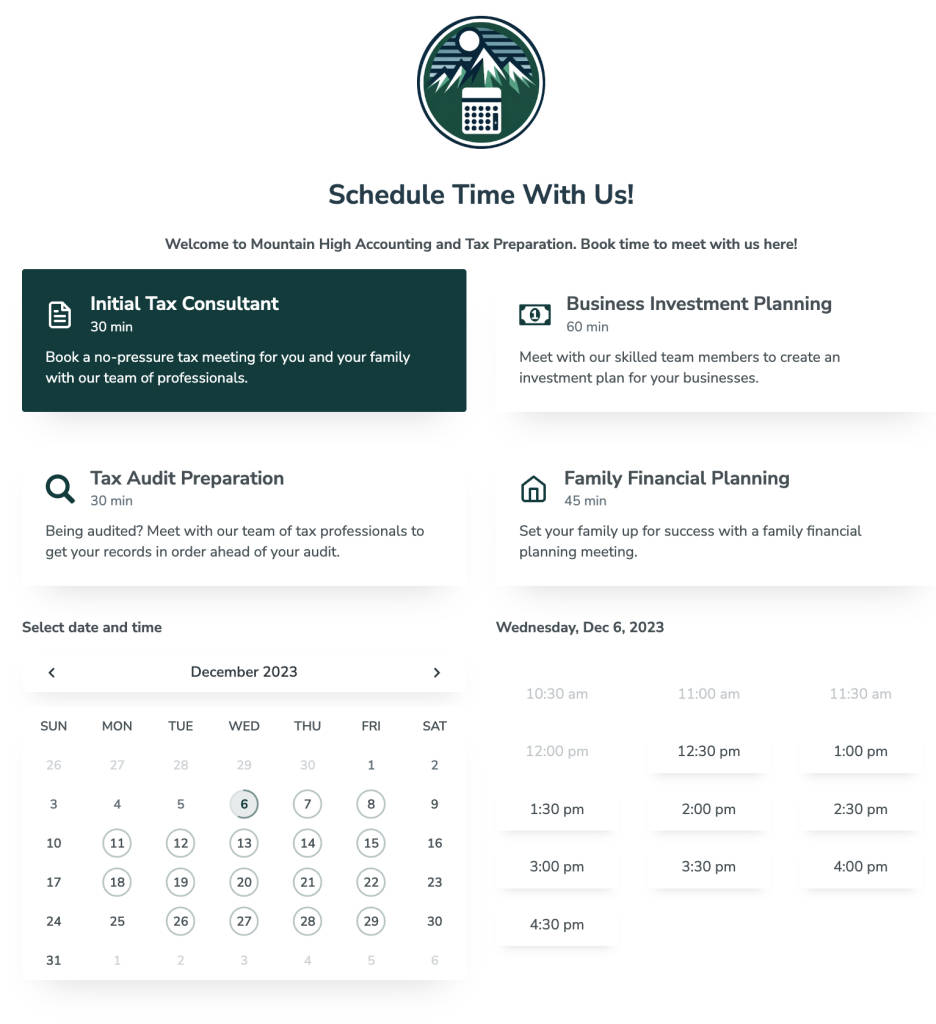
If someone clicks your booking link from a Google search result and lands on a page that asks them to call or dig through your website, they’ll hit the back button. Every extra step costs you conversions.
2. Track clicks to your booking link separately
You’ll want to know how much traffic and appointments this link actually drives. Two practical approaches:
One option would be to create a separate appointment booking page that is only accessed through your Google Business Profile link. Important: don’t link to this page anywhere else on your website. This gives you a clean way to measure performance in isolation.
The other option is to add UTM parameters to the URL to track clicks on this link in Google Analytics. This will give you the same kind of data and may be easier to set up. However, it will require you to sift through analytics to separate out the traffic.
The right answer here will likely depend on your level of knowledge and expertise with tools like GA and how comfortable you feel setting up separate landing pages or rolling out separate appointment pages.
3. Follow Up Automatically
The appointment link gets someone on your calendar. What happens next determines whether they show up, come back, and refer others.
Set up automated appointment reminders to confirm the booking and reduce no-shows. Businesses using automated reminders reduce no-shows by up to 90%, which means fewer gaps in your schedule and more revenue from the same number of bookings.
Apptoto connects directly to your existing calendar (Google Calendar, Outlook, Salesforce, and others) and sends text, email, and voice reminders automatically. It works with every appointment on your calendar, whether it was booked through your Google Business Profile, over the phone, or in person.
4. Request Reviews After Every Appointment Attended
This is the piece most businesses miss entirely. You’ve done the hard work of getting someone to find you on Google, book an appointment, and show up. That satisfied client is your best source of the five-star reviews that will bring in the next client.
Instead of hoping clients leave reviews on their own (most won’t), automate the ask. Apptoto’s Reputation Management tool sends a review request automatically after each appointment. Clients rate you and leave their feedback. Then all clients are given a link to review you pubically. Their feedback goes immeadiately to your inbox so you can reach out to follow up with happy or concerned clients before their third-party review even goes live. This helps you better protect your online reputation while growing your review count on autopilot.
The connection here is direct: your Google Business Profile booking link brings in new appointments, your reminders make sure clients show up, and your automated review requests turn those completed appointments into the social proof that drives more bookings. It’s a cycle that compounds over time.
5. Measure on-page engagement (Optional)
Consider using Optimizely, Full Story, or Hotjar to track and measure the engagement on your appointment booking page.
This will allow you to understand quickly and completely which actions your visitors are taking, where they may be getting stuck, and how you can improve your process to book more appointments.
While this step isn’t strictly necessary, you can gain valuable insights into how visitors are interacting with your website. That means you can expect to get more from your Google Business Profile appointment link, meaning more bookings and more business.
From Booking Link to Revenue Engine: The Full Cycle
The true value in adding a booking link to your Google Business Profile comes from connecting three systems:
Scheduling: Your Google Business Profile booking link + an online booking page that lets clients self-schedule 24/7.
Communication: Automated reminders that confirm bookings, reduce no-shows, and keep clients informed, sent via SMS, email, or voice.
Reputation: Automated review requests that turn completed appointments into Google reviews, boosting your visibility in local search and making your Google Business Profile listing more compelling to the next searcher.
Apptoto handles all three from a single platform, working with whatever calendar you already use. No need to replace your existing systems or retrain your team. Start a free trial and have all three running within a day.
Frequently Asked Questions
Sign into your Google Business Profile, go to the Bookings section, choose “Links to your online booking tools,” click Add a Link, and paste your booking page URL. The link typically appears in your listing within a few minutes.
Use the direct URL to your online booking page, not your homepage. The goal is to let searchers book in as few clicks as possible. If you don’t have a dedicated booking page yet, tools like Apptoto and other scheduling apps can create one for you.
Yes. In one test, the appointment link generated about 20% of all clicks on a business listing over 90 days. Those clicks also tend to convert at a higher rate because the intent behind them is stronger than a generic website visit.
The Featured Book Button is a placement Google offers for certain integrated booking partners. However, partners are limited and may be geared toward specific platforms (for example, Apptoto is listed as a software company but only three restaurant-specific booking solutions were listed). Plus, you have to pay for these solutions in addition to any appointment booking or online scheduling software you already have. That’s why many appointment-based businesses will just use their regular booking link and the “link to your online booking tool” option.
Yes. You can either create a dedicated landing page used only for this link or add UTM parameters to your URL and monitor the traffic in Google Analytics.
Use an automated review request tool like Apptoto’s Reputation Management. It sends a review request via text after each appointment, and can send different review requests messages based on appointment type, provider, public-review site, and more. Client ratings and feedback are routed to your inbox for your to address immeadiately, and the Reputation Management dashboard reports on successfully published third-party reviews for Google, Yelp, and Facebook.