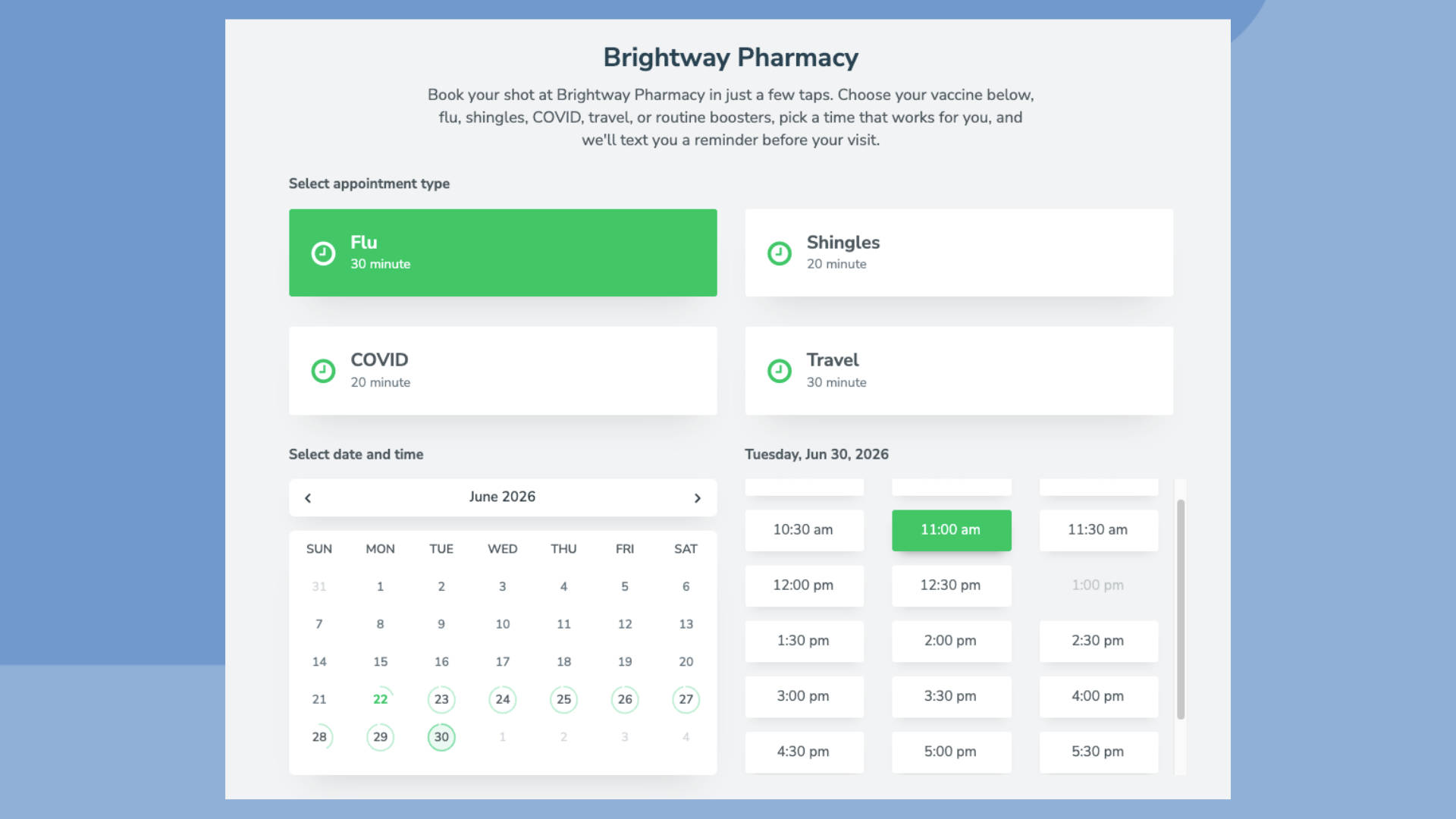
Quick answer: You can automate vaccination scheduling in Apptoto with two Campaigns. The first watches an Address Book and invites new patients to book their first dose. The second watches your first-dose calendar and invites those same patients to book their next dose at the right interval. Together, they move every patient through the full series without your staff having to make a single call.
A multi-dose vaccination program has many moving parts. Patients sign up, qualify, book a first dose, then need a second dose (and sometimes a third) at a specific interval weeks or months later. Track all of that in multiple systems, and something slips: a patient never books, a second dose gets missed, or your front desk spends the week chasing people on the phone.
This guide shows you how to build an automated vaccination scheduling system in Apptoto using Campaigns and Online Scheduling. Once it is set up, a new patient who fills out your intake form is automatically invited to book a first dose and then to book the next dose at the right time. You configure it once, and it runs on its own.
If you want the strategy behind the system first, our companion guide on patient vaccination scheduling covers the best practices. This article is the hands-on build.
What you need before you start building
You should have the following set up before you start building your workflow:
- An intake or sign-up form that qualifies patients to your criteria (age, eligibility, location). This can be an Apptoto form, or your own form connected to Apptoto via our API or Zapier.
- Two calendars in Apptoto so the system can tell doses apart. We’ll call them the First Dose Calendar and the Next Dose Calendar.
- An Apptoto Address Book that your intake form adds qualified patients to.
- Your dosing interval: the number of days between doses for the vaccine you’re scheduling. You’ll plug this in during Step 3.
How the automated workflow fits together
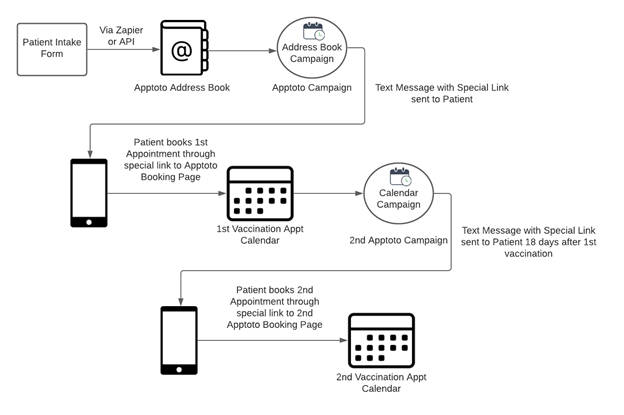
The system runs on two Campaigns working in sequence:
- A patient completes your intake form. The form adds them to an Apptoto Address Book.
- Campaign 1 watches that Address Book. The moment a new patient lands there, Apptoto sends a message inviting them to book their first dose on the First Dose Calendar.
- Campaign 2 watches the First Dose Calendar. After a patient books a first dose on the First Dose Calendar, Apptoto messages them, inviting them to book their next dose on the Next Dose Calendar (at the interval you set).
No spreadsheets, no manual outreach, no missed second doses. Here is a quick diagram showing how this all works together:
Setting up an automated vaccination scheduling system
Step 1: Build the first-dose booking Campaign
Campaign 1 is an Address Book Campaign, and it’s simple to set up.
- Navigate to the Messaging > Campaigns tab in Apptoto.
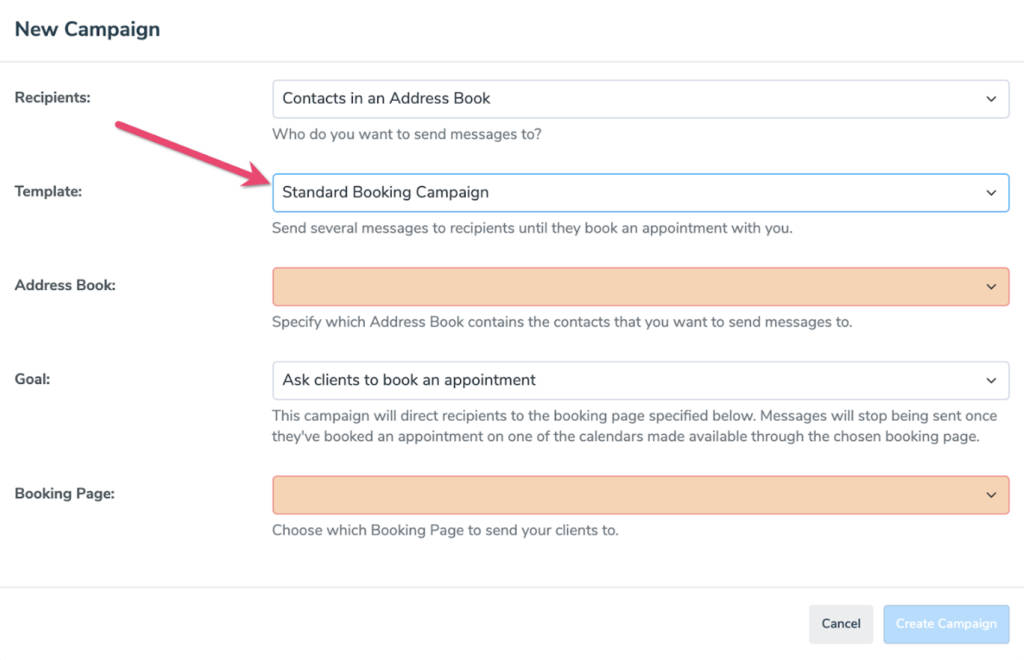
- Create a new Address Book Campaign and choose Standard Booking Campaign as the template.
- Select the Address Book your intake form feeds from the associated dropdown.
- Set the Booking Page to one that places patients on your First Dose Calendar.
- Click Create Campaign.
- Open the Campaign’s Messages tab, edit the invitation copy to match your clinic’s voice, then launch the Campaign.
From this point on, every qualified patient added to the Address Book gets an automatic invitation to book their first dose.
Step 2: Build the next-dose booking Campaign
Campaign 2 is a Calendar Campaign, because it watches a calendar instead of an address book.
- Create a new Calendar Campaign and tell it to monitor your First Dose Calendar.
- Set the Date Range to All Time so no appointment is ever skipped.
- Set the Booking Page to one that places patients on your Next Dose Calendar.
- Click Create Campaign.
- Open the Campaign’s Messages tab.
- For Start Sending, choose Based on Appointment date.
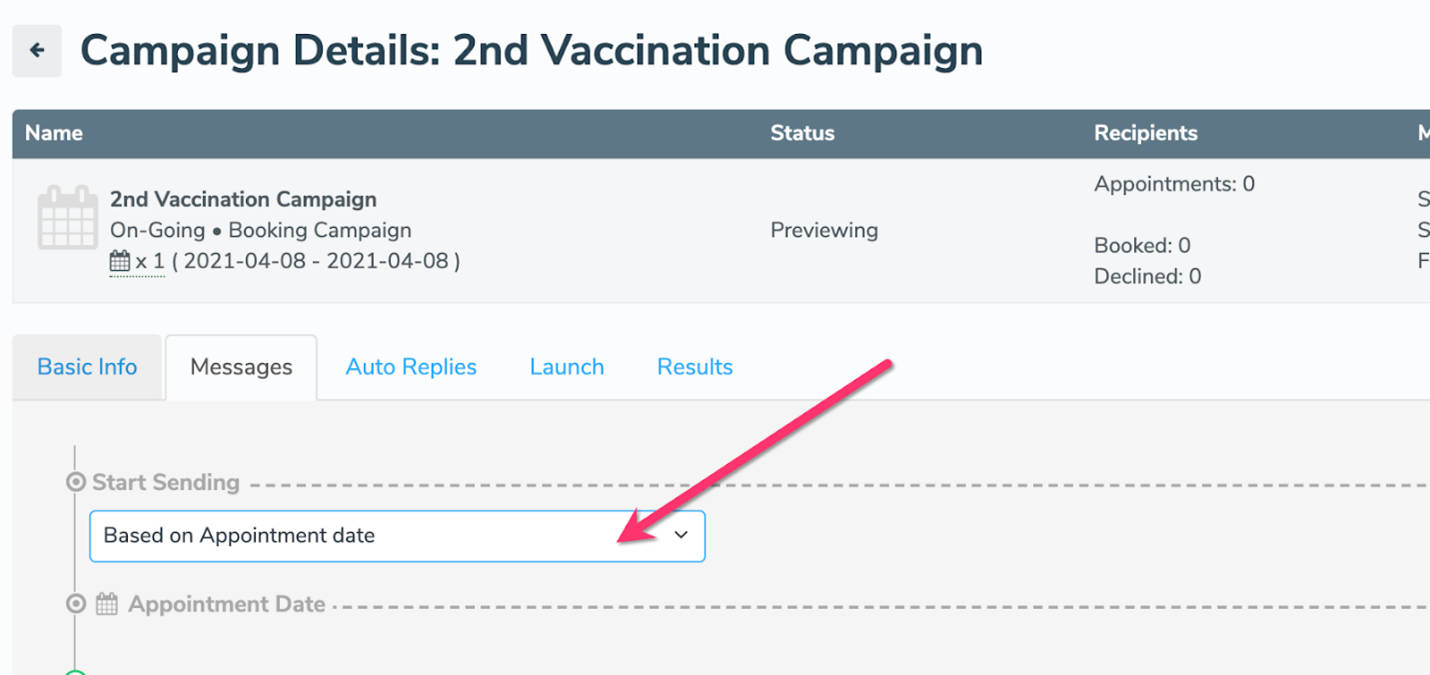
- Open the first message and set its timing to your dosing interval after the appointment (for example, 18 days after). Repeat for any additional reminder messages so they all fire at the right point in the series.
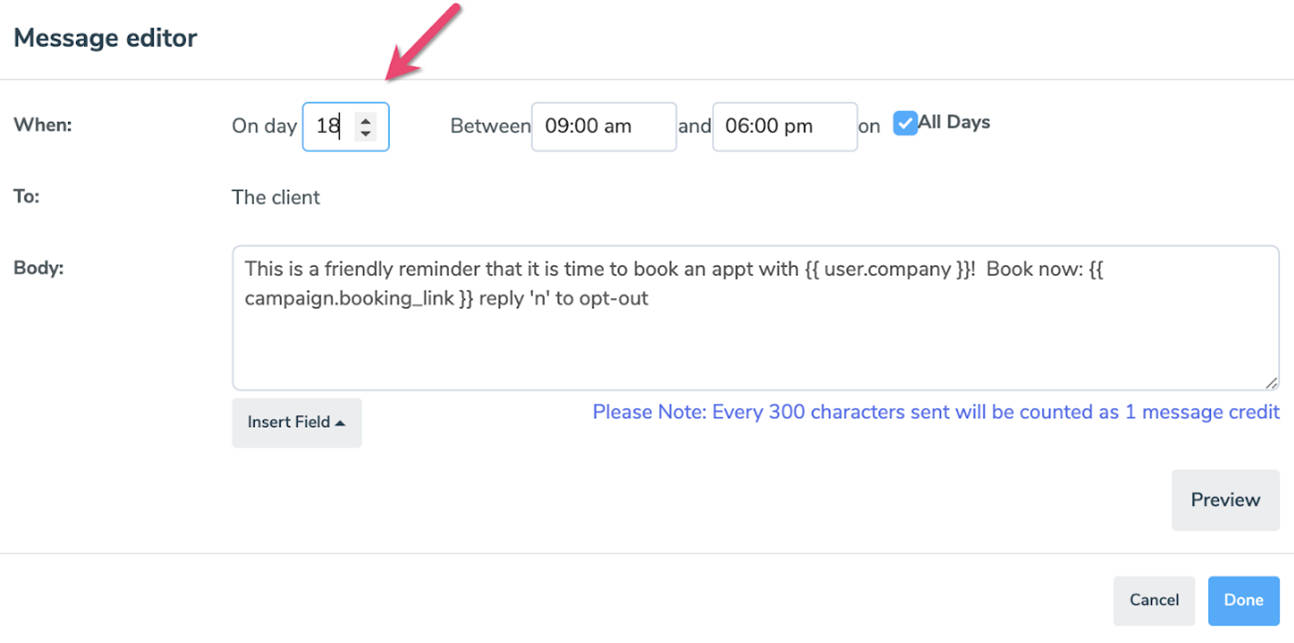
- Delete any extra default messages you don’t need using the trash icons, and launch your Campaign.
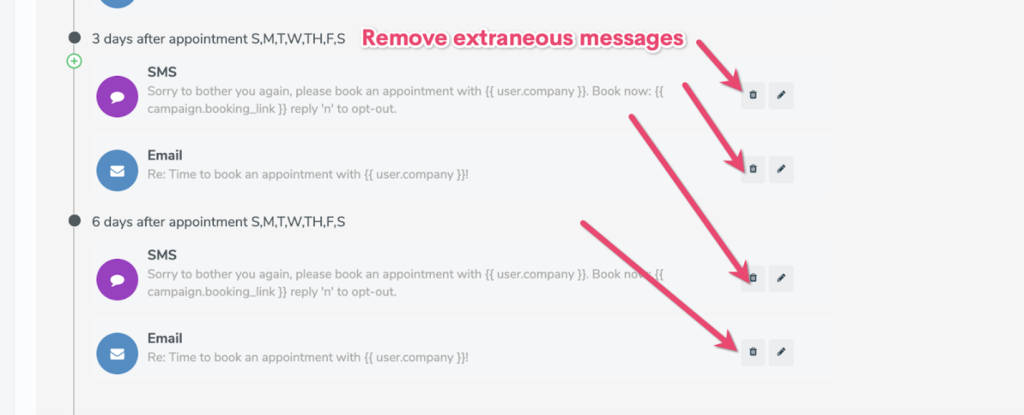
Swap in whatever interval your vaccine series requires. The rest of the workflow stays the same.
Once both Campaigns are live, any new contact added to the Address Book is automatically carried through the entire series, from the first-dose invite to the next-dose follow-up.
Preventing patients from booking more than once
In a vaccination program, you want one appointment per eligible patient, not patients booking extra slots or booking on behalf of someone who isn’t qualified. A few Booking Page settings lock this down. Apply them to both your First Dose and Next Dose Booking Pages:
- Click the First Dose booking page on the Booking Pages tab. On the Address Book tab, find Authentication. Turn on Require Campaign Booking Link. Only patients who click the unique link in your Campaign message can book, which keeps the public off your calendar. Repeat for the Next Dose page.
- On the same tab, find the Advanced section. Enable the following toggles: “Contact must exist in address book in order to book,” and “Limit contacts to 1 appointment.” These restrict booking to contacts already in your Address Book and limit each patient to a single appointment.
See it working in the real world
Carvajal Pharmacy, a family-owned business serving San Antonio, Texas, for more than 50 years, used this exact two-Campaign setup with Apptoto Booking Pages and Campaigns to handle a major surge in vaccine demand. They hit their target of 100 patients a day, then scaled past 500 a day, all while keeping staff free to actually administer doses. Read the full Carvajal Pharmacy story for the details.
Frequently asked questions
Yes. Add another Calendar and Calendar Campaign for each additional dose. Each one watches the prior dose’s calendar and invites patients to book the next, timed to its own interval.
No. They receive a text or email with a booking link and pick a time on your calendar. There’s nothing to install.
Campaigns trigger from your Address Book and calendars, so any patient added to the Address Book, however they got there, enters the workflow.
Apptoto offers HIPAA-compliant messaging with opt-in flows, audit logs, and user access controls, and the platform is SOC 2-compliant. Apptoto is also offering a current beta trial of Secure Messaging, which allows businesses to send clients and patients sensitive messages via a secure link that directs to a private messaging portal.
Set up your automated vaccination scheduling system
A multi-dose program is exactly the kind of complex, repeating workflow Apptoto Campaigns were built for. Set it up once and let it run, so your team can spend its time on patients instead of phone calls.
Need a hand building yours? Our support team can walk you through it. Visit the Support Center or start a free trial to get going today.