Renee runs the front desk at a two-location physical therapy practice, and she downloaded Muse the week it came out. Within a day, it booked her a dinner reservation, cleaned up her inbox, and drafted a strong response to a one-star review. So on Thursday she asked it a work question: did the 2 p.m. patient evaluation appointment ever confirm? Muse gave her a confident answer. It was a guess. Muse could see her personal calendar and her email, but it had never met the one system her workday runs on.
Renee is not alone. Muse passed 3.4 million downloads in under three weeks and has held the top spot on the U.S. App Store since September 18, according to TechCrunch. This morning Meta announced Muse for Small Business, a set of skills and connectors for people who run companies, not just calendars. Apptoto isn’t in Muse’s connector directory yet. No problem: Muse builds custom connectors on request, and this guide walks you through it.
In about 15 minutes, you can connect Muse to Apptoto and put your schedule, client messages, and reminders one prompt away. It also covers what Muse can and cannot do with that access, how to keep client data safe, and how to make it a habit.
What Muse Connectors Are (and the Two Kinds)
Muse is Meta’s personal AI agent. It launched in the U.S. and Canada on September 8, 2026. Unlike a chatbot, it is built to take actions: book, buy, send, schedule. Connectors let it reach outside software. Meta’s help center puts it plainly: when you set up a connector, “Muse gets new abilities, like the ability to see your calendar or write an email.”
There are two kinds, and the differences can help you decide which to choose.
Directory connectors vs. custom connectors
Directory connectors are the ones Meta has reviewed and listed under Settings > Connectors. Gmail, Google Calendar, Outlook, Notion, Shopify, QuickBooks, Slack, Canva, and a growing list of others live there. If a tool is in the directory, you tap Connect, sign in, and you are done. Meta reviews each of these for functional, security, and legal requirements before listing it, and it opened the Muse Connector Platform to outside developers in mid-September.
Custom connectors cover everything else. According to Meta, “If you want to connect to a service not yet available in the Connector list, you can ask Muse to create a Custom Connector. Muse will guide you through the process, which can involve retrieving API information from the service.” Muse does the research, tells you what it needs, stores your credentials in what Meta calls its Secure Credentials Store, and builds the connection for you. Apptoto’s developer platform, the same one that powers the Apptoto MCP server for Claude and ChatGPT, is what Muse connects to. For background on how AI assistants talk to business software, check out our explainer on MCP servers.
Which Muse plans support custom connectors
Muse is free with a weekly token limit, and paid plans raise that usage limit. Meta’s subscription help page lists the current tiers:
| Muse plan | Price | Weekly allowance | Custom connectors? |
|---|---|---|---|
| Free | $0 | Usage limit that refreshes weekly (Meta cited 100M tokens per week) | Yes |
| Power | $20/month | 500M Muse tokens per week | Yes |
| Maximum | $100/month | 3B Muse tokens per week | Yes |
Unlike ChatGPT, where custom plugins require a paid plan, Meta’s documentation does not gate custom connectors behind a subscription. Every task Muse runs, including a morning schedule check, draws from your weekly allowance. A front desk that runs Muse all day will feel the free limit sooner than someone using it for dinner reservations.
Two eligibility notes. Muse is currently available in the U.S. and Canada only, and Meta describes it as being in limited testing. You also need a Meta account and must be 18 or older.
How to Connect Muse to Apptoto, Step by Step
Muse handles setup a little differently than ChatGPT or Claude, and it’s a bit easier. Instead of pasting a server URL into settings, you ask Muse to build the connector. It tells you what it needs. You register Muse as an authorized app in Apptoto, hand back two credentials, and you’re done. Budget 15 minutes.
Before you start, have these three things
- A Muse account (free is fine), set up on the web at ai.meta.com/muse or in the Muse app
- Your Apptoto login, with admin access to Settings > Integrations
- A decision on permissions: look-up only to start, or send-and-change too (you can widen access later)
Step 1: Open Muse and ask for the connector
- Go to ai.meta.com/muse, click Try Muse, and sign in with your Meta credentials. If this is your first time, Muse walks you through a short onboarding with a few unrelated questions about you. Answer them and move on.
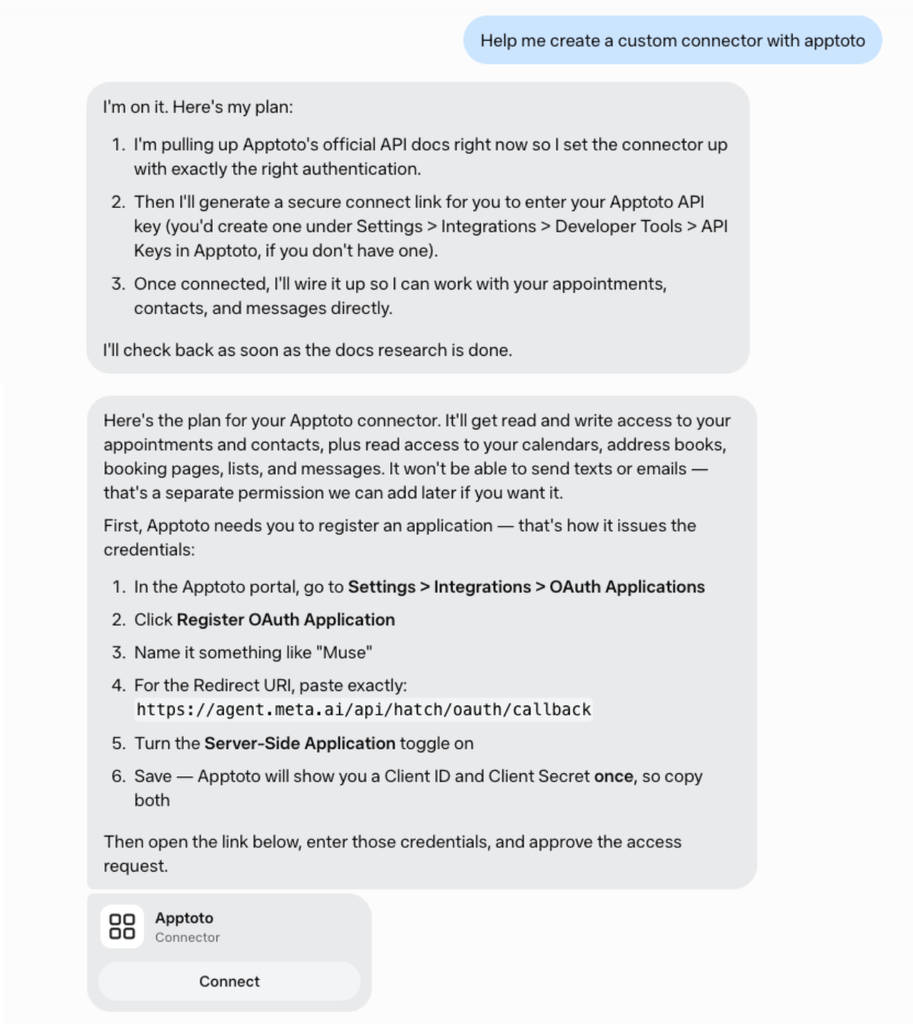
- In the chat, type: “Help me create a custom connector with Apptoto.”
- Muse researches Apptoto’s developer platform and provides a short set of instructions plus a link. The instructions tell you to register an OAuth application in Apptoto. Keep this chat open; you will come back to it.
Step 2: Register Muse as an application in Apptoto
Think of this as giving Muse its own key to Apptoto instead of a copy of yours. Your password stays put; Apptoto issues Muse a separate set of credentials you can revoke anytime.
- In Apptoto, go to Settings > Integrations > OAuth Applications.
- Click Register OAuth Application.
- Name it Muse (or something you will recognize later).
- For the Redirect URI, paste exactly: https://agent.meta.ai/api/hatch/oauth/callback
- Turn the Server-Side Application toggle on.
- Save. Apptoto shows you a Client ID and a Client Secret once. Copy both somewhere safe before you close the window.
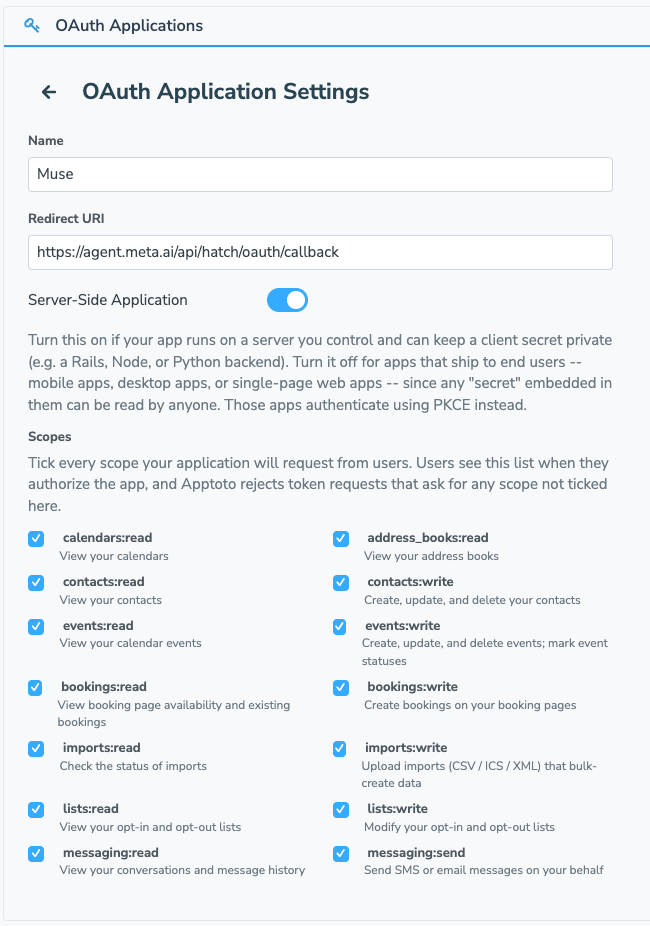
Why the redirect URI matters: it tells Apptoto where to send Muse after you approve the connection. A typo here is the most common reason a custom connector fails, so paste it rather than typing it.
Step 3: Finish the connection in Muse
- Back in Muse, open the link it gave you.
- Accept the permission request to connect.
- Enter the Client ID and Client Secret from Apptoto.
- Muse confirms the connection. From here on, Apptoto shows up alongside your other connectors, and Muse can use it in any task.
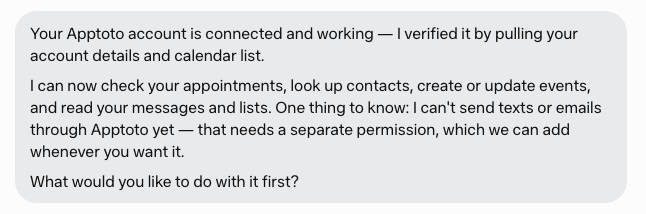
Step 4: Test it in one prompt
In the same chat, ask:
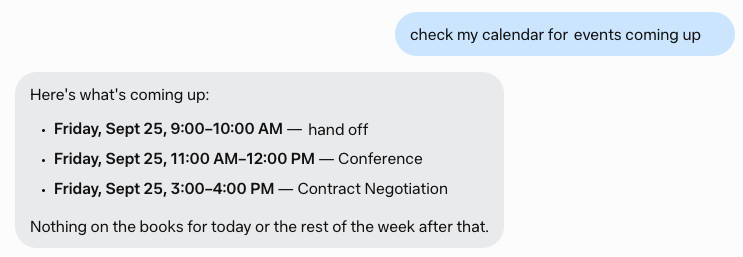
“Check Apptoto and tell me what’s on tomorrow’s schedule.”
If Muse reads your day back to you, the connector works. If it asks for approval first, that is normal. Muse is designed to check with you before touching connected services, and you can tune that in the next section. If it returns an error, jump to troubleshooting below.
Not an Apptoto user yet? The connector is only as useful as the system behind it. Start a free 14-day trial of Apptoto and connect Muse the same afternoon.
What a Connected Day Looks Like
A connector is only worth the setup if it hands you real minutes back. Here are three prompts from three calendars, and what each one replaces.
The unconfirmed sweep (hair salon, Tuesday). “Which of tomorrow’s appointments in Apptoto are still unconfirmed? Draft a text to each reminding them of our 24-hour cancellation policy.” Muse pulls the live list, drafts the texts, and waits for your OK. Because Apptoto’s two-way messaging does the sending, every reply lands in the thread your office already tracks.
The win-back list (financial advisor, Thursday). “Using Apptoto, who hasn’t had an appointment in 6 months? Draft a note inviting them to book a year-end review.” Keeping a client costs a fraction of finding a new one (HBR puts acquisition at five to 25 times more). Muse pulls the list of lapsed clients in seconds and drafts the message. Drop in your Apptoto booking page link, and they can grab a slot on your calendar without a single phone call.
The Friday close-out (roofing company, 4:45 p.m.). “In Apptoto, mark today’s jobs. Everyone was home and all jobs completed except the 1 p.m.; mark that one a no-show.” After you approve, the attendance statuses trigger the follow-ups you already configured, and reputation management sends review requests only to completed jobs.
| Weekly task | Manually | With Muse |
|---|---|---|
| Unconfirmed appointment sweep | 25+ minutes of cross-checking and typing | One prompt, approve drafts: about 5 minutes |
| Win-back outreach | Rarely happens; nobody has time to build the list | One prompt builds the list and message |
| End-of-week close-out | Statuses one-by-one; follow-ups slip to Monday | One prompt; review requests go out automatically |
Is It Safe to Give Muse Access to Client Data?
Handing an AI agent access to your client records deserves scrutiny, not a shrug. Muse is more capable than a chatbot, which means the controls matter more.
What Muse can see vs. what it can change
Every Apptoto permission falls into one of two buckets. Read permissions let Muse look things up: open slots, appointment details, message threads, confirmation statuses. Write permissions let it change things: book or cancel appointments, send messages, update contacts, mark attendance.
Muse layers its own approval system on top.
Per Meta’s help center, “by default, Muse will not take many important actions, like sending an email, without your approval,” and many connectors “can also be set up so that Muse is only able to retrieve data, but not take actions.” You adjust when Muse asks in Settings. Under the hood, Meta describes a permission gatekeeper it calls Sentinel that resolves every connector action to allow, deny, or ask the user, and it says credentials are never shown to the model itself.
Our advice is the same as for ChatGPT and Claude: start with look-up access and keep approvals on for every send or change. Widen access only after Muse has earned it.
You can cut off access in seconds from either side. In Apptoto, go to Settings > Integrations > OAuth Applications. Delete the Muse application you created to revoke access. In Muse, go to Settings > Connectors and disconnect Apptoto. One thing Meta is upfront about: information Muse already used for a task “might still remain in Muse’s memories and your conversation history.” Ask Muse to forget the topic, or reset it entirely under Settings > Data Controls.
For HIPAA-covered and regulated offices
Apptoto is SOC 2 and HIPAA compliant, and its HIPAA-compliant appointment reminders are already built for practices that handle protected health information. That covers Apptoto’s side. However, Muse is a consumer product from Meta, and as of this writing, Meta has not published a business associate agreement for it. Never expose protected health information or personally identifying client data to an AI agent without first consulting your IT and compliance teams. If, and only if, you have approval, keep going.
On the Muse side, take three steps before you connect.
- Turn off model training. Muse’s training setting is on by default; go to Settings > Data Controls and toggle off “Help improve our AI models.”
- Understand that Muse keeps memories. It stores what it learns in files you can view and edit under the Assistant icon > Identity > Memory. Disconnecting a connector does not erase what it already learned.
- Keep identifying details out of prompts. Ask for “tomorrow’s unconfirmed appointments” and let the connector fetch the names through the approved, token-based connection.
Build a Morning Check Muse Runs on Its Own
Connecting Muse is the easy part. The real value comes when checking it becomes a daily habit, and Muse makes that easy: ask it to run something every morning, every Monday, or on any schedule you like, and it does. No extra feature, no paid plan. The results land as a message in your Muse chat, so your schedule check is waiting before you’ve sat down.
Set up a morning check
Paste this into Muse, filling in the brackets:
Every weekday at [time], run a morning check using Apptoto for [business name] and message me three things: today’s schedule, tomorrow’s unconfirmed appointments, and any client replies waiting on me. Flag anything unusual: double bookings, gaps longer than an hour, or clients with two or more missed appointments this quarter. Don’t send anything to clients without my approval.
Muse confirms the schedule and the exact time. To see it later, tap the Assistant icon and open the Upcoming tab, or ask “What scheduled tasks do I have?” To change it, just tell Muse: “Move my morning check to 7:30.”
A note on usage: a daily task that reads your calendar and message threads draws from your weekly allowance every day. If you hit the free limit mid-week, the Power plan at $20/month fixes it.
Give Muse standing instructions
Muse also lets you edit the files that shape how it behaves. You can edit your Muse’s Memory file and a Soul file (Meta’s name for its core rules and boundaries) by navigating to Library > System Files (or by clicking Identity under the Muse icon in the right-hand navigation). Adding two lines there saves you from re-explaining your setup in every chat:
Apptoto is the source of truth for our calendar, appointment reminders, and client messaging. Always check Apptoto before answering questions about appointments, and always ask me before sending or changing anything.
Five prompts to run week one
Start with one habit per day. These five map to the moments most appointment-based businesses feel first:
- “Morning check.” (Your scheduled task has this covered.)
- “Which of tomorrow’s appointments in Apptoto are still unconfirmed? Draft texts to each.”
- “My [time] just canceled. Check Apptoto for who asked about availability recently and draft them an offer for the open slot.”
- “Who hasn’t booked in 60 days? Draft a warm recall text for each.”
- “Mark today’s attendance in Apptoto: [status] for every appointment.”
Troubleshooting: When the Connector Won’t Connect
Four problems account for most failed setups, but thankfully all four have quick fixes.
Muse says it can’t find Apptoto’s API
Muse researches the service when you ask for a custom connector, and occasionally it comes up short. Point it at the source: “Apptoto’s developer documentation is at apidocs.apptoto.com and its MCP server is documented at apptoto.com/mcp.” Then ask it to try again.
Apptoto rejects the connection after you approve it
This is almost always the redirect URI. Open the Muse application in Apptoto under Settings > Integrations > OAuth Applications and confirm the URI reads exactly https://agent.meta.ai/api/hatch/oauth/callback, with no trailing space or slash. Also confirm the Server-Side Application toggle is on. If you fixed either one, generate the credentials again and re-enter them in Muse.
Muse connects but can’t see appointments
This is a permissions gap. Either the Apptoto application was registered with narrower scopes than you need, or Muse’s connector was set to retrieve-only, and you are asking it to change something. Check both: the application’s scopes in Apptoto, and the connector’s approval settings in Muse under Settings > Connectors.
Muse answers from memory instead of checking Apptoto
Muse remembers things, which is useful until it remembers last Tuesday’s schedule and reports it as today’s. Force the connector call by naming the source: start your prompt with “Check Apptoto” or add “using the Apptoto connector.” The standing instruction above fixes this for good.
Muse isn’t available to you yet
Muse is limited to the U.S. and Canada and is still in what Meta calls limited testing. If you are outside those regions or cannot get access, the same Apptoto server works with Claude and ChatGPT today
Frequently Asked Questions
Yes. If a service is not in Muse’s connector directory, you can ask Muse to create a custom connector for it. Muse guides you through retrieving the service’s API credentials and stores them in its Secure Credentials Store. Meta does not review custom connectors, so grant access carefully.
Not directly, the way Claude and ChatGPT do. Muse builds custom connectors against a service’s API rather than taking a pasted MCP server URL. For Apptoto, the result is the same: Muse connects to the same developer platform that powers the Apptoto MCP server, with the same read and write permissions.
Yes, once connected to Apptoto with write permissions approved. Muse can book, reschedule, and cancel appointments, and by default it asks for your approval before each action.
No. Custom connectors work on the free plan. Paid plans (Power at $20/month, Maximum at $100/month) raise your weekly usage limit, which matters if Muse runs tasks for you every day.
Your Client Calendar is One Prompt Away
A custom connector turns Muse from a clever personal assistant into a working teammate: one that checks the real calendar, drafts client texts, runs its own morning check, and never sends a thing without your say-so. The setup is a 15-minute, one-time job. The unconfirmed sweep, the win-back list, and the Friday close-out are yours every week after that.
Learn more about how Apptoto’s MCP server works, or start a free trial and connect Muse to your calendar this week