Right now, your AI assistant is a fantastic consultant (and a terrible employee). It gives you great advice, then leaves the follow-through to the person already doing everything: you.
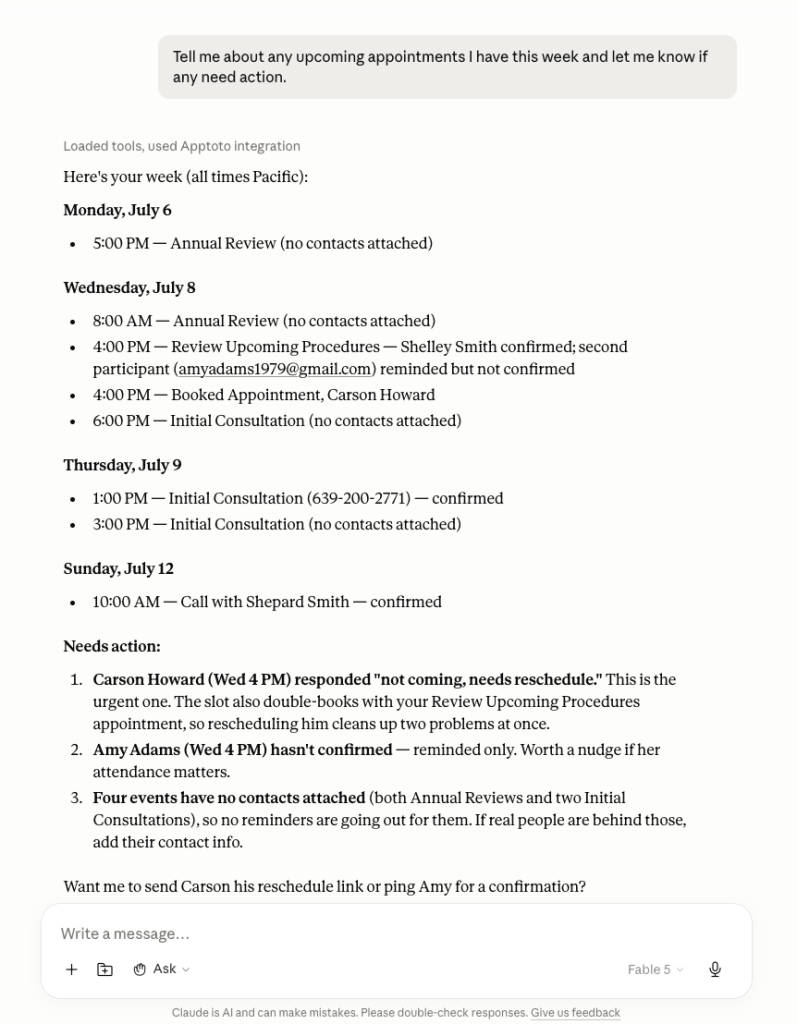
Ask ChatGPT or Claude who’s on your schedule tomorrow, and you’ll get a polite shrug. It can’t see your calendar, text the client who’s about to no-show, or tell you which appointments went unconfirmed this week. All that brainpower, locked out of the tools where your business actually happens. An MCP server changes its job description. Connect one, and “you should follow up with unconfirmed clients” becomes “Two of tomorrow’s appointments are unconfirmed. Here’s a check-in text. Do you want me to send it?”
This guide breaks down what MCP servers are in simple terms and shows five ways business owners are already using them. No technical background required.
What is an MCP server?
MCP stands for Model Context Protocol. It is a shared standard (introduced by Anthropic in late 2024) that lets any AI assistant securely communicate with external apps and data. AI platforms, including Claude, ChatGPT, and Gemini, have all adopted it.
Out of the box, an AI assistant is walled off from your business. You can feed it information about your business, including links to your website, and it will return an analysis and detailed strategies to improve your business when asked. But it doesn’t have access to your calendar, CRM, or inbox, so it can’t act on its own recommendations.
An MCP server connects the two. It’s a small piece of software that a company builds to act as a bridge between its tool and an AI assistant, with a defined list of actions the assistant is allowed to take. For appointment messaging and scheduling software like Apptoto, that list might include checking the calendar for open slots, adding a new client contact, moving an appointment, or sending a client a message. When you make a request, the assistant works strictly from that approved list. It can’t invent new actions or go beyond what the list allows.
Because MCP is a shared standard, a company builds one server, and any assistant that speaks MCP can use it. The company does not need to build separate versions for ChatGPT, Claude, and Gemini. That is a big reason these connections are spreading so quickly across the software you already pay for.
What is the Apptoto MCP?
The Apptoto MCP server connects your AI assistant to your Apptoto account. Once connected, your assistant can work with the same things you manage in Apptoto every day: it can check your calendars for openings, look up appointments, add or update client contacts, book new appointments or update existing ones, read client message threads, and send or schedule messages, all with your permission.
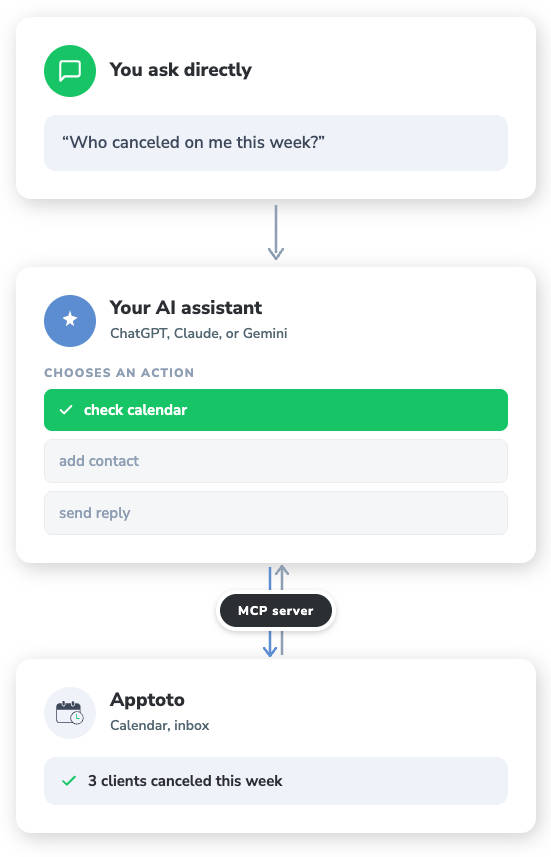
The Apptoto MCP works with AI platforms including Claude, ChatGPT, and Gemini.
MCP server vs. an app or plugin: what’s the difference?
If you have ever added an app to your phone or a plugin to your browser, the idea behind an MCP server will sound familiar. The difference is who it is built for. An app is built for a person to click through. An MCP server is built for an AI assistant to read and act on. It describes each action in a way the assistant understands, so instead of clicking six buttons, you say one sentence and the assistant handles the steps.
| App/Plugin | MCP Server | |
|---|---|---|
| Who it’s built for | People | An AI assistant |
| How to use it | Tap buttons, open tabs, work through menus | Ask for information or an outcome |
| What it can do | Everything the software offers | Only specific action on the approved list |
| Who’s in control | You | Still you (you approve actions AI can take, and the assistant asks before it acts) |
How MCPs change how you work
Most software promises to save you time, only to hand you another dashboard to manage. An MCP server is different because it doesn’t add a tool to your stack; it puts the tools you already own to work through a single conversation with your AI assistant. Instead of logging into three systems to confirm tomorrow is covered, you ask once and get an answer, plus the follow-up handled. For a small team, that shift is worth understanding for three reasons.
It saves admin time. The work that eats your day—checking schedules, chasing confirmations, updating appointment events or contact records—is exactly the kind of repetitive task an assistant handles once it is connected.
No developer needed. Connecting an MCP server usually means pasting a web link into your assistant’s settings and signing in, just like you would with any app. Most take a couple of minutes.
You stay in control. An MCP server only does what you allow it to. You sign in with your normal account, approve exactly which actions the assistant can take, and switch that access off whenever you want. The assistant only sees and changes what your own login can see and change.
Five ways businesses can use MCP servers
Here is what this looks like in practice. You describe the outcome, and the assistant does the work.
Catching up on client messages
A dental office manager walks in to fifteen overnight replies: confirmations, a cancellation, and one patient asking about insurance. Instead of scrolling the inbox, she asks, “Read the replies that came in overnight and tell me which ones actually need me.” She gets a short list: two need a human, the rest were confirmations.
Handling scheduling by chat
A legal assistant juggling three attorneys’ calendars asks, “Who was a no-show last week, and have they rebooked?” or “Find me an open 30-minute slot Thursday afternoon before the Alvarez deposition.” The assistant checks the real calendars and answers. No hopping between three schedules.
Replying to clients in your voice
A home services dispatcher gets a text from a customer who wants to push a window install to Friday. “Reply to Fred: Friday morning works, see you between 9 and 11.” She approves the text, then asks the assistant to reschedule the appointment. It does so and replies to the client. Handled from the cab of a truck, without opening five tabs.
Pulling numbers without spreadsheets
An accounting firm owner planning for the fall extension rush asks, “How many client appointments did we book last month compared to the month before?” The answer comes back in seconds. No export, no pivot table.
Keeping records clean
The office manager at a two-provider counseling practice says, “Add Maria Lopez as a new contact with this phone number.” The data entry that usually gets skipped at 5 p.m. now takes one sentence.
10 prompts to ask your appointment management software
Each one is a real prompt you can paste into your assistant once an MCP server links it to your scheduling or client messaging tool.
- “Who is on my calendar tomorrow, and who has not confirmed yet?”
- “Read the replies that came in overnight and tell me which ones need me.”
- “Who was a no-show last week, and have they rebooked?”
- “Find me an open 30-minute slot Thursday afternoon.”
- “Reply to [client name]: that works, see you then.”
- “How many appointments did we book this month compared to last month?”
- “Which clients have not been in for more than six months?”
- “Add [name] as a new contact with this phone number.”
- “Send a message to my 2 o’clock that I am running ten minutes behind.”
- “Tag all my appointments from today as ‘On Time’”
Is it safe to connect an AI assistant to my business tools?
Fair question. Here’s the short answer: the assistant can only do what’s on the approved list. When a company builds an MCP server, it decides exactly which actions are available, things like “check the calendar” or “send a reply.” If it’s not on the list, the assistant can’t do it. Period.
You also never hand over your password. You sign in via your software’s login page, and you can disconnect whenever you want. It works much like giving a new hire a key to one room rather than the whole building.
One thing to be aware of, though. Some of those approved actions touch real clients, like sending a message or moving an appointment. The assistant will tell you what it’s about to do and wait for your OK first, but that check only helps if you actually read it. Give it the same quick look you’d give an email before hitting send.
Finally, think about the data itself. Once connected, your assistant can see client names, appointment details, and message history, so treat the connection like you’d treat any tool that handles client information. Check your AI assistant’s settings and turn off the option to train on your data (most major platforms let you opt out). If you’re in healthcare or another regulated industry, know that HIPAA rules apply to client data no matter which tool touches it, so confirm compliance before you connect anything. And if you have an IT department or compliance officer, always loop them in first.
How to get started with MCPs
You do not need to build anything. If a tool you use offers an MCP server, connecting takes about five steps.
- Open your AI assistant’s settings and look for “Connectors” or “Apps.”
- In Claude, they’re called Connectors and found under the Customize section in Settings.
- In ChatGPT, they’re called Apps. To add a custom one, navigate to Settings > Apps & Connectors > Advanced Settings. Turn on Developer Mode.
- In both cases, you’ll see a list of available connections or have the option to add your own.
- Add a new connector and paste in the link the software company gives you. For Apptoto, that link is on apptoto.com/mcp. This is the only “technical” step, and it is copy-and-paste.
- Sign in with your normal account for that tool. You are signing in on the tool’s login page using the same username and password you always use. You are not giving your password to the assistant.
- Review the permission screen and approve only what you want. You should see a plain list of actions, like “read my calendar” and “send replies.” Uncheck anything you are not comfortable with. You can always add more later.
- Ask a test question. Go back to the chat and try “What is on my calendar tomorrow?” If it answers with your real schedule, you are connected. That is the whole setup.
Using your newly added MCP
How to check it’s connected. In Claude, use the plus button (+) to open the tools menu in the chat box. Hover over the Connectors tab, find your connector’s name in the list, and make sure it’s toggled on. You can also find it under Settings, then Connectors. In ChatGPT, check Settings, then Apps and Connectors. If you see your tool listed and toggled on, you’re set. Not sure? Just ask: “What can you do in my Apptoto account?” If it’s connected, the assistant will list what it can help with.
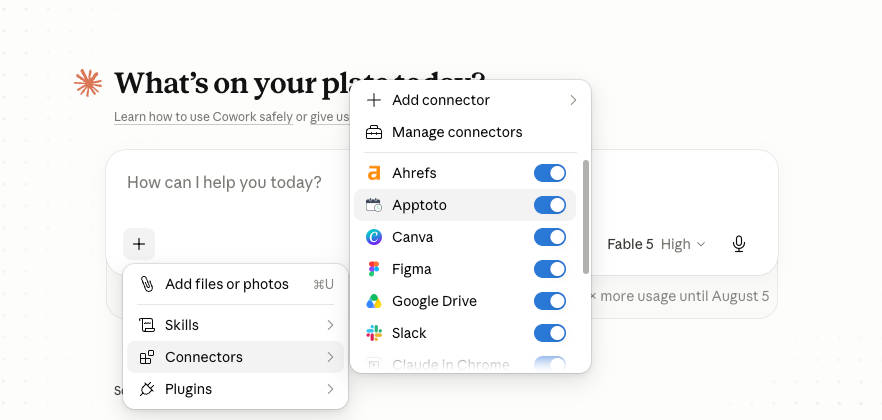
How to talk to it. There’s no magic phrase. You don’t need to say “hey Apptoto” or open anything special. Just ask your question like you would to a person: “Who’s on my calendar tomorrow?” The assistant figures out which connected tool has the answer. One tip: naming the tool helps when you have several connected, so “check Apptoto for tomorrow’s unconfirmed appointments” removes any guesswork.
Not ready to connect anything yet? Start by noticing the repetitive work you do in your software (including Apptoto) each week: the schedule you check every morning, the confirmation lists you pull, the most common text questions you answer, contact records you update after calls. Every one of those is a question you could soon just ask your AI assistant. Keep that list, and when you’re ready, you’ll know exactly what to hand off first.
Should you try an MCP server now?
MCP servers are still new, but they are moving fast, and businesses that get comfortable now will have a head start. If appointments are the heart of your business, connecting your calendar to an assistant is a great place to begin. See how Apptoto’s MCP server works, or start a free trial and put your calendar to work.