Dana runs the front desk at a three-provider clinic, and ChatGPT drafts half the emails and texts she sends clients every day. AI has helped save her hours. But last Tuesday, she asked ChatGPT a simple question: did the 2 p.m. appointment ever confirm? It gave her a confident, detailed, completely made-up answer. Dana is one of roughly 900 million people using ChatGPT every week, and like almost everyone whose business runs on a calendar, she’d never connected it to the one thing her day depends on.
This guide closes that gap. Apptoto now has an official plugin in ChatGPT’s plugin directory, so for most people the setup is: search, click Connect, sign in. About two minutes. If your workspace blocks directory plugins or you want to run the same connection in Claude, Gemini, or Codex, the custom MCP route still works and is covered further down. No code, no developer, no new software to learn.
What ChatGPT Plugins Are (and the Two Kinds)
If you have poked around ChatGPT’s settings, you have seen the word “plugin” with little explanation attached. Plugins are how ChatGPT reads from and acts on outside software: your files, your inbox, and, once you finish this guide, your appointment calendar. ChatGPT supports two kinds, and the difference decides which setup path you follow.
Note: As of July 2026, ChatGPT’s app directory has been migrated to the plugin directory. “A plugin can include skills, apps, and app templates – apps remain the integrations that connect ChatGPT or Codex to external data and actions, while plugins make it easier to enable workflows in ChatGPT,” according to OpenAI. For consistency, we will use Plugins throughout this article.
Listed vs. custom plugins
Listed plugins live in ChatGPT’s plugin directory alongside Gmail, Google Drive, Canva, and roughly 2,000 others. As of September 2026, Apptoto is one of them. You search for it, click Connect, sign in to Apptoto, and you are done. This is the path we recommend.
Custom plugins cover everything else. Any tool that runs a Model Context Protocol (MCP) server can connect to ChatGPT this way, directory listing or not. Apptoto’s server is at https://api.apptoto.com/mcp, and because MCP is an open standard, that same address works in Claude, Gemini, and Codex. You only need this route if the official plugin is unavailable to you (see the plan table below) or if you are already managing MCP connections across several assistants. For more background, our explainer on what MCP servers are covers it as simply as possible.
Which ChatGPT plans support custom plugins
Custom plugins require a paid ChatGPT plan. The free plan does not include them. Here is the current breakdown:
| ChatGPT Plan | Listed Plugins Supported (including Apptoto’s)? | Custom Plugins Supported? |
|---|---|---|
| Free | Yes | No |
| Go | Yes | No |
| Plus | Yes | Yes (with developer mode turned on) |
| Pro | Yes | Yes (with developer mode turned on) |
| Business / Enterprise / Edu | Yes | Yes (if your workspace allows it) |
On Business, Enterprise, and Edu plans, a workspace admin controls whether Developer mode is available, so loop in whoever manages your account before you start.
Two Ways to Connect ChatGPT to Apptoto
Pick the one that matches your setup. Both connect to the same Apptoto account, use the same sign-in, and give ChatGPT the same abilities. The only difference is how you install it.
Before you start, have these four things:
- A ChatGPT plan
- Your Apptoto login
- Admin sign-off (if your company is on a Business, Enterprise, or Edu workspace)
- A decision on permissions: look-up only to start, or send-and-change too (you can add more later)
| Official Apptoto plugin | Custom MCP plugin | |
|---|---|---|
| Best for | Almost everyone | |
| Where it lives | ChatGPT plugin directory | ChatGPT plugin directory (custom) |
| Developer mode needed | No | Yes |
| Setup time | About 2 minutes | About 10 minutes |
| Works on Free and Go plans | Yes | No |
| Jump to | Option 1 | Option 2 |
Option 1: Add the official Apptoto ChatGPT plugin (Recommended)
Step 1: Open the plugin directory
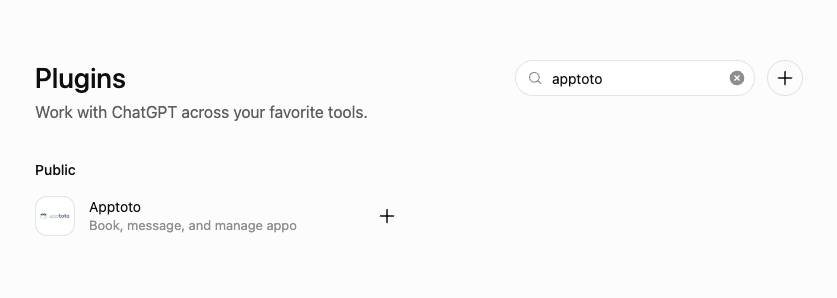
- Open ChatGPT in your browser or the desktop app and click Plugins in the left sidebar. (You can also get there from your profile icon > Settings > Plugins > Browse Plugins.)
- Search for Apptoto.
- Open the Apptoto listing. You will see what it can do, the permissions it asks for, and a Connect button.
Step 2: Connect and sign in
- Click the + button (or click the listing, then Install Plugin). ChatGPT will send you to Apptoto’s own sign-in page.
- Log in with your normal Apptoto credentials.
- Approve the permissions you want ChatGPT to have. Apptoto splits these into read (look things up) and write (book, cancel, send, mark attendance). Start with read if you are unsure; you can add write later.
Your password stays with Apptoto. ChatGPT only receives a limited access token for the permissions you approve, over OAuth 2.1, the same standard Google and Microsoft use.
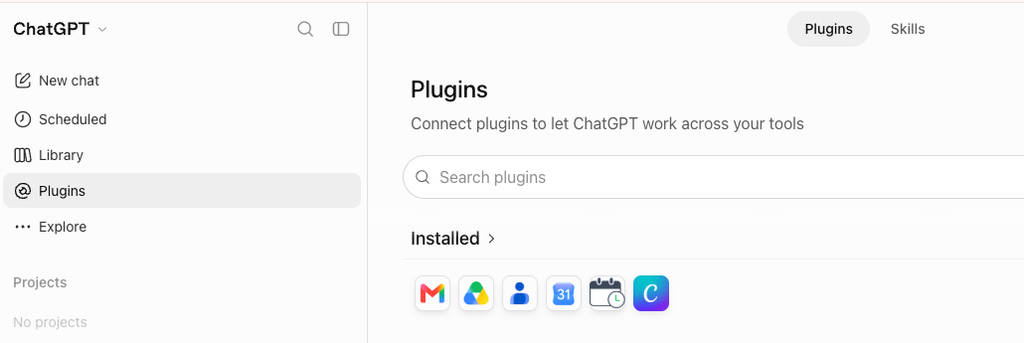
Once approved, Apptoto appears under Settings > Plugins as a connected plugin and in the plugins menu beneath the chat box.
Step 3: Test it in one prompt
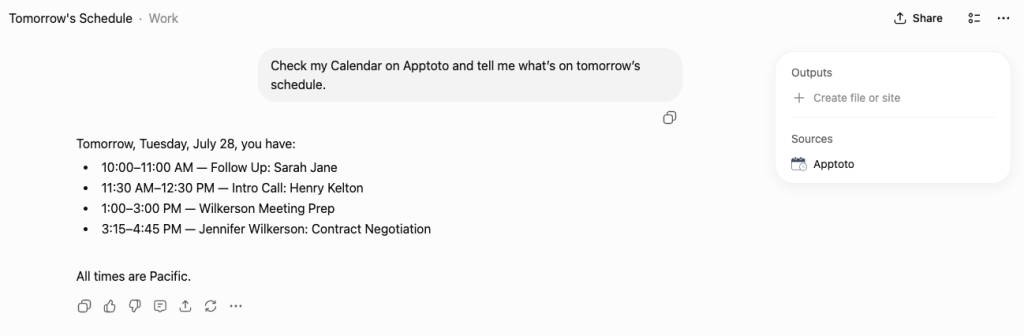
Open a fresh chat, and ask:
“Check my Calendar on Apptoto and tell me what’s on tomorrow’s schedule.”
If ChatGPT reads your day back to you, you’re connected. If it answers from memory or throws a permission error, jump to the Troubleshooting section below.
Not an Apptoto user yet? The plugin is only as useful as the system behind it. Start a free trial of Apptoto and connect ChatGPT the same afternoon.
Option 2: Set up a Custom MCP Plugin
Use this route if the official plugin is not available in your workspace, if your admin has not enabled it yet, or if you are already running Apptoto’s MCP server in Claude, Gemini, or Codex and want ChatGPT on the same connection. It requires a Plus plan or higher with Developer mode turned on, and takes about ten minutes.
Step 1: Turn on Developer mode (it sounds scarier than it is)
OpenAI keeps custom plugins behind a setting called Developer mode. The name is misleading. It is a toggle, not a technical skill test, and flipping it does not change anything else about how ChatGPT works for you.
- Open ChatGPT in your browser, click your profile icon, then click Settings.
- Go to Security and Login, then scroll to the Developer Mode section.
- Switch Developer Mode on. You should see a new Create option (+ symbol) appear back on the Plugins page.
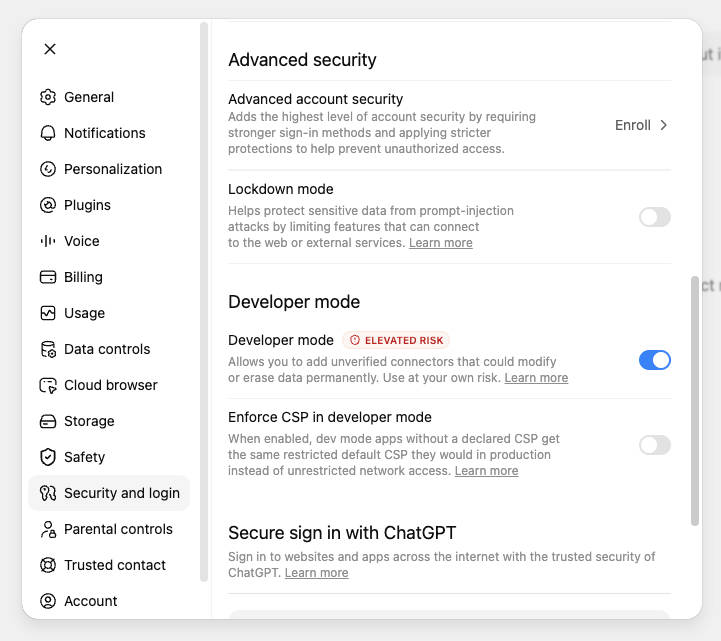
- If you do not see the toggle, jump to the troubleshooting section below. It is almost always a plan or admin-permission issue.
Step 2: Create the plugin
- On the Plugins page, click + to create your new Apptoto MCP plugin. ChatGPT needs the following:
- Name: Apptoto
- Description (optional): Runs our calendar, appointment reminders, and client messaging.
- Plugin URL: https://api.apptoto.com/mcp
- Logo (optional)
- Authentication method: OAuth
- Custom plugin approval: Select the checkbox to allow ChatGPT to connect to Apptoto
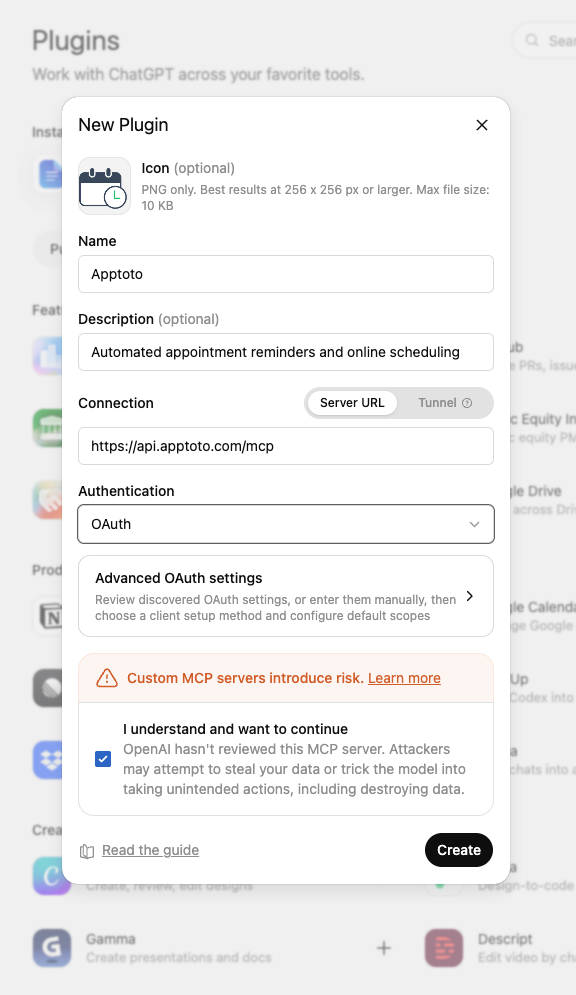
- Click Create. ChatGPT sends you to Apptoto’s sign-in page, where you log in with your normal credentials and approve what ChatGPT can do. Your password stays with Apptoto. ChatGPT only receives a limited access token for the permissions you approve.
Once you approve it, Apptoto appears in your Plugins list as an approved connection, and you can access it from the plugins menu under the chat as well.
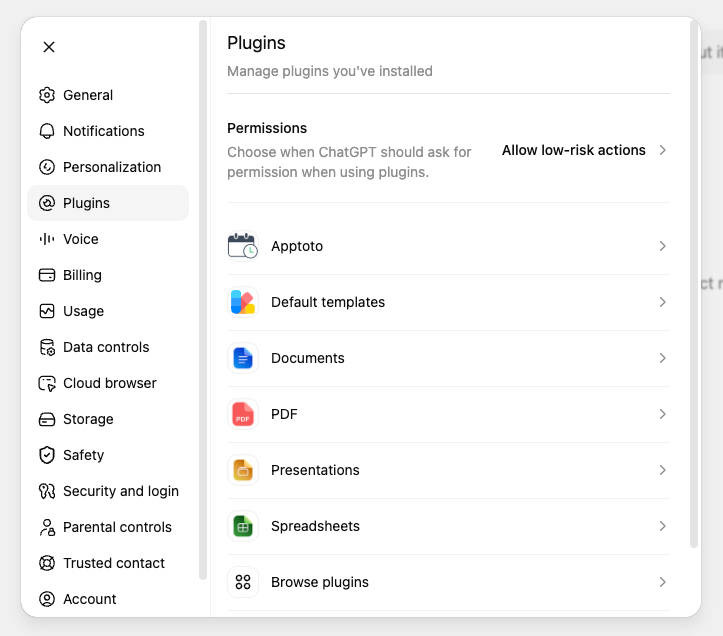
- Optional: If you ever want to switch to the official plugin later, disconnect the custom one first under Settings > Plugins > Apptoto > Disconnect, then follow Option 1. Running both at once will confuse ChatGPT about which to use.
Step 3: Test it in one prompt
Open a fresh chat, and ask:
“Check my Calendar on Apptoto and tell me what’s on tomorrow’s schedule.”
If ChatGPT reads your day back to you, the custom plugin works. If you get a permissions error instead, the fix takes about a minute and is covered in troubleshooting below.
What a Connected Day Looks Like
A plugin is only worth the setup time if it hands you real minutes back. So instead of a feature list, here are three moments from three different calendars: a counseling practice on Tuesday, a CPA firm on Thursday, and a plumbing company on Friday.
Tuesday, 2 p.m.: the unconfirmed list
Picture a three-provider counseling practice running 45 sessions a week. Tomorrow has nine appointments and three never confirmed. The office manager types: “Which of tomorrow’s appointments are still unconfirmed? Draft a text message to each reminding them about our 24-hour cancellation policy.” ChatGPT pulls the live list from Apptoto, writes three texts, and waits for the OK. Each one reads something like:
Hi [name], this is a reminder about your appointment [date], at [time]. Please press 1 to confirm, 2 to cancel, or 3 to reschedule. If you need to cancel or reschedule, our policy requires at least 24 hours’ notice. Thank you!
This matters more than it looks. Around 62% of no-shows happen because the client simply forgot, and 90% of text messages are read within three seconds. No-shows and late arrivals drain more than $150 billion a year from US businesses, and the unconfirmed list is where most of that starts. Because Apptoto’s two-way messaging handles the sending, every reply lands in the same conversation thread your office already tracks, not in a side channel nobody checks.
Thursday morning: the win-back sweep
Quiet mornings are for filling future weeks. A CPA knows this pain in their bones: spring tax clients vanish until next February unless someone invites them back for a fall planning review. The CPA asks: “Who hasn’t had an appointment in the last 60 days? Draft a friendly note inviting them to book a year-end review.” ChatGPT builds the list from Apptoto’s records and drafts a message.
Acquiring a new client costs up to 25 times as much as retaining an existing one. Apptoto’s Campaigns feature exists for exactly this job. The messages ChatGPT drafts go out through the same system that already sends your reminders, so replies and bookings flow straight back to your calendar.
Friday, 4:45 p.m.: the close-out
A two-crew plumbing company closes the week the way every job-based business does: statuses, follow-ups, reviews. Before heading out, the owner types: “Mark today’s jobs: everyone was home except the 1 p.m.; mark that one a no-show. Ensure my review requests are set to go out only for completed jobs.” The added attendance statuses automatically trigger the appropriate follow-up messages, and Apptoto’s reputation management sends each review request via text or email.
Add up the week and the math is simple:
| Weekly task | Doing it by hand | With ChatGPT connected |
|---|---|---|
| Unconfirmed appointment sweep | Cross-check calendar, look up phone numbers, type each text: 25+ minutes | One prompt, review drafts, approve: about 5 minutes |
| Win-back outreach | Rarely happens; no one has time to build the list | One prompt builds the list and campaign message |
| End-of-week close-out | Mark statuses one by one, follow-ups slip to Monday | One prompt updates statuses. Review requests sent automatically |
Every one of those actions touched client data, which raises the next question you should be asking.
Is It Safe to Give ChatGPT Access to Client Data?
Handing an AI assistant access to your client records deserves scrutiny, not a shrug. Here is exactly how access works and where the controls are located.
What ChatGPT can see vs. what it can change
Every Apptoto permission falls into one of two buckets. Read permissions let ChatGPT look things up: open slots, appointment details, message threads, confirmation statuses. Write permissions let it change things: book or cancel appointments, send messages, update contacts, mark attendance.
Write actions should always stop and ask for your confirmation before anything happens. To control plugin-specific permissions in ChatGPT, navigate to Settings > Plugins > select the plugin > click Permissions. You can require the system to “Always Ask,” “Allow read actions,” “Allow low-risk actions,” or “Allow all actions.” If you use “Allow all actions,” ChatGPT will not ask before taking read or write actions. Our advice is to keep “Allow read actions” until the assistant has earned your trust enough to move to “Allow low-risk actions.”
You can also cut off access in seconds from either side. In Apptoto, under Settings > Integrations > Developer Tools > Authorized Applications > Revoke. Or, in ChatGPT, click Settings > Plugins > Apptoto > Disconnect or Delete (via top right-hand menu).
For HIPAA-covered and regulated offices
Apptoto is SOC 2 and HIPAA-compliant, and its HIPAA-compliant appointment reminders are already built for practices that handle protected health information. That said, never upload patient-protected personal health information or personally identifying information to AI without first consulting your IT and compliance teams. If, and only if, you have approval, you can move on.
On the ChatGPT side, take two steps before you connect. First, turn off model training: go to Settings > Data Controls and switch off “Improve the model for everyone” so your prompts don’t end up in the training data. Business and Enterprise workspaces are excluded from training by default. Second, keep identifying details out of your typed prompts where you can. Ask for “tomorrow’s unconfirmed appointments,” and let the plugin fetch the names through the approved, token-based connection.
Make it Stick: Build a “Morning Check” Scheduled task
The Apptoto plugin is the plumbing. The real value shows up when you make using it a habit, and the biggest obstacle to habit is re-explaining your setup in every new chat. One way to do that is to set up a scheduled task to run daily using the Apptoto ChatGPT custom plugin.
Set up a Scheduled Task in 3 Minutes
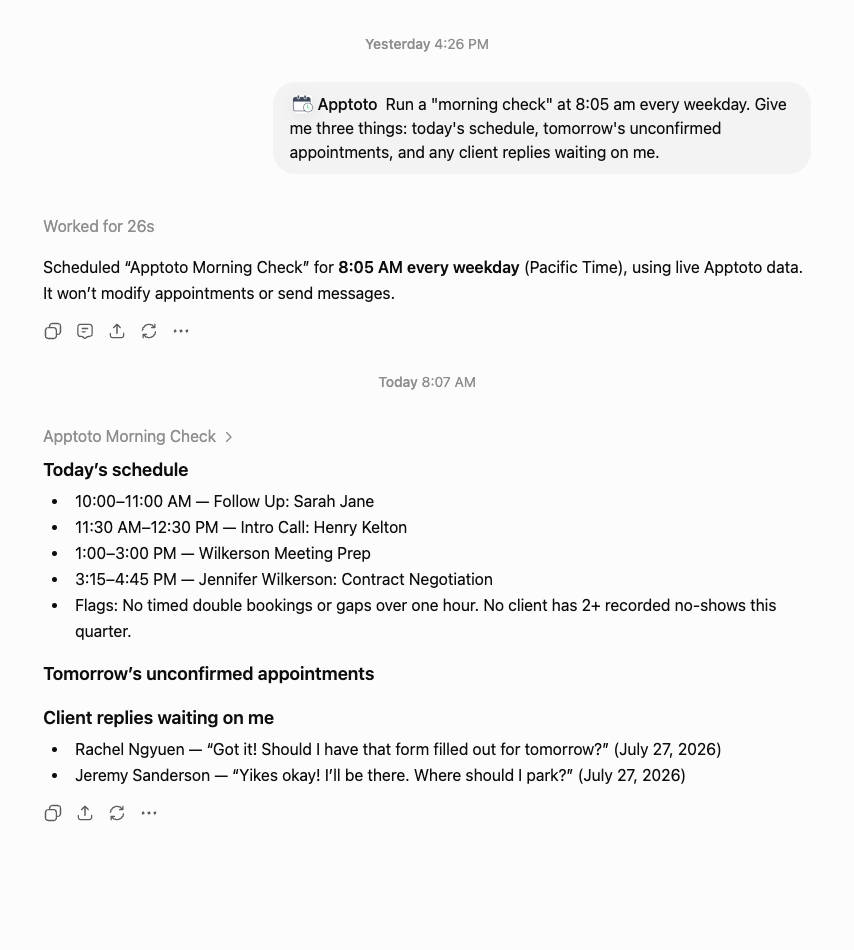
Go to the Scheduled tab and make sure it’s set to Work mode. Click the + sign in the chat box to add Apptoto, then paste the following block into ChatGPT.
You are the front desk assistant for [business name]. You are connected to Apptoto, which runs our calendar, appointment reminders, and client messaging. Run a morning check every day at [time] and give me three things: today’s schedule, tomorrow’s unconfirmed appointments, and any client replies waiting on me. Flag anything unusual: double bookings, gaps longer than an hour, or clients with two or more missed appointments this quarter.
ChatGPT will set up the scheduled task and run it automatically each day at your chosen time, ensuring you’re prepared for the day ahead.
Five prompts to run week one
Start with one habit per day. These five map to the moments many appointment-based businesses feel first:
- “Morning check.” (Your Scheduled task has this covered)
- “Which of tomorrow’s appointments are still unconfirmed? Draft texts to each.”
- “My [time] just canceled. Who asked about availability recently? Draft them an offer for the open slot.”
- “Who hasn’t booked in 60 days? Draft a warm recall text for each.”
- “Mark today’s attendance [#status] for every appointment.
Troubleshooting: When the Plugin Won’t Connect
Four problems account for most ChatGPT plugin failed setups. All four have quick fixes.
I can’t find Apptoto in the official plugin directory
On Business, Enterprise, and Edu plans, an admin has to enable directory plugins for the workspace under Workspace settings > Apps. Ask whoever manages your account, or use Option 2 in the meantime. Also, make sure you are searching the directory, not the plugins already connected to your account.
The Developer mode toggle isn’t showing
Note: This only applies if you’re using Option 2 above. If you are on the Free or Go plans, or your admin has Developer mode off, use the official plugin from the directory instead.
You are either on the free plan, which does not include custom plugins, or your workspace admin has Developer mode switched off. Upgrade to Plus or ask your admin to allow it under the workspace’s plugin settings. Also note: create the plugin in a browser. Once it exists, you can use it in the mobile app, but setup starts on the web.
ChatGPT connects but can’t see appointments
This is a permissions gap. You approved the connection but not the read permissions it needs. In Apptoto, open Settings > Integrations > Developer Tools and check what the plugin can access under Scopes. You can revoke permission from Apptoto, then reconnect in ChatGPT and approve the look-up permissions when Apptoto’s approval screen appears.
It answered from memory instead of checking my calendar
Sometimes ChatGPT confidently invents a schedule instead of checking one. Force the tool call by naming the source: start your prompt with “Check my Apptoto…” or add “use the Apptoto plugin.” If you built the scheduled task above, this should already be set up properly.
ChatGPT or Claude: Which Should Run Your Schedule?
Both. Or either. The same Apptoto MCP server powers both assistants, so this is not a fork-in-the-road decision. We covered the Claude side in our guide to connecting Claude to Apptoto. Here is how the two setups compare:
| ChatGPT | Claude | |
|---|---|---|
| Setup path | Plugins > search “Apptoto” > Connect (official) OR Settings > Security & Login > Developer Mode on > Plugins > Create (custom) | Settings > Connectors > Add custom connector |
| Plan required | Any plan (official); Plus or higher (custom) | None |
| Saved instructions | Project or Custom GPT | Skill file or Project |
| Approval for send/change actions | Yes | Yes |
| Apptoto server address | https://api.apptoto.com/mcp | https://api.apptoto.com/mcp |
The honest recommendation: connect the assistant your office already pays for. Setup is simple, and switching later means pasting the same URL into a different settings page.
Frequently Asked Questions
Yes. Apptoto is listed in ChatGPT’s plugin directory. Open Plugins, search for Apptoto, click + to Connect (or Install Plugin from the listing). Sign in with your Apptoto login. No Developer mode or URL needed.
Yes. ChatGPT supports MCP servers via custom plugins, available on the Plus, Pro, Business, Enterprise, and Edu plans when Developer mode is enabled. You add one under Settings > Plugins > Create by pasting the server’s URL
Nothing on the Apptoto side. Both connect to the same MCP server with the same permissions. The official plugin is a one-click install from the directory; the custom plugin is the same connection added by hand, and it is the route that also works in Claude, Gemini, and Codex.
No. The entire setup is a toggle, a short form, and a sign-in. The only technical-looking part is pasting one web address: https://api.apptoto.com/mcp.
Yes, once connected to a scheduling system like Apptoto with write permissions approved. ChatGPT can book, reschedule, and cancel appointments, and each action waits for your confirmation before proceeding.
No, but the free plan can connect the official Apptoto plugin from the directory, which gives you everything in this guide. Custom plugins require Plus or higher.
Put Your Calendar One Prompt Away
Whether you install the official plugin in two minutes or set up the custom connection in ten, the result is the same: ChatGPT stops being a writing tool and becomes a working teammate that checks the real calendar, drafts client texts and emails, and never sends a thing without your say-so. The morning check, the unconfirmed sweep, and the Friday close-out are yours every week after that.
See how the Apptoto MCP server works, or start a free trial and connect ChatGPT to your calendar this week.