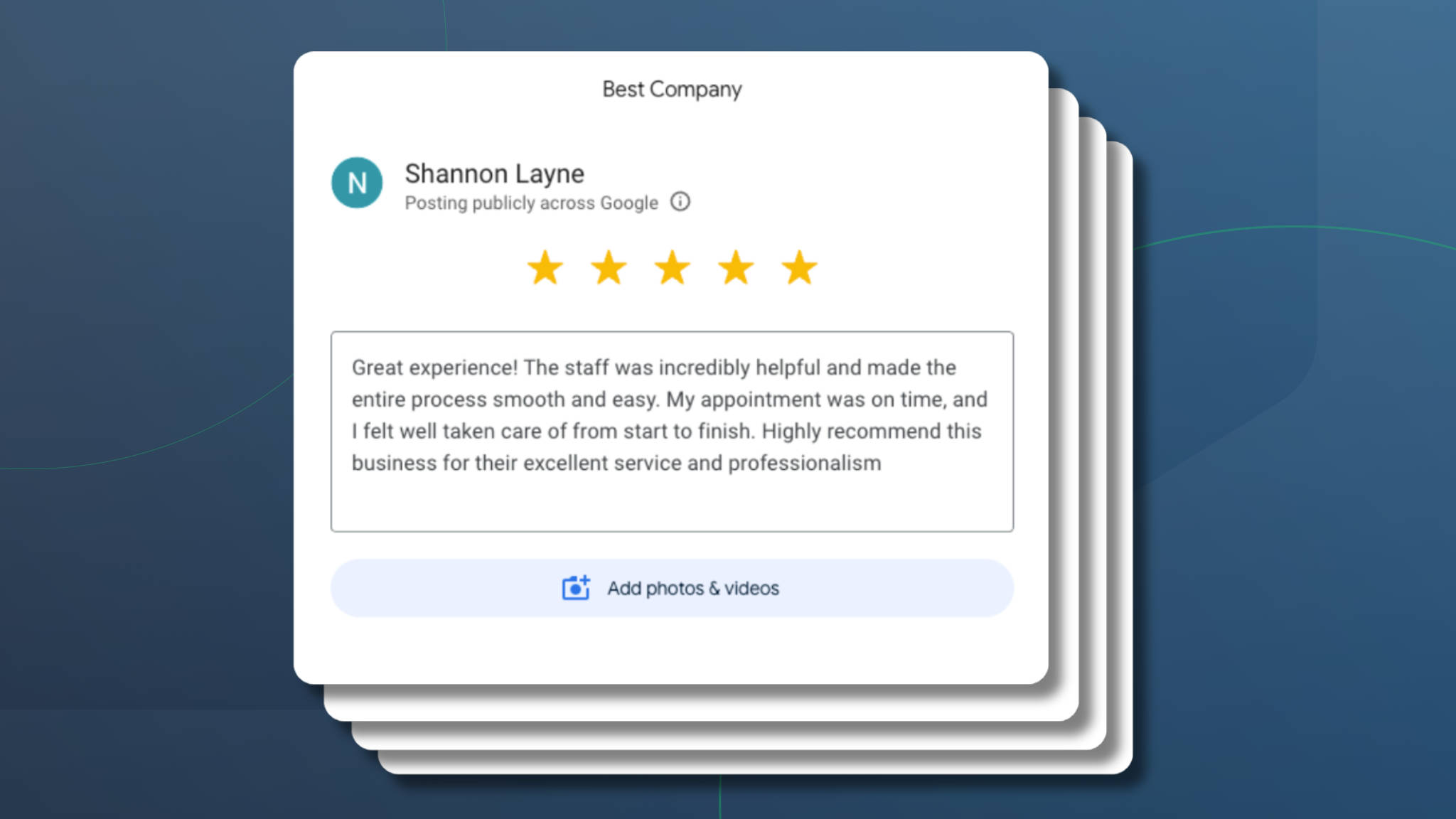
Imagine scrolling on your phone, searching for a new hair salon or primary care physician. What’s the first thing you scan before you click a single link to learn more? Reviews, right? It’s become second nature. And it’s not just you. 89% of today’s consumers factor reviews into their purchase decisions, and 90% say they would not frequent a business with a bad reputation.
Now think about it from your customer’s perspective. If your business has zero reviews or 15 five-star reviews from people who all suspiciously share your last name, how will prospective clients judge your business? With skepticism, of course!
Good news: collecting client reviews doesn’t have to be a manual grind. With the right tools and templates, you can automate the entire process so reviews roll in after every appointment. No extra work for your team, no awkward asks at the front desk.
If you’re not actively collecting reviews, now is the time to start. In this guide, you’ll learn how to generate more client reviews (without being pushy), and bolster your reputation and profitability in turn.
Jump straight to automating review requests into Apptoto.
Why Client Reviews Matter for Your Business?
Reviews serve your business in two fundamental ways: by bolstering confidence among your customers through social proof and by providing valuable feedback about how you’re running the business. You get a front-row seat into how clients view the quality of your services/products, customer service, and overall business operations. At the same time, prospective customers look at those same reviews to decide if they can trust you with their hard-earned dollars.

Along with building trust and credibility and identifying areas of improvement for your business, reviews can also:
- Enhance Online Visibility and SEO: Positive reviews can help boost your business’s visibility on search engines, so you appear more frequently when clients search for services like yours.
- Influence Buying Decisions: Reputation matters. Studies have shown that 90% of consumers would not frequent a business with a bad reputation. Positive reviews can influence consumer behavior, driving more customers to choose your products or services over competitors.
- Differentiate Your Business: Reviews help your business stand out from the competition. A consistent stream of recent, positive reviews sets you apart as a trusted provider in your market.
- Drive Revenue: Customers are more likely to purchase from or engage with a business with a high volume of positive reviews, and companies with excellent reputations often command higher prices for their products or services.
Where Should I Ask Clients to Leave Reviews?
There are plenty of places where your business can ask clients to leave reviews, both on third-party websites and your own online properties. However, depending on your industry, some third-party review sites will have greater visibility and impact than others. Instead of spreading your reviews too thin across a dozen sites, focus on platforms that matter most to your industry.
Reviews on platforms such as Google My Business and Yelp can be invaluable for appointment-based businesses. Some social platforms, like Facebook, also enable customers to leave reviews. Likewise, many industries have unique third-party review sites. For example, Angi (fka Angie’s List) is a well-known review site for home services, whereas Healthgrades is a great place to find physician and hospital ratings. It’s well worth spending a few hours researching which review sites will be most impactful for your business.
| Industry | Primary Platform | Secondary Platform |
|---|---|---|
| Healthcare/Dental | Google Business Profile | Healthgrades, Zocdoc |
| Legal / Law Firms | Google Business Profile | Avvo, Justia |
| Financial Advisors/CPAs | Google Business Profile | Yelp, Wealthtender |
| Home Services | Google Business Profile | Angi, HomeAdvisor |
| Salons / Spas | Google Business Profile | Yelp, Facebook |
| Sales / Consulting / SaaS | TrustPilot, G2, BBB | Google Business Profile |
Apptoto’s Reputation Management tool lets you choose exactly which review sites to direct your clients to, so you can focus on your review volume where it matters the most for your business.
Businesses may also want to collect reviews or testimonials for their own website and marketing materials. Getting permission to feature client feedback gives you control over how it’s used. You can repurpose it across various channels, such as your testimonials page, case studies, and social posts.
How to Ask for Client Reviews: SMS & Email
There are several ways to request feedback from your customers, including asking them in person, calling them, sending a direct message on social media, or soliciting feedback via your website or app. But for most appointment-based businesses, two channels consistently outperform the rest: SMS text messages and email.
SMS Review Requests
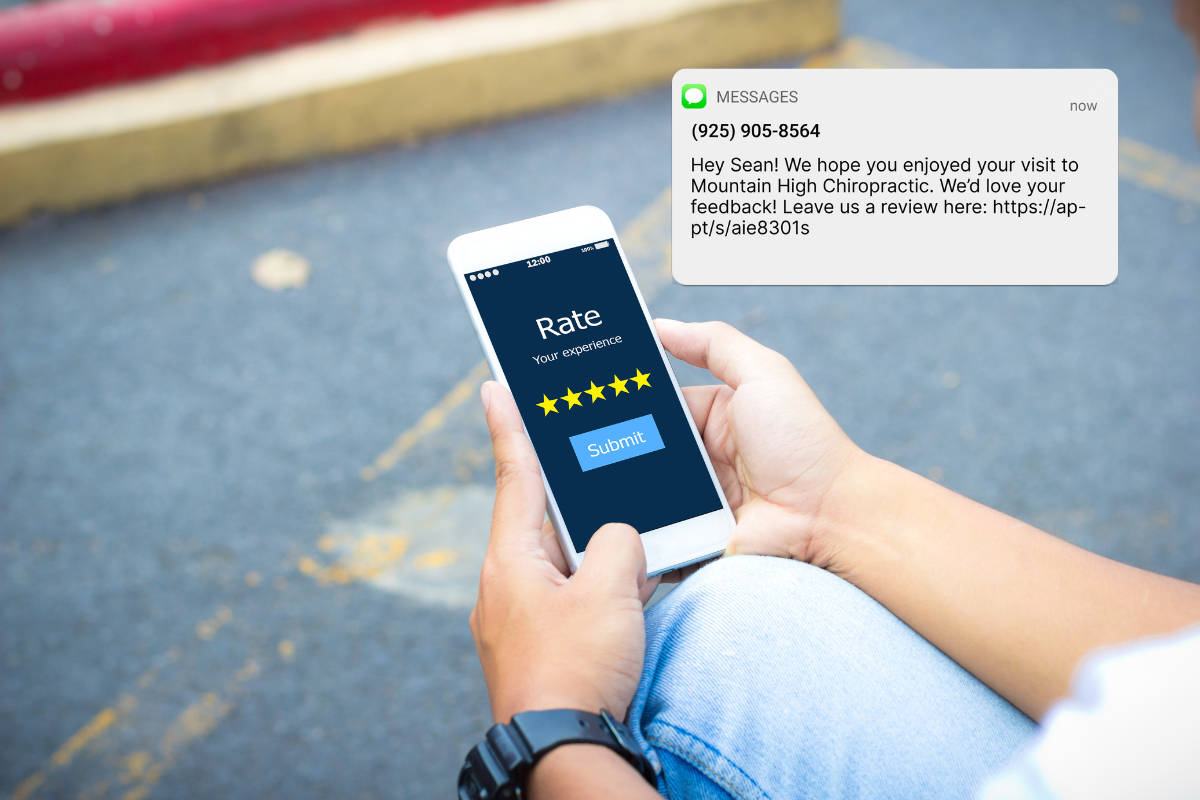
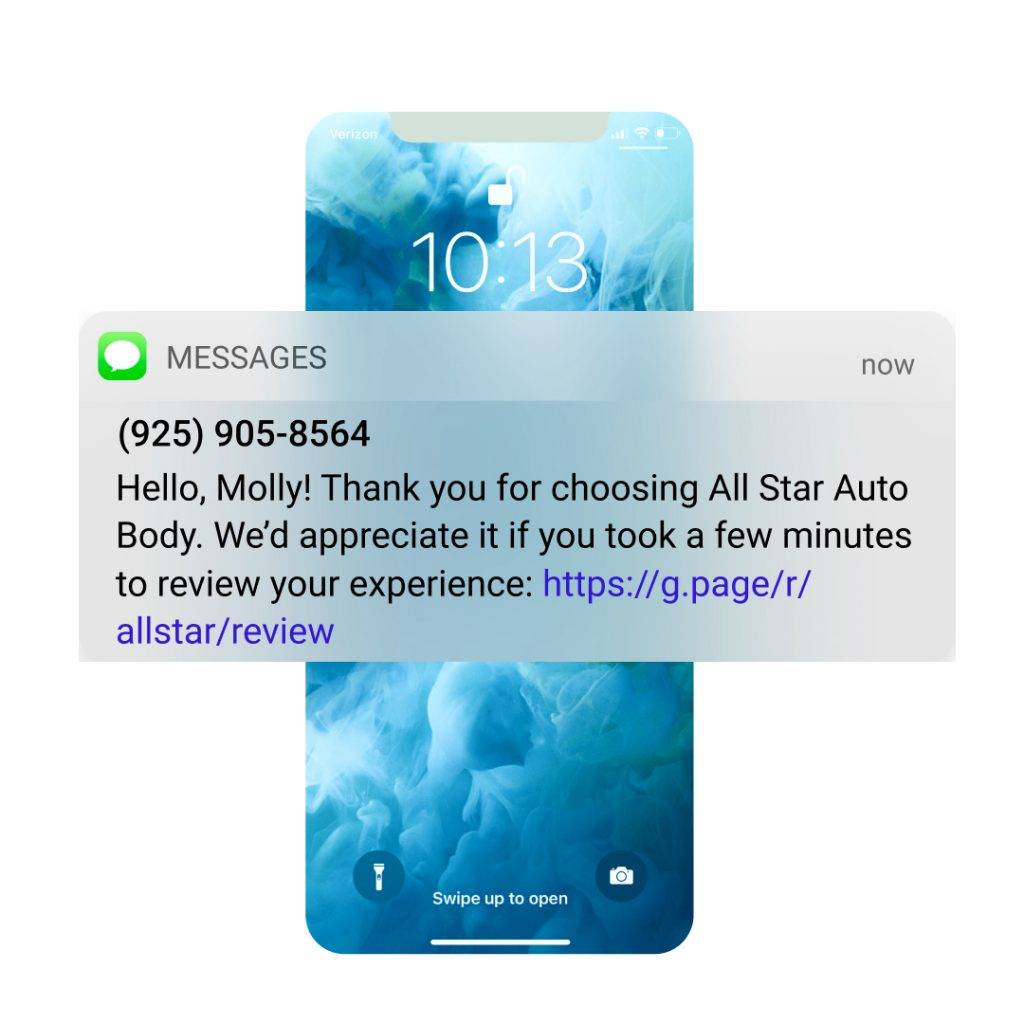
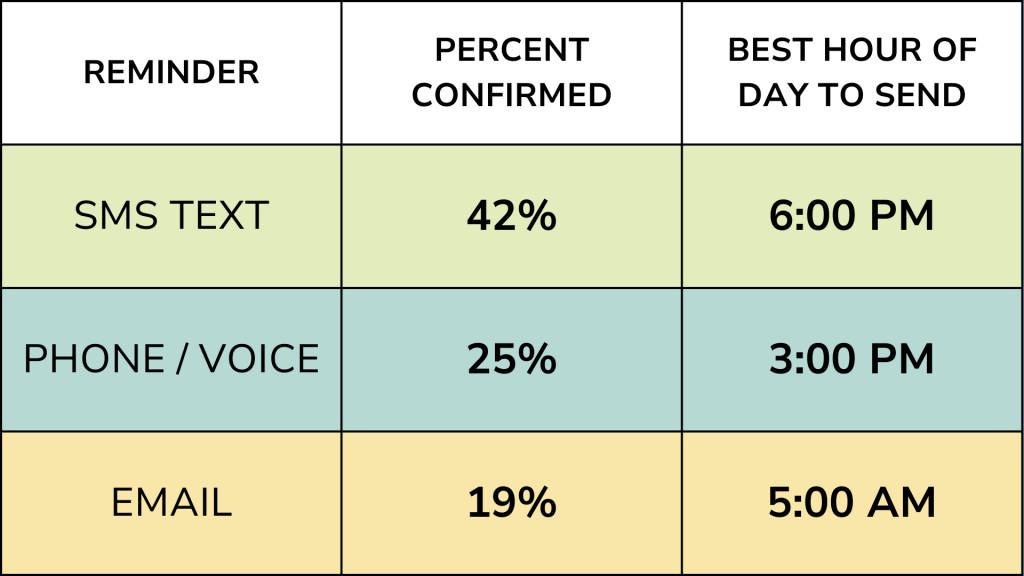
Text messages are direct, quick, and convenient for both you and your clients. SMS messages are often the fastest path to a new review, as they have a 45% higher response rate than emails, and 90% of texts are read within 3 minutes. Apptoto lets you automate SMS review requests, which are delivered automatically after every appointment.
Email Review Requests
Email requests allow you to provide a more detailed explanation to your customers on why their feedback is valuable and more easily send them links to review platforms. As with text messaging, you can send review requests individually or via bulk message blasts.
Automated Review Requests (The Best of Both)
The most effective approach combines both channels through automation.
With Apptoto’s Reputation Management tool, you can set up automated review request sequences that go out via SMS or email after every appointment, with no manual work required. The system connects directly to your existing calendar (Google, Outlook, Salesforce, and more) and triggers review requests based on your appointment schedule.
When to Send Review Requests
Timing matters. Send your review request too early, and the client hasn’t fully processed their experience. Send it too late, and the details have faded. Here’s what works:
- SMS review requests: Send 1-2 hours after the appointment. 6 PM tends to yield the highest engagement (41.4% higher confirmation rate than noon sends).
- Email review requests: Send within 24 hours. Best times are 5 AM, 9 AM, or 10 AM when inboxes are being checked.
- Try not to wait more than 48 hours. After that, the details of the visit may be too fuzzy to motivate a detailed, helpful review.
Dos and Don’ts of Asking for Reviews
DO: Time Requests Appropriately
Send review requests when you know clients are most likely to have had a positive experience with your business, such as after a successful appointment.
Make sure that if a client scores you as poor or moderate, you forward that feedback directly to your customer service team for triage.
DO: Make it Easy to Submit Reviews
Provide clear instructions and direct links to review platforms to make it easy for customers to leave feedback.
DO: Be Polite and Explain Why Feedback is Important
Politely ask for feedback and explain how their reviews help improve your business and assist other customers in making informed decisions.
DO: Respond to Reviews & Make Changes
Whether reviews are positive or negative, it’s important to acknowledge and respond to them. Doing so helps you show appreciation and address client concerns. Use feedback to improve your services and business operations.
DON’T: Demand Reviews with Pushy Language
Avoid using aggressive or pushy language when requesting reviews, as it may turn customers off and result in negative feedback.
DON’T: Argue with Reviewers
Never fuel arguments with customers who leave negative reviews. Instead, respond professionally and offer solutions to address their concerns. If a reviewer remains obstinate or promotes blatant inaccuracies about your business, try taking the conversation offline. If that doesn’t work, consider appealing to the third-party review site to see if the review blatantly violates their guidelines.
Don’t Spread Reviews Too Thin
Focus on a few key review platforms where your target audience will most likely see them. Avoid requesting reviews on too many platforms, which can overwhelm customers.
Client Review Request Templates
Generic SMS Review Requests
Hello, {{Client Name}}! Thank you for choosing {{Business Name}}. Please take a few minutes to review your experience: {{Review Link}}.
We hope you had a wonderful experience at {{Business Name}}, {{Client Name}}. Would you consider leaving us feedback about your visit here: {{Review Link}}?
SMS Review Request (1-5 Rating)
{{Client Name}}, thank you for choosing {{Business name}} for your {{Service}} Needs! Your feedback is invaluable to us. On a scale of 1 (poor) to 5 (stellar), how would you rate your experience?
* If you choose to ask clients to initially rate you before sending a review link, you must send review links to all clients regardless of score. It is against FTC and Google guidelines to only send review links to clients who rate you positively while suppressing negative ratings and reviews.
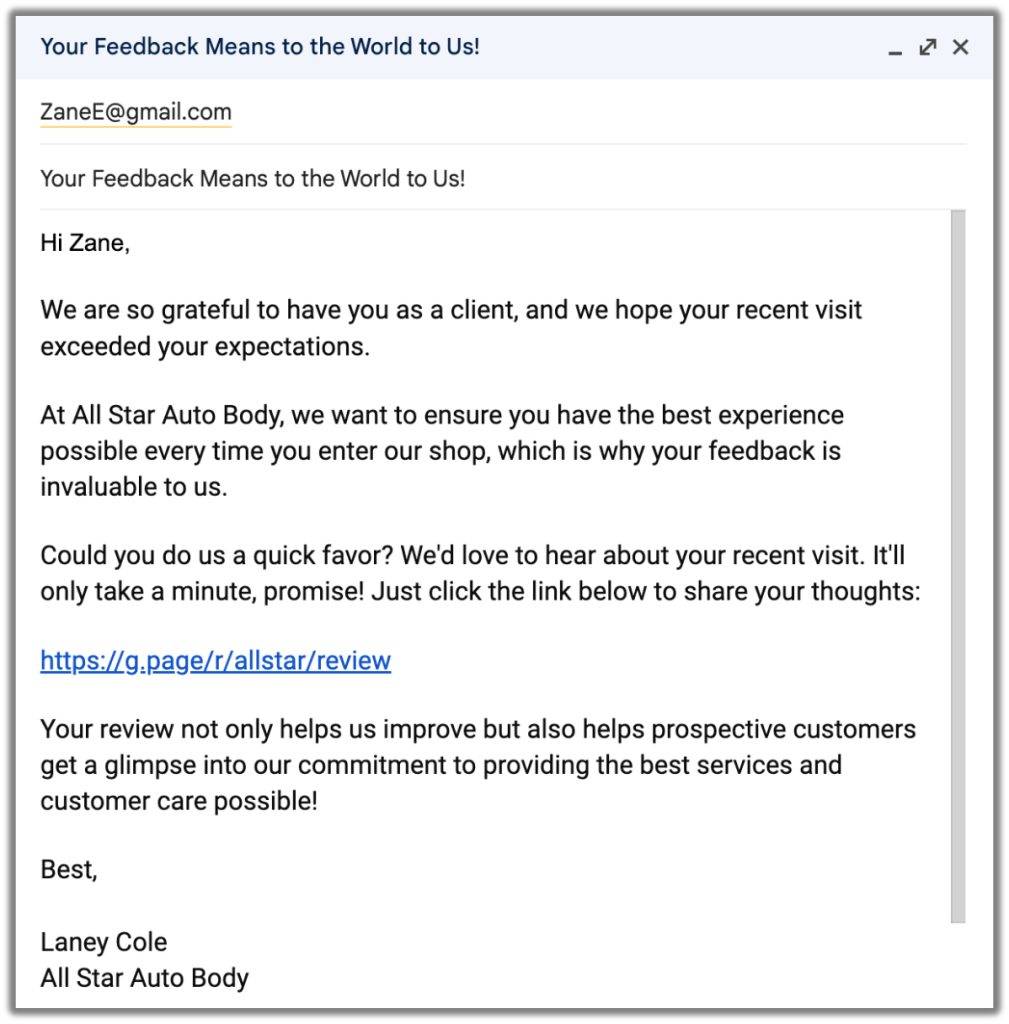
Email Review Request Generic
Subject: Your Feedback Means to the World to Us!
Email:
Hi {{Client Name}},
We are so grateful to have you as a client, and we hope your recent visit exceeded your expectations.
At {{Business Name}}, we want to ensure you continue to have the best experience possible, which is why your feedback is invaluable to us.
Could you do us a quick favor? We’d love to hear about your recent visit. It’ll only take a minute, promise! Just click the link below to share your thoughts:
{{Review Link}}
Your review not only helps us improve but also helps prospective customers get a glimpse into our commitment to providing the best services and customer care possible!
Best,
{{Business Employee Name}}
{{Business Name}}
IMPORTANT: All fields surrounded by {{ }} are generic placeholders. They must be updated to Apptoto fields to work correctly (or to the appropriate syntax of the messaging platform you are using)
Industry-Specific Review Request Strategies
Healthcare & Dental
Patient reviews on Google and Healthgrades directly influence new patient acquisition. Send review requests via HIPAA-compliant SMS within 2 hours of appointment completion. Keep the message clinical and appropriate, and never reference personally identifiable information or specific treatment details in the review request itself.
Thank you for visiting {{Practice Name}} today. We’d appreciate your feedback on your experience: {{Review Link}}. Your review helps other patients find quality care.
Legal / Law Firms
Client reviews for attorneys typically go to Google Business Profile and Avvo. Timing is important: send review requests after a successful case outcome or key milestone, not during active proceedings. Keep the tone professional and appreciative.
{{Client Name}}, thank you for trusting {{Firm Name}} with your legal needs. If you’re willing, we’d value a brief review of your experience: {{Review Link}}. Your feedback helps others facing similar situations find the right representation.
Financial Advisors
Send review requests after annual reviews, successful portfolio milestones, or onboarding completion. Financial clients respond well to personalized, relationship-focused language.
{{Client Name}} we enjoyed our recent meeting and appreciate your continued trust in {{Firm Name}}. If you have a moment, we’d love your feedback on how our partnership is going: {{Review Link}}
Home Services
Home service reviews are time-sensitive. Clients are most motivated to leave a review immediately after a job is completed and they can see the results. Send the request same-day.
Hi {{Client Name}}, we hope you’re happy with the {{service type}} we completed today! Mind leaving us a quick review? It takes less than a minute: {{Review Link}}
How to Respond to Client Reviews
Collecting reviews is only half the equation. How you respond to them matters just as much for your reputation. Here are templates for every scenario:
Responding to Positive Reviews
Thank you so much for the kind words, {{Reviewer Name}}! We’re glad your experience at {{Business Name}} exceeded expectations. Our team works hard to {{specific thing they praised}}, and it means a lot to hear it’s making a difference. We look forward to seeing you at your next appointment!
Responding to Negative Reviews*
We appreciate your feedback on your recent visit to {{Business Name}}. We’re disappointed to learn about your less-than-ideal experience and are eager to make things right. You can share your experince here {{Review Link}}, and our team will be reaching out shortly as well.
{{Reviewer Name}}, thank you for taking the time to share your feedback. We’re sorry your experience didn’t meet your expectations, and we take this seriously. We’d like the opportunity to make this right. Please reach out to us at {{phone/email}} so we can discuss what happened and how we can improve.
Responding to Neutral (3-Star Reviews)*
Thanks for your feedback, {{Reviewer Name}}. We’re glad some aspects of your visit were positive, and we appreciate you letting us know where we can improve. We’d love to hear more about how we can make your next experience a 5-star one. Feel free to reach out at {{phone/email}}.
* If you choose to ask clients to initially rate you before sending a review link, you must send review links to all clients regardless of score. It is against FTC and Google guidelines to only send review links to clients who rate you positively while suppressing negative ratings and reviews.
Implementing Automated Client Review Requests with Apptoto
Whether you’re sending one review request or one hundred, Apptoto’s Reputation Management tool turns the entire process into a set-it-and-forget-it system. Because it connects directly to your existing calendar (Google, Outlook, Salesforce, and more), it automatically knows when appointments end and triggers the right follow-up at the right time.
Option 1: Launch Apptoto’s Reputation Management
- Log in to Apptoto, and navigate to the Reputation tab. Click “Try it Out” to launch the tool.
- On the Settings tab, find the ” Step 1. Connect your Online Review Sites” section. Click “+Add Site.
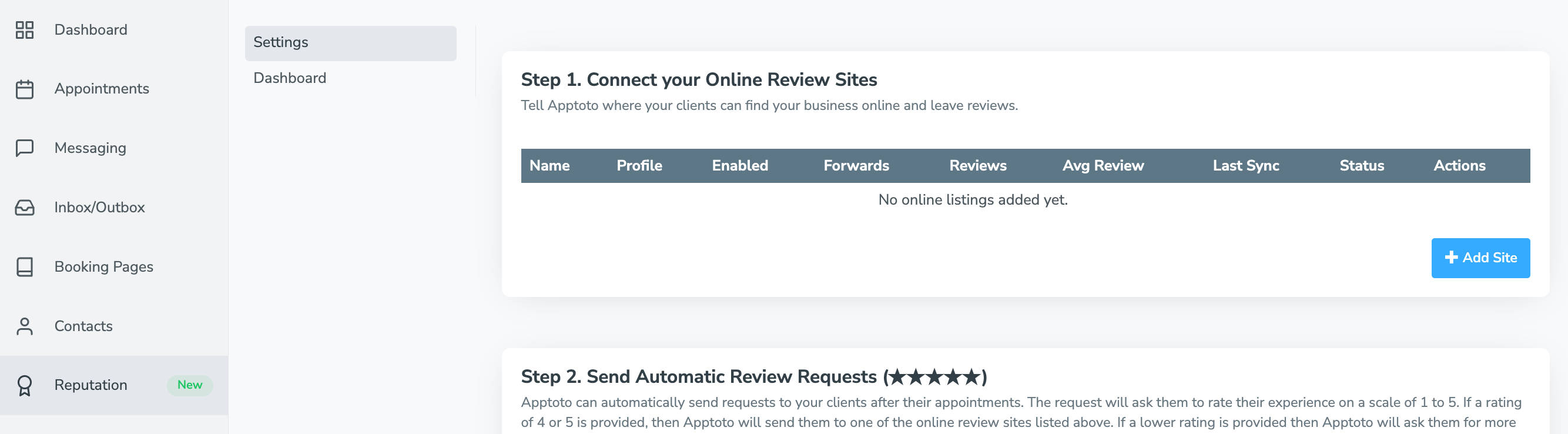
- The “Add Online Listing” screen will appear. You’ll see at the top that Apptoto recommends you first sync your Google Business Profile with Apptoto. To do so, click the “+Add Google My Business” button.
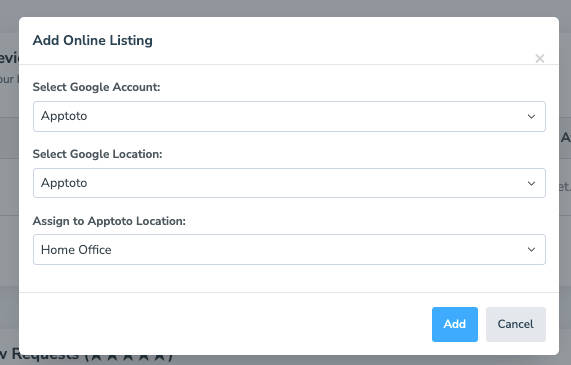
- Set the details for your Google Business Profile on the following screen:
- Select Google Account: Select the Google Account associated with your Google Business Profile. You may need to grant Apptoto permission to your Google accounts as part of this process.

- Select Google Location: Use the drop-down to select the location you wish to sync. If multiple business locations are associated with your Google Business Profile account, make sure to choose the correct location.
- Assign a Location: Choose which Apptoto location (Settings > Locations) to link the review site to.
- Select Google Account: Select the Google Account associated with your Google Business Profile. You may need to grant Apptoto permission to your Google accounts as part of this process.
- Click “Add,” and your new Google review site will appear under your Online Review Sites list.
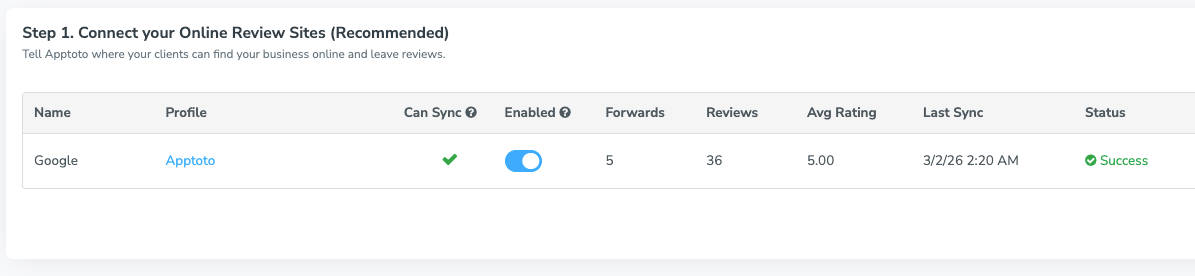
- Click “+Add Site” again to sync Facebook or Yelp, or add any additional third-party review site you wish Apptoto to generate reviews for.
- Set the details for your Google Business Profile on the following screen:
Send Automatic Review Requests
- Scroll down to “Step 2: Send Automatic Review Requests.”
- Toggle “On” the Send Review Requests button under the “Send Automatic Review Requests section.”

Limiting Which Appointment Will Receive Requests
- By default, all appointments that have received appointment reminders will receive review requests when this feature is enabled.
- To change which appointments receive review requests, click the pencil icon next to “Send Review Requests to All Appointments Reminded by Apptoto.”
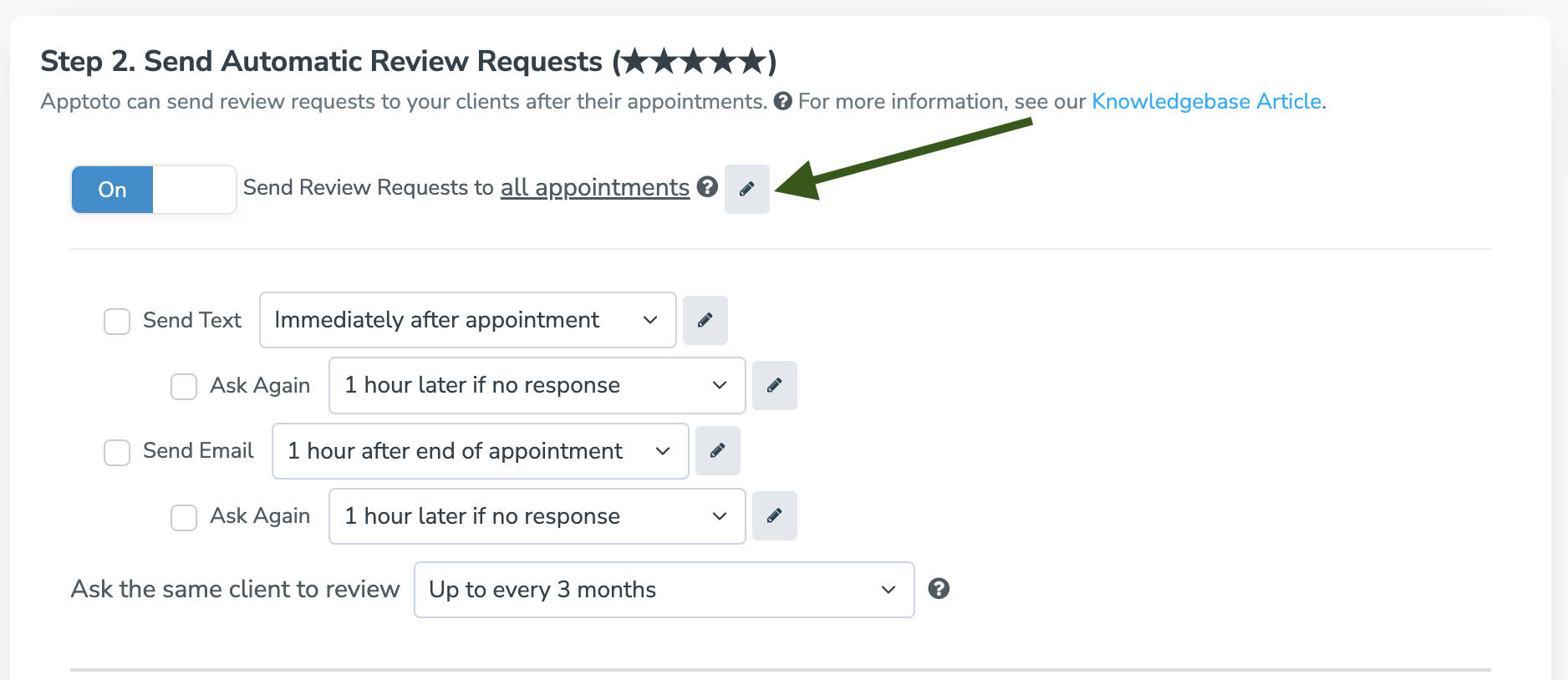
- On the “Rule Editor” screen that appears, set the parameters that appointments must meet to be sent review requests. For example, you could use:
- “Event.Title includes Consultations” if you only want review requests sent to appointments with the word consultation in their title.
- “Participant.Attended == True” if you want to ensure review requests are only sent to clients who you marked as having attended their appointments.

- After you’ve finalized your rules, click “Done.”
- To change which appointments receive review requests, click the pencil icon next to “Send Review Requests to All Appointments Reminded by Apptoto.”
Setting the Time, Frequency, and Content of Requests
- Use the checkboxes next to “Send Text” and “Send Email” to enable or disable review requests based on your preferred contact method.
- Select how long after an appointment (hours or days) you’d like Apptoto to send a review request.
- If a client doesn’t respond within your desired timeframe, you can have Apptoto prompt them again at another interval you choose by enabling “Send Text Again” or “Send Email Again.”
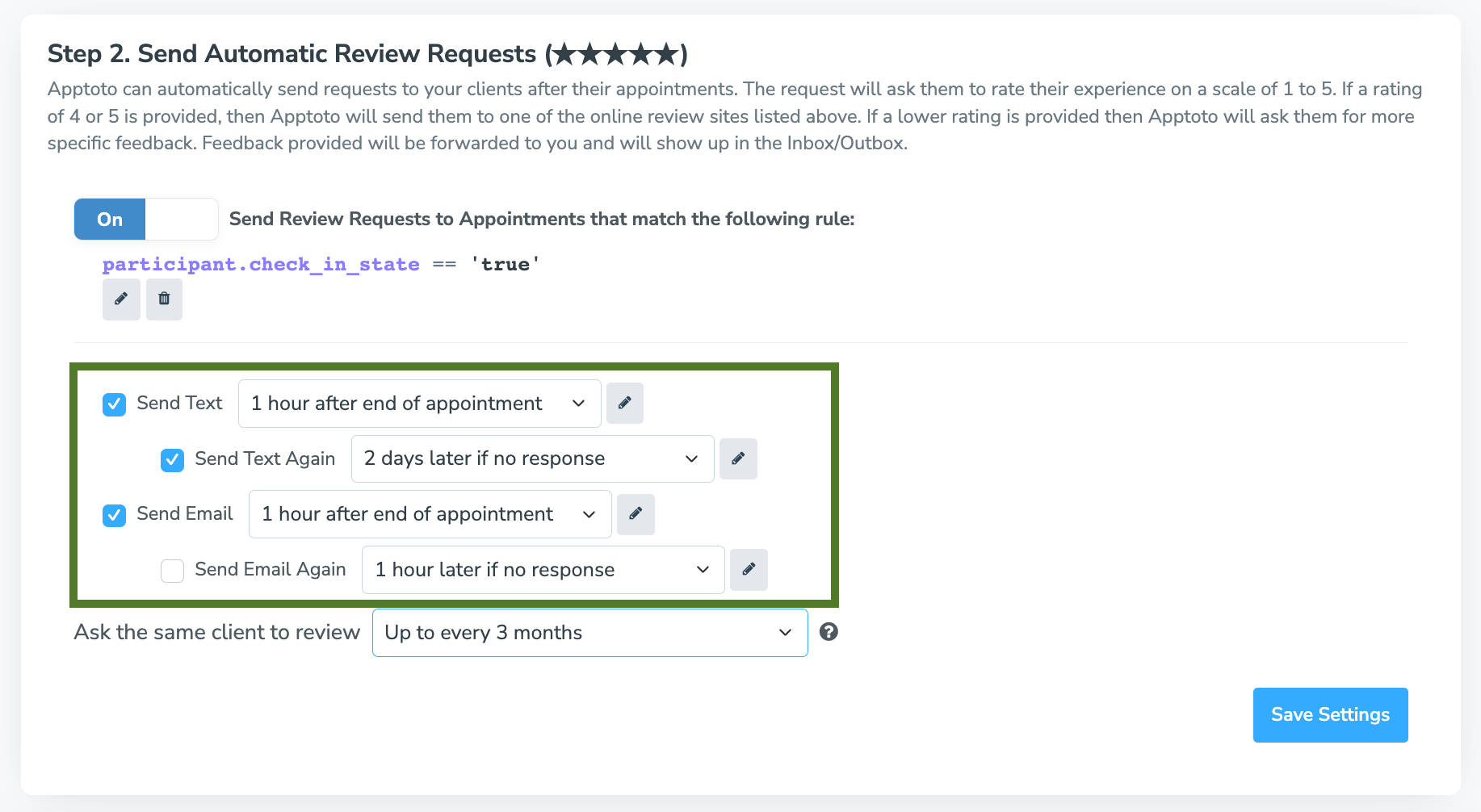
- If a client doesn’t respond within your desired timeframe, you can have Apptoto prompt them again at another interval you choose by enabling “Send Text Again” or “Send Email Again.”
- Use the pencil icon to edit the content of the text message or email review request. After making your changes, click “Done.”
- Use the “Ask the same client to review” field to choose how frequently you request clients to review your business.

Set Up Nudges
- If clients have left you internal feedback but haven’t posted it publicly on your preferred third-party review site, you can enable “Nudges.”
- Then enable text and/or email nudges. Set the day you want nudges automatically delivered (1-day, 3-days, or 7-days later) if Apptoto has not found a matching review on your preferred third-party review site.
- Note: You can use the pencil button to edit the content of the Nudge.
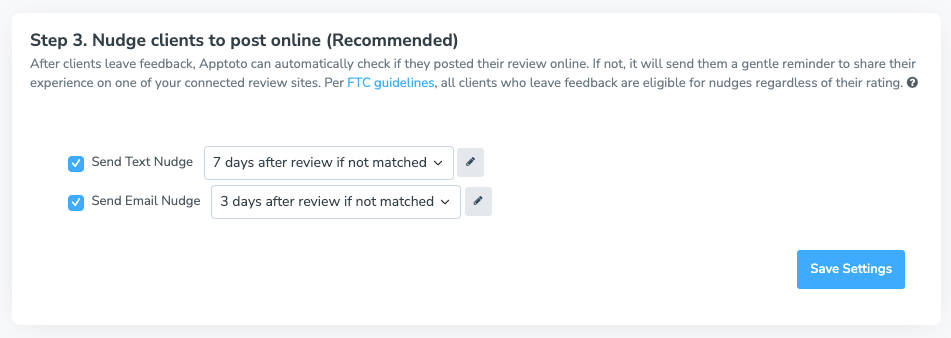
- Note: You can use the pencil button to edit the content of the Nudge.
Enable Automated Requests
- Click “Save Settings” to launch Reputation Management for your business.
Option 2: Review Requests using Follow-Up Messages
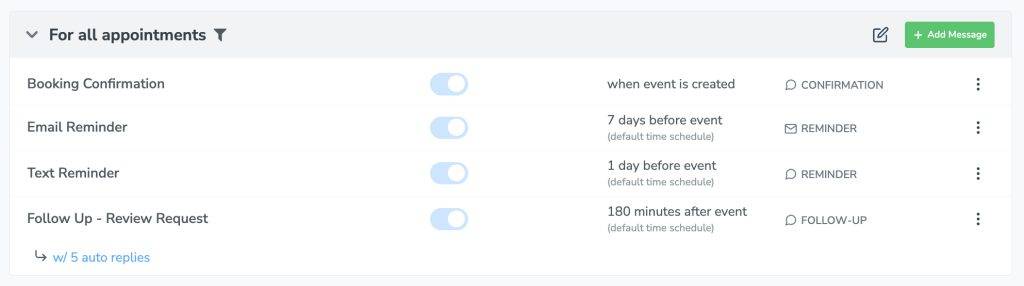
If you already have Appointment Auto Messages set up to send booking confirmations and appointment reminders, you can add a follow-up review request using nearly the same process.
Apptoto will send a follow-up review request after every appointment that meets your Messaging Rules (regardless of how the appointment went). As a result, your business may receive an influx of both positive and negative reviews.
To add a follow-up review request:
- Log in to Apptoto and navigate to Messaging > Appointment Auto Messages.
- Click “+Add Message” and select text or email based on your preference.*
- Name your Review Request message.
- Select “Followup” as the message Purpose.
- Select how long you would like to wait after an appointment before sending the review request.
- Click “Edit” to adjust the review request message.
- If you’re using liquid variables to personalize your message (e.g., Client Name = {{participant.name}}), use the Fields button to ensure they are added appropriately.
- Add the link where you’d like clients to submit reviews, any place that {{Review Link}} is listed.
- Adjust any remaining settings as preferred, then click “Done and Save.”
- On the Rules page, click “Save” again near the top right-hand corner.
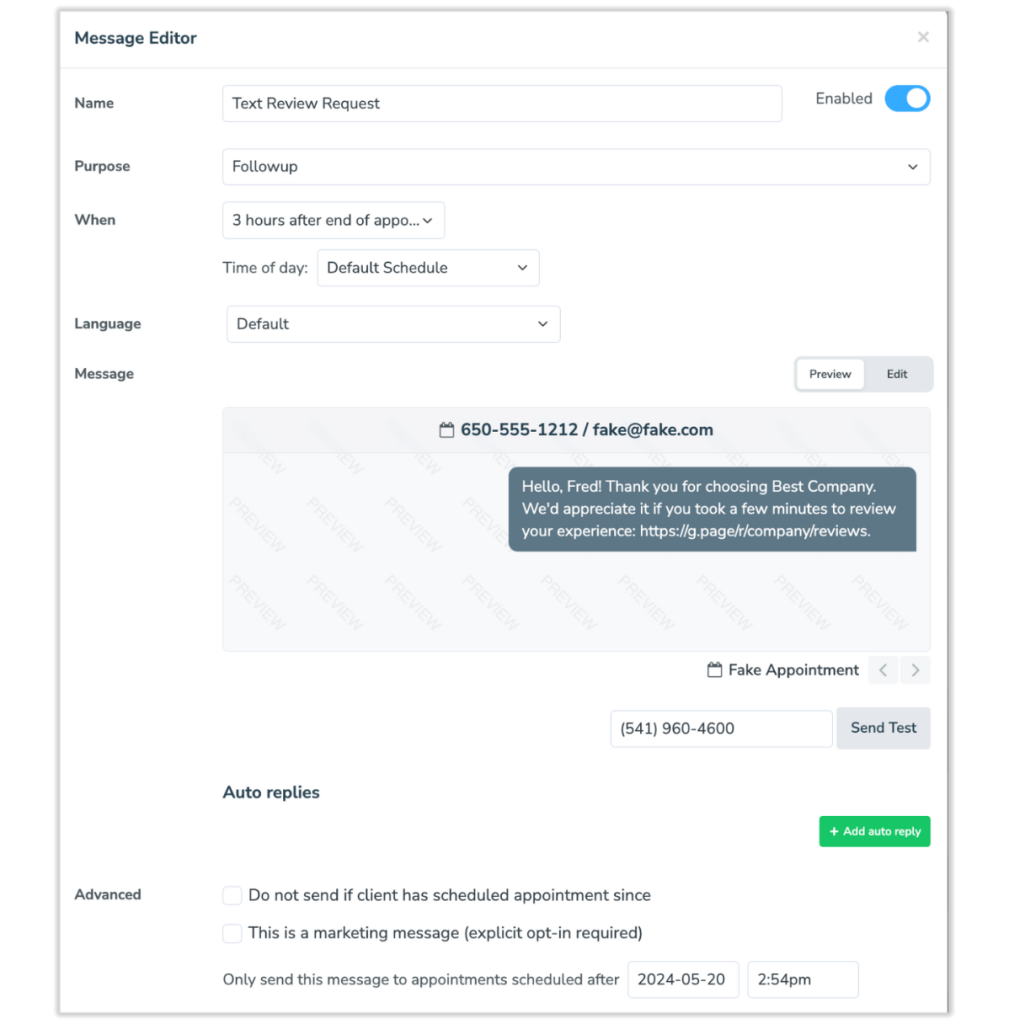
* These directions assume you have one Appointment Auto Message rule set up. If you have multiple rules, you can create a Follow-Up review request for each one, or a generic review request for all appointments.
Review Requests: Follow-up + Auto Replies
Sending follow-up messages with auto-replies is a great way to proactively collect reviews while ensuring customers’ feedback goes straight to your Inbox, so you can quickly address it.
This strategy uses a follow-up message asking the client to rate their experience. Based on their response, Apptoto will send an auto-reply. Positive scores can be sent a message asking them to leave a review, while negative scores can be directed to connect with customer support.
- Go back to step 6 above. Instead of moving on, click “+Add Auto Reply.”Under the Auto Replies section, click +Add auto reply.
- Set up rules for your Review Request responses, including what actions you want Apptoto to take based on what responses you receive. There will be a blue “Click_to_Edit” link you’ll need to select to adjust your Auto Reply messages.
- For example, if you’re using a 1-5 ranking system, you might consider setting up 5 auto-response rules as follows:
- If Reply is 1 then Reply > “We appreciate your feedback and thank you for your honest feedback that your experience did not meet your expectations. Please feel free to respond to this message directly to get assistance from a member of our team. You can also leave public feedback here: https://g.page/r/ABC123.”
- If Reply is 2 then Reply > “We appreciate your feedback and thank you for your honest feedback that your experience did not meet your expectations. Please feel free to respond to this message directly to get assistance from a member of our team. You can also leave public feedback here: https://g.page/r/ABC123.”
- If Reply is 3 then Reply > “Thank you for sharing your feedback with us. We appreciate you taking the time to let us know about your experience. If there’s anything we can do to help, please reply directly to this message and a member of our team will assist you. You can also leave public feedback here: https://g.page/r/ABC123“
- If Reply is 4 then Reply > “Thank you for your feedback! We’re so glad you had a positive experience and appreciate you taking the time to share it with us. If you’d like to leave a public review, you can do so here: https://g.page/r/ABC123“
- If Reply is 5 then Reply > “Thank you for your feedback! We’re so glad you had a positive experience and appreciate you taking the time to share it with us. If you’d like to leave a public review, you can do so here: https://g.page/r/ABC123“
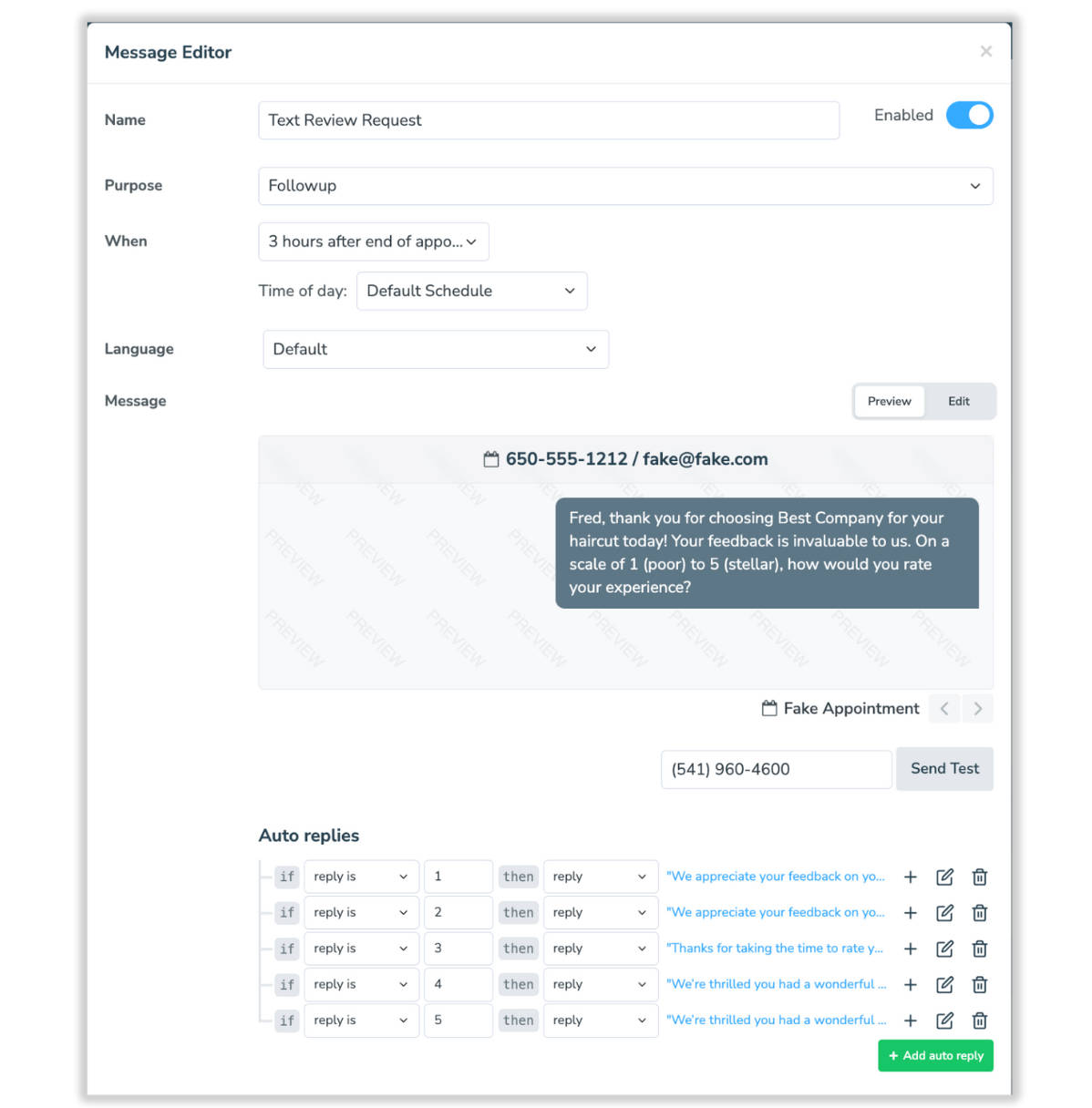
- For example, if you’re using a 1-5 ranking system, you might consider setting up 5 auto-response rules as follows:
- After you’ve added all the Auto Replies you want, adjust any remaining settings. Click “Done and Save.”
- On the Rules page, click “Save” again near the top right-hand corner.
Frequently Asked Questions About Client Reviews
The key is timing and tone. Send your review request within 1-2 hours of a positive appointment experience, keep the message brief (2-3 sentences), and make it clear that the review is optional. Phrases like “if you have a moment” and “we’d appreciate your feedback” perform better than “please leave us a review.” Automated requests sent via text message tend to feel less personal and therefore less pushy than in-person asks.
For SMS review requests, send 1-2 hours after the appointment, with the ideal delivery around 6 PM (41.4% higher engagement than noon). For email review requests, send within 24 hours, ideally between 5 AM and 10 AM.
Automated review request tools like Apptoto’s Reputation Management connect to your existing calendar and automatically send a review request message (via SMS or email) after each appointment, except for those marked no-shows or cancelled.
Respond promptly, professionally, and empathetically. Acknowledge the client’s frustration, apologize for the experience, and offer to take the conversation offline to resolve the issue. Never argue publicly. If the review contains blatant inaccuracies, you can appeal to the review platform to have it evaluated against its guidelines.
There’s no magic number, but research suggests that businesses with at least 10-15 recent reviews are viewed as significantly more trustworthy than those with fewer. Recency matters as much as volume: a business with 5 reviews from the past month outperforms one with 50 reviews that are all over a year old. Automated review collection through tools like Apptoto keeps a steady, recent stream flowing without manual effort.
Start Collecting More Client Reviews Today
Client reviews are one of the most powerful (and most underused) growth tools for appointment-based businesses. They build trust with prospective clients, improve your search visibility, and give you direct feedback on what’s working and what’s not.
The businesses that win at reviews aren’t just the ones with the best services. They’re the ones with a system. Apptoto’s Reputation Management tool gives you that system: automated review requests that go out after every appointment, smart routing that protects your public reputation, and a dashboard that tracks your progress across platforms. It has already helped businesses generate 3,500+ reviews, averaging 4.8 stars.
Ready to build a 5-star reputation on autopilot? Start your free 14-day trial or schedule a demo to see how Apptoto’s Reputation Management works for your business.