
Estimated reading time: 9 minutes
Ask Claude to write a reminder for tomorrow’s 9 a.m. appointment right now, and it will have one ready before you finish reading this paragraph. Ask it whether that client actually confirmed…crickets. Out of the box, it has no way to tell. Your calendar, the message a patient sent back at seven last night, the three people asking whether anything opens up Friday; But they all sit just out of Claude’s reach, in software Claude can’t open.
None of that is Claude falling short. It just has no way in. Yet.
Connect Claude to Apptoto, and the guessing stops. The assistant works from your real calendar instead of talking around it. It reads the replies sitting in your inbox, tells you who is still unconfirmed, and sends the text you were about to thumb out by hand once you say go. Setup runs about five minutes and involves zero code. We’ll walk you through the setup below, followed by the first things to ask so you can see how powerful it is from day one.
If the phrase MCP server means nothing to you yet, don’t worry about it. Our explainer on what MCP servers are can get you up to speed quickly. This post goes from learning about to doing.
Claude Connectors do the hard part for you
Not long ago, getting multiple tools to work together meant one of two things: a developer writing code against an API, or waiting for one company to build support for the other and hoping your tool made the cut. Either way, it was a project, and usually on someone else’s timeline. Connectors help do away with that.
With Claude, that project simplifies to just a few clicks in the settings menu. Its Connectors feature is built to link outside software to the assistant, so adding Apptoto takes a few clicks and a login. If Claude is already the app you keep open all day, you are most of the way there.
A connector is simply Claude’s name for a linked MCP server. Add Apptoto in once, and it rides along everywhere Claude runs: the browser, the desktop app, and Claude Code. Save it in a Claude Project, and every chat there already knows your setup, so you never have to re-explain who you are.
And nothing here locks you to Claude. That same Apptoto MCP server also works with ChatGPT, Gemini, and Codex, so you are not betting your front desk on a single vendor. We start with Claude for one reason: its connector flow is the fastest to stand up.
Connect Claude to Apptoto in five minutes
No code, plugin, or install. You paste one web address and sign in. There are two ways to do it, depending on how you use Claude, and you only need one.
In your browser, with Connectors
If you use Claude on the web, this is the path for you:
- Open Claude and go to Settings, then Connectors.
- Click Add custom connector.
- Paste this server address: https://api.apptoto.com/mcp
- Claude hands you off to Apptoto to sign in and approve what the assistant is allowed to do.
- Approve it, and the connector goes live.
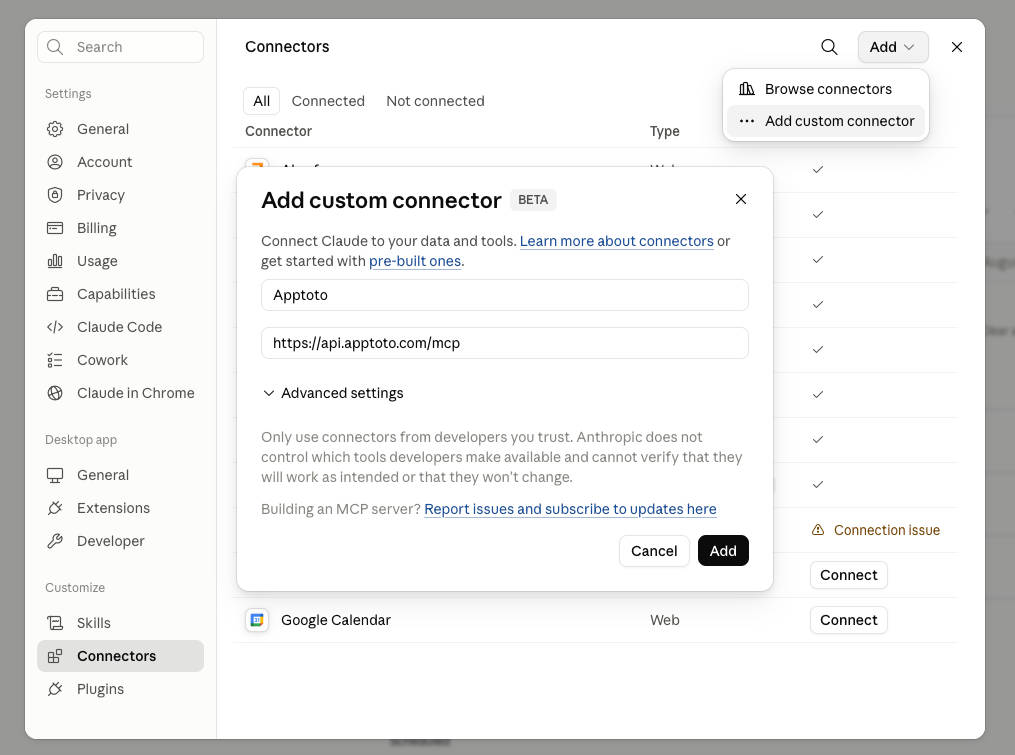
To prove it works, open a fresh chat and ask: “Check my Apptoto and tell me what appointments I have tomorrow?” If Claude reads your day back to you, you are connected.
In Claude Code, with one command
If your team works in Claude Code, skip the menus entirely. Run this in your terminal:
claude mcp add --transport http apptoto https://api.apptoto.com/mcp
A browser window opens; you sign in to Apptoto, approve the scopes, and the connection persists across subsequent sessions. Same address, same login, one line instead of five clicks.
What a connected day feels like
You do not need another tool that is easy to set up and easy to forget. You need one that gives you time back. So skip the feature list. Here is one office, three moments, one ordinary day.
8:10 a.m., coffee in hand: Before you have opened a single tab, you ask Claude: “Give me today’s schedule, flag anything still unconfirmed for tomorrow, and tell me which overnight messages actually need me.” It comes back with a short brief. You did not scroll your inbox or cross-check the calendar. You know exactly where the day stands before it even begins.
11:20 a.m., a 3 o’clock just canceled: An hour of your afternoon is suddenly empty, and empty hours do not pay the bills. You type: “My 3 p.m. canceled. Who has asked about availability this week, and can you offer them the slot?” Claude finds the candidates in your inbox, drafts the outreach, and holds it for your yes. You approve, it goes out, and you are back to your notes. This is not a small save. Around 62% of no-shows are simply due to clients forgetting, so the office that reaches the next person first keeps the revenue.
5:40 p.m., wrapping up: “Mark all of today’s appointments as ‘On Time, except for my original 3 p.m. Mark them canceled. Send a message to my 10 a.m. client reminding them they owe me additional paperwork.” Claude updates the attendance status of your appointments so your automated follow-up messages are triggered, then drafts a message for your 10 a.m. appointment for approval before sending it. The busywork that used to bleed past six is already done.
Claude doesn’t build a copy of your calendar. It simply updates the same appointments, reminders, and two-way conversations that Apptoto already runs. There is one system of record, so nothing drifts out of sync. Claude is the new front door. Apptoto is still the engine behind it.
Compare your day before and after Claude + Apptoto, and the benefits are obvious:
| Daily task | The old way | With Claude connected |
|---|---|---|
| Start-of-the-day schedule review | Review your calendar and inbox for | One prompt returns the schedule, the unconfirmed list, and the replies that need you |
| Fill a last-minute gap | Remember who wanted in, dig up numbers, text each one | Claude finds the candidates and drafts the offer for your OK |
| End-of-day follow-up | Determine which clients need follow-up and message them one by one, if you get to it | Ask Claude to draft follow-ups. It drafts them and asks you for your OK |
What Claude is allowed to touch
Handing an AI assistant the keys to your client records is not a small decision, and you should not make it lightly. So here is exactly what Claude can and cannot do, and who decides.
Every Apptoto action lands in one of two buckets. Some only look things up. Others send or change something. You approve which buckets Claude gets, and the ones that send always wait for your go.
| Look-up actions (read-only) | Send or change actions (need your approval each time) |
|---|---|
| Check open slots on your booking page | Book, reschedule, or cancel an appointment |
| Look up an appointment and its reminders | Send or schedule a text or email |
| List your calendars, contacts, and conversations | Add, update, or delete a contact |
| Read message threads with clients | Draft a message and reply to a text or email conversation |
| See who is confirmed, canceled, or a no-show | Mark a status or add a tag |
A few specifics that should settle any nerves. Your password never touches Claude. You sign in on Apptoto’s own page, and the assistant walks away with a limited access token for the scopes you approved, nothing more. Claude can see and change only what your own login can, so it never outranks you. And you can cut it off in seconds in Apptoto under Settings> Integrations > Developer Tools, or in Claude under Settings > Connectors.
For healthcare, legal, and financial offices, two more facts carry weight. Apptoto is SOC 2– and HIPAA-compliant, and you should flip off your assistant’s data-training opt-out before you connect, so your prompts stay out of the model’s training data.
Make working in Claude a habit, not a novelty
The connection is step one. The value of using a tool like Claude becomes clear when you use it consistently every day and see how much it impacts your day-to-day schedule and workflows. And that rests on two things: knowing what to ask and never having to re-explain yourself.
For the asking, keep a few openers within reach. Try these on day one:
- “Walk me through tomorrow and tell me what still needs confirming.”
- “Which clients haven’t been in for two months? Draft a friendly note to bring them back.”
- “Compare this week’s bookings to last week and flag anything odd.”
For the not-repeating-yourself part, use a skill file. A skill file is a short set of saved instructions Claude runs on its own, like an onboarding sheet for your assistant. Drop the Apptoto front-desk skill into a Claude Project or your Claude Code setup, and “run my morning check” pulls the schedule, surfaces the replies that need you, flags the gaps, and confirms before it sends a thing. It comes with a copy-paste prompt pack, so you are not staring at a blank chat wondering what to type.
To install the Apptoto Front Desk skill, download the zip file below. Then open Claude and navigate to Settings > Skills >Add > Upload a Skill, and drag the .zip file into the installer. Then test out the skill by asking Claude to “Run my Apptoto Front Desk Skill.”
Grab the free Apptoto front-desk skill file and prompt pack and put Claude to work the first morning you open it.
Where to start this week
If Claude and Apptoto are both already in your day, there is nothing to wait for. Connect it once, then wade in. Approve the look-up scopes first so Claude can read your calendar and messages. Leave the sending scopes off. Turn those on later, once you like how it behaves. You hold the controls the entire time.
Then hand over exactly one habit on day one. For most offices, that is the morning schedule check, because it is the task you do without fail every single day and the one Claude turns from a chore into a question.
See how the Apptoto MCP server works, or start a free trial and connect Claude to your calendar today.

—
Product Marketing Manager